Best Value Complete Financial Planning Bundle
✓ Financial Planning✓ Net Worth Tracker✓ Monthly Budgeting✓ Travel Budget Planner✓ Annual Budgeting Planner✓ Monthly Expense Tracker✓ Annual Tax Planner✓ Retirement Planning
View Bundle →

Instant digital delivery · Terms & Conditions apply

Essentials Template - Excel & Google Sheets

Essentials Annual Budget Planner Spreadsheet Template for Google Sheets & Excel

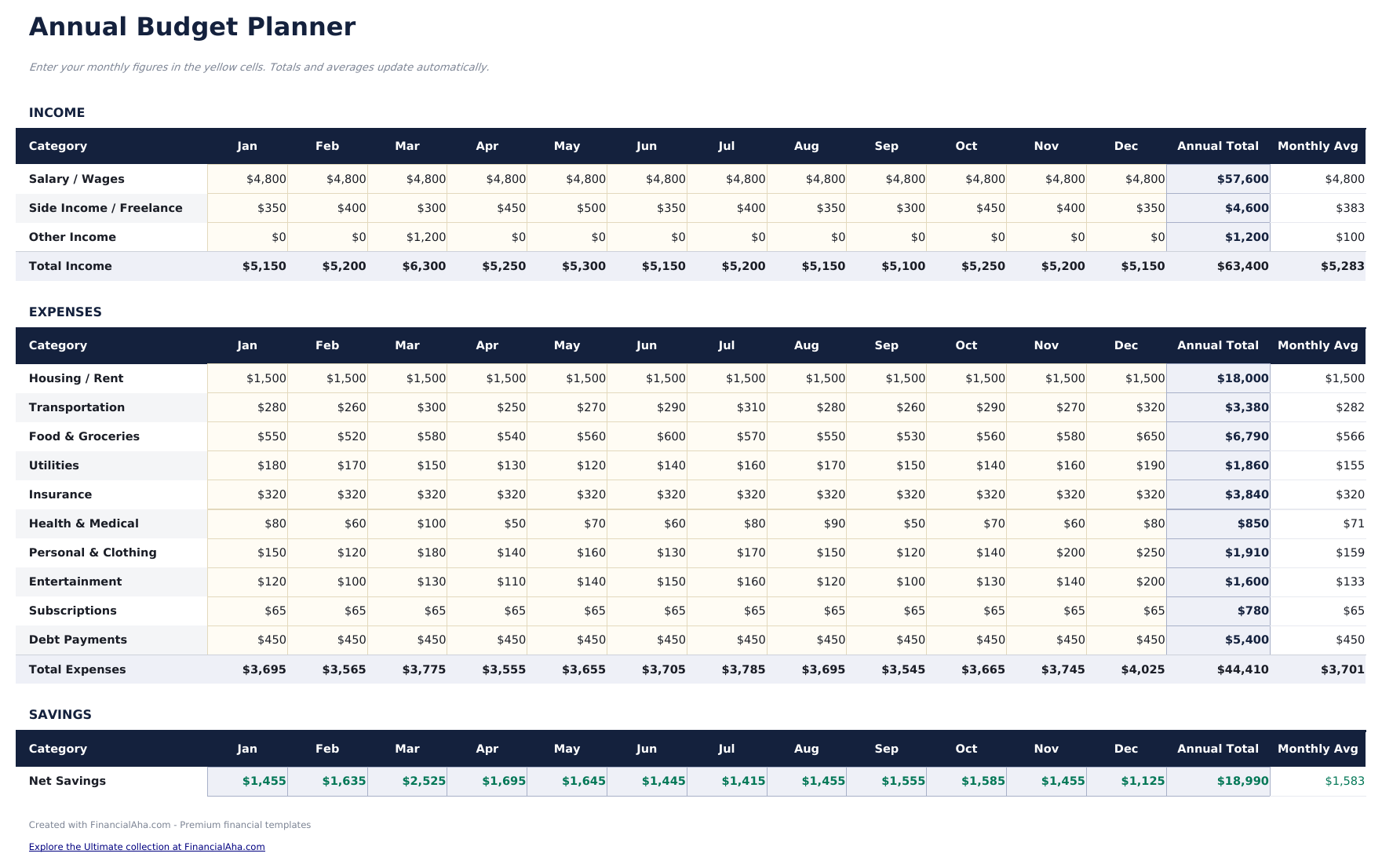
The same year spread across twelve monthly columns, with income and expenses in blocks of their own and each block carrying its own total. The Essentials Annual Budget Planner spreadsheet template works net savings out month by month, and puts an annual total and a monthly average on every line - the figure that tells you what a category really costs once a quiet month and an expensive one are averaged together. Thirteen lines, three working sheets. Google Sheets and Excel. No macros, no VBA.

Instant digital delivery · Terms & Conditions apply

Essentials Annual Budget Planner spreadsheet template - Google Sheets and Excel preview

What's Included

  • Twelve monthly columns across every line
  • An income block with a total of its own
  • An expenses block with a total of its own
  • A net savings row worked out month by month
  • An annual total and a monthly average on every line
  • Every figure positive - the blocks do the separating, not the sign
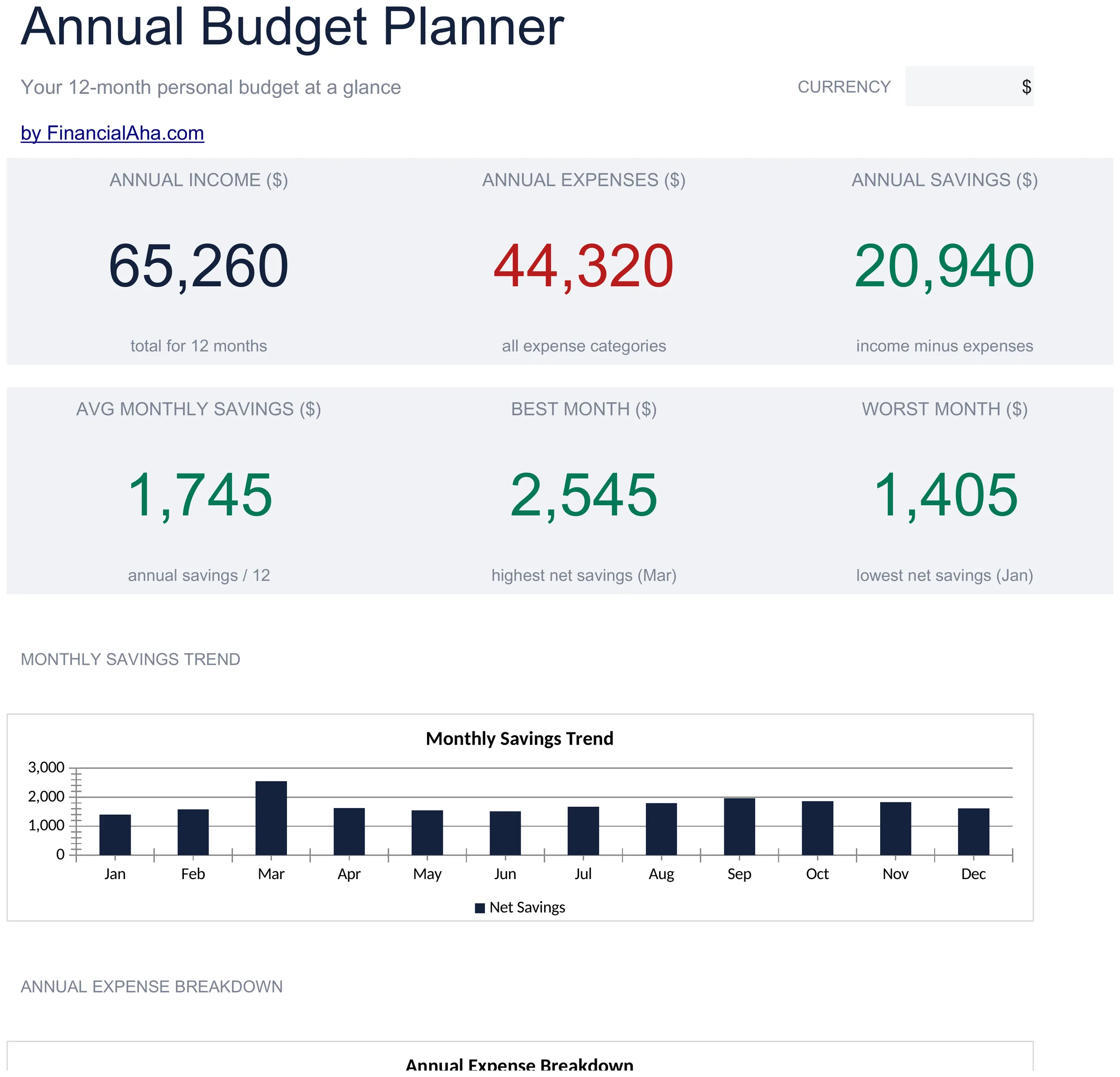
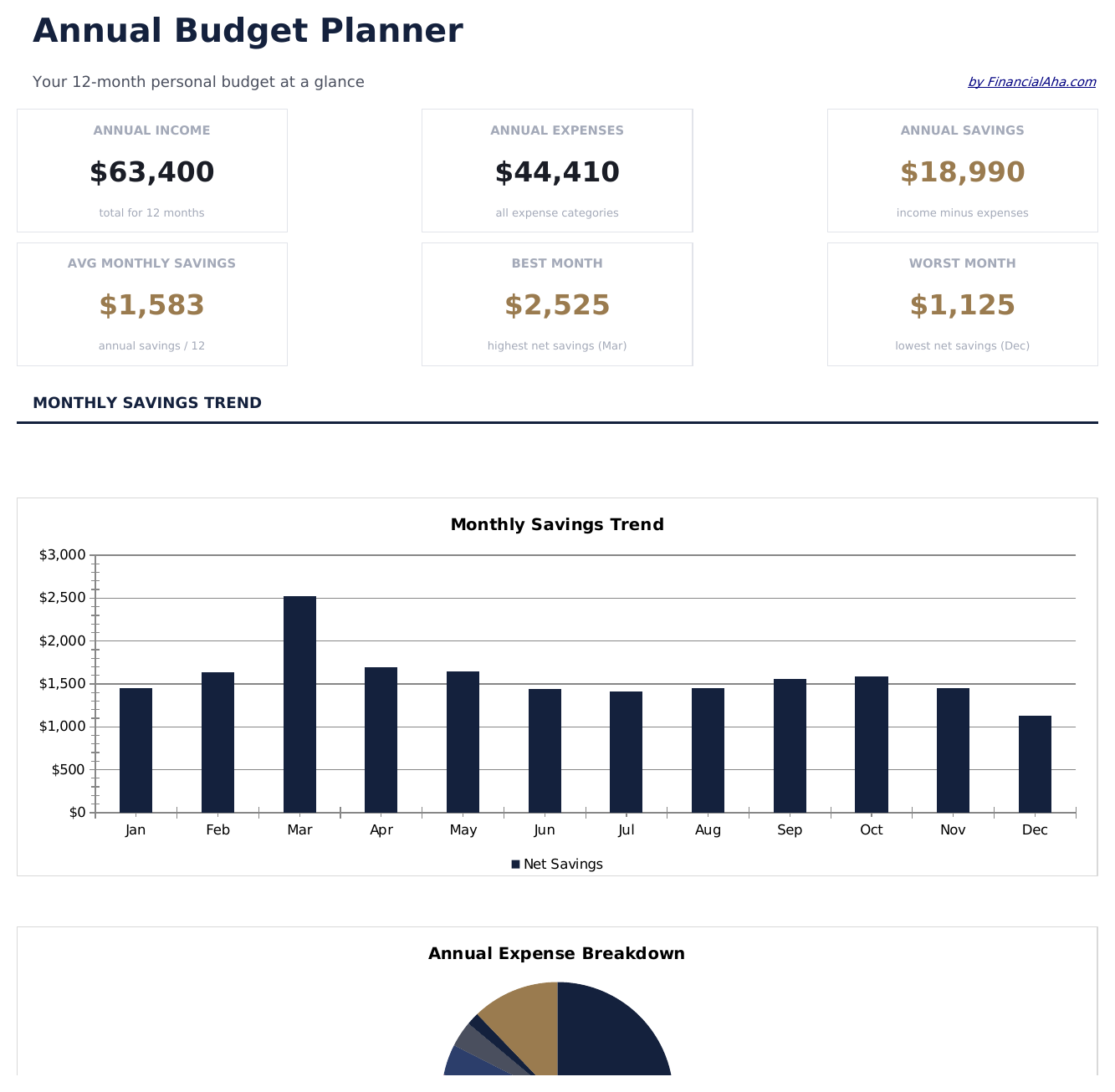
  • A dashboard with six headline figures, including the best and the worst month of the year
  • A bar chart of net savings by month and a pie chart of where the year's spending went
  • A currency dropdown that relabels the money columns across both sheets
  • Works in Microsoft Excel and Google Sheets with no setup required

The FinancialAha Essentials Annual Budget Planner Spreadsheet Template is a two-sheet workbook for Google Sheets and Excel, with a How to Use guide on a third tab. It works as an Essentials Annual Budget Planner Excel template and an Essentials Annual Budget Planner Google Sheets template from the same download. A year across twelve monthly columns, income and expenses in blocks of their own, and net savings worked out month by month. No macros, no VBA.

Inside the workbook

What's inside the FinancialAha Essentials Annual Budget Planner spreadsheet template

The FinancialAha Essentials Annual Budget Planner Spreadsheet Template runs on two working sheets, with the instructions on a tab of their own. It works in both Microsoft Excel and Google Sheets and here is what the Essentials Annual Budget Planner spreadsheet holds.

  1. 01 of 02

    Annual Budget

    Three blocks stacked on the same twelve columns. Income first - salary, side income, other - with a total. Then expenses, with a total of their own. Then a savings block carrying a single row: income less expenses, worked out for each of the twelve months. Separating income and expenses into blocks rather than distinguishing them by sign is what lets every figure on the sheet be a positive number. It reads more naturally, and it means a mistyped sign cannot silently turn a cost into income. Every line carries an annual total and a monthly average. The average is the column people underuse: it is what turns a lumpy line - a car service here, a dentist there - into a figure you can plan the next year against. It divides by twelve rather than by the months you have filled in, so it is a figure for a finished year and reads low on one still in progress. The net savings row month by month is the part an annual-total view cannot give you. A year that saves well overall can still have four months in the red, and those four months are where the borrowing happens.

  2. 02 of 02

    Dashboard

    Six figures read from the sheet beneath. Annual income, annual expenses and annual savings on the top row; the average month, the best month and the worst month on the second. The best and worst are picked out of the twelve net savings figures, so the shape of the year arrives without anyone scanning the row for it - which months carried the year, and which took from it. Beneath them, a bar chart of net savings month by month, and a pie chart splitting the year's spending across the expense lines.

  3. Included guide

    How to Use

    A step-by-step guide on its own tab, covering which block takes what, how the net savings row is built, and how to change the currency. Because it ships inside the file, the instructions travel with the template wherever it is opened.

Works in both Google Sheets and Excel

Essentials Annual Budget Planner Spreadsheet template for Google Sheets

Upload the Essentials Annual Budget Planner Spreadsheet Template to Drive, right-click it, and choose "Open with Google Sheets". This Essentials Annual Budget Planner Google Sheets template needs no conversion step and both charts come across intact.

Essentials Annual Budget Planner Google Sheets template setup

A shared copy of the Essentials Annual Budget Planner Google Sheets template suits a household where two people record different months, since the annual totals and averages follow whatever each of them enters.

Running the Essentials Annual Budget Planner Google Sheets template

The Essentials Annual Budget Planner Google Sheet is filled in a month at a time. The monthly average is what makes the next year's plan something better than a guess.

Essentials Annual Budget Planner Spreadsheet template for Excel

The Essentials Annual Budget Planner spreadsheet Excel download is a plain .xlsx. Excel opens this Essentials Annual Budget Planner Excel template directly, with no import step, and both charts are native Excel charts. There are no macros and no VBA in the file.

Essentials Annual Budget Planner Excel template setup

The same Essentials Annual Budget Planner Excel template opens in Excel on Windows, Excel on Mac, and Excel for the web. It is also the identical file you would upload to Drive, so there is no separate Essentials Annual Budget Planner spreadsheet download to choose between.

Essentials Annual Budget Planner spreadsheet template notes for Excel

The Essentials Annual Budget Planner spreadsheet Excel file carries no macros and no VBA, so Excel opens it without a trust prompt.

Opening the Essentials Annual Budget Planner spreadsheet Excel file

Nothing in the Essentials Annual Budget Planner Excel template is version-specific, so this Essentials Annual Budget Planner spreadsheet Excel workbook behaves identically in Excel on Windows, Excel on Mac, and older builds.

Spreadsheet template highlights

What the Essentials Annual Budget Planner spreadsheet template tracks

Every block uses the same columns. This is what a line records:

Category
the income source or the cost, named the way you would describe it
Jan
that month's figure, typed, and the same again for every month across
Annual Total auto
derived across the twelve months
Monthly Avg
the annual total divided by twelve, which is what a lumpy line plans against

Compare builds

FinancialAha Annual Budget Planner spreadsheet template: Free and Essentials compared

Feature Free View Spreadsheet Template Essentials This page
Working sheets 1 2
Grain Annual totals Twelve months
Rows 16 5 income + 13 expenses
Income and expenses kept in separate blocks Yes
Monthly average per line Yes
Net savings row Yes, month by month
Charts 2

The Free Annual Budget Planner Spreadsheet Template covers a year in annual totals on one page, with income positive and costs negative. The FinancialAha Essentials Annual Budget Planner Spreadsheet Template spreads the same year across twelve monthly columns, keeps income and expenses in blocks of their own with a total each, works out a monthly average per line, and carries a net savings row month by month plus a dashboard with two charts.

Good to know

Notes on working in the Essentials Annual Budget Planner spreadsheet template

  • Blocks rather than signs is what keeps every figure on the sheet positive.
  • The monthly average is what turns a lumpy line into something the next year can be planned against.
  • The net savings row is monthly, which is where a year that saves well overall can still show four months in the red.
  • Those months are where borrowing tends to start, and an annual total cannot show them.
  • The totals read whatever months are filled in, but the averages always divide by twelve. Half a year of figures gives a monthly average about half of what the months so far actually cost.
  • The best and worst month are picked from the net savings row, so they move as the year fills in.
  • The currency dropdown on the dashboard relabels the money columns across both sheets. It changes the label only and does not convert the numbers.

How to Use the Essentials Annual Budget Planner Spreadsheet Template

1

Fill the income block

Three lines, month by month.

2

Fill the expenses block

Name the expense lines on the same twelve columns.

3

Read net savings

Income less expenses, for each month.

4

Check the averages

What each line costs in an average month.

Stress-tested with AI.

Every template starts with deep research into how people actually track the topic. We design the layout, build the formulas, and polish the design until it feels like something we would use ourselves. Along the way, we use AI to stress-test the calculations: unusual inputs, edge cases, and formula behavior, checked until the numbers hold.

Instant digital delivery · Terms & Conditions apply

Frequently Asked Questions

Is the FinancialAha Essentials Annual Budget Planner Spreadsheet Template a Google Sheets template?

Yes. Upload the file to Drive and choose "Open with Google Sheets". The Essentials Annual Budget Planner Google Sheets template needs no conversion step and both charts come across intact.

Is the FinancialAha Essentials Annual Budget Planner Spreadsheet Template an Excel template?

Yes. The download is a plain .xlsx, so the Essentials Annual Budget Planner Excel template opens directly in Excel with no import step, and both charts are native Excel charts.

Will the FinancialAha Essentials Annual Budget Planner spreadsheet Excel file open in older versions of Excel?

Yes. The Essentials Annual Budget Planner spreadsheet Excel workbook ships as a plain .xlsx, so it opens identically in current Excel and in builds that predate dynamic arrays.

Do I enter costs as negative numbers here?

No. Income and expenses sit in blocks of their own, so every figure on the sheet is positive and a mistyped sign cannot quietly turn a cost into income.

What is the monthly average column for?

Turning a lumpy line into something you can plan against. A car service in one month and a dentist in another are hard to budget from; the average across the year is not. It divides the annual total by twelve every time rather than by the months you have filled in, so it reads as intended on a finished year and reads low on one still filling up.

Why is net savings worked out per month?

Because a year that saves well overall can still have four months in the red, and those are the months where the borrowing happens. An annual total cannot show them.

Can I add lines to the Essentials Annual Budget Planner spreadsheet?

Income and expenses sit in blocks of their own, each line running across twelve months. Right-click a row inside a block and choose Insert - the monthly and annual totals expand to include it. The Free build works in annual totals rather than months.

Does the FinancialAha Essentials Annual Budget Planner spreadsheet compare the plan to what happened?

It records what happened month by month and totals it. It does not hold a separate planned column beside the actual one - the Free build is the one laid out that way.

How do I open the Essentials Annual Budget Planner spreadsheet template in Google Sheets?

Upload the .xlsx file to Google Drive, then open it with Google Sheets. All formulas and formatting will be preserved.

More Essentials Personal Budgeting Templates

Essentials

Highlights:

Dashboard with charts and KPIs
Pre-filled categories and sample data
No sign-up, no subscription
Lifetime free updates
Works in
Excel Google Sheets

Looking for premium spreadsheet templates?

Our paid templates include advanced multi-sheet dashboards, native Excel charts, and ongoing updates.

Private & secure

Your financial data stays on your device. We never see it.

Learn more →

Need help?

Check our guides or reach out with questions.

View FAQ →