
Switch a budget template when it is actively getting in your way, when you have stopped opening it, when you are working around it, or when it no longer fits your income or goals, rather than just for a change. The lower-risk method is a one-month parallel run while the old file and its history stay intact. Match the replacement to your stage: simple tracking, planned-versus-actual budgeting, or a full-year view.
The budget template that worked when you started might not work forever. Life changes, needs evolve, and sometimes the tool itself becomes the problem. The question is telling the difference between a template that has genuinely stopped fitting and a rough patch that any system would hit.
Signs Your Template Isn’t Working
Behavioral Signs
- You’ve stopped using it. Weeks pass without touching your budget.
- You dread opening it. Budgeting shouldn’t cause anxiety.
- You’re working around it. Creating manual calculations because the template doesn’t handle your needs.
- You can’t find what you need. Spending more time searching than analyzing.
Functional Signs
- Too complex for your needs - features you never use cluttering the interface.
- Too simple for your situation - missing categories or tracking methods you need.
- Breaking or buggy - formulas not working, data corruption.
- Platform problems - wrong software, mobile access issues.
Life Change Signs
- Income changed - variable income needs different tracking than a steady salary.
- Family size changed - more people, more complexity.
- Financial goals evolved - debt payoff to wealth building requires different focus.
- Time constraints changed - less time means simpler systems work better.
When NOT to Switch
- You’re in crisis. During a financial emergency, a familiar system usually beats learning a new one.
- You haven’t given it time. New systems take two to three months to evaluate fairly.
- The issue is behavior, not tool. A new template won’t fix a consistency problem on its own. Budget burnout has its own signs, and simplifying often helps more than switching.
- You’re searching for perfect. Good enough and consistent tends to beat perfect and abandoned.
The Transition Process
Step 1: Document Current State
Export/save current data, note current totals, screenshot useful setups, list what works and what doesn’t.
Step 2: Parallel Run
One approach is using both systems for a month - enter data in both, compare results, identify gaps in the new system.
Step 3: Full Migration
Transfer historical data if needed, set up new system completely, archive old system.
Step 4: Evaluation Period
Use the new system exclusively for 2 months. Is it actually better? What adjustments are needed?
Migrating Historical Data
Essential: Current account balances, current budget amounts, running totals (debt payoff progress, savings goals).
Helpful: Last 3-12 months of spending data, historical net worth figures.
Methods: Manual entry for small amounts, copy-paste when formats are similar, CSV export/import for large datasets.
The step that trips people up is pasting formulas from the old file straight into the new one, which either overwrites the new template’s own calculations or drags in references to cells that no longer exist. Moving values instead sidesteps it. In Google Sheets, copy the range from the old file, then in the new file use Edit, Paste special, Values only (Ctrl+Shift+V), so amounts arrive as plain numbers and the destination formulas stay intact. Excel offers the same thing under Paste Special, Values.
For a larger export, save the old data as a CSV, open the new template, and use File, Import, Insert new sheet so the raw rows sit on their own tab without disturbing the dashboard. From there, map the old category names to the new ones once. Category labels rarely match exactly when the old file came from somewhere else, and a single find-and-replace pass on the imported tab is faster than fixing mismatches later. The exception is moving between our Monthly Expense Tracker and Monthly Budget Template, which carry the same expense, income and savings category lists, so transactions paste across without remapping. One thing that does not travel between files is charts: they rebuild automatically once the underlying data is in place, so there is nothing to copy across for those.
Template Recommendations by Situation
Just starting out - need simple, low friction, forgiving of inconsistency. Worth considering: Monthly Expense Tracker
Ready for more structure - need budget targets, comparison to actual, goal tracking in the same file. Worth considering: Monthly Budget Template
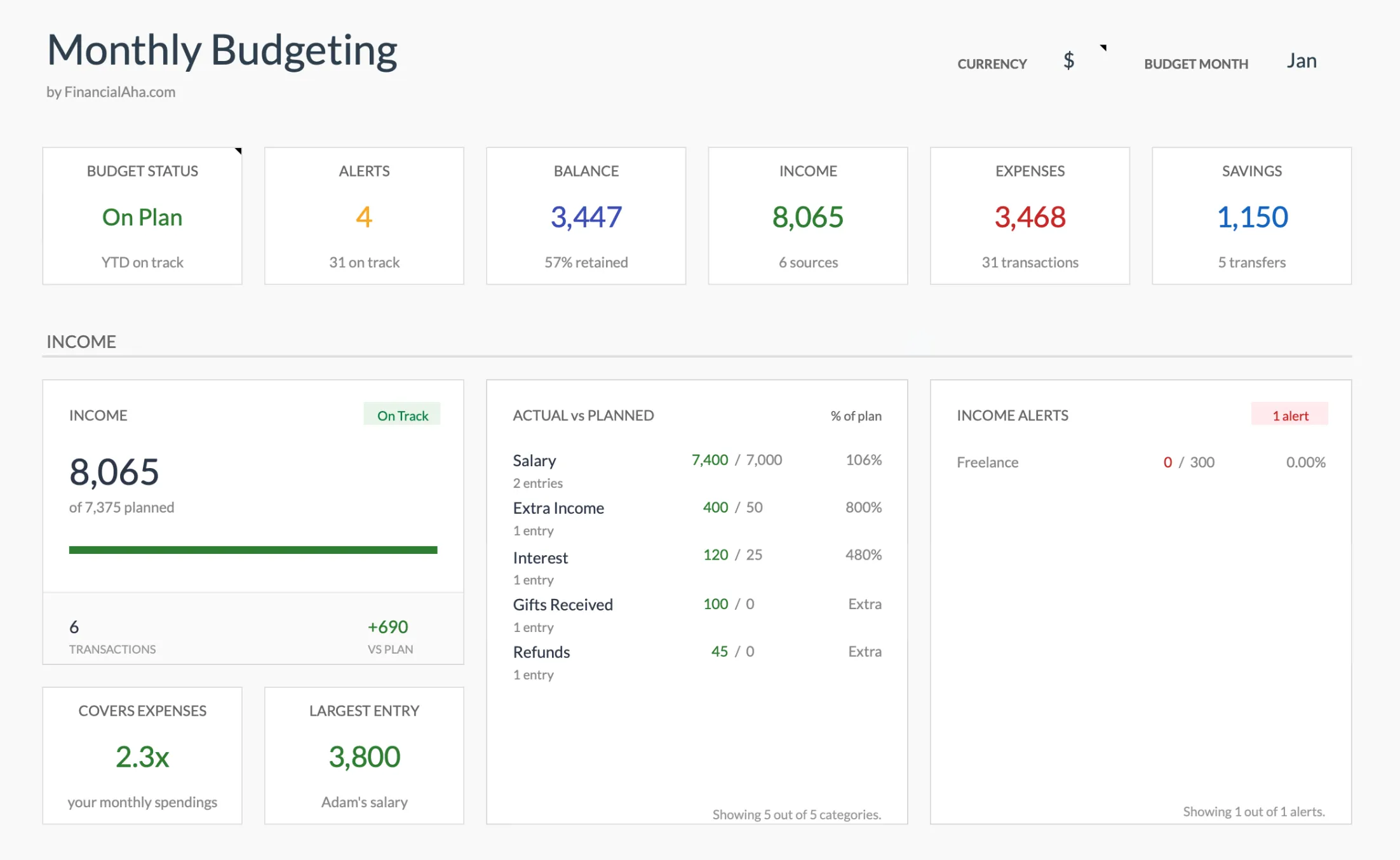 The Monthly Budget Template (Premium tier) adds the planned-versus-actual view that a plain tracker leaves out, which is the gap most people hit when they outgrow simple tracking. If you are unsure which level fits, the expense tracker versus budget template comparison walks through the difference.
Planning long-term - need a full-year view month by month, seasonal planning, annual goals. Worth considering: Annual Budget Template (the monthly versus annual budget comparison covers when the year-long view earns its place)
Tracking net worth - need asset and liability tracking, historical progress. Worth considering: Net Worth Tracker
Common Transition Mistakes
- Switching too often - template hopping prevents building habits. Worth committing for at least 3 months.
- Over-customizing immediately - some people find it helpful to use a template as-is for a month first.
- Losing historical data - worth preserving old data before switching.
- Expecting magic - a new template doesn’t automatically fix budgeting problems.
Template Evolution Path
Stage 1: Awareness. Simple expense tracking. Learn where money goes. One option: Monthly Expense Tracker
Stage 2: Planning. Budget with targets. Compare actual to planned. One option: Monthly Budget Template
Stage 3: Optimization. Annual view, goal integration, more sophistication. One option: Annual Budget Template + Net Worth Tracker
Stage 4: Simplification (often). Many people realize complexity isn’t needed and return to a simpler system. Use whatever keeps you consistent.
Not everyone climbs the whole path, and that is the point: the right template is the one that matches where you are now, not the most capable one on the list. If a switch is on the table, the decision usually comes down to which stage fits, so the guide to which financial template to start with is a good place to settle that before you move any data.
Related
- Which Financial Template to Start With - Match a template to your stage
- Expense Tracker vs Budget Template - Where the two diverge
- Free vs Paid Budget Templates - When paying is worth it
- Budget Burnout: Signs You Need to Simplify - When the fix is simplifying, not switching
- Monthly Budget Template - Planned versus actual structure
- Annual Budget Template - Full-year view
Frequently asked questions
Will switching templates break my formulas or charts?
Only if you paste formulas from the old file into the new one. Moving values instead avoids it: in Google Sheets, copy the cells then use Edit, Paste special, Values only, so figures land as plain numbers and the new template's own formulas keep working. Charts do not transfer between files; the new template rebuilds them from the data you bring in.
How often is it reasonable to switch templates?
Most systems need two to three months before it is clear whether they fit, so switching more than about once a year usually means a system never got a fair trial. A clear defect, like broken formulas or a missing category you cannot add, is a different situation.
Can I move only some of my history instead of all of it?
Yes. Running totals that must stay accurate (debt payoff progress, savings-goal balances) are the part worth carrying over exactly. Older month-by-month spending is reference data, so some people bring the last three to twelve months and archive the rest in the old file.
Is a paid template worth it over a free one?
It depends on what is going wrong. If a free template is frustrating because of a specific gap, like no planned-versus-actual view or no year-long rollup, a paid template that closes that gap can be worth a one-time cost. If the sticking point is consistency rather than features, a new file rarely changes it.
About this article
Template positioning and features checked on 2026-09-10 against the shipped Monthly Expense Tracker, Monthly Budgeting and Annual Budgeting Planner Google Sheets (Summary, Budget Plan, Annual Plan, Goals and Categories tabs). Migration steps checked against Google Sheets Paste special and CSV import behavior. Last reviewed September 2026.