
Google Sheets is free and wins on collaboration, mobile, and cross-device access. Excel costs about $100/year for Microsoft 365 Personal but wins on offline use, local-file privacy, and heavy-data power features. For most personal budgets, Google Sheets is the simpler starting point. This side-by-side compares cost, formulas, offline access, and privacy so you can pick the one that fits how you work.
Both handle budgeting well. The question isn’t which is better overall - it’s which fits how you work.
Where our templates run. The two budgeting templates in this article are Google Sheets files. Copy one to your Drive and the data stays in your Google account. Most of the rest of our spreadsheet templates ship as .xlsx files that open in both Excel and Google Sheets, so the platform you pick here does not shut you out of the catalog.
Quick Comparison
| Feature | Google Sheets | Excel |
|---|---|---|
| Cost | Free | ~$100/year (Microsoft 365) |
| Access | Any browser, any device | Desktop app + web version |
| Collaboration | Real-time, built-in | Via OneDrive, less fluid |
| Offline | Limited (needs setup) | Full offline support |
| Formulas | All essentials + GOOGLEFINANCE | Larger library + Power Query |
| Mobile | Strong native apps | Functional but heavier |
| Privacy | Cloud-stored (Google servers) | Local files possible |
| Templates | Many free options available | Included with Microsoft 365 |
| Auto-save | Always, automatic | Manual or via OneDrive |
| Learning curve | Lower | Slightly higher |
Cost
The most obvious difference. Google Sheets is completely free with any Google account - no limitations on features or file size for typical use. Excel is bundled with Microsoft 365 Personal, which now costs $99.99/year (up from $69.99 after Microsoft’s 2025 increase). There’s a free web version with a trimmed-down feature set, and Excel also ships as a one-time Office Home 2024 purchase ($179.99) that skips the subscription but leaves out cloud and AI features.
If cost matters, and for most people creating a personal budget it does, free is compelling. But if you’re already paying for Microsoft 365 for work or other reasons, Excel costs nothing extra.
Worth noting: free budget templates are widely available for both platforms. The templates themselves often matter more than the app you use to open them.
Accessibility and Device Flexibility
Google Sheets works in any browser, has native apps for iOS and Android, saves automatically to the cloud, and is accessible from any device. Log in anywhere and your budget is there. No software to install, no files to sync.
Excel has a desktop application, web version, and mobile apps. Files can be stored locally or in OneDrive. The desktop app is the full-powered experience - the web and mobile versions have fewer features.
For budgeting specifically, this matters more than you might think. Logging an expense at the grocery store is easier when your budget opens instantly on your phone. Google Sheets handles this smoothly. Excel mobile works, but the desktop-first design shows.
Collaboration
This is where differences really show.
Google Sheets offers real-time multi-user editing. You see collaborators’ cursors moving in real time. Built-in commenting works smoothly. Sharing happens via a simple link with granular permissions (view, comment, or edit access).
Excel has co-authoring available via OneDrive, but it feels less fluid for real-time joint editing. Desktop Excel can have sync conflicts when two people edit simultaneously.
If you budget with a partner or need to share with an accountant, Google Sheets’ collaboration is noticeably better. For solo budgeting, this difference doesn’t matter.
Formulas and Functions
Excel has the edge on raw power - a more extensive formula library, Power Query for data manipulation, advanced PivotTables, and better performance with very large datasets (100,000+ rows).
Google Sheets has all essential formulas working identically. It also offers unique advantages:
- GOOGLEFINANCE pulls live stock prices, currency exchange rates, and market data directly into your spreadsheet
- QUERY function is powerful for filtering and analyzing transaction data
- IMPORTRANGE lets you pull data between spreadsheets - useful for separating monthly budgets while keeping an annual overview
For personal budgeting, both have everything you need. You’re tracking dozens or hundreds of transactions, not millions of rows. Excel’s extra power rarely matters here.
Offline Access
Excel’s desktop app works fully offline with no setup required. Open the file, work on it, save when done. This is Excel’s clearest advantage.
Google Sheets has offline mode available through Chrome, but it requires setup before you lose your internet connection. You need to enable offline access in advance, and it only works in Chrome.
If you frequently budget on flights, during commutes without signal, or anywhere with unreliable internet - Excel is more reliable for offline work.
Mobile Experience
Both have mobile apps, but the experience differs.
Google Sheets on mobile feels like a natural extension of the web version. It’s lightweight, loads quickly, and makes it easy to view or update a budget on the go. Adding a quick transaction takes seconds.
Excel on mobile is functional but heavier. It’s designed to bring the desktop experience to a smaller screen, which sometimes means more complexity than you need for a quick budget update.
For people who primarily update their budget from a phone or tablet, Google Sheets has the edge.
Privacy and Data Storage
This consideration depends on your setup.
Excel with local files keeps data on your device. You control it completely. No company servers involved. This is the most private option for financial data.
Google Sheets stores data on Google’s servers, encrypted and protected by their security infrastructure. You trust Google with your data - the same way you might with Gmail or Google Drive.
Excel Online stores data on Microsoft’s servers, subject to Microsoft’s privacy policies.
For maximum privacy with financial data, Excel with local-only files keeps everything off third-party servers. For most people, both cloud options offer strong security with the convenience of access from anywhere.
Templates and Budget Resources
Both platforms have extensive template libraries.
Google Sheets benefits from a large community of free template creators. Budget templates range from simple monthly trackers to detailed annual planners. Templates shared via Google Sheets are easy to copy and start using immediately.
Excel includes built-in templates with Microsoft 365 and has a long history of budget templates available online. Many professional and enterprise templates are built for Excel first.
Template recommendation: The Monthly Budget Template works in Google Sheets and includes automated calculations, spending categories, and visual dashboards - ready to use in minutes.
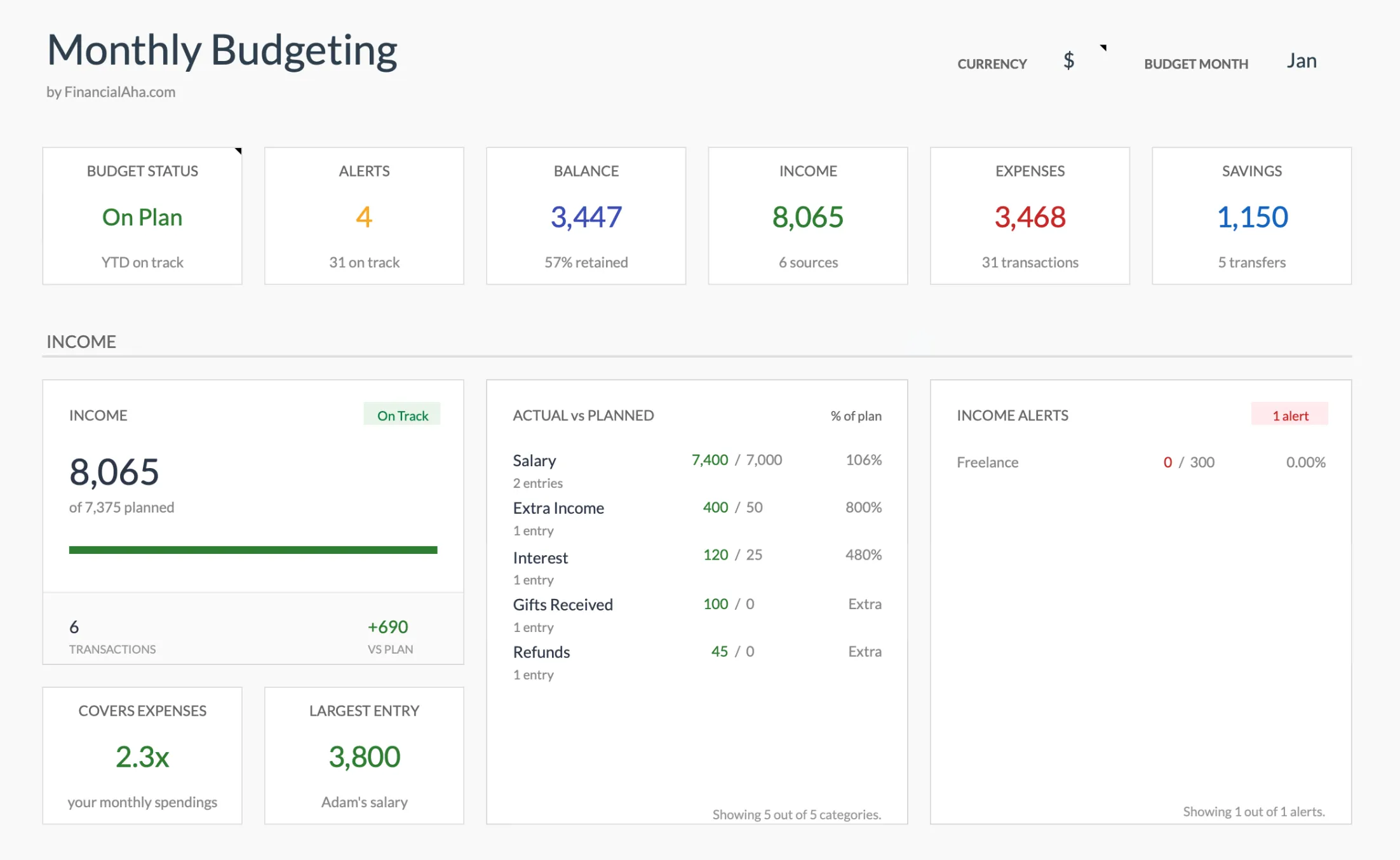 The Monthly Budget Template (Premium tier) runs entirely in Google Sheets - the summary dashboard updates automatically as you log income and expenses.
When to Choose Google Sheets
Google Sheets tends to work better when you:
- Want a free solution with no compromises
- Budget with a partner and need real-time collaboration
- Access your budget from multiple devices (phone, work computer, tablet)
- Prefer automatic cloud saves without thinking about file management
- Use other Google Workspace tools
- Want to use GOOGLEFINANCE for investment tracking alongside your budget
When to Choose Excel
Excel tends to work better when you:
- Already pay for Microsoft 365
- Need to work offline frequently
- Want maximum privacy with local-only file storage
- Use advanced features like Power Query or complex PivotTables
- Work in a professional environment that standardizes on Excel
- Handle very large datasets (thousands of transactions per month)
Can You Switch Between Them?
Yes. Both import the other’s files. Google Sheets opens .xlsx files directly, and you can download any Google Sheet as an .xlsx file.
Some things to watch for when switching:
- Formatting: Most formatting transfers cleanly, but conditional formatting rules sometimes need adjustment
- Formulas: Core formulas (SUM, IF, VLOOKUP) work identically. Platform-specific functions (GOOGLEFINANCE, Power Query) don’t transfer
- Macros: VBA macros (Excel) and Apps Script (Google Sheets) are not compatible
- Charts: Usually transfer, but may need minor tweaks
For a standard budget spreadsheet, switching is straightforward.
The Honest Take
For most personal budgeting, Google Sheets wins on cost, collaboration, and device flexibility. Excel wins on power features, offline reliability, and local storage.
Either handles income tracking, expense categories, and savings goals just fine. Choose based on what actually matters for how you’ll use it - not abstract feature comparisons.
If you’re starting fresh with no strong preference, Google Sheets is the easier starting point. It’s free, requires no installation, and handles everything a personal budget needs.
Deep Dives by Use Case
This article covers the broad comparison. For specific financial tasks, each comparison below goes deeper into what matters most for that use case:
- Google Sheets vs Excel for Family Budgeting - How collaboration, mobile logging, and different money habits play out when two people share a budget
- Google Sheets vs Excel for Net Worth Tracking - Why the platform choice matters more the longer you track, and how each handles multi-year data
- Google Sheets vs Excel for Investment Tracking - GOOGLEFINANCE vs STOCKHISTORY, live data feeds, and why most DIY trackers fail
- Google Sheets vs Excel for Retirement Planning - Scenario modeling, Monte Carlo simulations, and age-based progression
- Google Sheets vs Excel for Tax Planning - Tax year lifecycle management, from January setup through April filing
- Google Sheets vs Excel for Business Cash Flow - Three business personas (freelancer, small business, seasonal) and how each platform serves them
Related
- Google Sheets Formulas for Budgeting
- Google Sheets vs Notion for Personal Finance - The other tool comparison, when the alternative is a workspace rather than Excel
- Budget Spreadsheets vs Apps
- How to Create an Annual Budget in Google Sheets
- Annual Budget Template
- Monthly Budget Template
Frequently asked questions
Is Google Sheets good enough for complex budgets?
Yes. Google Sheets handles multi-category budgets, annual planning, investment tracking, and debt payoff calculations without issues. The limits of Google Sheets rarely matter for personal finance.
Which is more secure for financial data - Google Sheets or Excel?
For maximum security, Excel with local-only storage keeps data entirely on your device. Both cloud options (Google Sheets and Excel Online) use strong encryption and enterprise-grade security. The practical risk difference is minimal for personal budgets.
Can I switch from Excel to Google Sheets (or vice versa)?
Yes. Both import the other's files. Google Sheets opens .xlsx files directly, and you can download any Google Sheet as .xlsx. Core formulas transfer cleanly, but platform-specific features like VBA macros or GOOGLEFINANCE won't convert.
Is Google Sheets or Excel better for budgeting with a partner?
Google Sheets is better for shared budgeting. It offers real-time multi-user editing, built-in commenting, and simple link-based sharing. Excel has co-authoring via OneDrive, but real-time collaboration feels less fluid.
What about Apple Numbers for budgeting?
Apple Numbers works for basic budgeting but has fewer features, fewer available templates, and less compatibility with shared files. For sharing or finding templates, Google Sheets or Excel have more options.
Does Excel's free web version work for budgeting?
It can. Excel for the web is free with a Microsoft account and opens .xlsx files in a browser, so a budget template will run in it. It has fewer features than the desktop app - no full Power Query, limited macros, and lighter data handling - but for a standard monthly budget it covers the essentials without the Microsoft 365 subscription.
Which handles many years of budget data better?
Excel has more headroom for very large sheets, with a roughly one-million-row ceiling and stronger performance on heavy datasets. Google Sheets caps a workbook at ten million cells. Both are far beyond what a personal budget needs, so for years of monthly transactions the difference rarely shows up in practice.
Sources
- Compare All Microsoft 365 Plans - Microsoft
- Google Sheets: Online Spreadsheet Editor - Google
About this article
Pricing checked against Microsoft's official Microsoft 365 plan comparison and Google's Google Sheets product page Screenshot taken from the FinancialAha Monthly Budget Template (Premium tier); template compatibility and Summary sheet checked on 2026-09-10 against the shipped Monthly Budgeting and Annual Budgeting Planner Google Sheets Last reviewed September 2026.