
For personal finance, Google Sheets wins on calculation - budgets that flag overspending, savings projections, charts, and formulas that do the math for you. Notion wins on organization - databases, dashboards, and goals that sit alongside the rest of your planning. Most people track the numbers in Sheets and reach for Notion only when they want context around them.
Google Sheets and Notion both show up in personal finance conversations, but they are fundamentally different tools. Choosing between them for managing money comes down to what kind of work your finances actually require.
One is a spreadsheet. The other is a workspace. That distinction matters more than it might seem.
The Core Difference
Google Sheets is a spreadsheet - built for numbers, formulas, and calculations. It can add up your expenses, calculate budget variances, project savings growth over time, generate charts, and handle complex financial math automatically.
Notion is a workspace with databases, pages, and flexible content blocks. It excels at organizing information, creating dashboards, tracking tasks, and building systems that combine different types of content. It has basic math capabilities within databases, but it is not a spreadsheet.
For personal finance, this means Google Sheets is stronger when you need the numbers to do the thinking. Notion is stronger when you need to organize the context around those numbers.
Budgeting
Google Sheets handles budgeting naturally. Set up income rows, expense categories, and formulas that calculate totals, remaining budget, and percentage spent. Conditional formatting can highlight when categories are over budget. Charts update automatically as you enter transactions.
The math just works. If you enter $500 in groceries against a $400 budget, the spreadsheet shows you the $100 overage immediately and can adjust related calculations throughout the sheet.
Notion can track a budget using database properties - category, amount, date, notes. You can create views that filter by category or time period, and rollup properties can calculate totals. But the experience is more manual. There is no conditional formatting to flag overspending, no automatic chart generation, and complex calculations (like “how much is left in this category after accounting for pending transactions”) require workarounds.
For straightforward budget tracking with automatic calculations, Google Sheets has a clear advantage. This is what that looks like in practice - a spreadsheet dashboard that totals income and expenses, flags categories against their plan, and updates as you type:
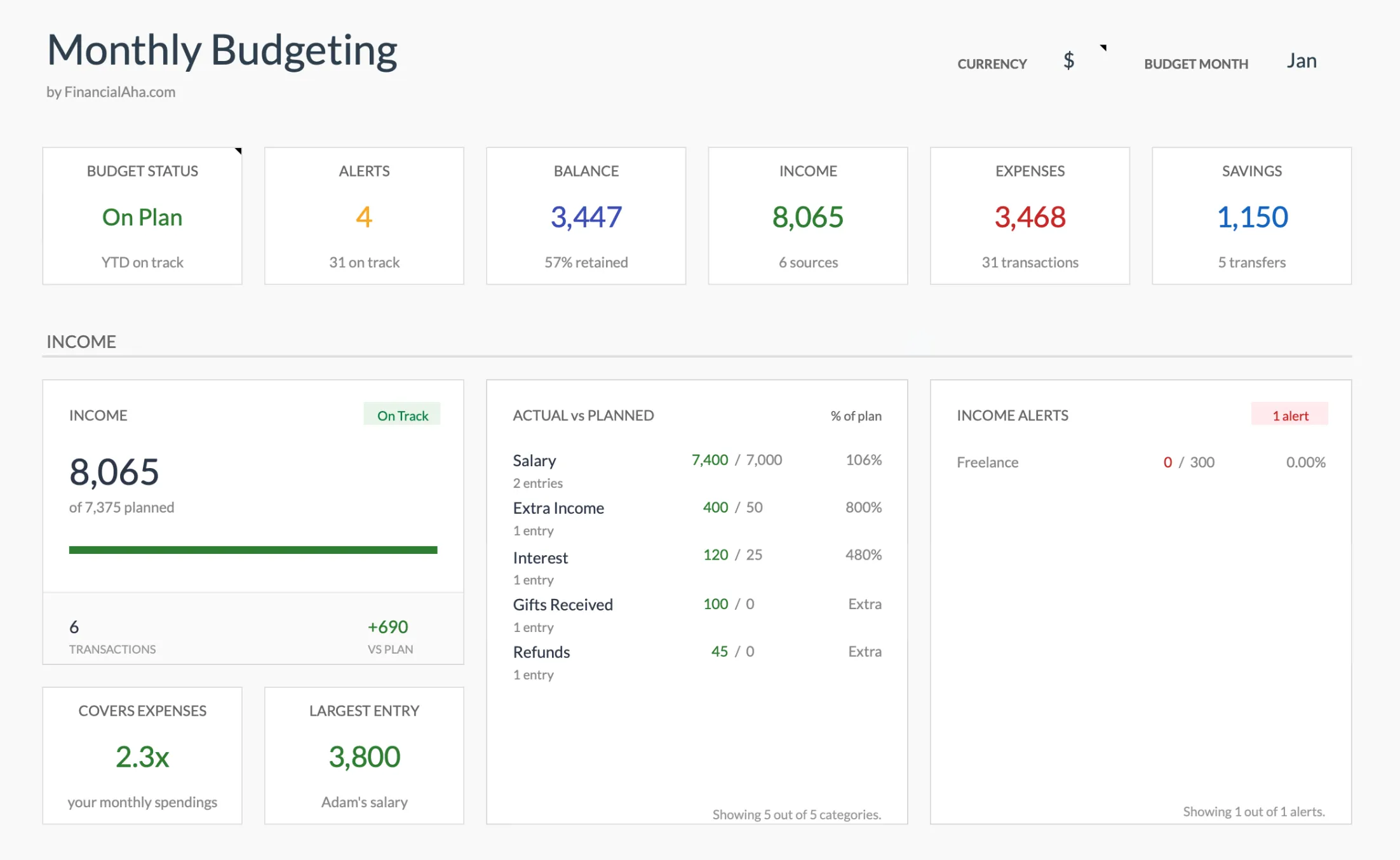 The Monthly Budget Template (Premium tier) dashboard: budget-status and alert tiles, income and expense totals, and planned-versus-actual tracking, all driven by built-in formulas.
Expense Tracking and Financial Planning
Google Sheets handles expense logging naturally - enter date, amount, category, and notes in rows. Pivot tables summarize spending by category or month. For financial planning, it can model compound interest, savings projections, and retirement withdrawal scenarios. If you can express it mathematically, Sheets can calculate it. Our walkthrough on building an advanced personal finance tracker in Google Sheets shows how far this goes with formulas alone.
Notion approaches expense tracking through databases where each expense is an entry with properties. The advantage is flexibility - rich context, multiple views of the same data, and a more visual dashboard experience. For financial planning, Notion excels at the qualitative side - goal tracking, milestone boards, research notes, and timelines for financial milestones.
Some people find that financial planning requires both - the calculations that spreadsheets provide and the organizational context that something like Notion offers.
Charts and Visualization
Google Sheets creates charts directly from your data - line charts for spending trends, pie charts for budget allocation, bar charts comparing months. Charts update automatically as data changes. For financial visualization, this is one of its strongest features.
Notion has limited native visualization. You can use progress bars for goals and basic database charts, but for detailed financial charts, most Notion users either embed external charts or accept that the visual analysis happens elsewhere.
Collaboration and Mobile
Both tools support real-time collaboration. Google Sheets lets multiple people edit simultaneously, which works well for couples managing a shared budget. Notion adds flexibility with different views for different people and task assignment for financial goals.
On mobile, Notion provides a smoother experience for adding entries and checking dashboards. Google Sheets on a phone is functional for viewing but less comfortable for data entry - spreadsheet grids are not ideal on small screens.
Privacy
Both tools store data in the cloud - Google Sheets in your Google account, Notion on their servers. Neither requires connecting bank accounts, which is part of the appeal of budgeting without linking a bank account in the first place. For data control, Google Sheets has a slight edge since the data lives within Google Workspace and can be downloaded as Excel files for local backup.
Who Each Tool Suits
Google Sheets works well for people who:
- Need automatic calculations (budget totals, projections, variances)
- Want charts and visual summaries of financial data
- Prefer structured, formula-driven tracking
- Value the ability to build complex financial models
Notion works well for people who:
- Want financial tracking integrated with broader life planning
- Prefer a visual, database-driven approach over spreadsheet grids
- Value flexibility in how information is organized and displayed
- Care more about context and goals than detailed calculations
Ready-Made Options
For Google Sheets users who want a head start, pre-built finance templates provide structure without the setup time.
The Monthly Budget Template handles expense tracking and budget management with built-in formulas, automatic calculations, and visual dashboards. The Financial Planning Template works at a different level, pairing a high-level monthly cashflow sheet with net worth, itemized assets and debts, and a projection that runs to an end year you set.
Both work in Google Sheets with a one-time purchase and no recurring fees.
Bottom Line
Google Sheets is the stronger tool when your finances require calculation - budgets, projections, tracking against targets, and financial modeling. Notion is the stronger tool when your finances require organization - goals, context, qualitative planning, and integration with other life systems.
Many people start with one and realize they need elements of the other. That is fine. What matters more than the tool is the habit of paying attention to your money consistently.
If the numbers are your priority, the fastest next step is a spreadsheet that already has the formulas wired: the Monthly Budget Template for one month of plan against actuals, or the Financial Planning Template when you want net worth and long-term projections in the same file. Both are a one-time purchase and open straight in Google Sheets.
Related
- Monthly Budget Template - Budget tracking and dashboards in Google Sheets
- Financial Planning Template - Net worth, projections, and long-term planning in one file
- Google Sheets vs Excel for Budgeting - The other spreadsheet comparison, if you have both installed
- Why a Financial Planning Spreadsheet Beats Personal Finance Apps - When owning your data in a sheet wins over an app
- How to Create an Advanced Personal Finance Tracker in Google Sheets - Build a full tracker from formulas
Frequently asked questions
Can Notion do calculations like Google Sheets?
Notion has basic formulas within databases - sums, averages, and simple math. But it cannot do the complex calculations that Google Sheets handles, like compound interest projections, conditional formatting for budget alerts, or multi-sheet formulas that pull data across different views. For number-heavy financial work, Sheets is significantly more capable.
Is Google Sheets or Notion better for couples managing money together?
Both support sharing and collaboration. Google Sheets is better if you need shared budget calculations and automatic totals. Notion is better if you want a shared financial dashboard that combines budgets with goals, notes, and other life planning. It depends on whether the priority is numbers or organization.
Can I use both Google Sheets and Notion together?
Yes, and some people do. They use Google Sheets for the actual budget math and embed or link to it from a Notion workspace that handles goals, notes, and financial planning context. This combines the strengths of both tools.
Are there ready-made finance templates for both platforms?
Both platforms have template communities. Google Sheets finance templates tend to be more calculation-focused with automatic totals, charts, and projections. Notion finance templates are more about organization - trackers, databases, and dashboards that help you see the big picture.
Is Google Sheets or Notion free to use for personal finance?
Both have free tiers that cover personal use. Google Sheets is free with any Google account, and Notion offers a free plan for individuals, with paid plans aimed mostly at teams and heavier collaboration. Neither charges you to build a budget, so cost rarely decides this one - the type of work you need the tool to do usually does.
Which is faster to set up for tracking money right away?
A pre-built spreadsheet is usually the fastest start, since the formulas, categories, and dashboard already exist. In Notion you typically build the database structure yourself or adapt a community template first. If the goal is to log transactions today rather than design a system, a ready-made Google Sheets template removes most of the setup.
Sources
- Add & edit a chart or graph - Google Docs Editors Help
- Use conditional formatting rules in Google Sheets - Google Docs Editors Help
- Database relations & rollups in Notion - Notion
- Intro to formulas in Notion - Notion
About this article
Google Sheets charting and conditional-formatting behavior checked against Google's official Docs Editors Help. Notion's formula and rollup capabilities checked against Notion's official help center. Template sheets, inputs and outputs checked on 2026-09-10 against the shipped Monthly Budgeting Google Sheet (Summary, Budget Plan, Transactions, Goals, Categories, Setup) and the Financial Planning Google Sheet (Summary, Goals, Assets, Debt, Cashflow, Projection). Last reviewed September 2026.