
For families where both partners log expenses and check the budget, Google Sheets usually wins: real-time shared editing, quick mobile logging, and automatic cloud backup keep both people in the same file. Excel pulls ahead when one person runs the finances on a desktop and values offline access and pivot-table analysis. The two Premium budgeting templates from FinancialAha ship as Google Sheets with no Excel version, so sharing one with a partner is a Google Drive setting.
Here’s what actually happens in most households that try budgeting together: one person cares about it more than the other. One person is the spreadsheet type. The other might be willing to participate but isn’t going to build formulas from scratch on a Saturday morning.
That gap, between the person who drives the budget and the person who tolerates it, is the real problem a family budgeting tool needs to solve. Not formulas. Not pivot tables. The tool needs to make participation easy enough that both people actually do it. The wider platform trade-offs of price, formulas, and analysis tools are covered in the general Google Sheets vs Excel for budgeting comparison; this piece stays on the two-person angle.
Our Premium budgeting templates are Google Sheets. The Monthly Budget Template and Annual Budget Template ship as Google Sheets files with no Excel version, so sharing one with a partner is handled by Google Drive rather than by the template.
Two People, Two Phones, One Budget
Consider a Tuesday evening. One partner is at the grocery store. The other is picking up the kids from soccer and swings through a drive-through on the way home. Both spent money. Both need to log it somewhere, or it disappears into the weekly “where did our money go?” conversation.
Google Sheets handles this scenario well. Both partners pull up the same spreadsheet on their phones. One adds $127 for groceries. The other logs $14.50 for dinner. The numbers land in the same place, instantly, without anyone texting screenshots or scribbling on a receipt to deal with later. It’s lightweight on mobile, loads fast, and takes seconds to enter a number.
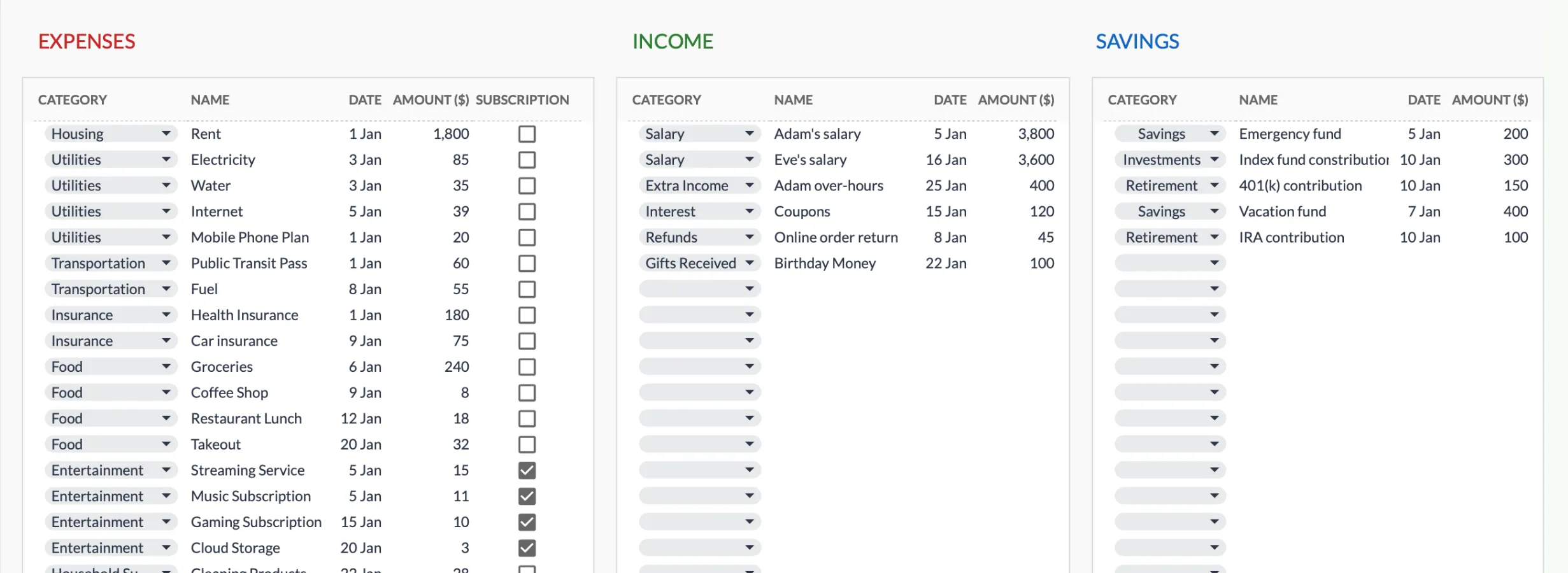
The Monthly Budget Template (Premium tier) keeps three logs side by side, for expenses, income, and savings, each with a category dropdown so entries stay consistent no matter who types them in.
Excel on a phone works, but it feels like using a desktop app on a small screen. The interface carries more weight than a quick expense entry needs. It’s functional - just not as frictionless for the “standing in a parking lot, logging a purchase” moment that defines daily expense tracking.
This might sound like a small thing. It isn’t. The difference between a three-second entry and a fifteen-second entry, multiplied by every purchase both partners make, determines whether the budget gets used or slowly gets abandoned.
The “I’ll Just Handle It” Pattern
In plenty of families, the budget conversation eventually leads to one person saying: “It’s fine, I’ll just handle it.” Sometimes this works. One partner enjoys the spreadsheet side of things, keeps everything organized, and gives periodic updates. The other partner stays informed without doing the data entry.
For this kind of arrangement, the platform choice shifts. The person managing the budget can use whichever tool they prefer, and Excel has real advantages for solo budget work. Offline access means they can work without internet. The desktop interface is spacious and responsive. Pivot tables can break spending into detailed categories, and a Sheets user reaches the same breakdowns with SUMIF and QUERY, covered in the Google Sheets budgeting formulas guide. The file lives on their computer, opens when they want it, saves when they’re done.
The catch: the other partner is now one step removed from the finances. They see summaries, not the actual data. They might not know the login, the file location, or how the spreadsheet is structured. This can work fine for years - until it doesn’t. A life change, a disagreement about spending, or simply wanting more involvement can make the “one person handles it” model feel limiting.
Google Sheets offers a middle path here. Even when one partner does most of the work, the other can open the spreadsheet anytime from any device. No file to find, no software to install. That ambient access, being able to glance at the budget on a phone without asking, keeps both people connected to the household’s financial picture.
When Both People Are Hands-On
Some couples genuinely co-manage their budget. They sit down together weekly, or they both log expenses throughout the day, or they divvy up categories (one handles groceries and household, the other handles subscriptions and utilities).
This is where Google Sheets has a clear edge. Both partners can be in the same spreadsheet at the same time, with up to 100 people able to edit one file simultaneously. Edits appear in real time. There’s no file to email back and forth, no “which version is the latest?” confusion, no merge conflicts when both people made changes offline.
Excel does support co-authoring through OneDrive, but it’s a bolted-on feature rather than a core design principle. Sync conflicts happen. The experience is noticeably less smooth than Google Sheets for simultaneous editing. Many couples who try co-authoring in Excel eventually drift back to the one-person-manages-it model just to avoid the friction.
The Spending Visibility Problem
Here’s a dynamic that’s easy to overlook: when one partner can’t easily see the budget, they’re more likely to overspend. Not deliberately - just because the information isn’t in front of them. “Are we still on track for dining out this month?” is a question that gets answered by checking the budget. If checking the budget means finding a file on a specific computer, it tends not to happen.
Google Sheets lives at a URL. Bookmark it. Open it in three seconds. See where things stand. Close it. That accessibility changes behavior in small but meaningful ways.
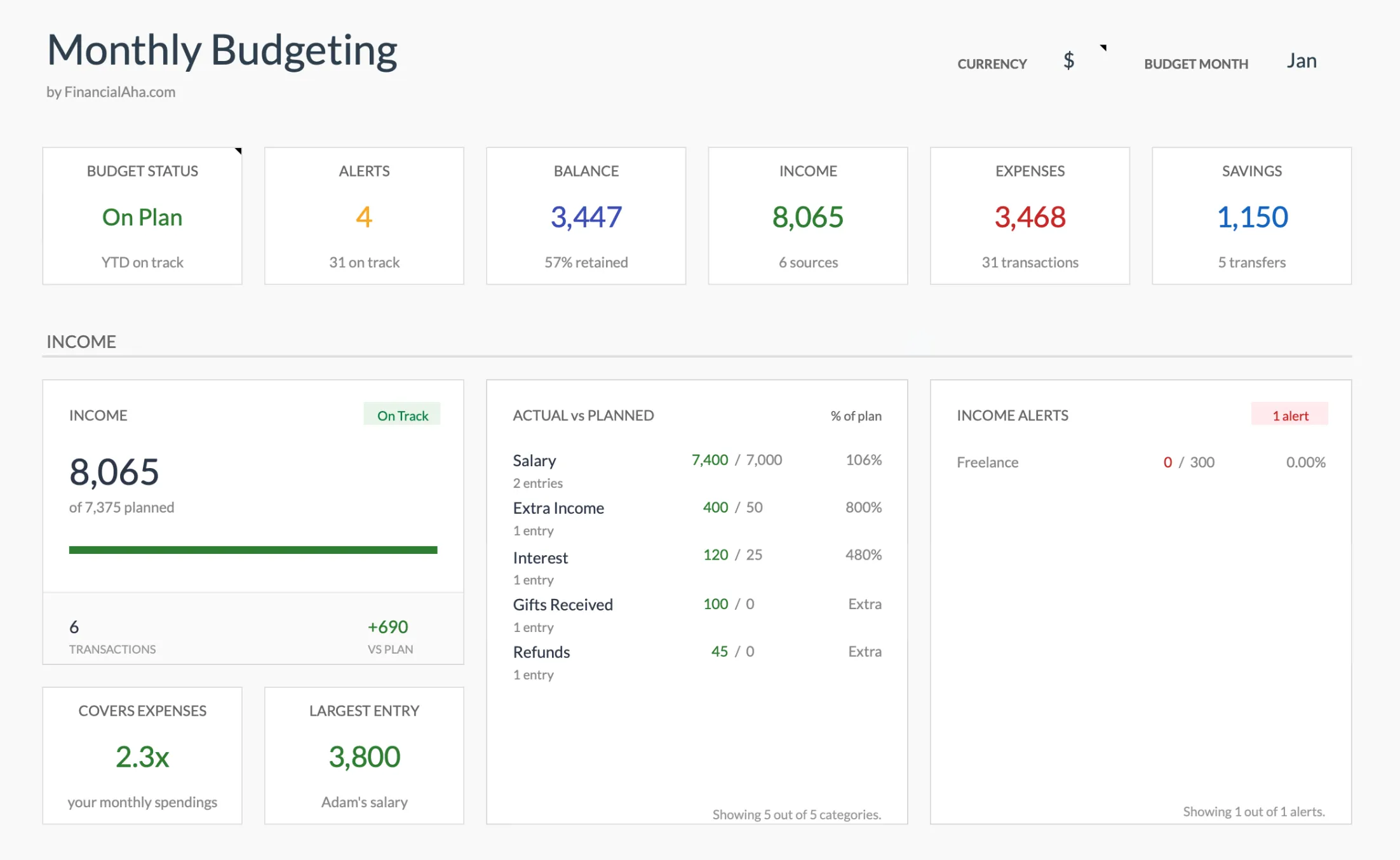
The Monthly Budget Template (Premium tier) dashboard puts budget status, alerts, balance, income, expenses, and savings on one row, so the month’s numbers can be read from a phone without opening a formula.
Excel files stored on OneDrive can achieve something similar, but the mobile experience isn’t as smooth. And locally stored Excel files? Those are only visible from the computer they’re saved on.
Data Safety Over Time
Family budgets accumulate. Twelve months of categorized spending has real value - it shows patterns, informs decisions, and provides a baseline for the next year. Losing that data is genuinely painful.
Google Sheets saves continuously to the cloud. Every keystroke is preserved. Version history lets anyone roll back changes, which helps when someone accidentally deletes a row or overwrites a formula. If a laptop breaks, the budget is still there, accessible from any browser.
Excel’s local files depend on the health of a hard drive. No backup strategy means one hardware failure wipes out the household’s financial history. OneDrive helps, but it requires deliberate setup and maintenance.
Privacy and Comfort
Some families are uncomfortable putting financial details on Google’s servers. That’s a reasonable position. Excel with local storage keeps everything on a personal computer - no third-party servers involved. The data exists in one place, under one person’s control.
Google Sheets uses encrypted cloud storage - the same security infrastructure as Gmail and Google Drive. For most households, the security is more than adequate. But the comfort question is separate from the security question, and both matter.
What Actually Matters
The tool is secondary to the system. A family that checks in on spending every Sunday using a basic Google Sheets budget is in a stronger position than one with an intricate Excel workbook that only gets opened when something goes wrong.
That said, the tool can help or hinder the system. For households where both partners want to participate by logging expenses, checking balances, and reviewing progress, Google Sheets reduces the barriers. It’s free, it works on every device, and the real-time sharing keeps both people in the same financial conversation.
For households where one person runs the finances and prefers desktop software, Excel delivers a more powerful feature set. Offline access, advanced analysis tools, and local file storage serve that workflow well.
The question worth asking isn’t “which spreadsheet app is more powerful?” It’s “which one will both of us actually use?”
Template note: The Monthly Budget Template is a Google Sheet with 31 categories on dropdowns, a Budget Plan that pulls actuals out of the transaction log with SUMIF, and a Summary dashboard covering income, expenses, savings, and goals. Whether a second person can open it is a Google Drive sharing setting.
Related
- Google Sheets vs Excel for Budgeting - the general platform comparison, beyond the family angle
- How to Create a Monthly Budget in Google Sheets - build one from scratch
- Budget Calculator - sketch the split before you build the sheet
- Monthly Budget Template
- Annual Budget Template
Frequently asked questions
Can both partners edit a Google Sheets budget at the same time?
Yes. Google Sheets supports real-time multi-user editing, with up to 100 people able to work in one file simultaneously. Both partners can be in the same spreadsheet at once, see each other's cursors, and changes appear instantly. This is one of Google Sheets' strongest advantages for family budgeting.
Is Excel better if only one person manages the household budget?
If one person does most of the budget management, the collaboration advantage of Google Sheets matters less. Excel's offline access and desktop power features become more relevant. That said, Google Sheets still offers mobile access and automatic backup even for solo budgeters.
Can we use Google Sheets for family budgeting on different devices?
Yes. One partner can update expenses from their phone while the other reviews the budget on a laptop. Google Sheets syncs across all devices automatically. This is particularly useful for families where both partners want visibility into spending.
Does Google Sheets work offline for budgeting?
Yes, with setup. Google Sheets has an offline mode that lets you view and edit a spreadsheet without internet, then syncs the changes once you reconnect. It has to be switched on ahead of time in Chrome, so it takes a little more preparation than Excel's built-in offline access.
Can we move a budget between Google Sheets and Excel?
Yes. Google Sheets exports to .xlsx and can open Excel files, and Excel can open a spreadsheet exported from Sheets. Complex formulas or conditional formatting sometimes need a quick check after converting, but a straightforward household budget usually moves across cleanly.
What if partners disagree on which platform to use?
Google Sheets is a common starting point: it's free, works on any device, and the shared access keeps both partners involved, and a budget can be exported to Excel later if one person finds it limiting. What tends to matter most is having a system both people actually use, rather than the specific tool.
Sources
- Collaborate in Sheets - Google
- See what changed in a file (version history) - Google
- Use Google Docs, Sheets & Slides offline - Google
- Co-author a workbook - Microsoft
About this article
Google Sheets collaboration, version history, and offline behavior checked against Google Docs Editors Help; Excel co-authoring checked against Microsoft Support. Monthly Budgeting and Annual Budgeting Planner sheets, categories, and Summary tiles checked on 2026-09-10 against the shipped Google Sheets workbooks (Summary, Budget Plan, Transactions, Goals, Categories); both are listed in the product catalog as Google Sheets only, at $29. Last reviewed September 2026.