A monthly budget in Google Sheets tracks money in and out, but the part that changes behavior is comparing what you planned against what you actually spent. You have three routes: a free template, a premium template with budget-vs-actual and overspending alerts, or building your own from scratch. Here's how each one works and what to look for.
A monthly budget tracks money coming in and going out, organized by category. But tracking alone doesn’t change behavior. The useful part is the comparison: what you planned to spend versus what you actually spent.
Google Sheets works well for this. It’s free, accessible from anywhere, and keeps your data in your own account - no bank linking required, no third-party access to your finances. The question is how to set one up, and whether the effort is worth it.
The Real Problem With Most Budget Templates
People don’t abandon budgets because they’re lazy. They abandon them because most templates solve the wrong problem.
The common complaint: “I can see where my money went, but not where it should go.” Basic expense trackers show history. They don’t help you plan, and they don’t warn you when a category is running hot. You find out you overspent after the month ends - when it’s too late to adjust.
Other frustrations come up repeatedly. Complexity is a major barrier: apps like YNAB are powerful but have steep learning curves that discourage new users. Subscription fatigue is real; YNAB now runs $109 a year, which feels excessive to many people for a budgeting tool. And privacy concerns matter, because not everyone wants to link their bank accounts to third-party services, no matter how convenient the automation.
These aren’t character flaws. They’re design problems. The right template addresses them.
Your Options
There are three ways to create a monthly budget in Google Sheets:
1. Free Templates
Google Sheets includes a basic budget template in its gallery, and you’ll find many others shared on Reddit, personal finance blogs, and template directories.
These cover the fundamentals: income categories, expense categories, totals. For someone who wants to start immediately with zero cost, they work.
The limitations show up with use. Most free templates lack plan-vs-actual comparison - the core feature that turns passive tracking into active budgeting. There are typically no alerts when spending exceeds targets, no savings goal tracking, and no support for budgeting frameworks like 50/30/20. For basic awareness of where money goes, free templates are adequate. For actually changing spending behavior, you’ll likely outgrow them and want something like a budget planner with targets.
2. Premium Templates
Paid templates from companies like ours, such as our Monthly Budget Template, offer features that address the actual pain points of budgeting.
Quality varies. Some are just free templates with different colors. Others include meaningful improvements: budget targets per category, overspending alerts, savings goals with progress tracking, and support for budgeting methods like 50/30/20 or zero-based budgeting.
When evaluating premium templates, the questions that matter:
Does it let you set planned amounts and compare against actual spending? This comparison is the core of budgeting - without it, you’re just logging history.
Does it warn you before you overspend, not after? Real-time alerts on category spending let you adjust mid-month.
Can you track savings goals with visible progress? For many people, seeing progress toward specific goals like an emergency fund, a vacation, or a down payment is more motivating than abstract budget numbers.
Does it support a budgeting method you understand? The 50/30/20 rule (50% needs, 30% wants, 20% savings) gives structure to otherwise arbitrary category limits. Zero-based budgeting ensures every dollar has a purpose.
The advantage of spreadsheet-based templates over apps: your data stays private. No bank linking, no account aggregation, no wondering who has access to your financial information.
3. Build From Scratch
Starting from a blank spreadsheet, you can design your own structure, write your own formulas, and create exactly what you want.
The time investment is substantial. Building something robust, with dynamic categories, real-time calculations, budget comparisons, alerts, and proper error handling, easily runs into dozens of hours. That’s before ongoing maintenance as you discover edge cases.
For people who genuinely enjoy spreadsheet building or have very specific requirements that no existing template addresses, this path can make sense. If you go this way, our guide to building an advanced personal finance tracker in Google Sheets walks through the formulas and structure involved. For most people, it’s reinventing the wheel.
What Actually Helps People Stick With Budgeting
Certain features make the difference between templates people abandon and templates people stick with:
Budget vs. actual comparison. The most-requested feature across forums and reviews. People want to set a target for dining out, then see whether they’re on track. This is the difference between passive tracking and active management.
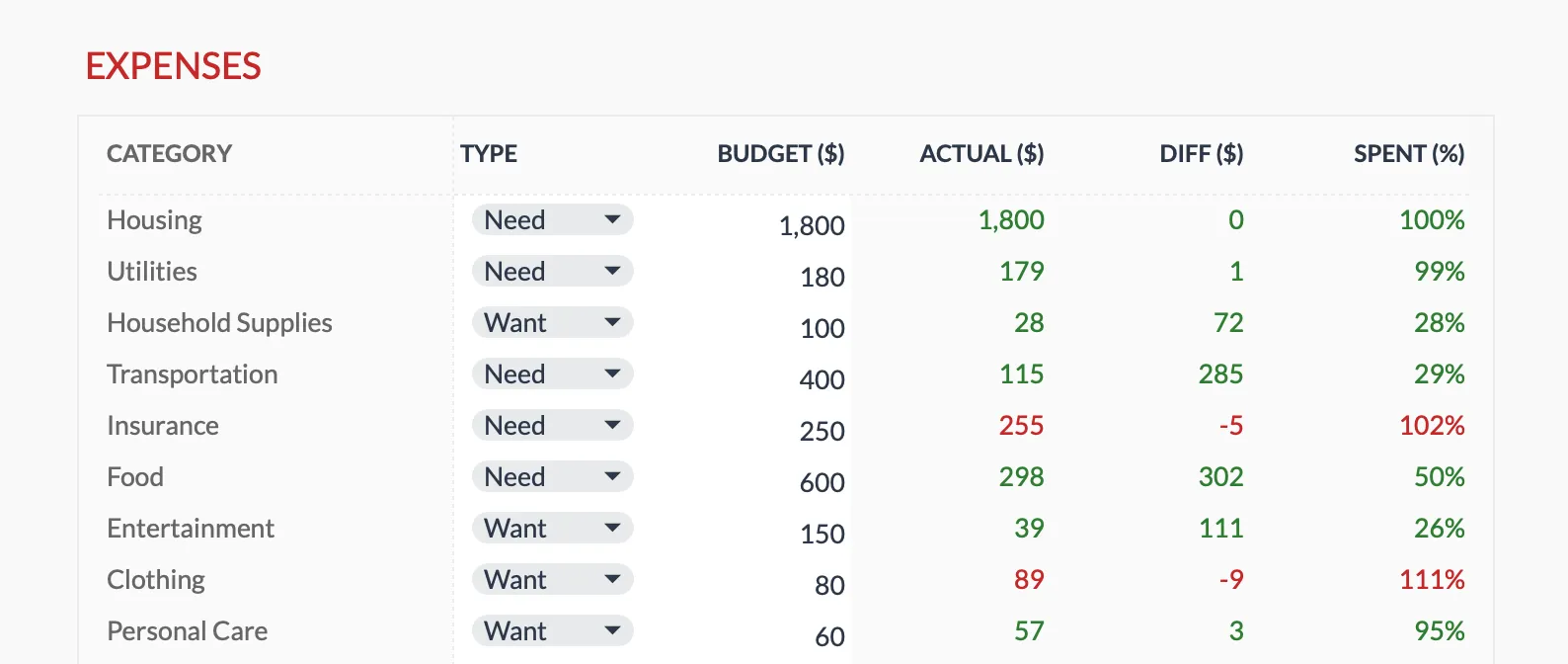
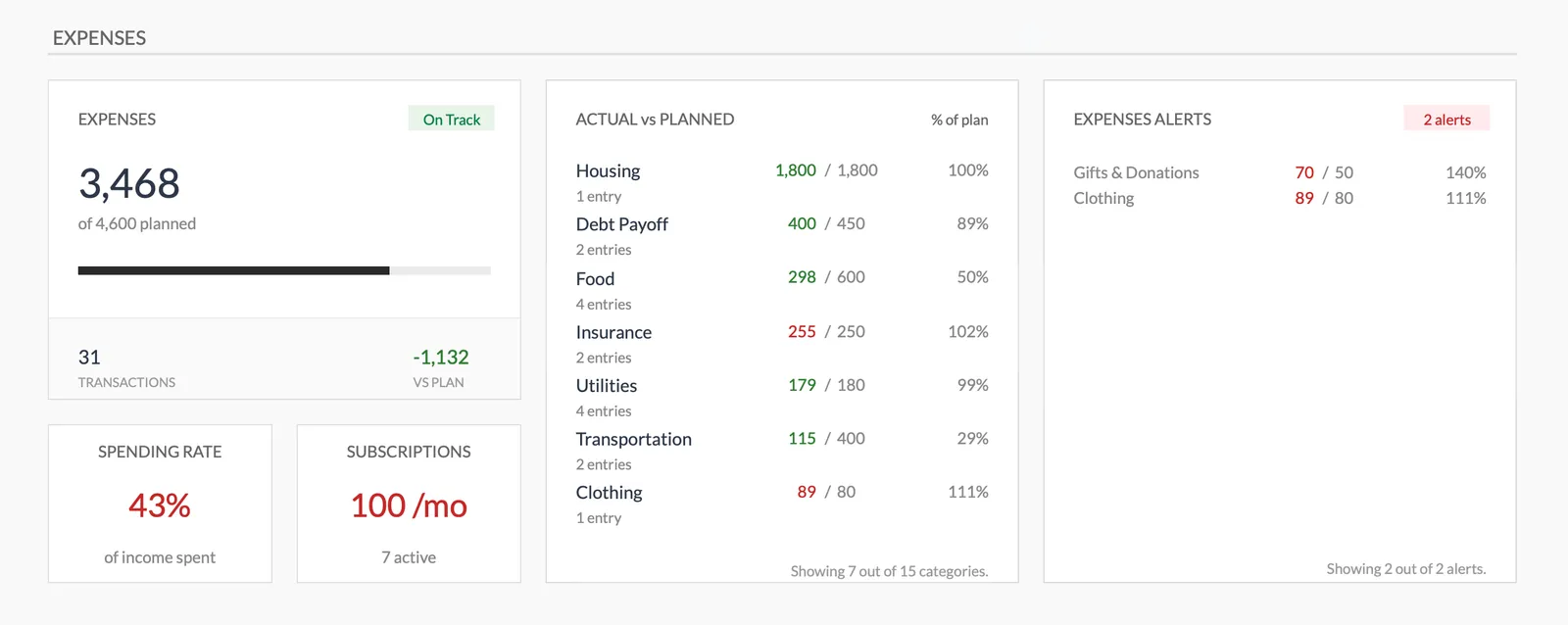
Overspending alerts. Seeing that grocery spending has eaten most of its budget by mid-month leaves room to adjust. Most templates only show you the damage after it’s done.
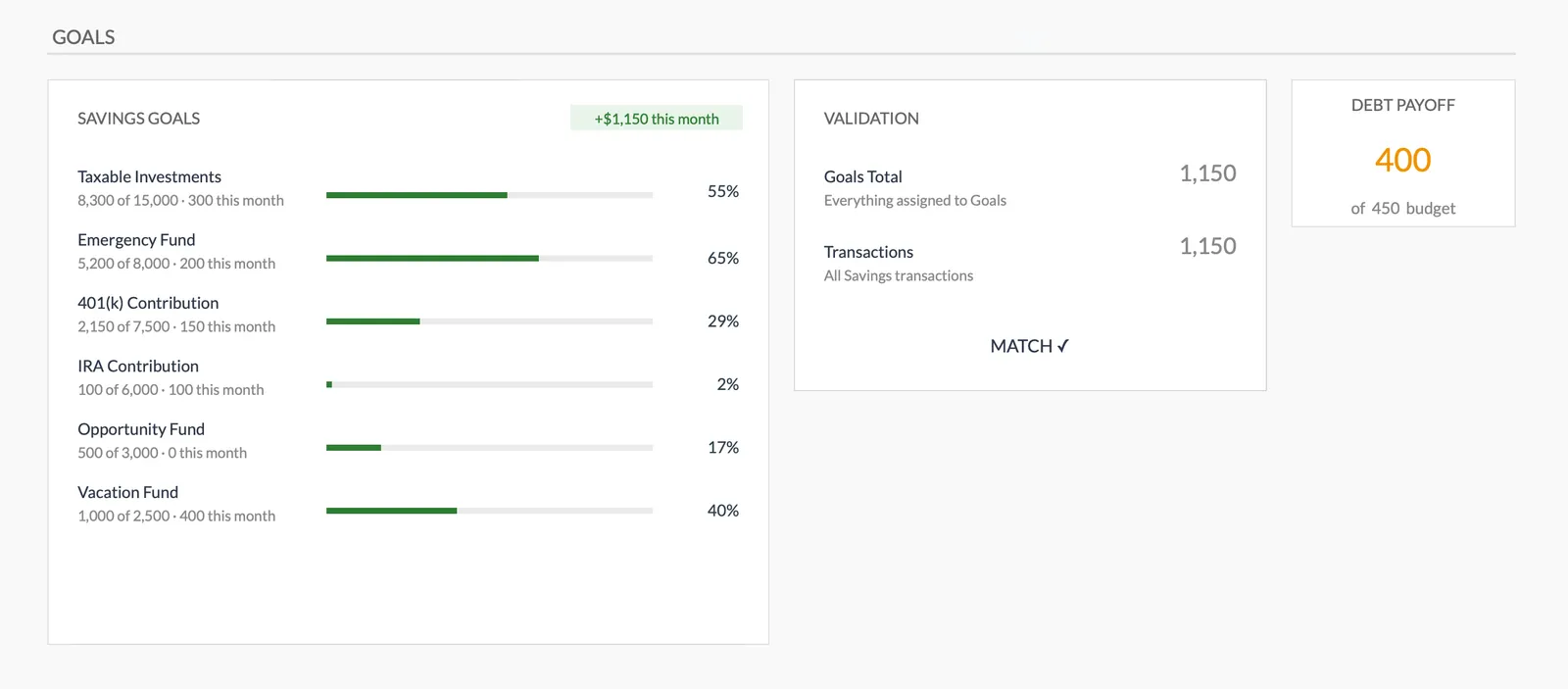
Savings goals with progress tracking. Abstract categories like “savings” feel bottomless. A specific goal, such as “emergency fund: $4,200 of $10,000,” creates momentum. Progress bars turn saving from an obligation into a game you can win.
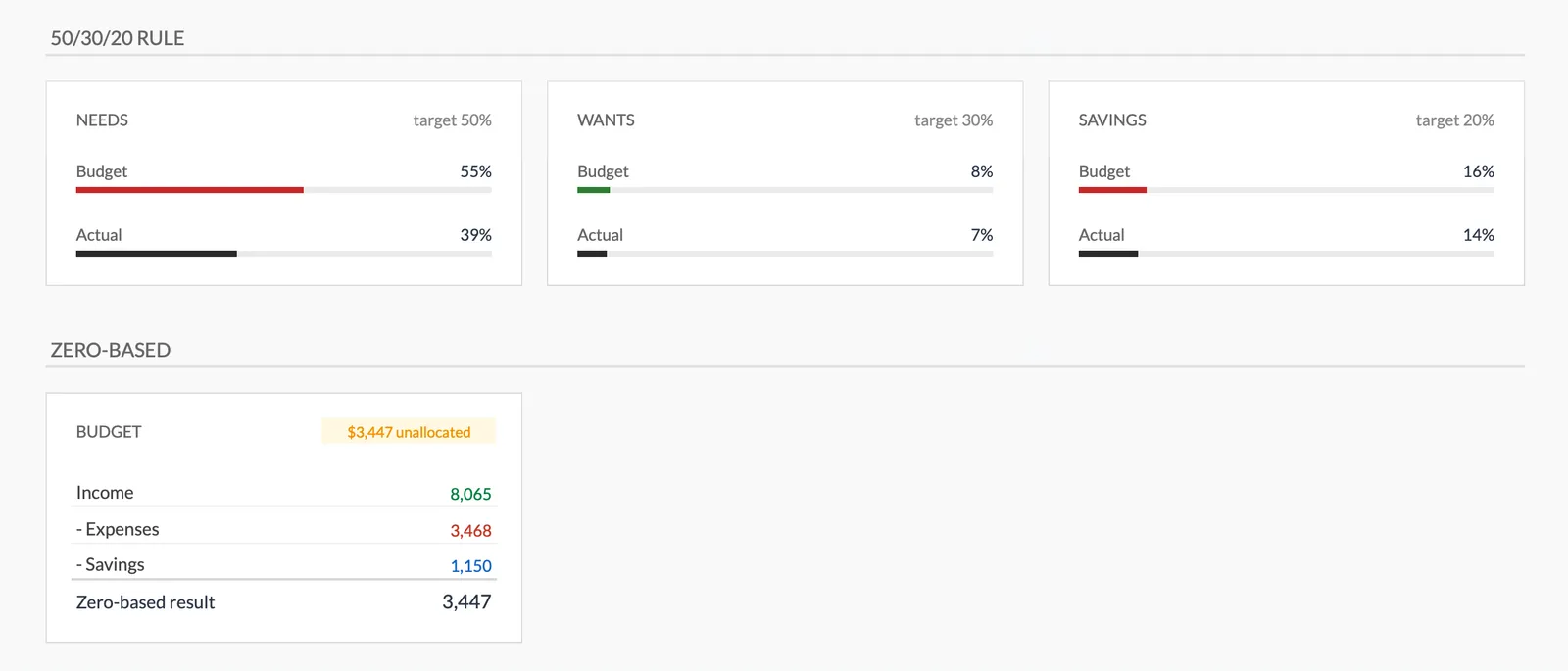
50/30/20 visibility. This framework (50% needs, 30% wants, 20% savings) is widely understood and gives people a sanity check on their overall allocation. Seeing these percentages calculated automatically helps people understand if their budget structure is reasonable.
Before you build the categories into a sheet, it helps to see roughly where the 50/30/20 split lands for your income. The Budget Calculator does that math instantly, and you can use those figures as starting targets when you set up your template:
Privacy by default. Spreadsheets keep your financial data where it belongs - in your own account. No bank credentials shared with third parties, no data aggregation, no security concerns about who can see your transactions.
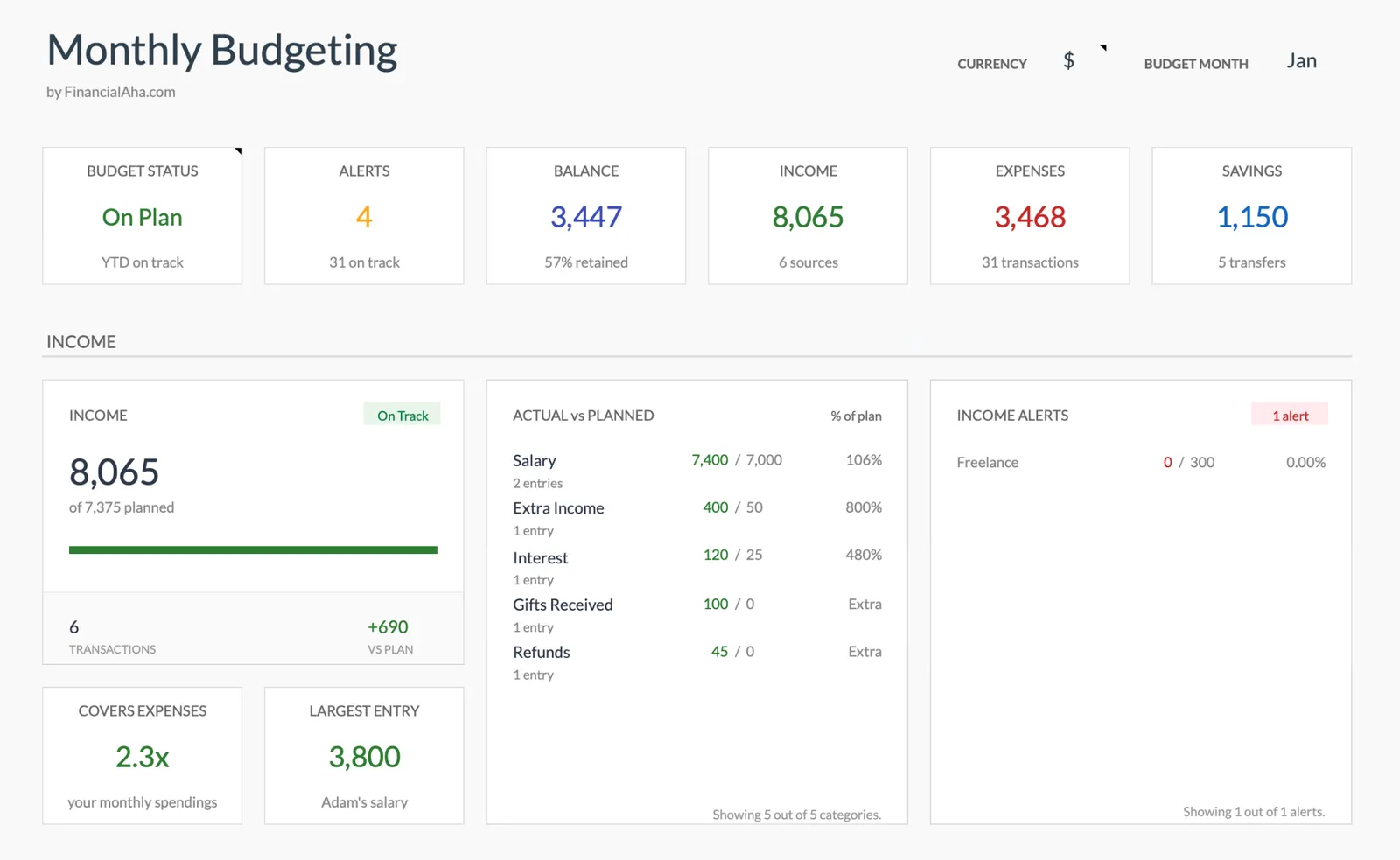
A clear dashboard. Key numbers visible at a glance: total income, total expenses, savings rate, which categories need attention. If understanding your situation requires clicking through multiple sheets, you won’t check regularly.
Using a Budget Template
Once you have a template, the workflow is straightforward:
Setup (once): Review the default categories and adjust to match your spending patterns. Enter your expected income. Set planned amounts for each expense category. Define any savings goals you’re working toward.
During the month: Enter transactions as they happen from your phone, or batch them every few days. Glance at the dashboard to see where you stand. Pay attention to any alerts on categories approaching their limits.
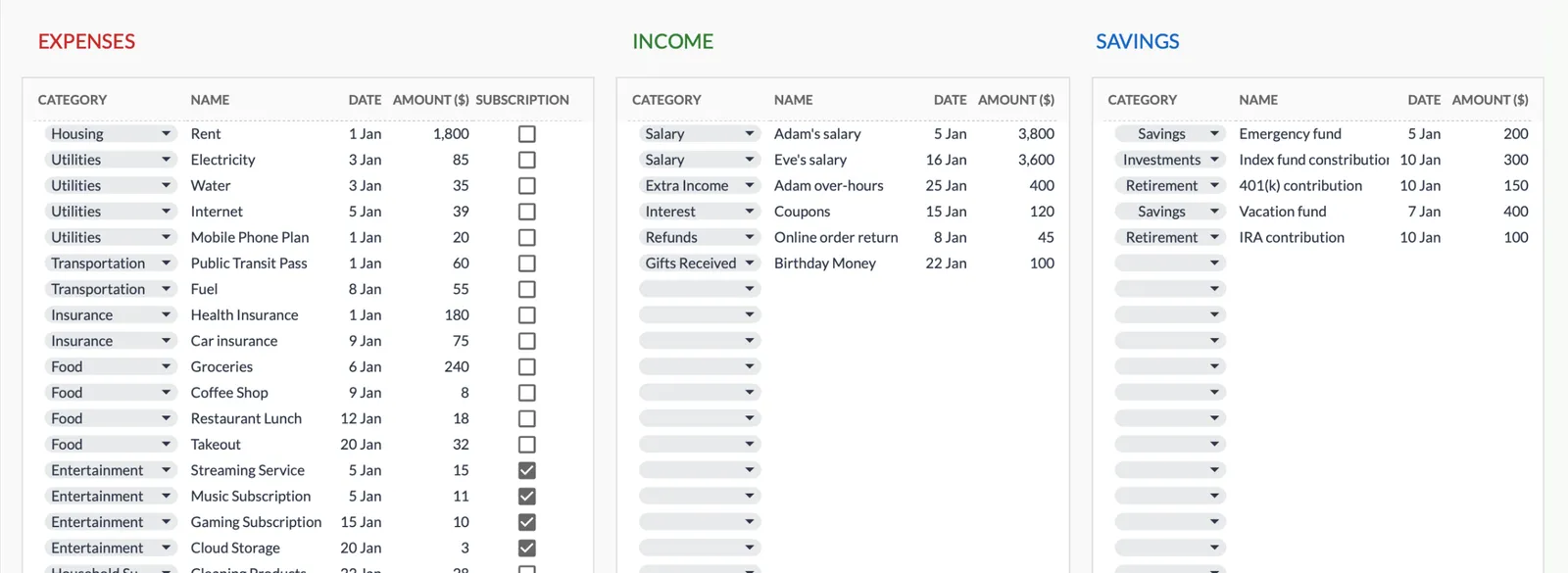
End of month: Review what happened - which categories ran over, which had room, how your savings goals progressed. Consider whether next month’s targets need adjusting. Start fresh.
The first month is calibration. Targets are educated guesses until you have real data. By month two or three, you’ll have a clearer picture of what’s realistic for your actual life.
Our Monthly Budget Template
We built the Monthly Budget Template to address the specific problems that cause people to abandon budgeting.
Plan vs. actual for everything. Set budget targets for income, expenses, and savings. See immediately whether you’re on track, with variance calculations for each category.
Alerts you can tune. The Summary lists the income and expense categories that have crossed the thresholds set on the Setup sheet, with the actual figure next to the planned one. You know there’s a problem while there’s still time to do something about it.
Savings goals with progress tracking. Define specific goals such as an emergency fund, a vacation, or a down payment, each with its own target amount. Watch progress accumulate. The Goals sheet shows a progress bar and a funded percentage for each one, and a validation check compares the contributions you entered for the month against your logged savings transactions, so a mismatch shows up instead of going unnoticed.
50/30/20 and zero-based views. Tag each expense category Need or Want, and the Summary shows needs, wants and savings as percentages of income against the 50/30/20 targets. Below it, the zero-based panel takes income minus expenses minus savings and reports what is still unallocated.
Dashboard that shows what matters. Income, expenses, savings, balance - updated automatically. Distribution charts for visual learners. All the key metrics without digging through tabs.
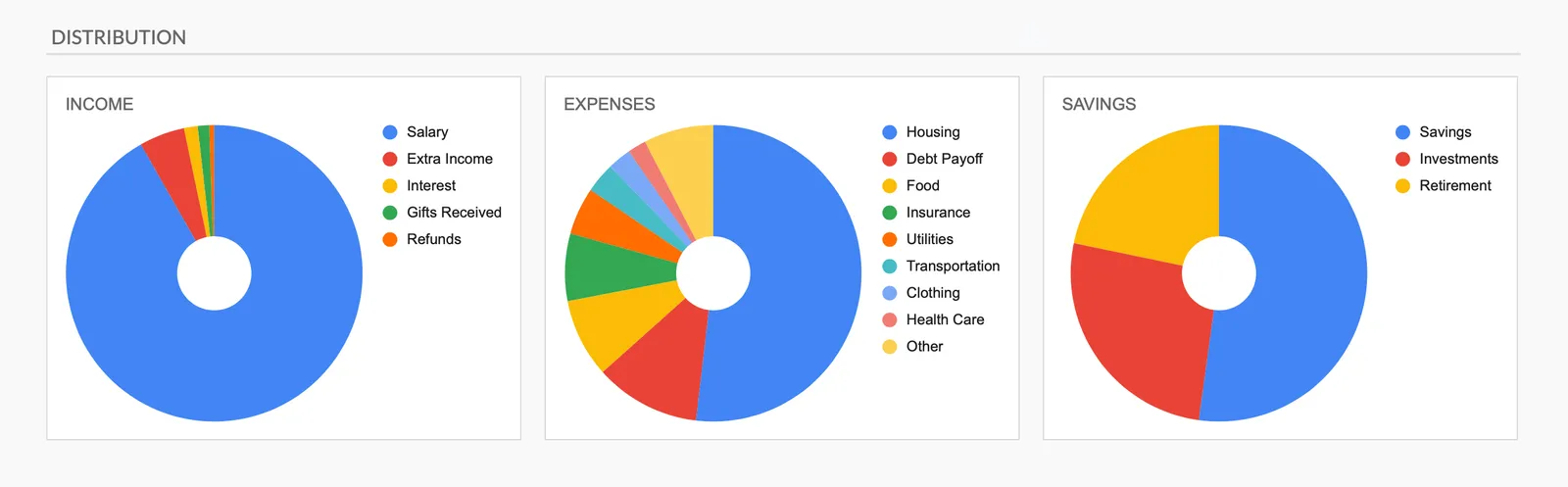
Flexible categories. Comes with 17 expense categories, 11 income sources, and 3 savings types. Add, rename, or remove them to match how you think about your money.
Privacy by design. Your data stays in your Google account. We never see your financial information - the template runs entirely in your own spreadsheet.
The template is a one-time purchase with lifetime access to updates. No subscriptions, no recurring fees.
For people who want a simpler starting point, the Monthly Expense Tracker covers tracking without the budget-planning features. Both use compatible categories, so you can start with tracking and move to full budgeting later.
Getting Started
Pick a template that matches your needs and start entering transactions. The specific tool matters less than the habit of checking in regularly.
The goal is visibility and control: knowing where money comes from, where it goes, and whether that matches your intentions. What you decide to do with that clarity is up to you.
Related
- Monthly Budget Template - budget-vs-actual, alerts, and savings goals in one Google Sheet
- Monthly Expense Tracker - a simpler starting point for tracking without the planning layer
- Budget Calculator - see where the 50/30/20 split lands for your income
- How to Build an Advanced Personal Finance Tracker in Google Sheets - the formulas behind a from-scratch build
Frequently asked questions
Can I make a monthly budget in the free Google Sheets template gallery?
Yes. Google Sheets ships with a basic monthly budget template that covers income categories, expense categories, and totals. It works for seeing where money went. What most gallery templates leave out is plan-vs-actual comparison, overspending alerts, and savings-goal tracking, which is the part that turns passive logging into active budgeting.
Do I need to link my bank account to budget in Google Sheets?
No. A spreadsheet holds only what you type into it. There is no bank connection, no account aggregation, and no third-party access to your login. That is the main trade-off versus apps: you enter transactions yourself instead of importing them automatically, and in return the data never leaves your own Google account.
How long does it take to build a budget spreadsheet from scratch?
A simple income-and-expense list takes an afternoon. A version with dynamic categories, budget-vs-actual comparison, alerts, and savings goals is a much larger project, and people who have built one report it running into dozens of hours before ongoing maintenance. That gap is why many people start from an existing template instead.
What is the difference between an expense tracker and a budget template?
An expense tracker records what you spent, organized by category, so you can look back. A budget template adds a planned amount for each category and compares it against actual spending during the month, so you can catch a category running hot before the month ends rather than after.
Sources
- YNAB Pricing - You Need A Budget
About this article
Template sheets, inputs and outputs checked on 2026-09-10 against the shipped Monthly Budgeting Google Sheet (Summary, Budget Plan, Transactions, Goals, Categories, Setup tabs) YNAB subscription price checked against ynab.com/pricing Last reviewed September 2026.