The Google Sheets mobile app handles budgeting on the go by keeping design work on desktop and using the phone only for entry: tap a cell, type the amount, pick a category from a dropdown, roughly 10 to 15 seconds per transaction. Turn on "Available offline" first so entries save without signal and sync automatically when you reconnect.
Most spending happens away from your desk. The Google Sheets mobile app makes it possible to track expenses in the moment rather than hours later when details are fuzzy.
The Monthly Expense Tracker is built around one Transactions sheet, so logging a purchase from your phone is one row: a category from a dropdown, a name, a date, and an amount.
The Core Idea
Design your budget on desktop, use mobile just for data entry. Mobile excels at quick entry and checking totals. Desktop excels at analysis and setup.
Setup
Enable offline access: open Google Sheets app, find your budget spreadsheet, tap the three dots menu, enable “Available offline.” Changes sync automatically when back online. Google documents this in its offline access guide, which has separate Android and iPhone tabs for the mobile steps.
Make your budget one tap away by adding it to your home screen (Android: share/menu then “Add to Home Screen”; iOS has similar functionality through shortcuts).
Designing Mobile-Friendly Budgets
Create a dedicated entry area at the top of your sheet:
| Date | Description | Amount | Category |
|---|
Use data validation for categories, set up on desktop under Data then Data validation then List of items. On mobile you get an in-cell dropdown you tap instead of type, which is faster and keeps category names consistent. Our guide to dropdown lists for budgeting walks through the setup.
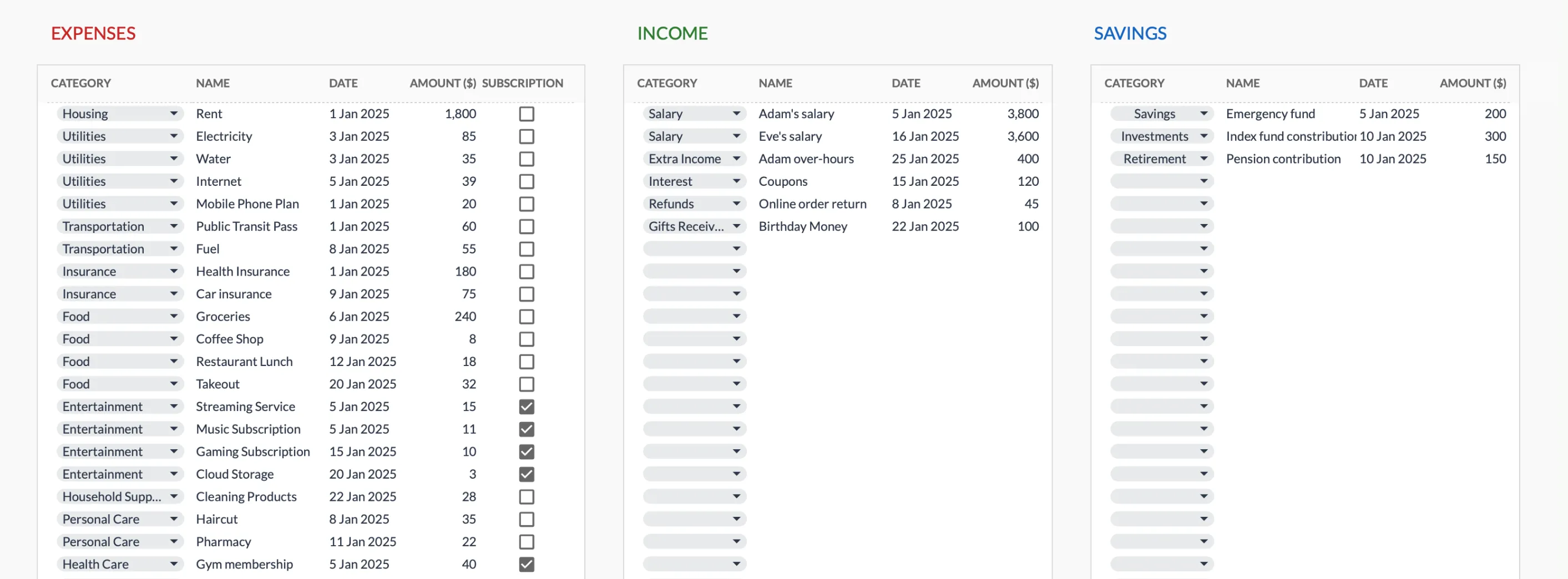
The transactions table in the Premium Monthly Expense Tracker: each row is a date, name, amount, and a category dropdown, the same layout that keeps mobile entry to a single tap-and-type.
Design for fat fingers: column width at least 80-100 pixels, row height 30+. Freeze header rows so they stay visible while scrolling.
Quick Entry Methods
Direct entry: Open budget, tap entry cell, type amount, select category from dropdown. Takes 10-15 seconds with practice.
Voice entry: Tap the keyboard microphone icon, say “45.99” - works for descriptions too.
Quick capture sheet: Create a separate sheet with just amount and note columns. Fill in full details later on desktop.
Offline Capabilities
Works offline: viewing data, entering data, basic editing. Doesn’t work offline: GOOGLEFINANCE, IMPORTDATA, real-time collaboration. Everything syncs automatically when you reconnect.
Do the totals update on your phone?
Yes. Google Sheets recalculates formulas on mobile the same way it does on desktop, so category totals, remaining-budget cells, and SUM columns update the moment you finish a row. This holds offline too, because the math runs locally on the device rather than on Google’s servers. The functions that need a live connection are the ones that pull outside data, such as GOOGLEFINANCE and IMPORTDATA. Ordinary budget arithmetic keeps working with no signal, so the running total you glance at on the go is current.
Protecting Your Formulas
Touch screens make it easy to tap the wrong cell and break formulas. On desktop, protect formula cells with protected ranges under Data then Protect sheets and ranges, and place your entry area away from calculations. Our walkthrough on locking cells in a budget spreadsheet covers exactly which cells to guard.
The Workflow
Daily: When you spend, enter amount and category (10-15 seconds).
Weekly: 5 minutes checking spending versus budget.
Monthly: Switch to desktop for complete analysis and next month’s setup.
Building the Habit
Start simple - first week, just enter amounts and brief notes. Link expense entry to a trigger: right after swiping your card, before putting your phone away.
Tracking 90% of spending consistently beats tracking 100% for two weeks before giving up.
If you want the entry table already built, with the category dropdowns wired to a Categories sheet you can rename, the Monthly Expense Tracker opens in the same Sheets app on your phone, and its Summary tab totals income, expenses and savings by category as rows go in. For the desktop side of the workflow, the Google Sheets formulas for budgeting guide shows the SUMIF and category totals your mobile entries feed into.
Related
- Monthly Expense Tracker - One Transactions sheet where each purchase is a row
- Monthly Budget Template - Budget Plan targets alongside the Transactions sheet and Summary
- Google Sheets Formulas for Budgeting - The totals your entries feed
- Create Dropdown Lists for Budgeting - Tap-to-pick categories
- How to Lock Cells in a Budget Spreadsheet - Protect formulas from stray taps
Frequently asked questions
Does the mobile app have all desktop features?
No - the mobile version is deliberately simpler. Worth doing design and analysis work on desktop, then using mobile mainly for entering data.
What if I'm offline for days?
Changes save locally and sync when back online. No data loss.
Can I share budgets with my partner on mobile?
Yes - shared spreadsheets work the same on mobile. Both can enter data.
Is there a Google Sheets budgeting app?
Google Sheets itself is the app. There's no separate budget-specific version - you use templates within Sheets.
Does the app work the same on iPhone and Android?
Both platforms run the same Google Sheets app with the same entry, dropdown, and offline features. A few actions are easier on a computer first, such as setting up data validation lists and protecting formula ranges.
What if voice entry mishears an amount?
Voice input drops text into the cell the same way typing does, so a wrong number is corrected like any other cell. Some people keep a short note column and reconcile against receipts later on desktop.
Sources
- Work on Google Docs, Sheets, & Slides offline - Google Docs Editors Help
- Create an in-cell dropdown list - Google Docs Editors Help
- Protect a range or sheet - Google Docs Editors Help
About this article
Mobile app steps checked against Google's Docs Editors Help pages for offline access, in-cell dropdowns, and protected ranges. Template claims checked on 2026-09-10 against the shipped Monthly Expense Tracker Google Sheet (Summary, Transactions, Categories tabs) and the Monthly Budgeting Google Sheet (Summary, Budget Plan, Transactions tabs). Last reviewed September 2026.