
To add a dropdown in Google Sheets, select the cells, open Data then Data validation, choose Dropdown, and enter your budget categories - about 30 seconds of setup. Dropdowns keep category names consistent so SUMIF and other formulas total correctly, and they make data entry faster on both desktop and mobile.
When “Groceries” becomes “groceries,” “Food,” or “grocery” across entries, SUMIF formulas break. Dropdowns ensure consistency by restricting input to predefined options, which means your formulas work reliably every time.
Beyond accuracy, dropdowns speed up data entry significantly. Instead of typing category names repeatedly, you click once and select. On mobile devices, this becomes even more valuable since tapping to select beats typing on a small keyboard.
Skip the setup: The Monthly Budget Template includes category dropdowns pre-configured.
Basic Dropdown List
Creating a basic dropdown takes about 30 seconds. Select the cell or range where you want the dropdown, go to Data and then Data validation. Choose “Dropdown” as your criteria and enter your options - one per line or comma-separated. Click Done and you’ll see a dropdown arrow appear when you click the cell. Google’s own guide documents the same steps.
Common budget categories worth including: Housing, Utilities, Groceries, Transportation, Insurance, Healthcare, Entertainment, Dining Out, Shopping, Personal Care, and Other. The “Other” category catches anything that doesn’t fit neatly elsewhere, which happens more often than expected.
Dropdown from a Range
Range-based dropdowns offer more flexibility than manually typed options. Instead of entering categories directly in the validation settings, you reference a list stored elsewhere in your spreadsheet. Create your category list in a column (Column F works well), then set up validation using “Dropdown (from a range)” and select that range.
The key benefit here is maintainability. When you add a new category or rename an existing one, edit the source list once and every dropdown updates automatically. This matters when your budget spreadsheet grows to dozens of transaction rows - nobody wants to manually update validation settings across multiple cells.
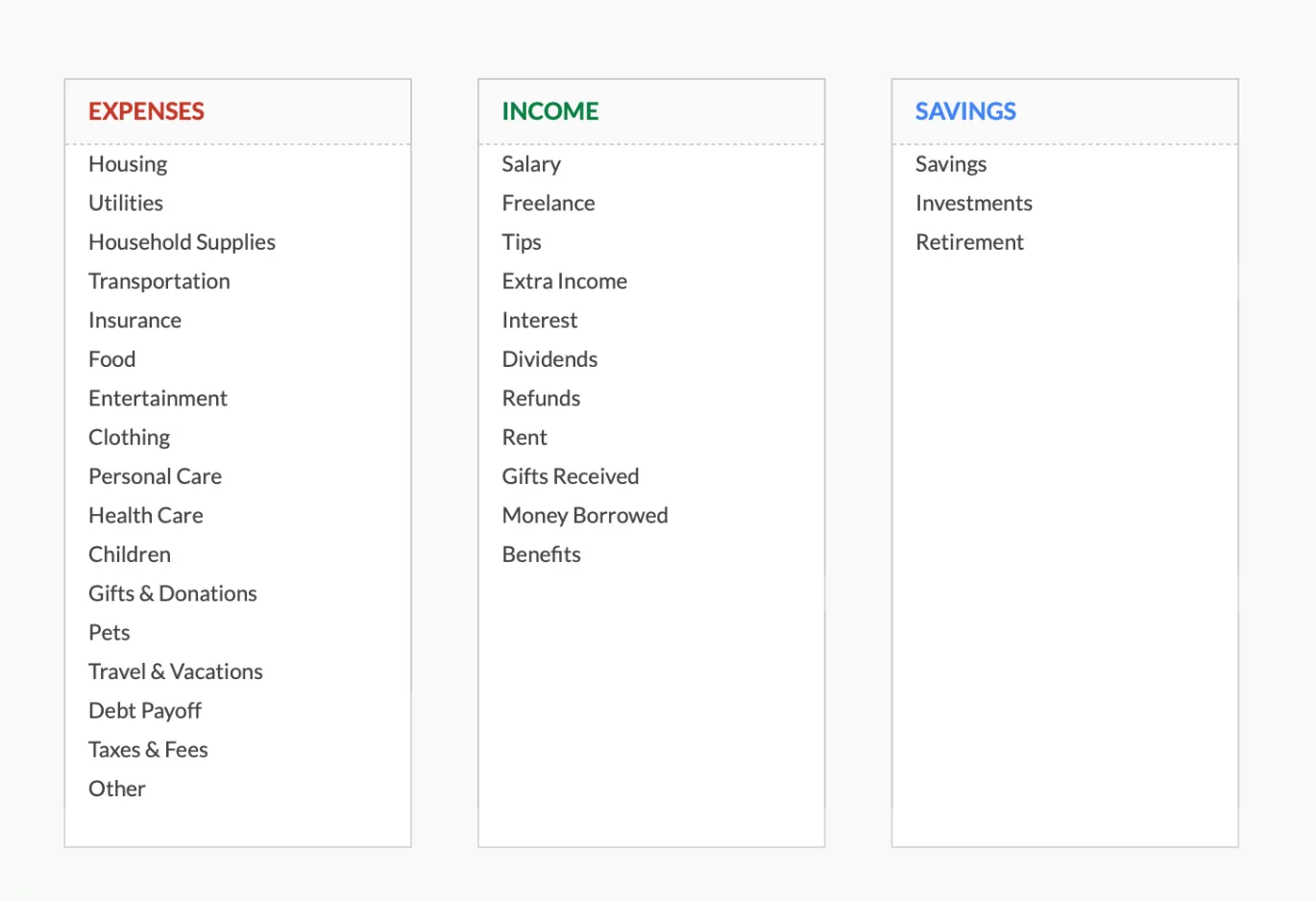
The Categories tab in the Monthly Budget Template (Premium tier) holds three source lists: Expenses, Income, and Savings. Each category dropdown on the Transactions sheet reads from one of those columns, so renaming a category here updates the dropdown options everywhere.
Multiple Dropdown Columns
Budget spreadsheets often benefit from several dropdown columns working together. A Category dropdown handles the type of expense (Housing, Food, Transportation). An Account dropdown tracks payment method (Checking, Credit Card, Cash). A Type column distinguishes Fixed from Variable or One-time expenses. And a Status field marks transactions as Paid, Pending, or Recurring.
These multiple dropdowns turn your transaction log into a queryable database. Want to see all fixed expenses paid by credit card? Filter by both columns. Curious about pending transactions? One click reveals them all.
Validation Options
Google Sheets offers several validation settings worth understanding. The “Reject input” option only allows values from your list, which enforces consistency but can frustrate users who enter valid data that just isn’t in the dropdown yet. Enabling “Show dropdown in cell” displays the arrow indicator so users know a dropdown exists.
Custom error messages provide helpful guidance when someone tries to enter invalid data. Something like “Please select a category from the dropdown list” tells users exactly what went wrong. These small touches make spreadsheets more user-friendly, especially when sharing with family members or partners who might not know your budget system inside out.
Tips for Better Dropdowns
Alphabetizing your options makes finding the right category much faster, especially once you have more than eight or ten choices. Including an “Other” option provides an escape hatch for expenses that don’t fit neatly into predefined categories - because life rarely fits into perfect boxes.
Short, clear names work better than descriptive phrases. “Transportation” beats “Car/Bus/Train/Uber/Rideshare” every time. On mobile devices, dropdown selection works particularly well since tapping to select beats typing on small screens. If you’re tracking expenses on your phone, dropdowns turn a tedious task into quick taps.
Troubleshooting Common Issues
When the dropdown arrow isn’t showing, two things commonly cause the problem. First, check that “Show dropdown in cell” is enabled in the validation settings. Second, the cell might need to be wider - narrow columns can hide the dropdown indicator.
Invalid data warnings on seemingly correct entries usually come down to subtle text mismatches.
Capitalization differences cause the same issue. Check both when troubleshooting unexpected validation errors.
Related
- Annual Budget Template - its Annual Plan pulls category rows from an editable Categories tab, with plan and actual columns for each of the 12 months
- Monthly Budget Template - category dropdowns pre-configured
- Conditional Formatting for Budget Tracking
- Google Sheets Formulas for Budgeting
- How to Lock Cells in Budget Spreadsheets
Frequently asked questions
Do dropdowns work with SUMIF formulas?
Yes. Consistent text is exactly what SUMIF needs to accurately sum by category, which is the whole point of using dropdowns.
How do I add new options to a dropdown?
If using a range reference, add the new option to your source range and it appears automatically. If you typed options directly in validation settings, you need to edit those settings manually.
Does data validation copy when I copy cells?
Yes. Copy a row with dropdowns and the new row inherits all the same validation rules, saving time when extending your transaction log.
Can I create dependent (cascading) dropdowns where the subcategory depends on the category?
Google Sheets has no built-in dependent dropdown. A category dropdown will not automatically filter a second subcategory dropdown, so cascading lists need helper columns and a workaround such as FILTER plus INDIRECT-style named ranges. For most budgets a single category dropdown, with subcategory typed in a separate free-text note column, avoids that complexity.
Do the dropdowns survive downloading the sheet as Excel?
Usually. List-based and range-based dropdowns generally carry over as Excel data validation when you download as .xlsx, so the lists still work in Excel. The newer dropdown-chip styling is cosmetic and shows as a plain list in Excel rather than colored chips.
Sources
- Create a drop-down list - Google Docs Editors Help
About this article
Steps verified against Google Sheets data validation (Data then Data validation) Template dropdowns checked on 2026-09-10 against the shipped Monthly Budgeting Google Sheet (Categories, Transactions, Budget Plan tabs) and the Annual Budgeting Planner (Annual Plan, Categories tabs) Last reviewed September 2026.