
To lock cells in a budget spreadsheet, protect the formula and structure cells while leaving the data-entry areas editable. In Google Sheets, use Data then Protected sheets and ranges, or protect the whole sheet with exceptions. In Excel, unlock the cells you want editable under Format Cells, then turn on protection via Review then Protect Sheet; every cell starts locked, so you exempt only the inputs.
One accidental keystroke can break hours of formula work. Lock formula cells while keeping data entry areas editable. This balance of protected structure and accessible input areas keeps budgets working correctly month after month.
Our spreadsheet templates mark the cells rather than lock them: white cells are the ones you fill in, gray cells hold the formulas, and each sheet carries a small key saying which is which. Knowing how protection works lets you add it on top of that, and it helps when you build a spreadsheet of your own.
Template option: The Monthly Budget Template is a Google Sheet where the Budget Plan tab shows an “Editable” and a “Formula (don’t edit)” key at the top, so the cells worth protecting are already identified before you open the protection menu.
Google Sheets
Google Sheets offers two approaches to cell protection. The right choice depends on whether you want to start from “everything protected” or “everything editable.”
Protecting the entire sheet with exceptions works when most cells need protection. Right-click the sheet tab and select “Protect sheet.” Click “Set permissions.” Under “Except certain cells,” add the data entry ranges that need to remain editable - like the cells where you enter transactions or amounts. Choose who can edit the protected areas. Click Done.
This approach works well for budget templates where formulas and structure cover most of the sheet, with specific input areas for data entry.
Protecting specific ranges works when most cells stay editable and only certain areas need locking. Select the cells to protect - typically formula cells. Go to Data and then Protected sheets and ranges. Click “Add a sheet or range.” Name the protected area descriptively - like “Formulas” or “Dashboard calculations.” Set permissions to control who can edit.
This approach fits simpler budgets where only a few calculated cells need protection.
Excel
Excel handles protection differently from Google Sheets. By default, all cells are “locked” but this has no effect until you protect the sheet. The process requires two steps: unlock the cells you want editable, then turn on protection.
First, unlock the data entry cells. Select the cells you want to remain editable - where you’ll enter transactions, amounts, dates. Right-click and choose Format Cells. Go to the Protection tab and uncheck “Locked.” Click OK. These cells will stay editable after protection is enabled.
Then protect the sheet. Go to Review and click Protect Sheet. Enter an optional password if you want to prevent unauthorized unprotection. Click OK. Now only the cells you explicitly unlocked can be edited - everything else is protected.
The counterintuitive part: you mark editable cells as “unlocked,” not protected cells as “locked.” All cells start locked; you’re choosing which ones to exempt.
What to Lock
Deciding what to protect requires understanding which cells contain structure versus data.
Always lock formulas, headers, category names, and reference data. These define how the budget works: they’re the structure. Accidentally deleting a formula breaks calculations. Changing a header confuses navigation.
Keep editable the cells where you enter information: transaction amounts, income entries, dates, notes, and any other data that changes each time you update the budget. These are inputs, not structure.
Budget amounts occupy a gray area. Some people lock them after setting up the budget, since the allocation is decided and doesn’t change mid-month. Others leave them editable to adjust as circumstances change. Choose based on how you use your budget.
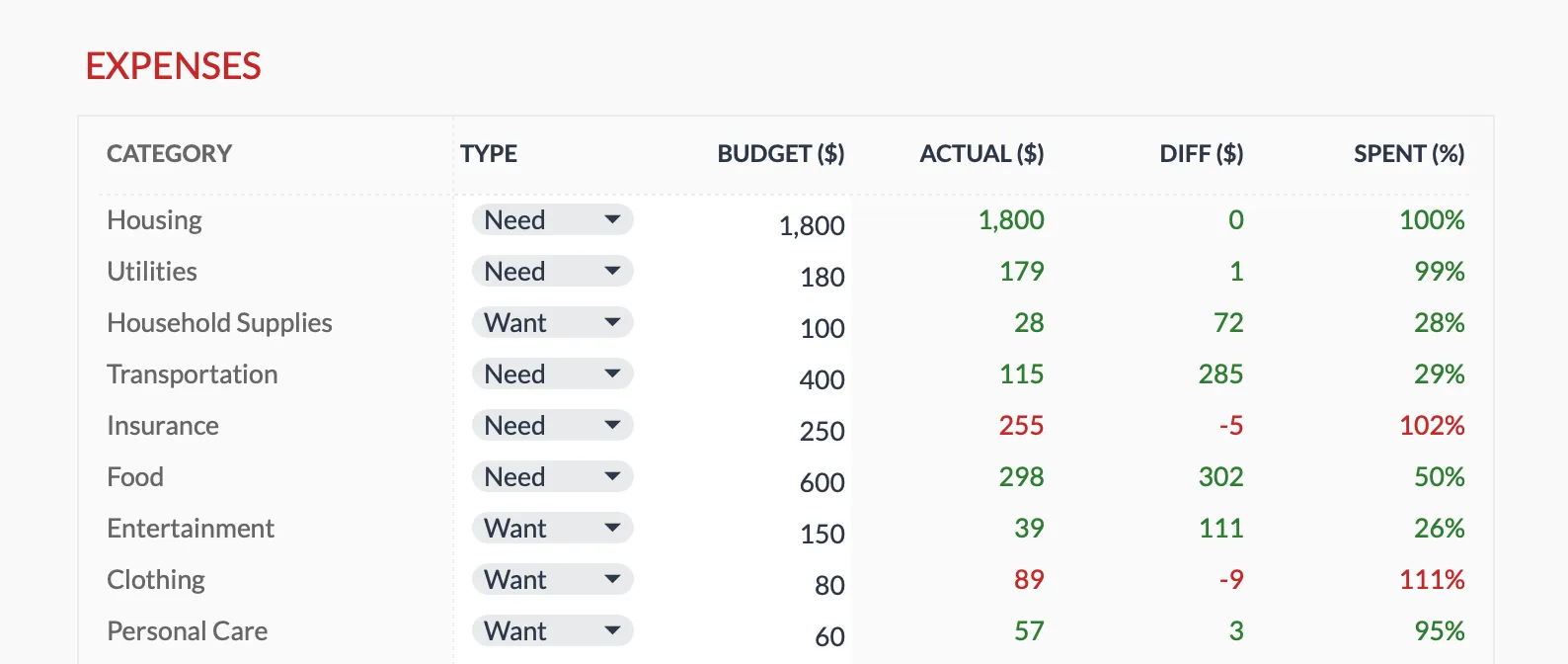
In the Monthly Budget Template (Premium), the Budget amounts and the Need or Want dropdowns are the white editable cells. Category, Actual, Diff and Spent are formulas: Actual sums the matching rows from the Transactions sheet.
| Column | Type | Lock? | |--------|------|-------| | Category | Label | Yes | | Budget | Amount | Maybe | | Actual | Data entry | No | | Difference | Formula | Yes |
Common Issues
Protection sometimes causes unexpected behavior. Here are common problems and their solutions.
Can’t edit cells that should be editable is frustrating when you need to enter data. Check protected ranges by going to Data and then Protected sheets and ranges - you may have accidentally included those cells. In Google Sheets, verify you’re logged into the correct Google account, as permissions are tied to accounts.
Formula accidentally overwritten happens when protection wasn’t set up in time. Undo (Ctrl+Z or Cmd+Z) if the change was recent. For older changes, check version history by going to File and then Version history, where you can restore previous versions or copy formulas from earlier snapshots.
Related
- Annual Budget Template - white cells for the monthly Plan and Actual figures, gray for the totals and differences
- Monthly Budget Template - editable and formula cells keyed on every sheet
- Conditional Formatting for Budget Tracking
- Google Sheets Formulas for Budgeting
Frequently asked questions
Can others see formulas in protected cells?
Yes. Protection prevents editing, not viewing. Anyone with view access can see the formulas by clicking on protected cells.
Does protection work on mobile devices?
Yes, the same restrictions apply on mobile. Users can't edit protected cells regardless of device. The protection settings travel with the file.
Can different tabs have different protection settings?
Yes. Each sheet in a workbook can have different protection settings, which is useful for budgets where some tabs need frequent editing while others are mostly formulas.
Do I need a password to protect a sheet?
No. In both Google Sheets and Excel a password is optional. Google Sheets ties protection to editor permissions rather than a password, and Excel lets you protect a sheet with no password at all. A password only adds a barrier to turning protection off, so anyone who has it can unprotect the sheet.
What happens to protection when I download a Google Sheet as Excel, or upload an Excel file to Sheets?
Protected ranges usually carry over, but the two apps handle protection differently, so it is worth reopening the file and checking that the right cells are still locked and the right ones stay editable before you rely on it.
Sources
- Protect a range or sheet - Google Docs Editors Help
- Protect a worksheet - Microsoft Support
- Lock or unlock specific areas of a protected worksheet - Microsoft Support
About this article
Steps checked against Google's 'Protect a range or sheet' help page and Microsoft's 'Protect a worksheet' support documentation. Template claims checked on 2026-09-10 against the shipped Monthly Budgeting and Annual Budgeting Planner Google Sheets (Budget Plan, Annual Plan and Instructions tabs); neither ships protected ranges, so the editable and formula color key is what the sheets provide. Last reviewed September 2026.