Best Value Complete Financial Planning Bundle
✓ Financial Planning✓ Net Worth Tracker✓ Monthly Budgeting✓ Travel Budget Planner✓ Annual Budgeting Planner✓ Monthly Expense Tracker✓ Annual Tax Planner✓ Retirement Planning
View Bundle →
Credit Card Payoff Ultimate

Instant digital delivery · Terms & Conditions apply

Essentials Template - Excel & Google Sheets

Essentials Credit Card Payoff Spreadsheet Template for Google Sheets & Excel

Three payment amounts run against the same card side by side - the minimum, a steady figure, and a larger one - down a full month-by-month schedule carrying payment and remaining balance on each path. The Essentials Credit Card Payoff spreadsheet template models the minimum properly, with the requirement falling as the balance does, and takes the minimum-payment rule from you because cards differ. Google Sheets and Excel. No macros, no VBA.

See Ultimate Spreadsheet Template

Instant digital delivery · Terms & Conditions apply

View Ultimate Credit Card Payoff Spreadsheet Template
$29
Essentials Credit Card Payoff spreadsheet template - Google Sheets and Excel preview

What's Included

  • Three payment amounts compared on one card: the minimum, a steady figure and a larger one
  • A minimum-payment rule you set, since cards differ
  • The minimum path modelled properly, with the requirement falling as the balance does
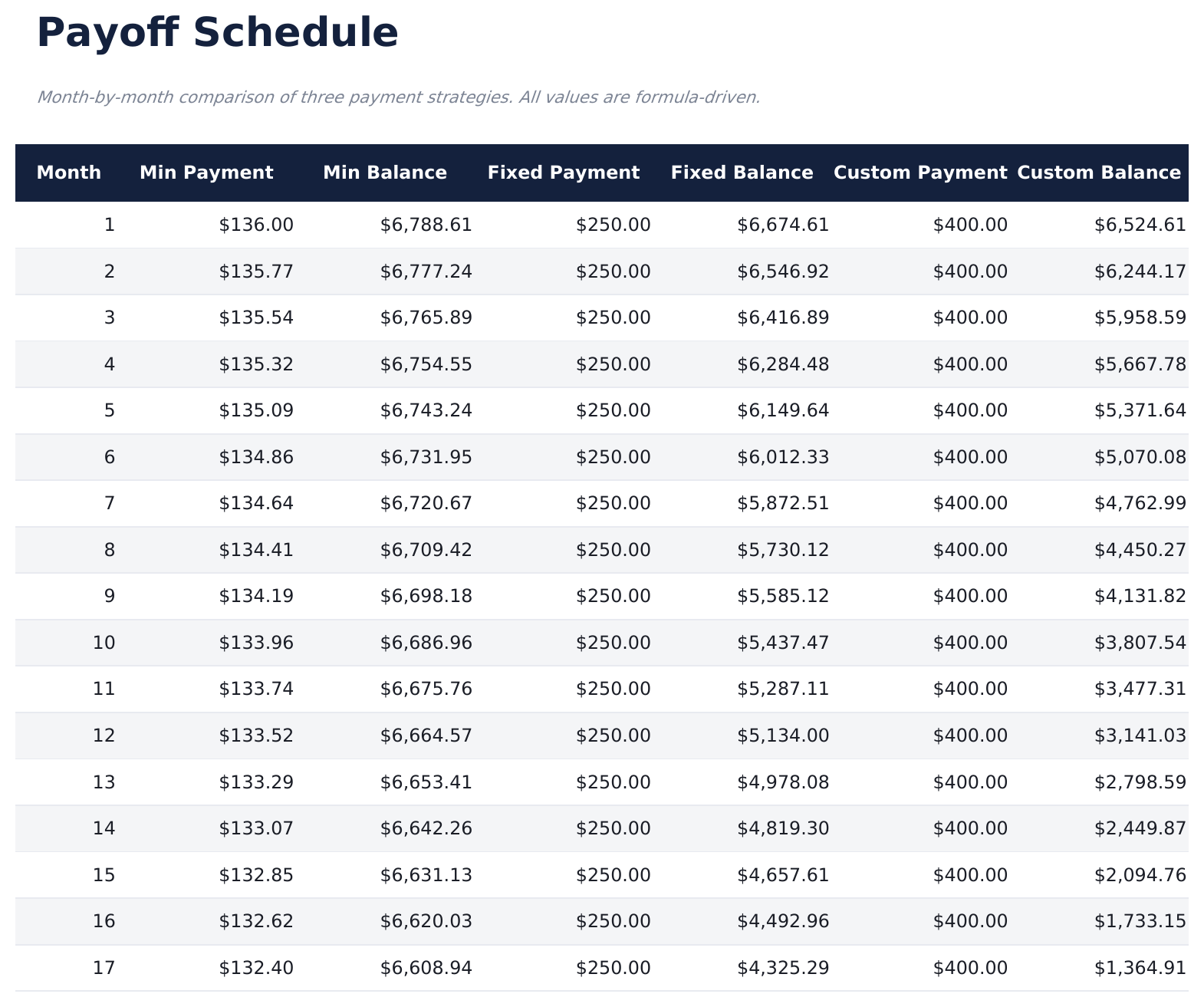
  • A month-by-month schedule carrying payment and remaining balance on all three paths
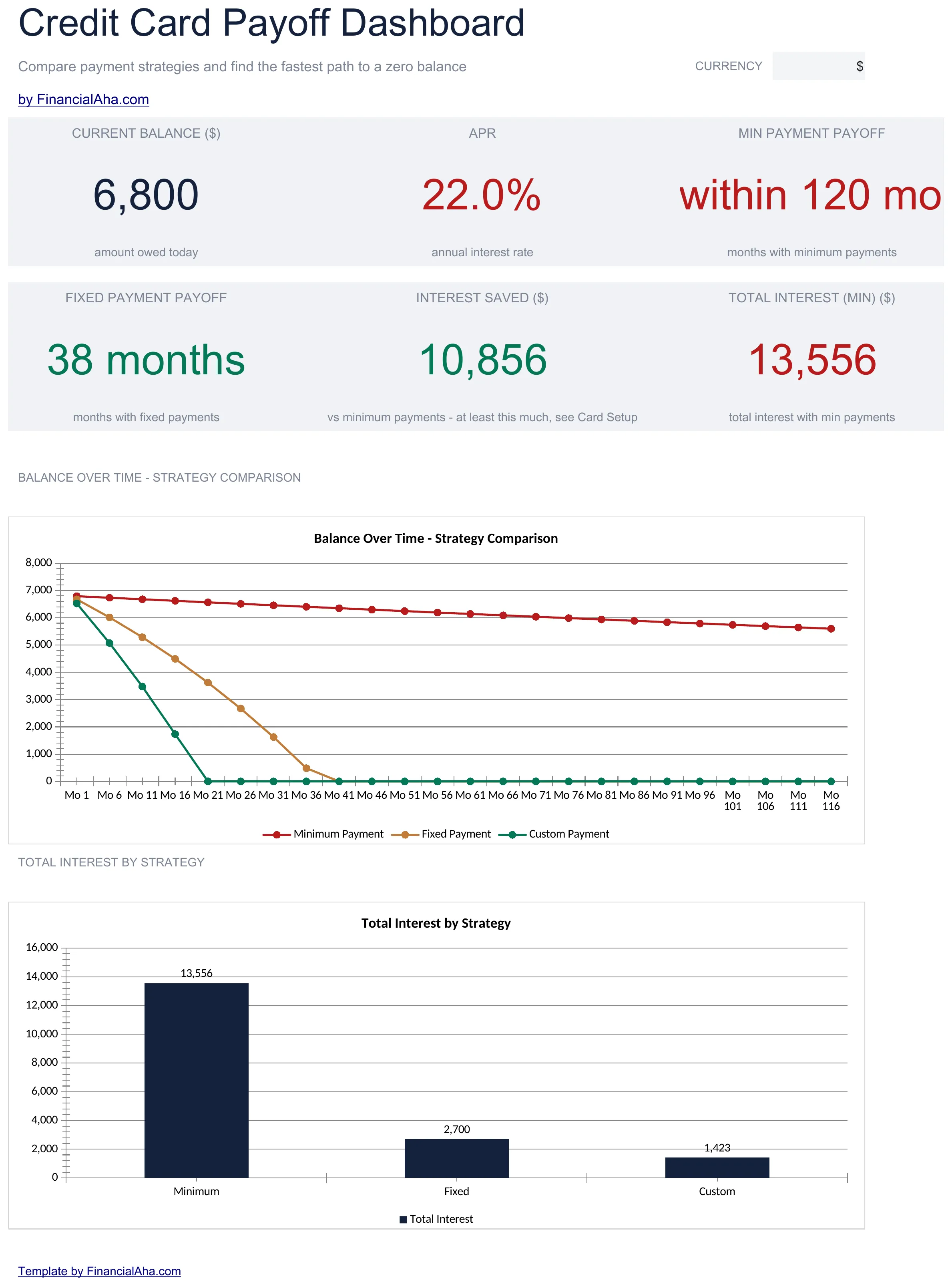
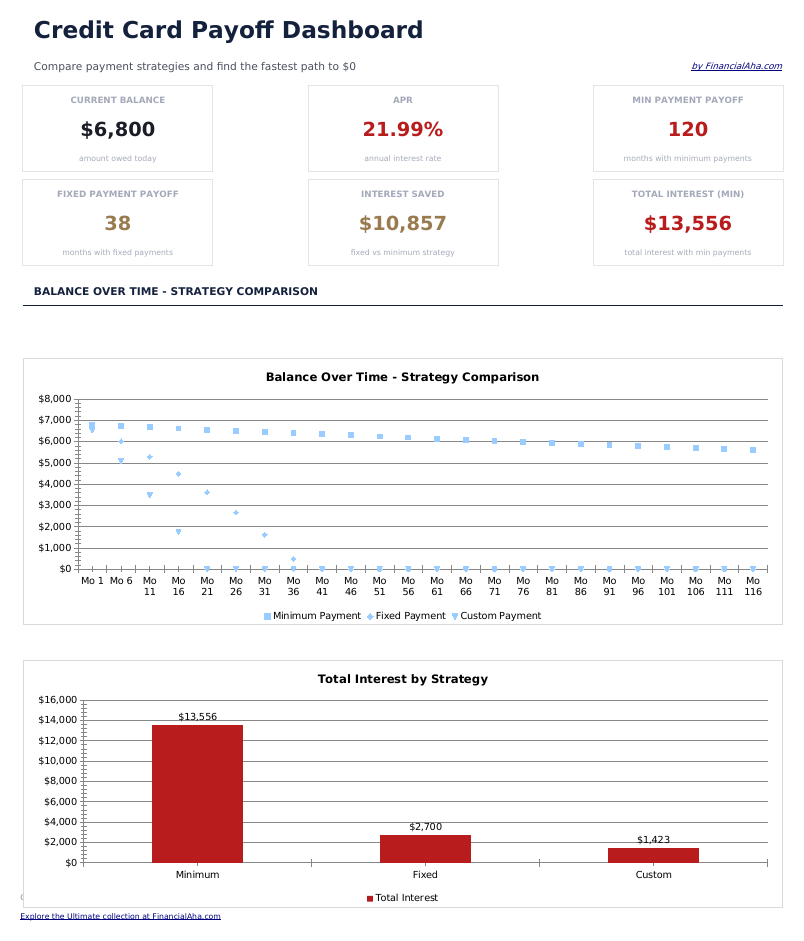
  • Dashboard showing how long each path takes and what each costs in interest
  • A minimum path that reports "Not within 120 months" rather than a number when it never clears
  • The difference between the paths reported directly
  • A chart tracing the three balances down over time
  • A chart comparing the total interest of each
  • A currency dropdown on the Dashboard that relabels money columns across all three sheets
  • Works in Microsoft Excel and Google Sheets with no setup required
Ultimate Version Available

Need more from this template?

The Essentials Spreadsheet Template covers everyday tracking. The Ultimate Spreadsheet Template gives each part of the template its own sheet, with more capacity and deeper reporting on top.

Essentials - $19
  • Three payment amounts compared on one card: the minimum, a steady figure and a larger one
  • A minimum-payment rule you set, since cards differ
  • The minimum path modelled properly, with the requirement falling as the balance does
  • A month-by-month schedule carrying payment and remaining balance on all three paths
Ultimate - $29
  • Up to ten cards, each with balance, rate, limit, minimum and the payment you intend
  • Utilisation worked out per card from the limit you enter
  • A payoff order you set across the cards
  • Month-by-month schedule carrying payment and balance for every card
  • Three ordering methods compared: smallest balance, highest rate, or largest payment
See what's in the Ultimate version One-time purchase. No subscription.

The FinancialAha Essentials Credit Card Payoff Spreadsheet Template for Google Sheets and Excel is a three-sheet workbook that runs three payment amounts against the same card at once, with a How to Use guide on a fourth tab. It works as an Essentials Credit Card Payoff Excel template and an Essentials Credit Card Payoff Google Sheets template from the same download. Where the Free build answers for one payment, this Essentials Credit Card Payoff spreadsheet template carries three down a full schedule - including the path where you pay only what the issuer requires. No macros, no VBA.

Inside the workbook

What's inside the FinancialAha Essentials Credit Card Payoff spreadsheet template

The FinancialAha Essentials Credit Card Payoff Spreadsheet Template runs on three working sheets - one you type into, two that report back - plus the guide. It works in both Microsoft Excel and Google Sheets and here is what the Essentials Credit Card Payoff spreadsheet holds.

  1. 01 of 03

    Card Setup

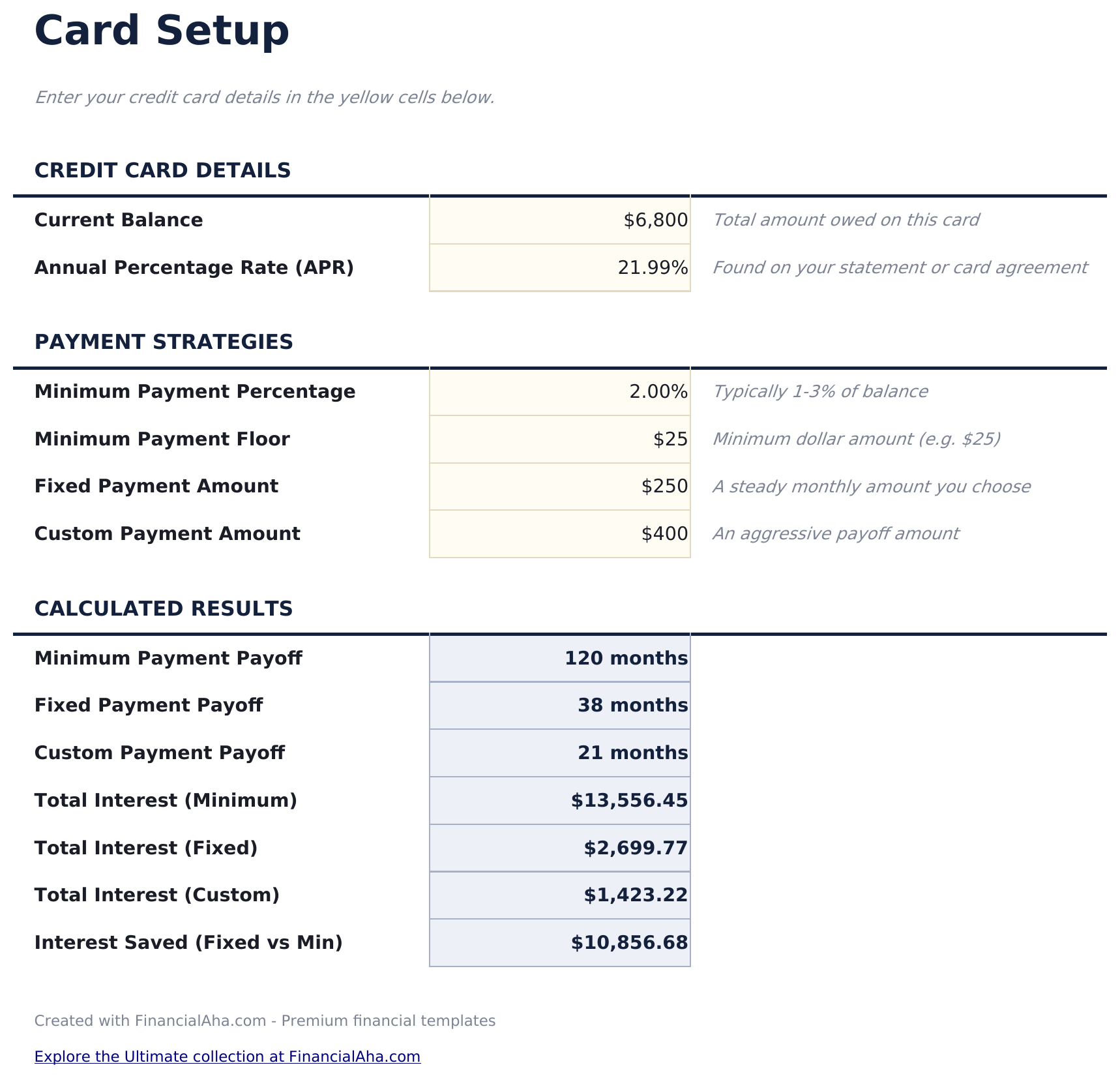
    The sheet you type into, and the only one. The card's balance and rate go in, then the rules its minimum payment follows, and then two amounts of your own - a steady one and a larger one. Those three become the three paths the rest of the workbook compares. Setting the minimum-payment rule rather than assuming one matters, because that rule is what makes the slowest path behave the way it does. Beneath the inputs sits the results block, and it carries more than the dashboard surfaces: how long each of the three paths takes, what each costs in interest, and what the steady amount saves against the minimum. That is where the third path's figures live. One result is a sentence rather than a number. If the minimum payment never clears the card within the schedule, the payoff figure reads "Not within 120 months" instead of a count - which is the honest answer when a required payment sits close to the interest being charged. The interest total beside it is then what was paid across those 120 months, not the cost of clearing the card, because on that path there is no clearing.

  2. 02 of 03

    Payoff Schedule

    Every month of the payoff for all three amounts at once, side by side: what goes to the card and what is left afterwards, on each path. The minimum column is the one worth reading down - because the required payment falls as the balance does, that path stretches out in a way a single figure never conveys. When a balance reaches nothing, that path has finished, and the rows after it sit empty.

  3. 03 of 03

    Dashboard

    The comparison at the top level: what is owed, the rate it carries, how long the minimum path and the steady one take, the interest the minimum path costs, and what the steady amount saves against it. The third path's figures, and the interest totals for the other two, sit on the setup sheet. Two charts carry it - one tracing the three balances down over time, the other setting the total interest of each against the others.

  4. Included guide

    How to Use

    A step-by-step guide on its own tab, covering setup, what each of the three amounts represents, how to read the schedule, and why the minimum path behaves as it does. Because it ships inside the file, the instructions travel with the template wherever it is opened.

Works in both Google Sheets and Excel

Essentials Credit Card Payoff Spreadsheet template for Google Sheets

Upload the Essentials Credit Card Payoff Spreadsheet Template to Drive, right-click it, and choose "Open with Google Sheets". This Essentials Credit Card Payoff Google Sheets template needs no conversion step and both charts survive the trip intact - the schedule recalculates exactly as it does in Excel. The currency dropdown on the Dashboard relabels every money column across all three sheets at once.

Essentials Credit Card Payoff Google Sheets template setup

A shared copy of the Essentials Credit Card Payoff Google Sheets template works when a balance is being tackled together, and because all the inputs sit in one place, changing the payment in a shared file is a single visible edit. Sheets version history covers a figure typed over.

Sharing the Essentials Credit Card Payoff Google Sheet

The Essentials Credit Card Payoff Google Sheet is built for sittings rather than daily use: set the card up once, then change the payment amounts and watch the three paths move apart. The schedule is where a headline figure gets traced back to the month that produced it.

Essentials Credit Card Payoff Spreadsheet template for Excel

The Essentials Credit Card Payoff spreadsheet Excel download is a plain .xlsx. Excel opens this Essentials Credit Card Payoff Excel template directly, with no import step and no compatibility prompt, and both charts are native Excel charts that redraw as the amounts change. There are no macros and no VBA in the file, so it opens without a security warning.

Essentials Credit Card Payoff Excel template setup

The same Essentials Credit Card Payoff Excel template opens in Excel on Windows, Excel on Mac, and Excel for the web. It is also the identical file you would upload to Drive, so there is no separate Essentials Credit Card Payoff spreadsheet download to choose between.

Essentials Credit Card Payoff spreadsheet Excel notes

The Essentials Credit Card Payoff spreadsheet Excel file carries no macros and no VBA, so Excel opens it without a trust prompt. The same Essentials Credit Card Payoff spreadsheet Excel download also opens in Excel for the web, which matters when you move between a work machine and a personal one.

Opening the Essentials Credit Card Payoff spreadsheet Excel file

Nothing in the Essentials Credit Card Payoff Excel template is version-specific, so this Essentials Credit Card Payoff spreadsheet Excel workbook behaves identically in Excel on Windows, Excel on Mac, and older builds.

Spreadsheet template highlights

What the Essentials Credit Card Payoff spreadsheet template tracks

You set the card up once, and the Essentials Credit Card Payoff Spreadsheet Template runs three paths from it:

Month
each month of the payoff, across all three paths
Min Payment auto
derived, what the issuer's rule requires that month
Min Balance auto
derived, what is left on that path afterwards
Fixed Payment
the steady amount you set
Fixed Balance auto
derived, what is left on that path
Custom Payment
the larger amount you set
Custom Balance auto
derived, what is left on that path

Compare builds

FinancialAha Credit Card Payoff spreadsheet template: Free, Essentials, and Ultimate compared

Feature Free View Spreadsheet Template Essentials This page Ultimate View Spreadsheet Template
Working sheets 1 3 6
Cards handled One One 10
Months to payoff Yes Yes, per strategy Yes, across all cards
Total interest Yes Per strategy Total and saved
Month-by-month schedule Yes, three strategies side by side Yes, per card
Minimum-payment path Modelled with a shrinking minimum Per card
Charts 2 2
Payoff order Set per card
Strategy comparison 3 payment amounts 3 ordering methods
Credit utilisation Per card, tracked over months
Balance transfer Dedicated sheet

The FinancialAha Essentials Credit Card Payoff Spreadsheet Template covers three working sheets and one card, and the comparison it runs is between three payment amounts rather than three cards. Against the Free Credit Card Payoff Spreadsheet Template, which answers for a single steady payment, this build adds the minimum-payment path with its shrinking requirement, a full month-by-month schedule carrying all three, and two charts. The Ultimate Credit Card Payoff Spreadsheet Template moves from one card to ten, with a payoff order you set across them, a comparison of three ways of ordering rather than three amounts, utilisation tracked per card across several months, and a balance transfer sheet.

Good to know

Notes on working in the Essentials Credit Card Payoff spreadsheet template

  • The three paths are three payment amounts on the same card. Comparing ways of ordering several cards is what the Ultimate build does.
  • The minimum-payment rule is an input because cards differ. Getting it right is what makes that path's length meaningful.
  • A minimum payment falls as the balance falls, which is why that column behaves so differently from the two fixed ones.
  • If the minimum path never clears, its interest figure is what was paid within the schedule rather than the cost of clearing the card - the workbook says so beside the cell.
  • Rows sit empty after a path finishes, so the schedule shows plainly which one ends first.
  • The currency dropdown sits on the Dashboard and relabels money columns across the whole Essentials Credit Card Payoff spreadsheet. It changes the label only and does not convert the numbers.

How to Use the Essentials Credit Card Payoff Spreadsheet Template

1

Set the card up

On Card Setup, enter the balance and the rate, then the rule your card uses for its minimum payment.

2

Choose two amounts

Add a steady monthly payment and a larger one. These become two of the three paths.

3

Read the schedule

All three run side by side month by month, with the payment and what is left on each.

4

Compare on the dashboard

How long each takes, what each costs in interest, and the gap between them, across two charts.

Stress-tested with AI.

Every template starts with deep research into how people actually track the topic. We design the layout, build the formulas, and polish the design until it feels like something we would use ourselves. Along the way, we use AI to stress-test the calculations: unusual inputs, edge cases, and formula behavior, checked until the numbers hold.

See Ultimate Spreadsheet Template

Instant digital delivery · Terms & Conditions apply

Frequently Asked Questions

Is the FinancialAha Essentials Credit Card Payoff Spreadsheet Template a Google Sheets template?

Yes. Upload the file to Drive and choose "Open with Google Sheets". The Essentials Credit Card Payoff Google Sheets template needs no conversion step and both charts survive the trip intact.

Is the FinancialAha Essentials Credit Card Payoff Spreadsheet Template an Excel template?

Yes. The download is a plain .xlsx, so the Essentials Credit Card Payoff Excel template opens directly in Excel with no import step. Both charts are native Excel charts, and there are no macros or VBA.

Will the FinancialAha Essentials Credit Card Payoff spreadsheet Excel file open in older versions of Excel?

Yes. The Essentials Credit Card Payoff spreadsheet Excel workbook ships as a plain .xlsx, so it opens identically in current Excel and in builds that predate dynamic arrays.

Does the Essentials Credit Card Payoff spreadsheet handle several cards?

No. It works one card three ways rather than several cards at once. Ten cards with a payoff order across them, and a comparison of ordering methods, is what the Ultimate build adds.

What are the three strategies in the Essentials Credit Card Payoff spreadsheet?

Three payment amounts on the same card: what the issuer requires, a steady figure you choose, and a larger one. The schedule runs all three side by side so the difference between them is visible month by month.

Why does the minimum-payment path in the Essentials Credit Card Payoff spreadsheet take so much longer?

Because the required payment is worked out from the balance, so it falls as the balance does. The workbook models that shrinking requirement rather than holding the first minimum steady.

Can I set my own minimum-payment rule in the Essentials Credit Card Payoff spreadsheet?

Yes, and it is worth doing - card issuers differ, and the rule is what determines how that path behaves. It is an input on the setup sheet.

What happens after a path finishes in the Essentials Credit Card Payoff spreadsheet template?

Its rows sit empty for the remaining months, so the schedule shows plainly which amount clears the card first and by how long.

What if the minimum payment never clears the card in the Essentials Credit Card Payoff spreadsheet?

Then the payoff figure says so in words rather than returning a count. A required payment sitting close to the interest being charged can leave a balance running past the end of the schedule, and the sheet reports that instead of implying an end date. The interest figure beside it is what was paid across those months rather than the cost of clearing the card.

How do I open the Essentials Credit Card Payoff spreadsheet template in Google Sheets?

Upload the .xlsx file to Google Drive, then open it with Google Sheets. All formulas and formatting will be preserved.

More Essentials Debt Management Templates

Essentials

Highlights:

Dashboard with charts and KPIs
Pre-filled categories and sample data
No sign-up, no subscription
Lifetime free updates
Works in
Excel Google Sheets

Looking for premium spreadsheet templates?

Our paid templates include advanced multi-sheet dashboards, native Excel charts, and ongoing updates.

Private & secure

Your financial data stays on your device. We never see it.

Learn more →

Need help?

Check our guides or reach out with questions.

View FAQ →