
A debt snowball spreadsheet lists your debts smallest balance to largest, pays the minimum on each, and throws every extra dollar at the smallest until it clears, then rolls that freed-up payment into the next. It shows the payoff order and a projected debt-free date, and recalculates the moment you change the extra-payment amount. This guide includes the Excel template, a five-debt worked example, and the snowball vs avalanche math.
The debt snowball method works because of behavior, not math. Strictly mathematically, the avalanche method (highest interest rate first) saves more money. But people stick with the snowball more reliably because hitting “paid off” on a small debt feels like a win, and wins create momentum. This guide covers both, walks through a worked example, and explains where the spreadsheet helps and where it doesn’t.
What the snowball method is
You list your debts smallest balance to largest balance. You pay the minimum on every debt to keep them current. Any extra dollars you have go to the smallest debt until it’s gone. Then you take the freed-up payment from that paid-off debt and add it to the next smallest. Each subsequent payoff frees up more cash, which “snowballs” into faster payoffs of the larger debts.
That’s the entire method. The spreadsheet is just bookkeeping for it.
What the spreadsheet needs to do
A working debt snowball template needs five things:
- A list of debts with balance, interest rate, and minimum payment.
- Automatic sorting by balance (smallest first).
- A field for total monthly payment available (sum of minimums plus your extra).
- A calculated payoff order and projected payoff date for each debt.
- A summary showing total interest paid and time to debt-free.
That’s it. Anything else is extra; the five items above are the entire job.
The columns in the template
Our Debt Snowball Excel template puts this schema on its Debt Setup sheet, with room for up to eight debts:
| Column | Example | Notes |
|---|---|---|
| Debt Name | Store Card | Plain language label |
| Balance ($) | 2,400 | Current outstanding |
| APR | 25.0% | Annual interest rate |
| Min Payment ($) | 75 | Required monthly minimum |
| Monthly Interest ($) | 49.98 | Calculated from the balance and the APR |
| Months (Min Only) | 54 | Calculated: this debt on its minimum alone |
One further input sits above the table, Extra Monthly Payment, the amount you can put in above the minimums. The Dashboard reads the same rows back as a payoff order sorted smallest balance first, with the month each debt clears, and the Snowball Schedule sheet carries the month-by-month totals.
The auto-sort and auto-calculation are the value. Manual updating after each payment is what kills most spreadsheet payoff plans; pre-built formulas keep the dashboard accurate.
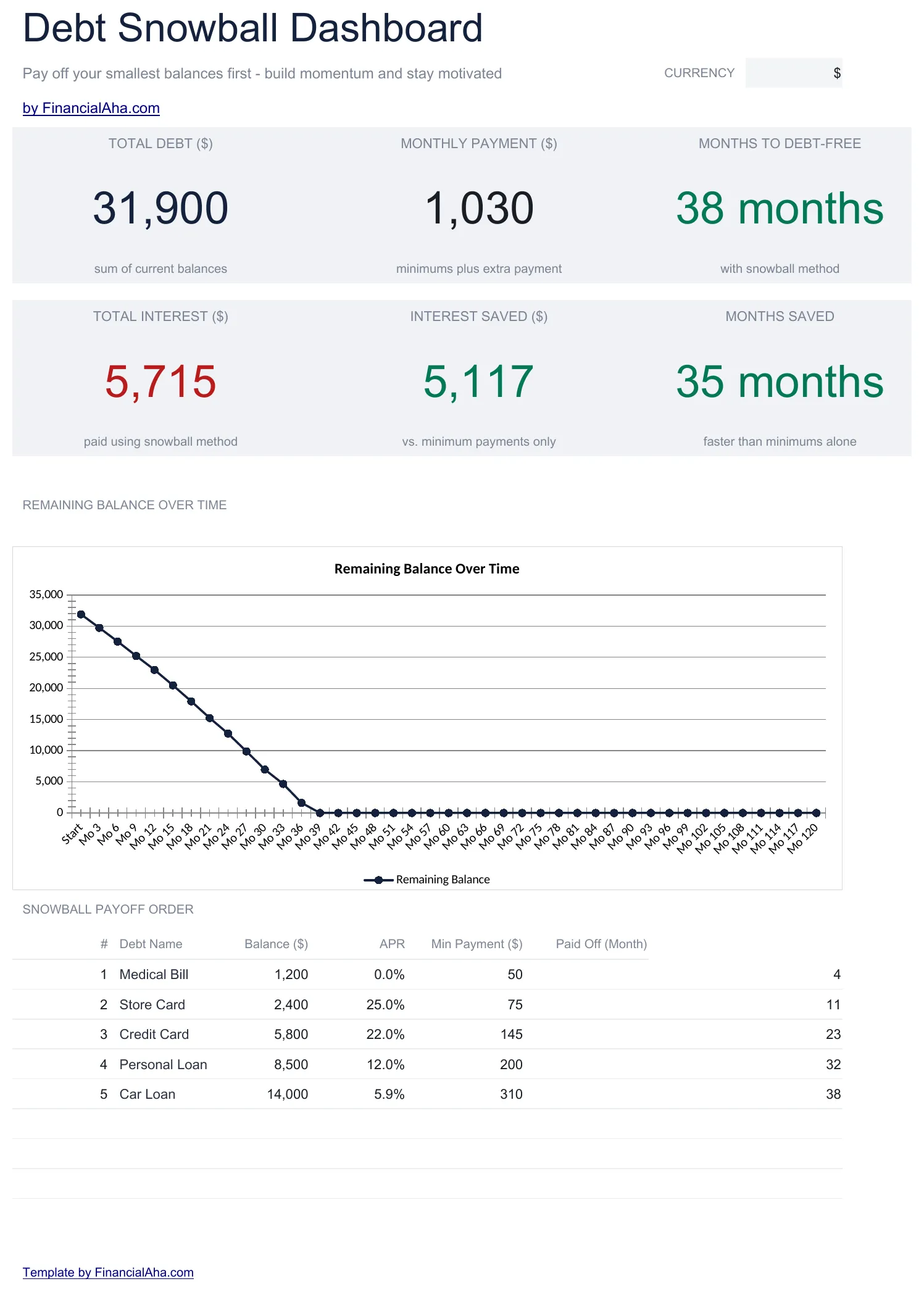
The dashboard from the Debt Snowball Essentials template ($19): the summary tiles and payoff-order table recalculate from the debt list, so the order and the debt-free date update on their own.
A worked example
Maria has five debts. Her total minimum payments are $370 a month. She can afford an extra $200 a month toward debt payoff. Her snowball setup:
| Debt | Balance | APR | Minimum | Snowball target |
|---|---|---|---|---|
| Best Buy card | $420 | 26.99 | $25 | YES (smallest) |
| Medical bill | $830 | 0 | $50 | After #1 |
| Car loan | $4,200 | 6.5 | $190 | After #2 |
| Credit card | $5,800 | 22.99 | $80 | After #3 |
| Student loan | $14,500 | 5.5 | $25 | After #4 |
| Total | $25,750 | $370 |
With $570 a month total ($370 minimums + $200 extra):
- Best Buy card pays off in month 2.
- Medical bill pays off in month 5 (the freed $25 from Best Buy plus the existing $50 minimum plus the $200 extra = $275/mo).
- Car loan pays off in month 13.
- Credit card pays off in month 26.
- Student loan pays off in month 55.
Total time to debt-free: 55 months. Total interest paid: about $5,285.
Two of Maria’s minimums sit below what those balances accrue each month, the $80 on the credit card and the $25 on the student loan, so both grow until the snowball reaches them. That happens often with income-driven student loan payments, and it is the sort of thing a schedule makes visible.
The spreadsheet does this calculation automatically. Change the extra-payment cell from $200 to $300 and the plan re-solves to 45 months. That live recalculation is the value.
Snowball vs avalanche
Avalanche orders debts by APR (highest first) instead of balance. For Maria, the order would be: Best Buy (26.99), credit card (22.99), car loan (6.5), student loan (5.5), medical (0).
| Method | Time to debt-free | Total interest |
|---|---|---|
| Snowball (balance order) | 55 months | $5,285 |
| Avalanche (APR order) | 54 months | $4,765 |
Avalanche is mathematically better by 1 month and about $520. That’s a real difference. The gap widens as APRs climb, and card rates are high right now: the Federal Reserve’s G.19 release puts the average rate on interest-bearing credit card accounts above 22 percent, close to the 22.99 percent on Maria’s credit card.
To put a number on one balance before committing to an order, the debt payoff calculator takes a balance, a rate, a minimum and an extra payment, then returns the payoff time, the total interest, and what the extra payment saves against minimums alone:
But research consistently shows people stick with snowball more reliably than avalanche. Hitting “paid off” on the Best Buy card in month 2 creates a behavioral win that pulls people through the longer slog. For Maria that card is both the smallest balance and the highest rate, so either method clears it in month 2. After that the paths split: the snowball clears the medical bill in month 5, while avalanche leaves it on its own minimum until month 17 and sends the extra to the credit card instead.
If you’re disciplined and motivated by math, use avalanche. If you’ve stalled on previous debt payoff attempts, use snowball. Our template runs the snowball order only, since it ranks the debts you enter by balance, smallest first.
Where the spreadsheet helps
Live updating. Change one number, see the impact across your entire payoff plan. This is the single biggest difference from a paper plan.
Order clarity. Once balances are entered, the auto-sort tells you exactly what to do this month. No second-guessing.
Motivation. Watching the payoff months move when you add an extra $50 a month is more motivating than abstract advice to “pay more if you can.”
A current picture. Update the balances after each month’s payments and the payoff order, the months-to-debt-free figure and the interest totals all re-solve from the new numbers.
Where the spreadsheet doesn’t help
It doesn’t change the math. A snowball spreadsheet doesn’t lower your APRs or increase your income. The work is still the work.
It doesn’t account for windfalls or setbacks. A bonus, a tax refund, or a surprise medical bill all need to be entered manually. The spreadsheet projects from current numbers; reality is bumpier. The Federal Reserve’s household survey finds a large share of adults would have to borrow to cover a $400 emergency, and a new balance like that resets the snowball if it isn’t planned for.
It doesn’t address spending behavior. If your credit card balance keeps growing while you’re paying down the smaller debts, the snowball math breaks. The spreadsheet shows you this is happening; fixing it is a different problem.
For most people, addressing the spending pattern with a budget template alongside the debt snowball spreadsheet is what makes the math work in real life.
Setting it up by hand if you want to skip the template
Five minutes of setup if you’d rather build:
- New Excel or Google Sheets file.
- Headers: Debt name, Balance, APR, Minimum, Extra applied, Payoff months.
- Enter your debts. Use Data > Sort (Excel) or Data > Sort range (Sheets) to sort ascending by Balance.
- In a cell labeled “Total payment available” enter the sum of minimums plus your extra.
- The payoff months column needs a financial formula. The simplified version is
Balance / (Minimum + Extra)for the snowball target andBalance / Minimumfor the rest, ignoring interest. The accurate version uses NPER, which expects a monthly decimal rate, so divide the APR percentage by 100 before dividing by 12:=NPER((APR/100)/12, -(Minimum+Extra), Balance).
Build it once and you’ll never want to update it again. The pre-built Debt Snowball template ($19) handles the formula complexity and the dashboard, including the rollover when one debt finishes.
What I’d add after using one
Two columns I added to my own copy after a few months:
Original balance column. Watching the gap between your starting balance and your current balance gets motivating around month 6. Without an “original” reference, the dashboard only shows what’s left.
Payoff celebration column. Sounds silly. Isn’t. A column where you write what you’ll do (small) when each debt hits zero gives the snowball method the behavioral payoff it relies on. “$15 ice cream when Best Buy is paid” is a stupid amount that turns out to matter.
Which version fits your list
If you want the payoff order and the months-to-debt-free figure without building formulas, the Debt Snowball Essentials template ($19) is the shortest path: enter up to eight debts, set the extra payment, and read the dashboard shown above. For a longer list or more detail, these add room and depth:
- Debt Snowball Ultimate ($29) - Room for up to 12 debts, a 180-month schedule with a payment and balance column per debt, a what-if sheet that re-solves the whole plan for any extra payment you type in, a snowball versus minimum-only comparison, and a tracker for five payoff milestones with projected dates.
- Monthly Budget Template - Planned-vs-actual monthly budget with a dashboard and category targets, for the spending side of the snowball.
- Financial Planning Spreadsheet - Net worth, assets, debt and cash flow in one Google Sheet, with a projection tab that runs your current profile forward to an end year you set, for the picture after the debt is gone.
Related
Frequently asked questions
Should I have an emergency fund before starting the snowball?
A small starter emergency fund ($1,000 or one month of essentials) usually makes sense before aggressive debt payoff. Without it, an unexpected $400 expense becomes a new credit card balance and the snowball stalls. The full 3 to 6 month emergency fund typically waits until consumer debt is gone.
Can I do the snowball if I have variable income?
Yes, but enter a conservative "extra payment" amount based on your average income, not your best months. The spreadsheet projects from a steady extra payment; if you have months where you can pay more, those are bonuses that shorten the payoff.
Should student loans be included?
Yes, in the same list. Student loans usually end up at the bottom of the snowball order because their balances are large. If you want to handle them differently (income-driven repayment, public service loan forgiveness), keep them on a separate sheet and run the snowball on the rest.
What if I get a windfall (tax refund, bonus)?
Apply it to the current snowball target. A $2,000 tax refund toward the smallest balance can wipe it out instantly and accelerate everything that follows.
Snowball or avalanche? Just tell me.
If you've stalled on past debt payoff attempts, snowball. If you've never struggled with consistency, avalanche saves a few hundred dollars and a couple of months. Both are fine. The bad option is no plan.
Sources
- Consumer Credit - G.19 - Federal Reserve
- Economic Well-Being of U.S. Households (SHED) - Federal Reserve
About this article
Template sheets, inputs and outputs checked on 2026-09-10 against the shipped Debt Snowball Essentials workbook (Dashboard, Debt Setup, Snowball Schedule, How to Use) and the Debt Snowball Ultimate workbook, which adds Snowball vs Minimum, What-If Analysis and Payoff Milestones. Credit card APR context checked against the Federal Reserve G.19 Consumer Credit release. Last reviewed September 2026.