Best Value Complete Financial Planning Bundle
✓ Financial Planning✓ Net Worth Tracker✓ Monthly Budgeting✓ Travel Budget Planner✓ Annual Budgeting Planner✓ Monthly Expense Tracker✓ Annual Tax Planner✓ Retirement Planning
View Bundle →

Instant digital delivery · Terms & Conditions apply

Ultimate Template - Excel & Google Sheets

Ultimate Debt Snowball Spreadsheet Template for Google Sheets & Excel

Twelve debts, a 180-month schedule carrying a payment and a balance column for each, and the rollover visible row by row as the smallest balance clears. The Ultimate Debt Snowball spreadsheet template sets that plan against minimum-only payments on a sheet of its own, takes any extra payment you want to test on another, and marks the milestones - first debt gone, then a quarter, half, three quarters, debt-free. Six working sheets. Google Sheets and Excel, one file.

See Preview

Instant digital delivery · Terms & Conditions apply

Debt Snowball Spreadsheet Template - Ultimate version for Google Sheets and Excel

What's Included

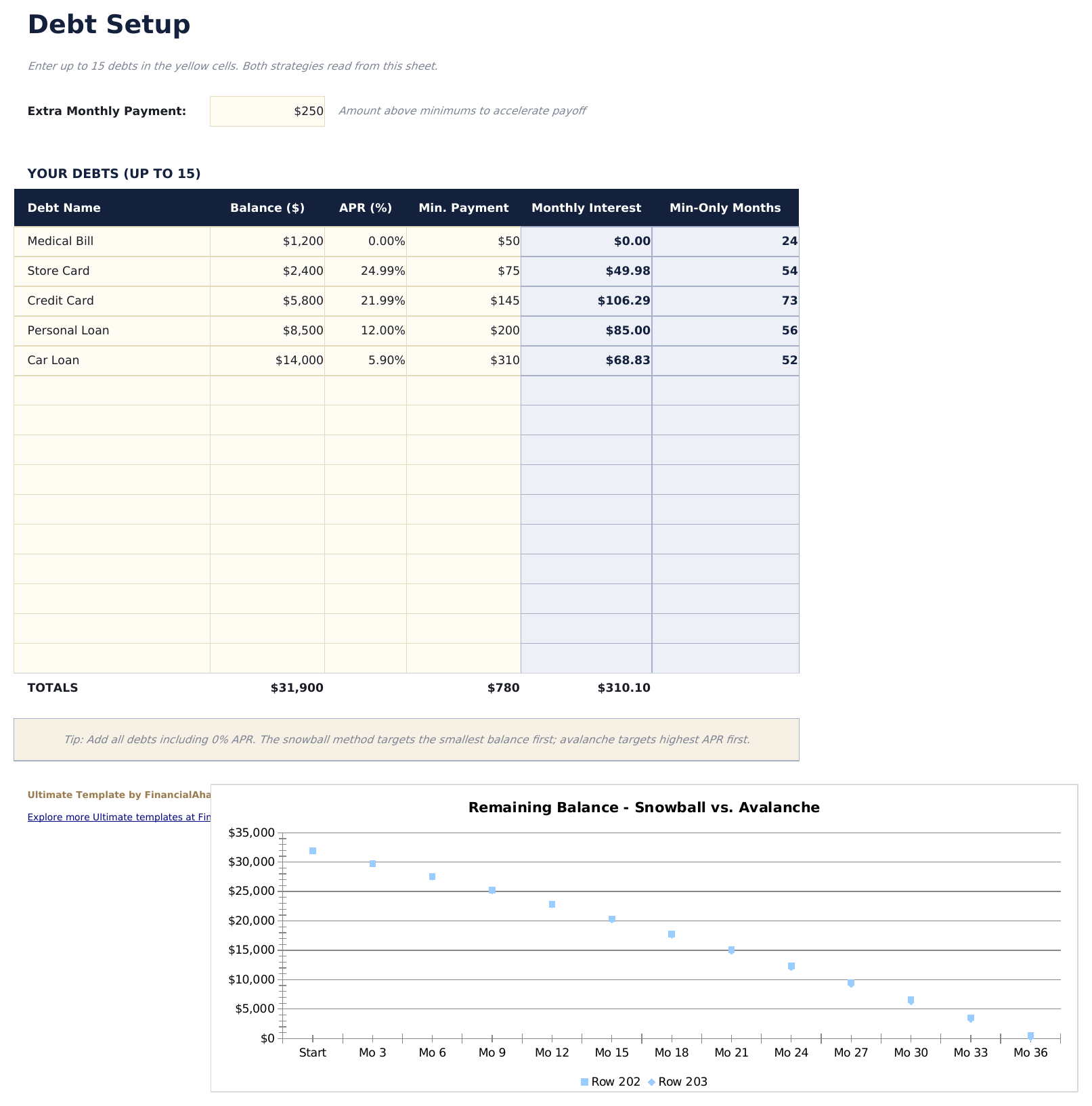
  • Track each debt with name, balance, APR, and minimum payment - monthly interest and minimum-only payoff months calculate automatically
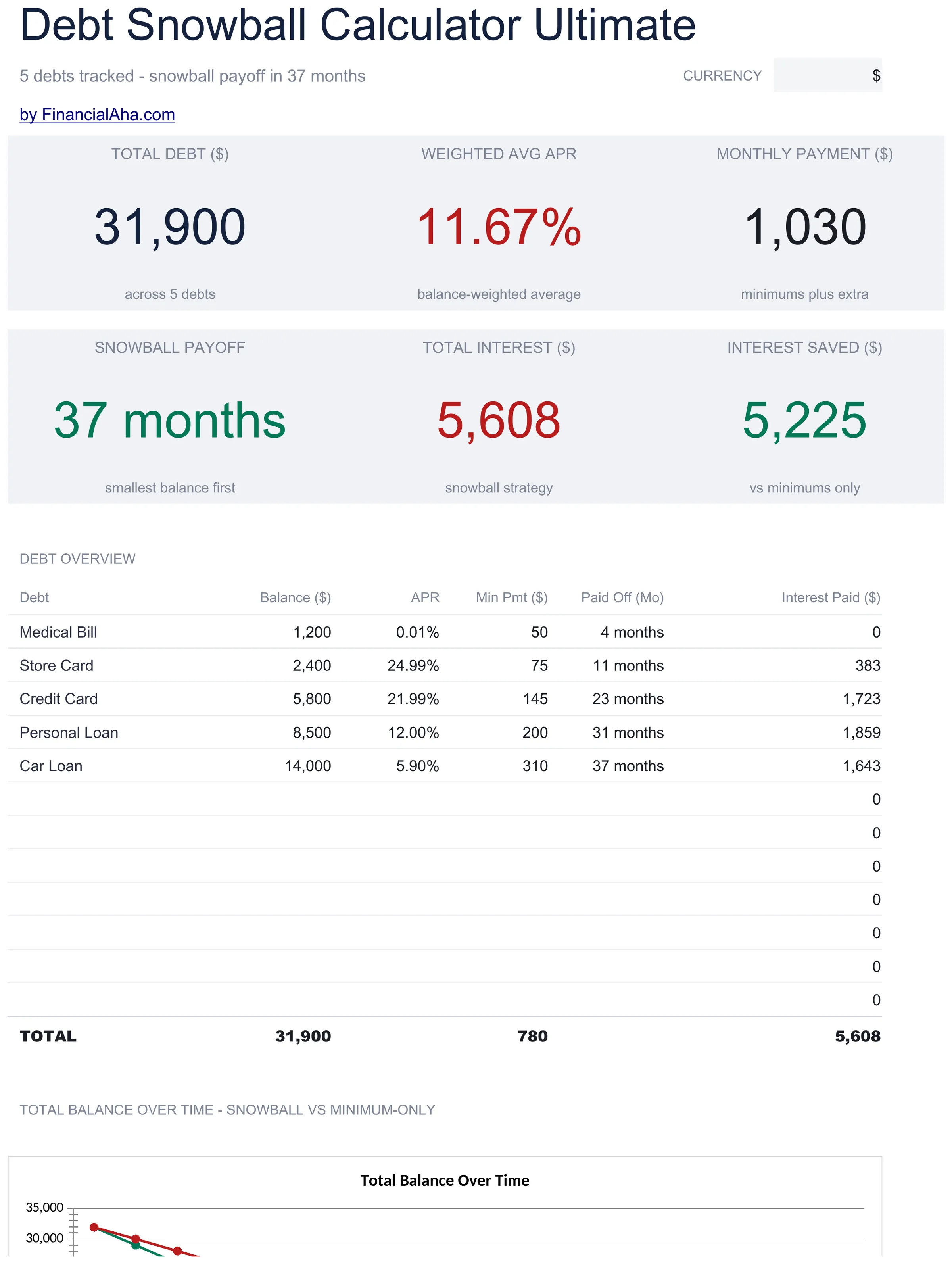
  • Dashboard with 6 KPIs: total debt, weighted average APR, monthly payment, snowball payoff months, total interest, and interest saved vs minimums only
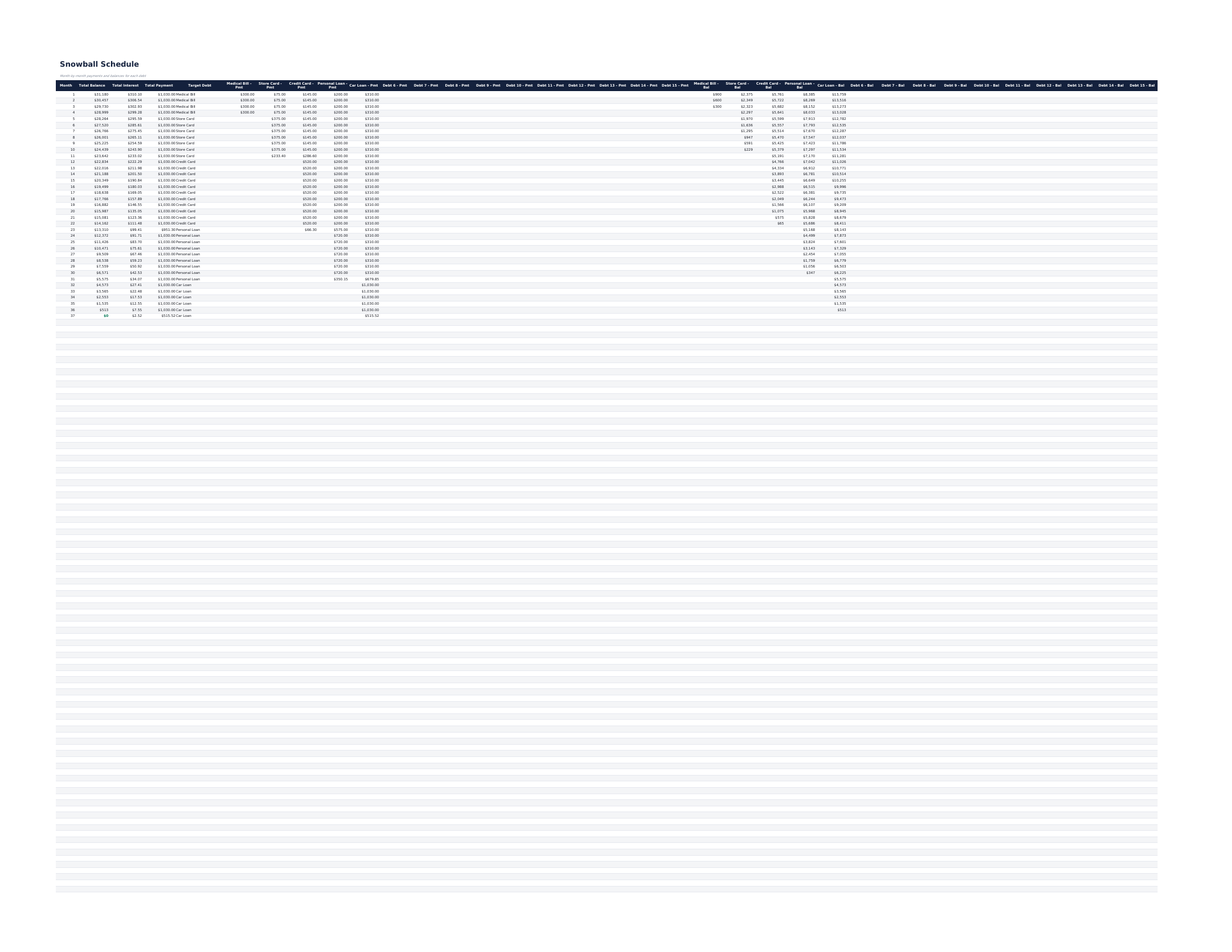
  • 180-month snowball schedule with per-debt Payment and Balance columns, ordered smallest balance first so rollover is visible row by row
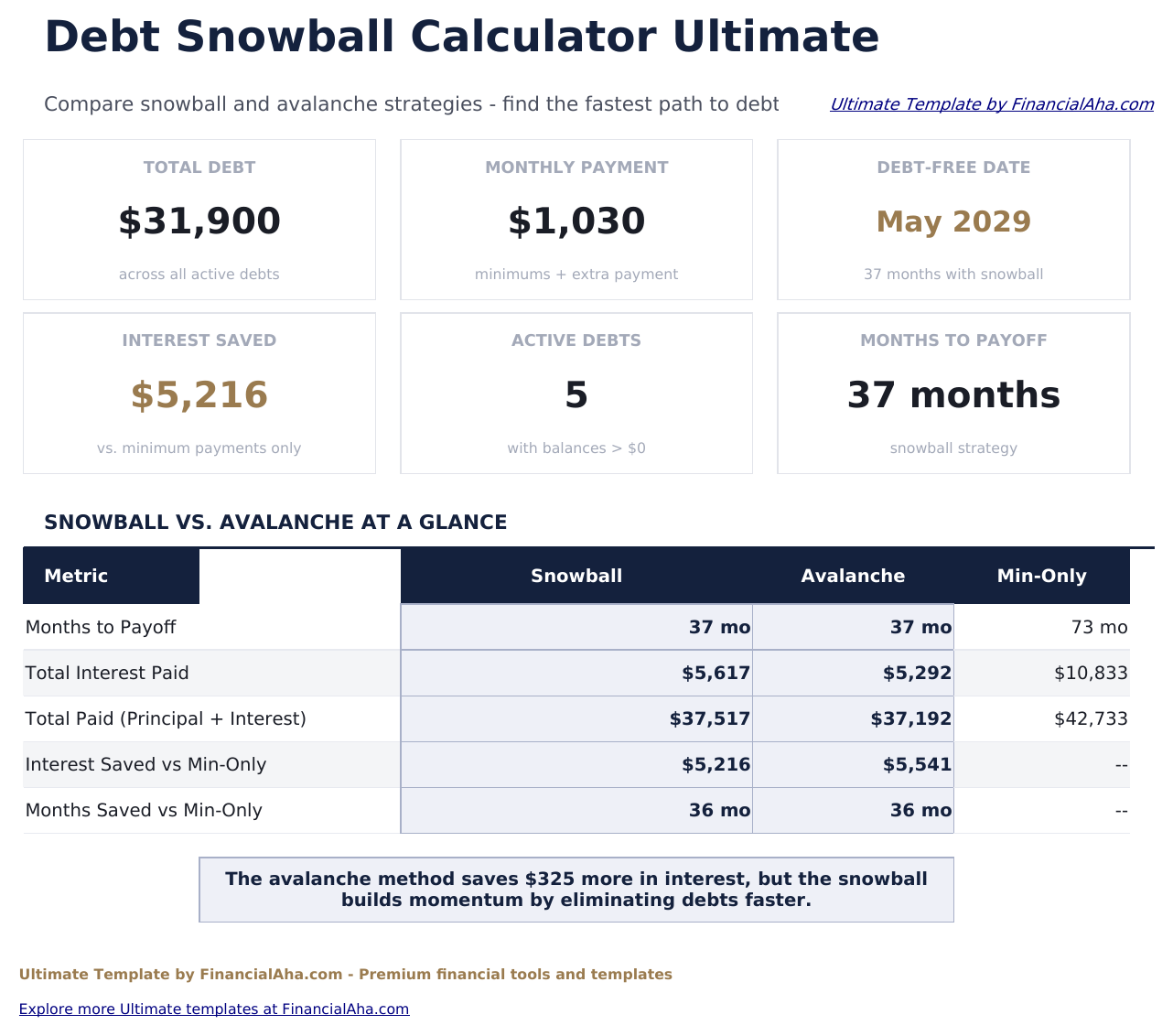
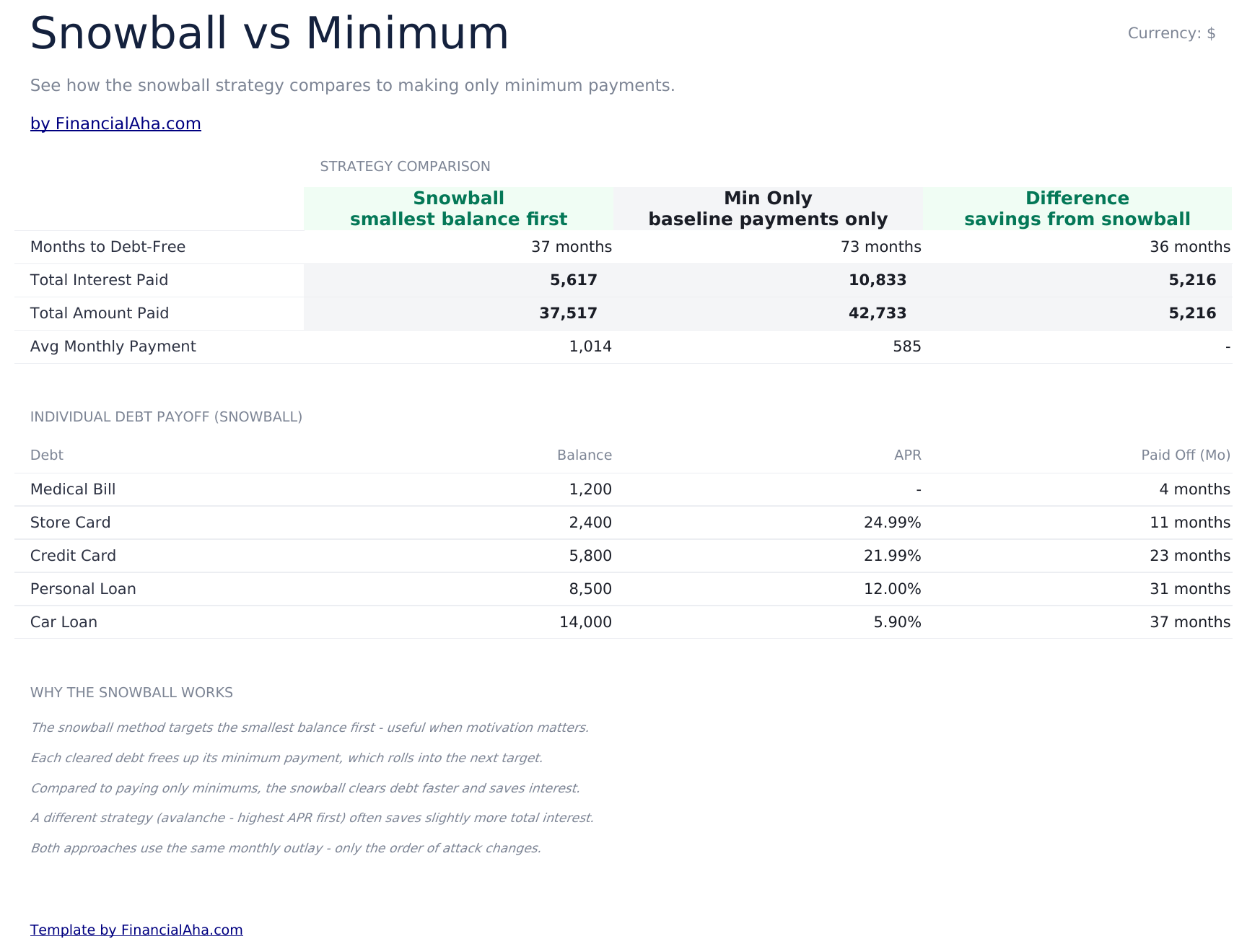
  • Snowball vs Minimum sheet comparing months to debt-free, total interest, total paid, and average monthly payment, with a Difference column
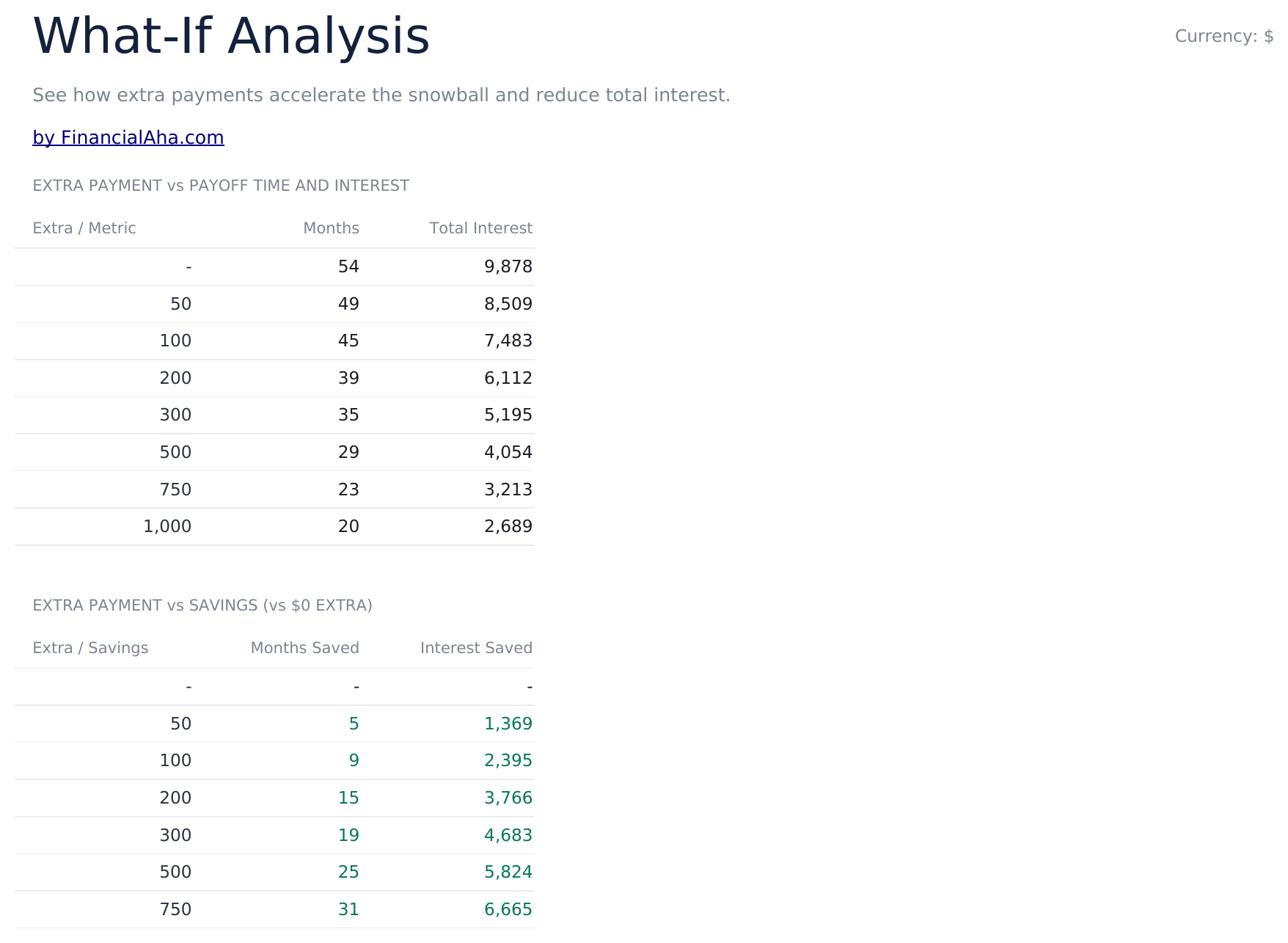
  • What-If Analysis where you type any extra payment and it is compared against your current plan
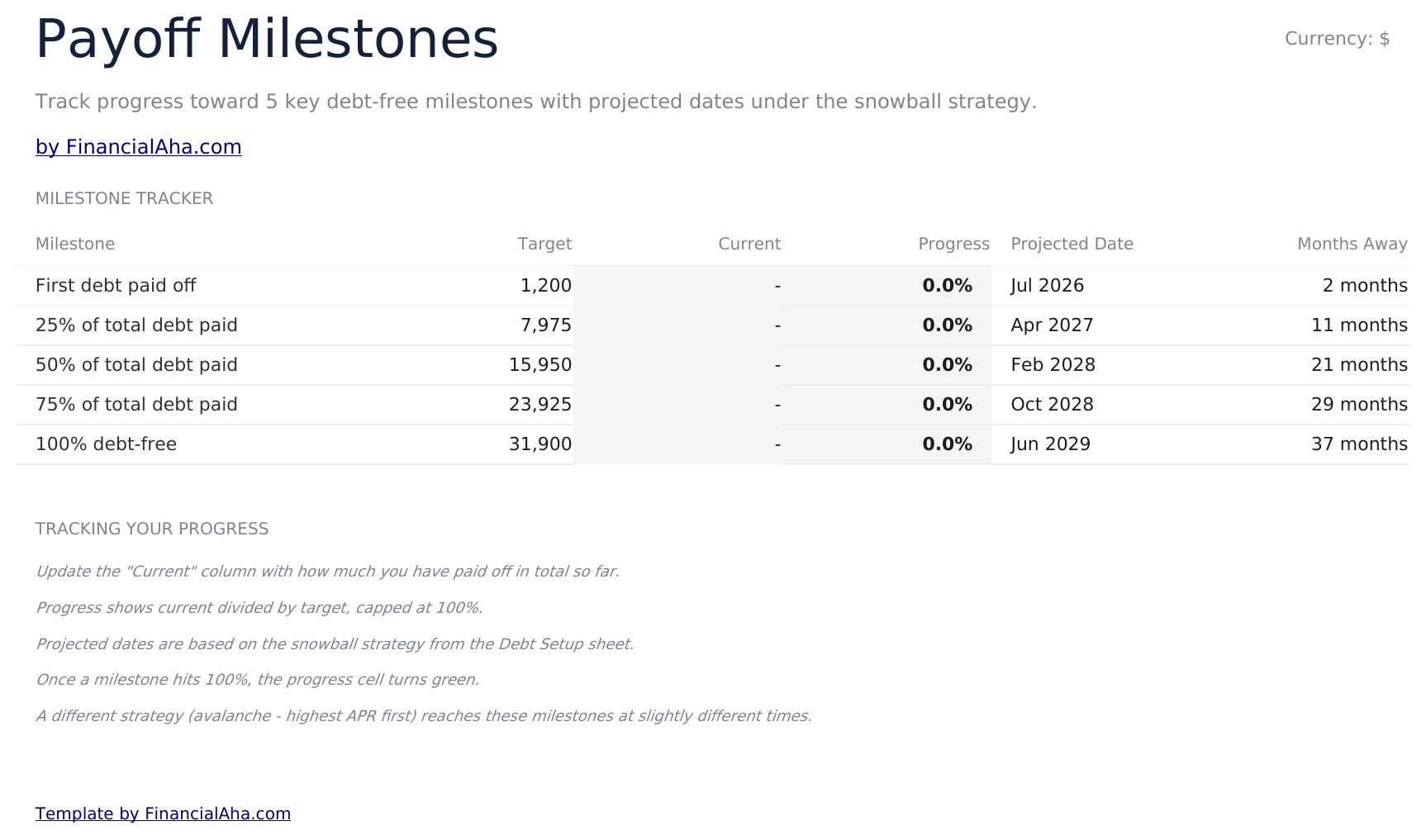
  • Payoff Milestones tracking first debt paid plus 25%, 50%, 75%, and 100% debt-free, each with progress, projected date, and months away
  • Charts for Total Balance Over Time (snowball vs minimum-only) and Interest Paid Per Debt
  • Currency dropdown relabels every header and KPI across all sheets - works in Microsoft Excel and Google Sheets with no macros

The FinancialAha Ultimate Debt Snowball Spreadsheet Template for Google Sheets and Excel is a six-sheet workbook for planning a snowball payoff across your debts, with a How to Use guide on a seventh tab. It ships as an Ultimate Debt Snowball Excel template and an Ultimate Debt Snowball Google Sheets template in one file. This Ultimate Debt Snowball spreadsheet template builds a month-by-month payment schedule, sets the snowball plan side by side with minimum-only payments, and re-solves the whole plan for any extra payment you type. Change one balance or rate and the whole plan updates, with no macros or VBA.

Inside the workbook

What's inside the FinancialAha Ultimate Debt Snowball spreadsheet template

The FinancialAha Ultimate Debt Snowball Spreadsheet Template runs on six working sheets - two you type into, four that report back - plus the guide. It works in both Microsoft Excel and Google Sheets and here is what the Ultimate Debt Snowball spreadsheet holds.

  1. 01 of 06

    Dashboard

    The full picture in one view: total owed, the blended rate across it, the monthly commitment, how long the payoff runs, and what the interest costs - each set against the minimum-only equivalent. A per-debt breakdown shows when each balance clears and what it costs to carry, and two charts track the balance down over time and show where the interest accumulates.

  2. 02 of 06

    Debt Setup

    The input sheet, a row per debt. Each takes a name, balance, rate and minimum payment; the interest and the minimum-only timeline are derived. One Extra Monthly Payment field drives every sheet downstream, and a summary block consolidates the totals the rest of the workbook reports against.

  3. 03 of 06

    Snowball Schedule

    The payoff tracked per debt rather than in aggregate, so every balance has its own payment and remaining-balance trail across fifteen years. As one clears, its payment moves to the next - the mechanism the method depends on, shown rather than described.

  4. 04 of 06

    Snowball vs Minimum

    The snowball plan set directly against paying minimums only, on time to debt-free, total interest, total paid, and average monthly outlay. Both sides carry the same minimums, so the difference column isolates exactly what the extra payment and the rollover account for.

  5. 05 of 06

    What-If Analysis

    One cell: the extra payment you are weighing up. Type an amount and the sheet solves the whole snowball again for it, then sets it beside the plan you are already on - months to debt-free, total interest, and the difference between the two. It used to be eight fixed amounts from nothing up to $1,000. The trouble with a fixed range is that it can only be a picture of the debts the file was built with; the moment you enter your own, the numbers describe someone else. Typing an amount answers the question about your debts, and typing a few in turn shows you where the returns start to flatten - which is the thing worth knowing and is now yours rather than ours.

  6. 06 of 06

    Payoff Milestones

    Five checkpoints across the payoff, from the first balance cleared through to debt-free, each with a target, a progress reading you update as you go, and a projected date drawn from your own inputs.

  7. Included guide

    How to Use

    A guide on its own tab covering setup, what each input means, how the rollover works, and how to read every other sheet. It ships inside the file, so the instructions are there whenever the template is open.

Works in both Google Sheets and Excel

Ultimate Debt Snowball Spreadsheet template for Google Sheets

Upload the Ultimate Debt Snowball Spreadsheet Template to Drive, right-click it, and choose "Open with Google Sheets" - or use File then Import from inside an existing spreadsheet. Nothing needs converting first and the tab order survives, so Dashboard stays first and How to Use stays last. Every figure in this Ultimate Debt Snowball Google Sheets template behaves exactly as it does in Excel, and the charts, the currency dropdown, and the milestone highlighting all carry across.

Ultimate Debt Snowball Google Sheets template setup

The 180-month grid is built to stay responsive rather than recalculate on every keystroke - the main thing that makes large workbooks sluggish in Sheets. Editing is collaborative in the usual way, so a shared copy of the Ultimate Debt Snowball Google Sheets template works for two people paying down debts together, and version history means an overwritten balance is recoverable.

Working in the Ultimate Debt Snowball Google Sheet day to day

Day to day the Ultimate Debt Snowball Google Sheet carries the most weight of the three builds, and it holds up: change one balance and the dashboard, the 180-month schedule, the what-if grids, and the milestones all resolve together. It also opens in the Sheets mobile app, though wide schedules read better on a larger screen.

Ultimate Debt Snowball Spreadsheet template for Excel

The Ultimate Debt Snowball spreadsheet Excel download is a plain .xlsx, so Excel opens this Ultimate Debt Snowball Excel template directly with no import step and no compatibility prompt. Charts, number formats, and the protected cells behave natively. There are no macros and no VBA in the file, which means it opens without a security warning in Excel on Windows, Excel on Mac, and Excel for the web. The cells you type into carry a warm tint and the reporting cells do not, so tabbing through Debt Setup is hard to break.

Ultimate Debt Snowball Excel template setup

Because the Ultimate Debt Snowball Excel template ships as a standard .xlsx rather than a macro-enabled .xlsm, it opens in every recent Excel build without a trust prompt. It is the same single Ultimate Debt Snowball spreadsheet you would upload to Drive.

Ultimate Debt Snowball spreadsheet Excel compatibility

The Ultimate Debt Snowball spreadsheet Excel file carries no macros and no VBA, so Excel opens it without a trust prompt. The same Ultimate Debt Snowball spreadsheet Excel download opens in Excel for the web too, with the charts and highlighting intact.

Opening the Ultimate Debt Snowball spreadsheet Excel file

The schedule is built to open quickly rather than recalculate on every change, which is what lets a 180-month per-debt grid stay usable. That also means the Ultimate Debt Snowball spreadsheet Excel workbook behaves the same in older Excel builds.

Spreadsheet template highlights

What the Ultimate Debt Snowball spreadsheet template tracks

Each debt row in the Ultimate Debt Snowball Spreadsheet Template takes four inputs on Debt Setup. The workbook works out the rest:

Debt Name
a free-text label for each balance you are tracking
Balance
the current amount outstanding on that debt
APR
the annual rate, where 0% is valid for interest-free balances
Min. Payment
the minimum the lender requires each month
Monthly Interest
worked out for you from balance and rate
Min-Only Months
worked out for you: how long that debt alone would run on minimum payments

Compare builds

FinancialAha Debt Snowball spreadsheet template: Free, Essentials, and Ultimate compared

Feature Free View Spreadsheet Template Essentials View Spreadsheet Template Ultimate This page
Working sheets 1 3 6
Debt rows 7 8 12
Live totals Yes Yes Yes
Payoff estimate Yes Yes
Payoff schedule 120 months, aggregate 180 months, per debt
Dashboard Totals strip 6 figures + 1 chart 6 figures + 2 charts
Snowball vs minimum Dedicated sheet
What-if analysis Live scenario
Payoff milestones 5 milestones

The FinancialAha Ultimate Debt Snowball Spreadsheet Template for Google Sheets and Excel covers six working sheets with a row per debt. The three builds are different workbooks rather than the same file at three prices. The Free Debt Snowball Spreadsheet Template is one working sheet, enough to list debts and see totals. The Essentials Debt Snowball Spreadsheet Template adds a Dashboard, a Debt Setup sheet, and a 120-month aggregate schedule. Ultimate adds the three analysis sheets on top - Snowball vs Minimum, What-If Analysis, and Payoff Milestones - plus a per-debt schedule in place of the aggregate one. If you want the payoff plan itself, Essentials covers it; Ultimate is the build that lets you compare strategies and stress-test extra-payment levels.

Good to know

Notes on working in the Ultimate Debt Snowball spreadsheet template

  • A warm tint marks every cell you are meant to type into, so the Ultimate Debt Snowball spreadsheet is safe to tab through without overwriting the calculations.
  • Leave unused debt rows blank rather than deleting them - the totals and the schedule read the whole range.
  • The currency dropdown next to the Dashboard title relabels every column header and figure across all sheets of the Ultimate Debt Snowball spreadsheet template. It changes the label only and does not convert the numbers.
  • The What-If Analysis sheet is where the payoff time and total interest re-solve for whatever extra-payment figure you type.

How to Use This Template

1

Enter your debts

On the Debt Setup sheet, add each debt with its name, balance, APR, and minimum payment. Monthly interest and minimum-only months calculate from those four inputs.

2

Set your extra payment

Enter the Extra Monthly Payment - the amount above all minimums that goes to the smallest balance each month.

3

Review the plan

The Dashboard summarizes total debt, weighted APR, payoff time, and interest saved. The Snowball Schedule shows the month-by-month trajectory per debt.

4

Test other amounts

The What-If Analysis takes any extra payment you type and sets it against your current plan, showing months to debt-free and total interest for each, with the difference between them on its own row.

Stress-tested with AI.

Every template starts with deep research into how people actually track the topic. We design the layout, build the formulas, and polish the design until it feels like something we would use ourselves. Along the way, we use AI to stress-test the calculations: unusual inputs, edge cases, and formula behavior, checked until the numbers hold.

One-time purchase. No subscription. Works in Excel & Google Sheets.

Frequently Asked Questions

Is the FinancialAha Ultimate Debt Snowball Spreadsheet Template a Google Sheets template?

Yes. Open the file from Google Drive and choose "Open with Google Sheets". Every formula in the Ultimate Debt Snowball Google Sheets template is standard spreadsheet syntax, so nothing needs rewriting, and the charts, currency dropdown, and conditional formatting all carry across.

Is the FinancialAha Ultimate Debt Snowball Spreadsheet Template an Excel template?

Yes. The download is a plain .xlsx, so the Ultimate Debt Snowball Excel template opens directly with no import step. There are no macros and no VBA in this Ultimate Debt Snowball Excel template, so it opens without a security warning in Excel on Windows, Excel on Mac, and Excel for the web.

Will the FinancialAha Ultimate Debt Snowball spreadsheet Excel file open in older versions of Excel?

Yes. The schedule is built to open quickly rather than recalculate on every change, so the Ultimate Debt Snowball spreadsheet Excel workbook behaves the same in older Excel builds.

How many debts does the FinancialAha Ultimate Debt Snowball Spreadsheet Template track?

Twelve. The Ultimate Debt Snowball spreadsheet template gives each debt a row on the Debt Setup sheet, and you can right-click inside the table and choose Insert when you need another. Leave any unused rows blank rather than deleting them, since the totals and the schedule read the full range.

How does the rollover work in the Ultimate Debt Snowball spreadsheet?

You pay every minimum each month, and the Extra Monthly Payment goes to the smallest balance. When that debt clears, its minimum rolls into the extra pool for the next-smallest balance, so the amount attacking each debt grows as debts drop off. The Snowball Schedule in the Ultimate Debt Snowball spreadsheet template shows this month by month.

What milestones does the Ultimate Debt Snowball spreadsheet template track?

The Payoff Milestones sheet tracks five points: first debt paid off, then 25%, 50%, 75%, and 100% of total debt paid. You update the Current column with what you have paid off so far, and the Ultimate Debt Snowball spreadsheet shows progress, a projected date, and months away.

Does the Ultimate Debt Snowball spreadsheet template compare snowball to the avalanche method?

Not directly. The Snowball vs Minimum sheet compares the snowball plan against making only minimum payments. Avalanche ordering (highest APR first) is noted on the Payoff Milestones sheet as reaching the same milestones at slightly different times, but this Ultimate Debt Snowball spreadsheet template does not model it as a separate scenario.

Does the Ultimate Debt Snowball spreadsheet template sort my debts automatically?

No. You enter debts in the order you want them tackled, smallest balance first for the snowball method. The Snowball Schedule reads that order left to right.

What do I get after buying the Ultimate Debt Snowball spreadsheet template?

You receive the Ultimate Debt Snowball spreadsheet template as an Excel file (.xlsx) that works in Microsoft Excel and Google Sheets. Download it immediately after purchase - no signup or account required.

Is there a free Ultimate Debt Snowball spreadsheet template?

Yes. A free version of the Ultimate Debt Snowball spreadsheet template is available with basic features. The Ultimate version adds advanced analysis, more capacity, and additional sheets.

What if the Ultimate Debt Snowball spreadsheet template does not work for me?

Contact us and we will help troubleshoot. The Ultimate Debt Snowball spreadsheet template works in Microsoft Excel and Google Sheets with no macros required.

Ultimate

Highlights:

Instant download after purchase
No macros or VBA required
All formulas auto-calculate
No subscription required
Works in
Excel Google Sheets

Looking for more Ultimate templates?

We offer Ultimate versions of our most popular spreadsheet templates with advanced features, more capacity, and deeper analysis.

Private & secure

Your financial data stays on your device. We never see it.

Learn more →

Need help?

Check our guides or reach out with questions.

View FAQ →