Lifetime Deal Complete Personal Financial Planning Bundle →
✓ Financial Planning✓ Net Worth Tracker✓ Monthly Budgeting✓ Travel Budget Planner✓ Annual Budgeting Planner✓ Monthly Expense Tracker✓ Annual Tax Planner✓ Retirement Planning
View Bundle →

Instant digital delivery · Terms & Conditions apply

Ultimate Template - Excel & Google Sheets

Ultimate Bill Tracker Spreadsheet Template for Google Sheets & Excel

Forty bills, each with a frequency, a due day and a status, and a monthly equivalent column so an annual premium and a monthly subscription can finally be compared. The Ultimate Bill Tracker spreadsheet template totals the year including the bills that never appear in a normal month, flags and counts what is on auto-pay, keeps a hundred rows of payment history, and gives every category its monthly total, annual total and share of the whole. Six working sheets. Google Sheets and Excel.

See Preview

Instant digital delivery · Terms & Conditions apply

Bill Tracker Spreadsheet Template - Ultimate version for Google Sheets and Excel

What's Included

  • A row per bill, each with a frequency, a due day and a status
  • A monthly equivalent column, so an annual premium and a monthly subscription compare
  • Total annual cost, including the bills that never appear in a normal month
  • Auto-pay flagged on each bill and counted on the dashboard
  • Every category with its monthly and annual total and its share of the whole
  • Twelve months laid out by category, so occasional bills stay visible
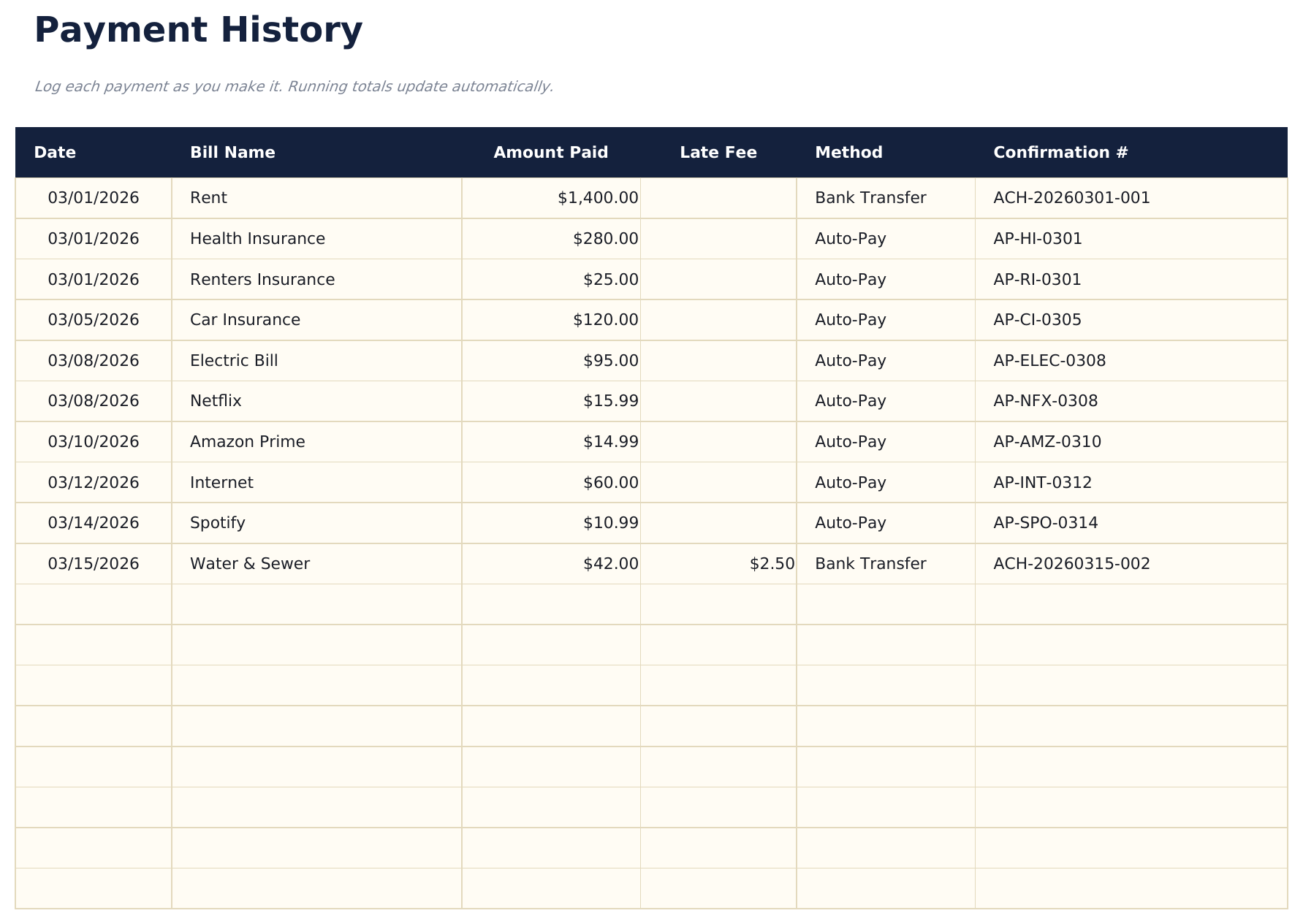
  • A payment history with method and confirmation number
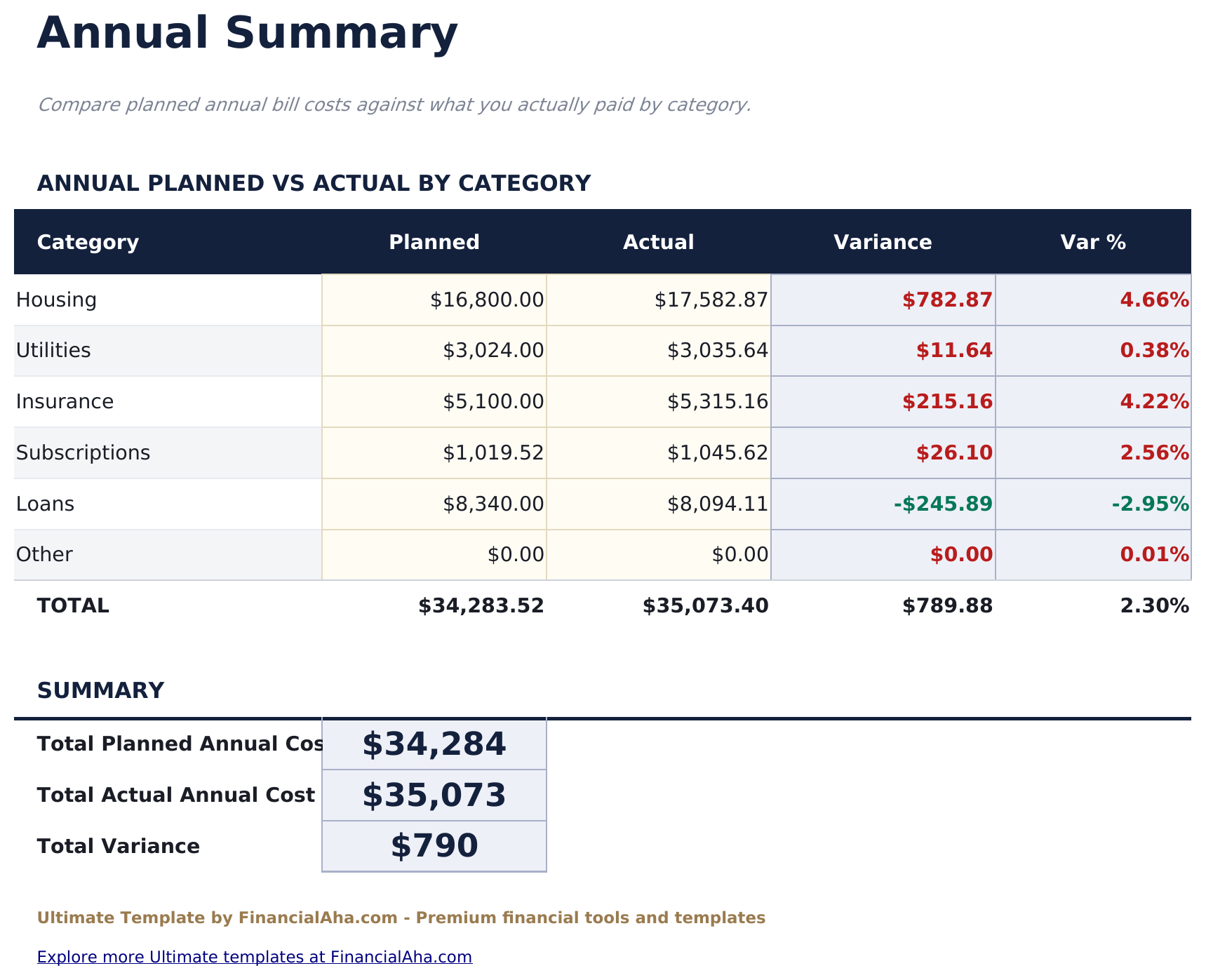
  • Planned against actual by category, with the variance in money and percent
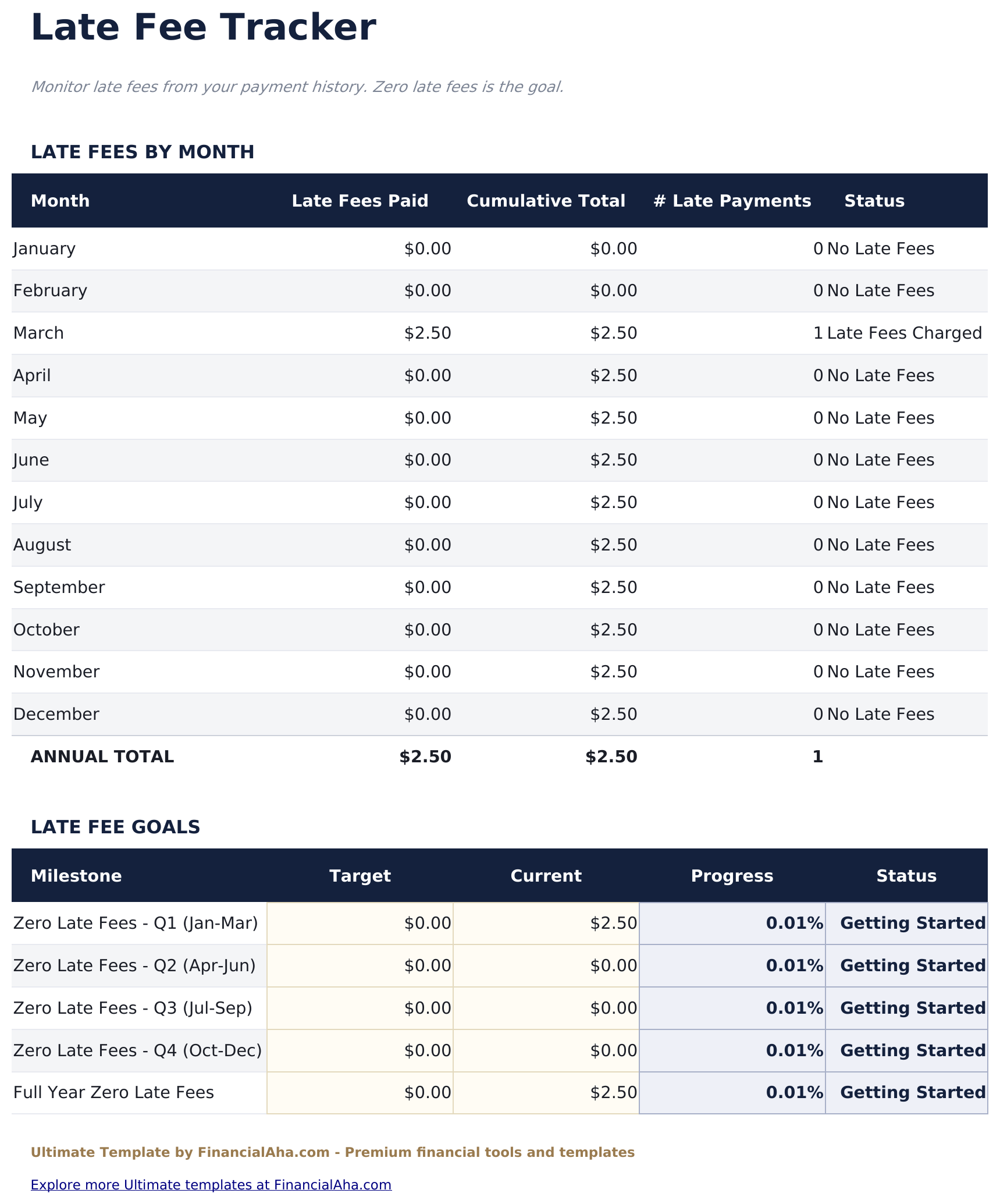
  • Late fees by month with a running cumulative total and a count of late payments
  • Works in Microsoft Excel and Google Sheets with no macros required

The FinancialAha Ultimate Bill Tracker Spreadsheet Template for Google Sheets and Excel is a six-sheet workbook, a row per bill, with a How to Use guide on a seventh tab. It ships as an Ultimate Bill Tracker Excel template and an Ultimate Bill Tracker Google Sheets template in one file. This Ultimate Bill Tracker spreadsheet template converts anything that is not monthly into what it costs per month, keeps a payment history, and tracks late fees with a running total. No macros, no VBA.

Inside the workbook

What's inside the FinancialAha Ultimate Bill Tracker spreadsheet template

The FinancialAha Ultimate Bill Tracker Spreadsheet Template runs on six working sheets - two you fill in, four that report back - plus the guide. It works in both Microsoft Excel and Google Sheets and here is what the Ultimate Bill Tracker spreadsheet holds.

  1. 01 of 06

    Dashboard

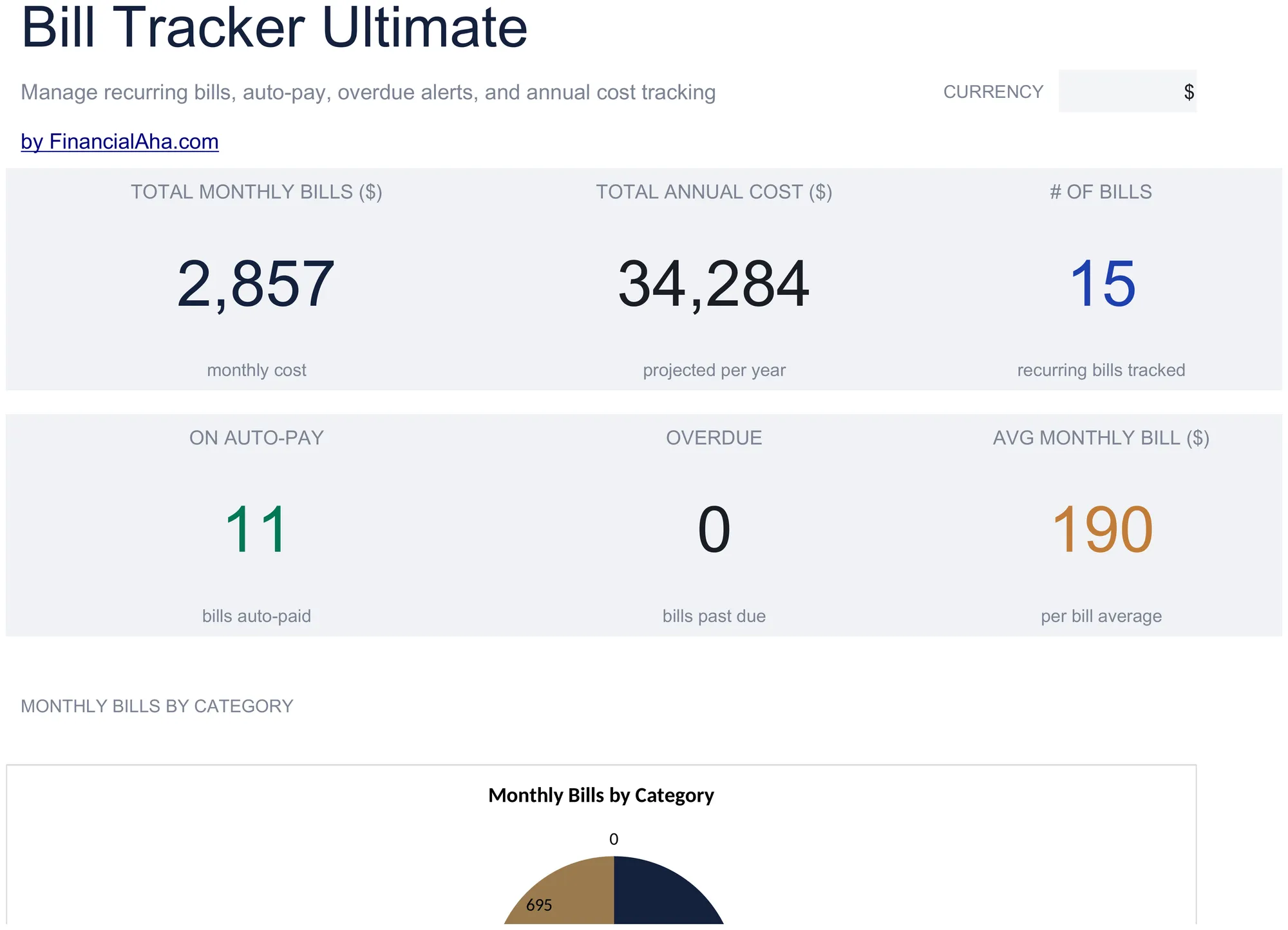
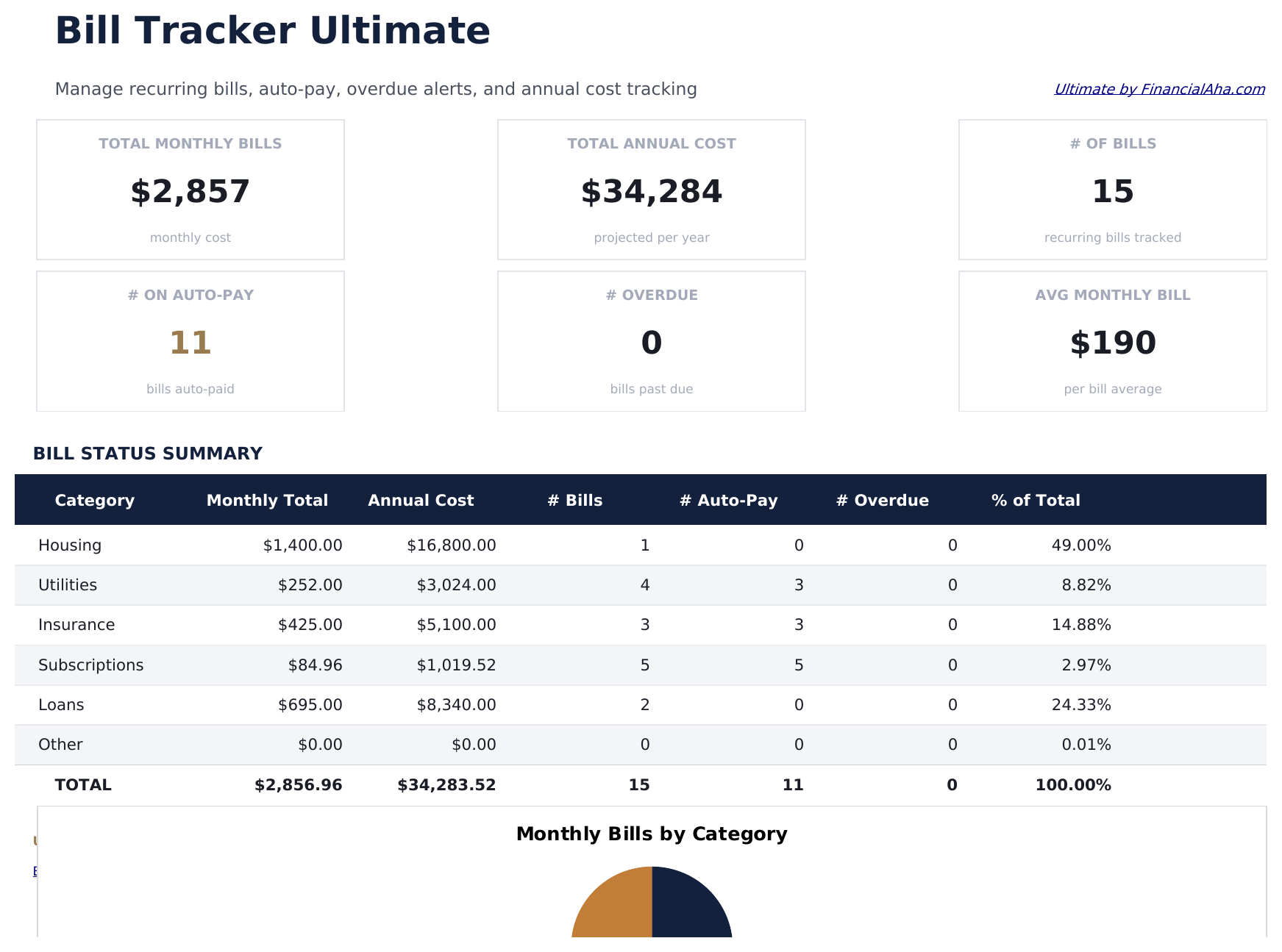
    The whole commitment in six figures: what the bills come to each month, what they come to across a year, how many bills there are, how many are on auto-pay, how many are overdue, and the average bill. Beneath that, every category is listed with its monthly and annual total, how many bills it holds, how many of those run automatically, how many are overdue, and what share of the whole it represents. The annual figure is the one that tends to surprise, because it includes the quarterly and yearly bills that never appear in a normal month.

  2. 02 of 06

    Bills

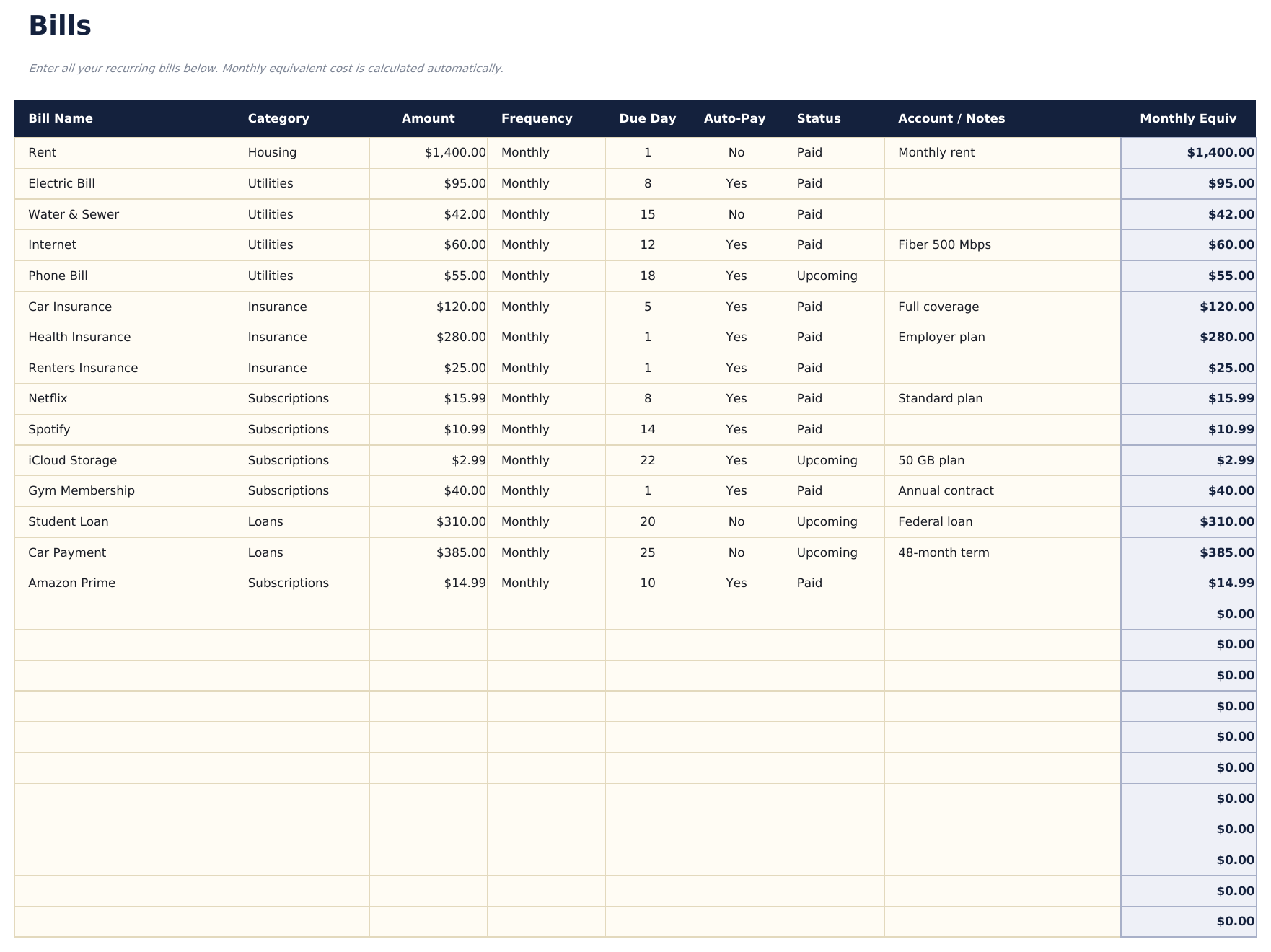
    A row per bill, each with an amount, how often it comes round, which day of the month it lands on, whether it runs automatically, its status and a note - plus a monthly equivalent worked out from the amount and the frequency. That last column is what makes the sheet honest: an annual insurance premium and a monthly subscription cannot be compared until both are expressed on the same basis, and this is where that happens.

  3. 03 of 06

    12-Month View

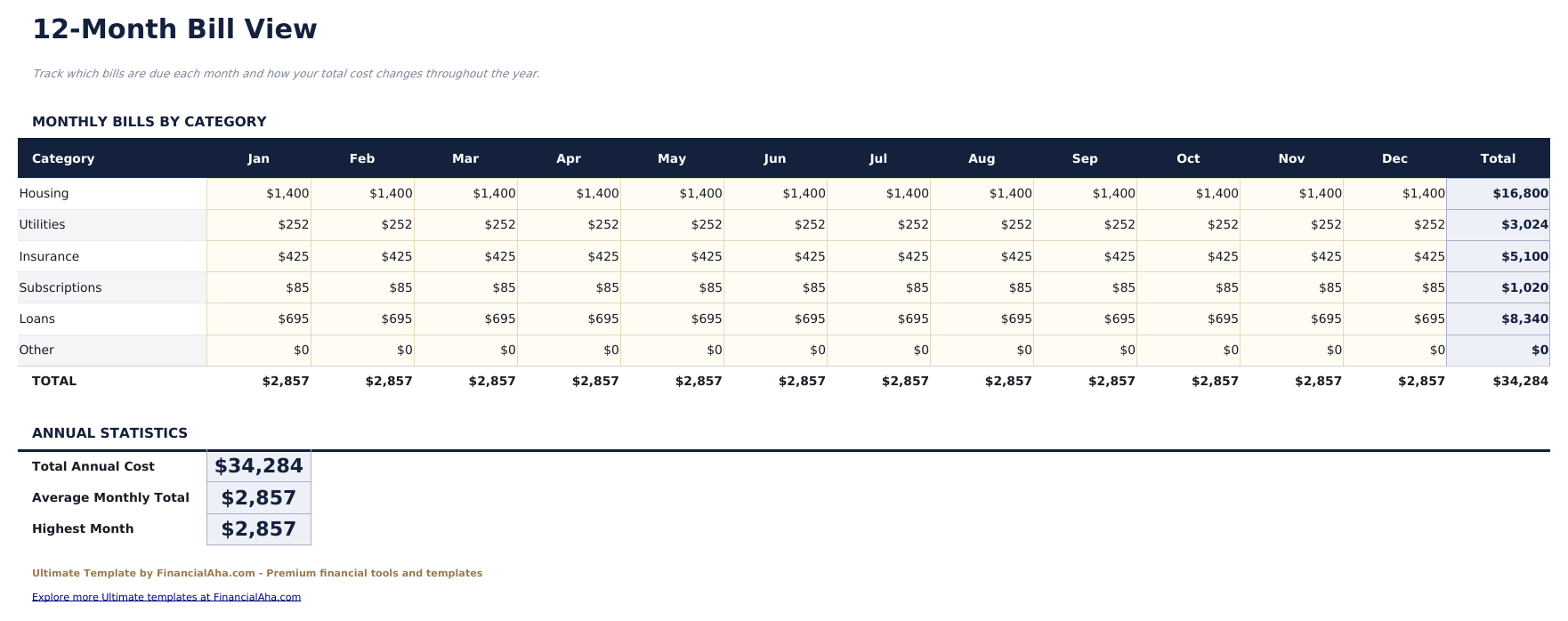
    Categories laid across the twelve months with a total for each. Bills that only land in certain months stop being invisible here - a year read as one average month hides them, and a year read month by month does not.

  4. 04 of 06

    Payment History

    A row per payment recording what was actually paid: the date, the bill, the amount, any late fee, the method used and a confirmation number. The confirmation column is the practical one - it is the field you want when a payment is disputed months later and the bank statement alone is not enough.

  5. 05 of 06

    Annual Summary

    Each category with what was planned against what was actually paid, and the variance between them in money and as a percentage. Bills feel fixed, which is exactly why the gap between planned and actual is worth reading rather than assumed to be zero.

  6. 06 of 06

    Late Fee Tracker

    Late fees by month, with a running cumulative total, a count of late payments and a status. Small fees are easy to dismiss one at a time; a cumulative column is what turns them into a figure worth looking at.

  7. Included guide

    How to Use

    A step-by-step guide on its own tab, covering setup, how the monthly equivalent is worked out, and how the history and summary sheets read. Because it ships inside the file, the instructions travel with the template wherever it is opened.

Works in both Google Sheets and Excel

Ultimate Bill Tracker Spreadsheet template for Google Sheets

Upload the Ultimate Bill Tracker Spreadsheet Template to Drive, right-click it, and choose "Open with Google Sheets". This Ultimate Bill Tracker Google Sheets template needs no conversion step and the chart survives the trip intact. The cross-sheet references that build the dashboard rely on the existing tab names, so those are worth leaving alone.

Ultimate Bill Tracker Google Sheets template setup

A shared copy of the Ultimate Bill Tracker Google Sheets template suits a household running its bills between two people, where one pays and the other keeps the history. Sheets version history covers an entry typed over, and comments sit well on a fee that needs explaining.

Sharing the Ultimate Bill Tracker Google Sheet

The Ultimate Bill Tracker Google Sheet is built around two rhythms: a quick pass to mark bills off and add a history row, and a longer sitting at the end of the year with the annual summary and the late fee sheet.

Ultimate Bill Tracker Spreadsheet template for Excel

The Ultimate Bill Tracker spreadsheet Excel download is a plain .xlsx. Excel opens this Ultimate Bill Tracker Excel template directly, with no import step and no compatibility prompt, and the chart is a native Excel chart that redraws as bills change. There are no macros and no VBA in the file, so it opens without a security warning.

Ultimate Bill Tracker Excel template setup

The same Ultimate Bill Tracker Excel template opens in Excel on Windows, Excel on Mac, and Excel for the web. It is also the identical file you would upload to Drive, so there is no separate Ultimate Bill Tracker spreadsheet download to choose between.

Ultimate Bill Tracker spreadsheet Excel notes

The Ultimate Bill Tracker spreadsheet Excel file carries no macros and no VBA, so Excel opens it without a trust prompt. The same Ultimate Bill Tracker spreadsheet Excel download also opens in Excel for the web, which matters when a payment needs logging away from a desk.

Opening the Ultimate Bill Tracker spreadsheet Excel file

Nothing in the Ultimate Bill Tracker Excel template is version-specific, so this Ultimate Bill Tracker spreadsheet Excel workbook behaves identically in Excel on Windows, Excel on Mac, and older builds.

Spreadsheet template highlights

What the Ultimate Bill Tracker spreadsheet template tracks

A row per bill, and a payment history beside it. These are the columns the Ultimate Bill Tracker Spreadsheet Template works from:

Bill Name
the name of the bill or service
Category
the grouping the dashboard and summaries report on
Amount
what the bill is for at its own frequency
Frequency
how often it comes round
Due Day
which day of the month it lands on
Auto-Pay
whether it runs without you, and counted on the dashboard
Status
where the bill currently stands
Monthly Equiv auto
derived, the amount expressed per month whatever its frequency
Amount Paid
what actually went out, on the history sheet
Late Fee
any charge added, carried through to the late fee sheet
Method
how the payment was made
Confirmation #
the reference, for when a payment is later disputed
Variance auto
derived, planned against actual by category, in money and percent

Compare builds

FinancialAha Bill Tracker spreadsheet template: Free, Essentials, and Ultimate compared

Feature Free View Spreadsheet Template Essentials View Spreadsheet Template Ultimate This page
Working sheets 1 2 6
Bills held 16 20 40
Due timing Day of the month A dated due date Day of the month
Paid status Paid or due Paid, with the date it was paid Status per bill
Non-monthly bills Frequency label – Converted to a monthly equivalent
Auto-pay flag – – Yes, and counted
Payment record – Date paid 100 rows, with method and confirmation
Late fees – – Tracked by month, with a running total
Planned against actual – – By category, with variance
Charts – 2 1

The FinancialAha Ultimate Bill Tracker Spreadsheet Template covers six working sheets. The Free Bill Tracker Spreadsheet Template works on a day-of-month due day and a paid-or-due status. The Essentials Bill Tracker Spreadsheet Template for Google Sheets and Excel takes twenty, uses real dates, records when each was paid and reports what is outstanding. This build adds the parts that only matter at scale: a monthly equivalent so an annual premium and a monthly subscription can be compared, auto-pay flagged and counted, a year laid out month by month so the bills that only land occasionally stay visible, a payment history with method and confirmation number, planned against actual by category, and late fees with a running cumulative total.

Good to know

Notes on working in the Ultimate Bill Tracker spreadsheet template

  • The monthly equivalent is what makes the sheet honest - an annual premium and a monthly subscription are not comparable until both sit on the same basis.
  • The annual figure on the dashboard tends to surprise, because it includes the quarterly and yearly bills that never show up in a normal month.
  • The confirmation number column is the one you will be glad of when a payment is disputed months later.
  • The cumulative column on the late fee sheet is the point of it. Individual fees are easy to dismiss; the running total is harder to.
  • The currency dropdown sits on the Dashboard and relabels money columns across the whole Ultimate Bill Tracker spreadsheet. It changes the label only and does not convert the numbers.

How to Use This Template

1

List your bills

Add each one with its amount, frequency, due day and category. The monthly equivalent follows.

2

Flag what runs automatically

Mark the auto-pay column so the dashboard can count what does and does not need attention.

3

Log each payment

Add a history row with the amount, method and confirmation number, plus any late fee.

4

Review the year

The annual summary sets planned against actual by category; the late fee sheet carries the running total.

Stress-tested with AI.

Every template starts with deep research into how people actually track the topic. We design the layout, build the formulas, and polish the design until it feels like something we would use ourselves. Along the way, we use AI to stress-test the calculations: unusual inputs, edge cases, and formula behavior, checked until the numbers hold.

One-time purchase. No subscription. Works in Excel & Google Sheets.

Frequently Asked Questions

Is the FinancialAha Ultimate Bill Tracker Spreadsheet Template a Google Sheets template?

Yes. Upload the file to Drive and choose "Open with Google Sheets". The Ultimate Bill Tracker Google Sheets template needs no conversion step and the chart survives the trip intact. The cross-sheet references rely on the existing tab names, so those are worth leaving alone.

Is the FinancialAha Ultimate Bill Tracker Spreadsheet Template an Excel template?

Yes. The download is a plain .xlsx, so the Ultimate Bill Tracker Excel template opens directly in Excel with no import step. The chart is a native Excel chart, and there are no macros or VBA.

Will the FinancialAha Ultimate Bill Tracker spreadsheet Excel file open in older versions of Excel?

Yes. The Ultimate Bill Tracker spreadsheet Excel workbook ships as a plain .xlsx, so it opens identically in current Excel and in builds that predate dynamic arrays.

What is the monthly equivalent column for?

Putting every bill on the same basis. An annual insurance premium and a monthly subscription cannot be compared or added together until both are expressed per month, and that column is where it happens.

Why does the annual total look higher than twelve times a normal month?

Because a normal month does not contain the quarterly and yearly bills. The annual figure includes them, which is the point at which the real cost shows up.

What does the payment history record?

The date, the bill, what was paid, any late fee, the method used and a confirmation number. The confirmation field is the one that matters when a payment is disputed months later.

How are late fees handled?

On a sheet of their own, by month, with a running cumulative total and a count of late payments. Individual fees are easy to dismiss; the cumulative column is what makes the year's total visible.

Can I add bills to the Ultimate Bill Tracker spreadsheet?

The bills sheet gives each bill a row, with a payment history alongside, and you can right-click inside either table and choose Insert when you need more. The Free and Essentials builds hold shorter lists.

What do I get after buying the Ultimate Bill Tracker spreadsheet template?

You receive the Ultimate Bill Tracker spreadsheet template as an Excel file (.xlsx) that works in Microsoft Excel and Google Sheets. Download it immediately after purchase - no signup or account required.

Is there a free Ultimate Bill Tracker spreadsheet template?

Yes. A free version of the Ultimate Bill Tracker spreadsheet template is available with basic features. The Ultimate version adds advanced analysis, more capacity, and additional sheets.

What if the Ultimate Bill Tracker spreadsheet template does not work for me?

Contact us and we will help troubleshoot. The Ultimate Bill Tracker spreadsheet template works in Microsoft Excel and Google Sheets with no macros required.

Ultimate

Highlights:

Instant download after purchase
No macros or VBA required
All formulas auto-calculate
No subscription required
Works in
Excel Google Sheets

Looking for more Ultimate templates?

We offer Ultimate versions of our most popular spreadsheet templates with advanced features, more capacity, and deeper analysis.

Private & secure

Your financial data stays on your device. We never see it.

Learn more →

Need help?

Check our guides or reach out with questions.

View FAQ →