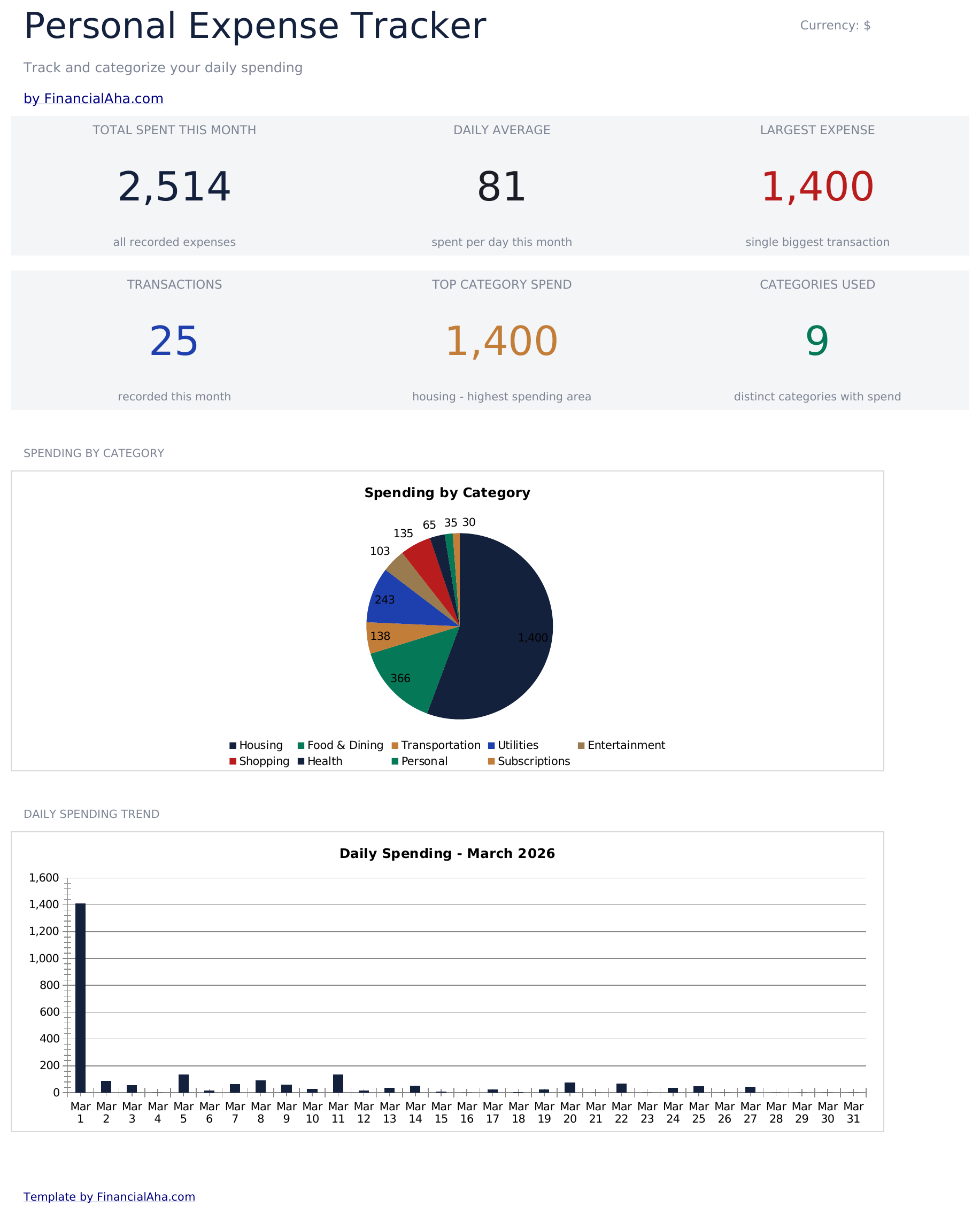
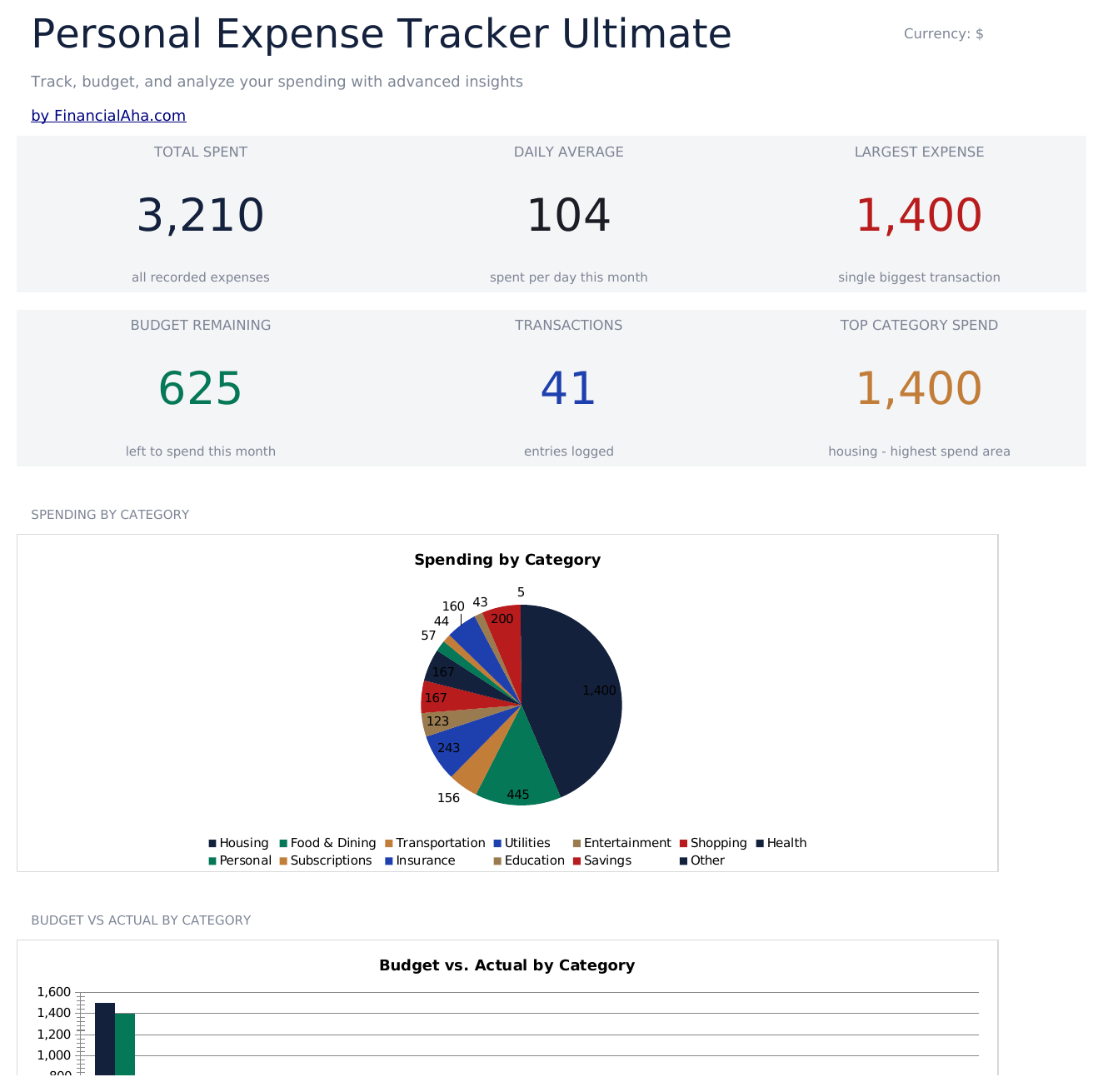
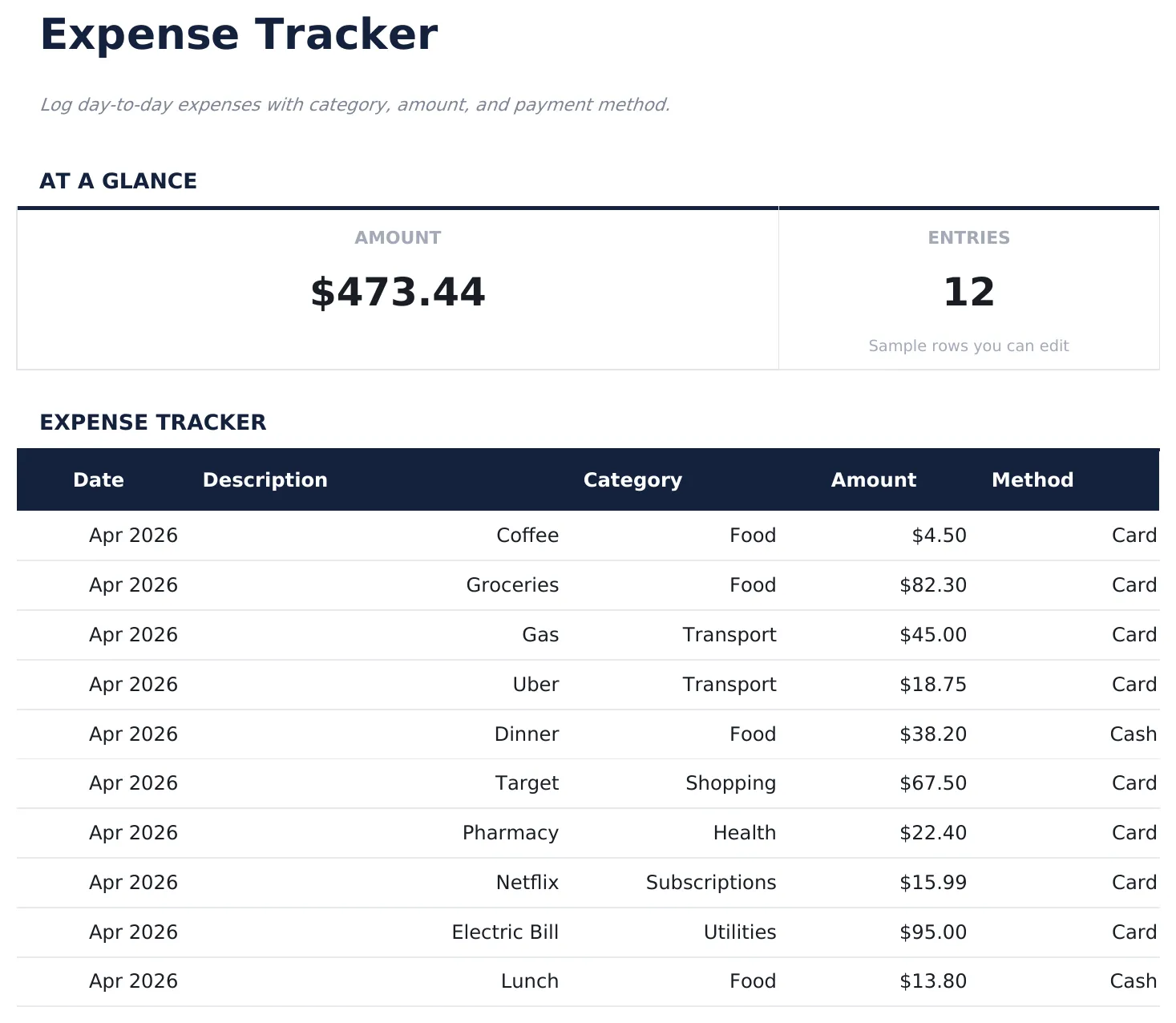
- "Expense Log" sheet with labeled columns and pre-filled sample rows you can overwrite
- Column totals update automatically as you log new entries
- Consistent layout - no setup, no pivot tables, no macros
- Step-by-step "How to Use" guide included in a second sheet
- Works in Microsoft Excel, Google Sheets, and LibreOffice Calc - no setup or sign-up
Free Expense Tracker Spreadsheet Template
Log day-to-day expenses with category, amount, and payment method.
Essentials $12 Ultimate $19 Free See Comparison & Free DownloadFree, Essentials, and Ultimate - what's the difference?
Essentials Expense Tracker
- Everything in Free
- Dashboard with spending overview displaying total expenses, top categories, and monthly trends
- Detailed expense log with columns for date, description, category, payment method, and amount
- Monthly summary sheet that automatically groups expenses by category with subtotals and percentages
- Date-based entry tracking that supports daily logging with automatic chronological sorting
Ultimate Expense Tracker
- Everything in Essentials
- Log up to 200 expenses per month with date, description, category (13 options), amount, payment method, and notes
- Dashboard with 6 KPI cards: total spent, daily average, largest expense, budget remaining, transaction count, and top category
- Budget vs Actual variance analysis - set monthly budget targets per category and track over/under spending with color-coded results
- 12-month spending overview grid showing spending by category across all 12 months with annual totals and monthly averages
How the Expense Tracker template works
Log day-to-day expenses with category, amount, and payment method. Open the spreadsheet, enter your own numbers, and let the formulas do the math.
When this template helps
You want a simple log of expense log without connecting accounts or learning a new app.
You need a record for taxes, reimbursement, or a quarterly review.
You prefer one row per entry so you can sort, filter, and total later.
You want something that opens in Excel, Google Sheets, or LibreOffice with no setup.
Tips to get the most out of it
- Keep the column labels simple - the formulas work best when categories are consistent month to month.
- Log expenses daily regularly - once a week is a good rhythm for most people.
Common mistakes to avoid
- Logging sporadically. A tracker only works if entries are consistent - weekly at minimum for most categories.
- Changing column labels after entering data. The formulas reference columns by position; renaming is fine, but moving columns breaks the totals.
- Letting the sheet balloon. When the row count gets unwieldy, archive older entries to a second file.
How to Use This Expense Tracker Template
Frequently Asked Questions
What is the difference between Free, Essentials, and Ultimate?
Free is a single-sheet starter template (sample data + How to Use guide). Essentials ($12) adds a dashboard, charts, expanded categories, and pre-filled subcategories. Ultimate (when available) adds multi-entity tracking, scenario analysis, and power-user reporting across 6-7 interconnected sheets.
Should I upgrade to Essentials?
Upgrade to Essentials if you want a dashboard with charts, more categories, larger capacity, and a more polished spreadsheet for ongoing use. The Free version is a good fit for one-off planning or trying out the layout.
Is Essentials worth $12?
Essentials is a one-time $12 purchase with no subscription. It typically adds a full dashboard, 30-50% more categories or rows than the Free version, and richer formulas. Most buyers upgrade after using the Free version for a few weeks and hitting its limits.
What is included in the free version?
The free Expense Tracker is a single-sheet template with sample data and a "How to Use" guide. It covers the essentials. The Essentials version ($12) adds a dashboard, larger capacity, and extended categories; Ultimate (when available) adds multi-entity tracking and ultimate-grade reporting.
Can I add more rows?
Yes. Copy the last sample row and paste below. Totals in the header recalculate automatically to include the new rows.
Does it work on Google Sheets?
Yes. Open the file from Google Drive (right-click and choose "Open with Google Sheets") - formulas are compatible.
Is the file safe to download?
Yes. No macros, no sign-up, no tracking. The file is a plain .xlsx that opens directly in Excel, Google Sheets, or LibreOffice Calc.
How do I open this in Google Sheets?
Upload the .xlsx file to Google Drive, then open it with Google Sheets. All formulas and formatting will be preserved.
What license is this template under?
All free templates are released under CC BY 4.0 (Creative Commons Attribution). You can use, modify, and share them freely - including for commercial purposes - as long as you credit FinancialAha.com. They are provided as-is and do not constitute financial advice.