
A yearly budget in Google Sheets is a 12-column grid, one column per month, with a row for every income and expense category. You set target amounts at the start of the year, then compare them against actuals each month, which surfaces seasonal costs like insurance renewals, holidays, and school supplies before they hit. Build it in six steps: income, fixed expenses, variable expenses, irregular and seasonal costs, savings, then reconcile the year-end math.
Our Annual Budget Template ships with the 12-month plan-vs-actual grid pre-built, but the method works in any blank Google Sheet.
A yearly budget isn’t twelve monthly budgets stacked on top of each other. The whole point is to plan for things that don’t happen monthly: the November holiday spending, the March car insurance renewal, the August school supply rush, the year-end charitable giving. Monthly budgeting makes those feel like surprises every time. A yearly budget treats them as known events.
This post walks through the six steps of building one and shows what each step looks like in the spreadsheet.
Step 1: list income by month
Most people’s income isn’t perfectly flat. Salaried W-2 workers come closest, but even they have biweekly vs semimonthly pay timing differences and annual bonuses to account for.
Create a row for each income source. Columns are January through December. Fill in expected income per source per month.
Example for a dual-income household:
| Income | Jan | Feb | Mar | Apr | May | Jun | Jul | Aug | Sep | Oct | Nov | Dec | Total |
|---|---|---|---|---|---|---|---|---|---|---|---|---|---|
| Partner 1 salary | 5,800 | 5,800 | 8,700 | 5,800 | 5,800 | 5,800 | 5,800 | 5,800 | 5,800 | 5,800 | 5,800 | 5,800 | 72,500 |
| Partner 2 salary | 4,200 | 4,200 | 4,200 | 4,200 | 4,200 | 4,200 | 4,200 | 4,200 | 4,200 | 4,200 | 4,200 | 4,200 | 50,400 |
| Side income | 800 | 600 | 400 | 800 | 1,200 | 800 | 800 | 1,000 | 1,200 | 800 | 600 | 400 | 9,400 |
| Annual bonus | 12,000 | 12,000 | |||||||||||
| Total income | 10,800 | 10,600 | 13,300 | 10,800 | 11,200 | 10,800 | 10,800 | 11,000 | 11,200 | 10,800 | 10,600 | 22,400 | 144,300 |
Notice March (extra paycheck if biweekly) and December (bonus) are higher than baseline. Planning for that variance is the value.
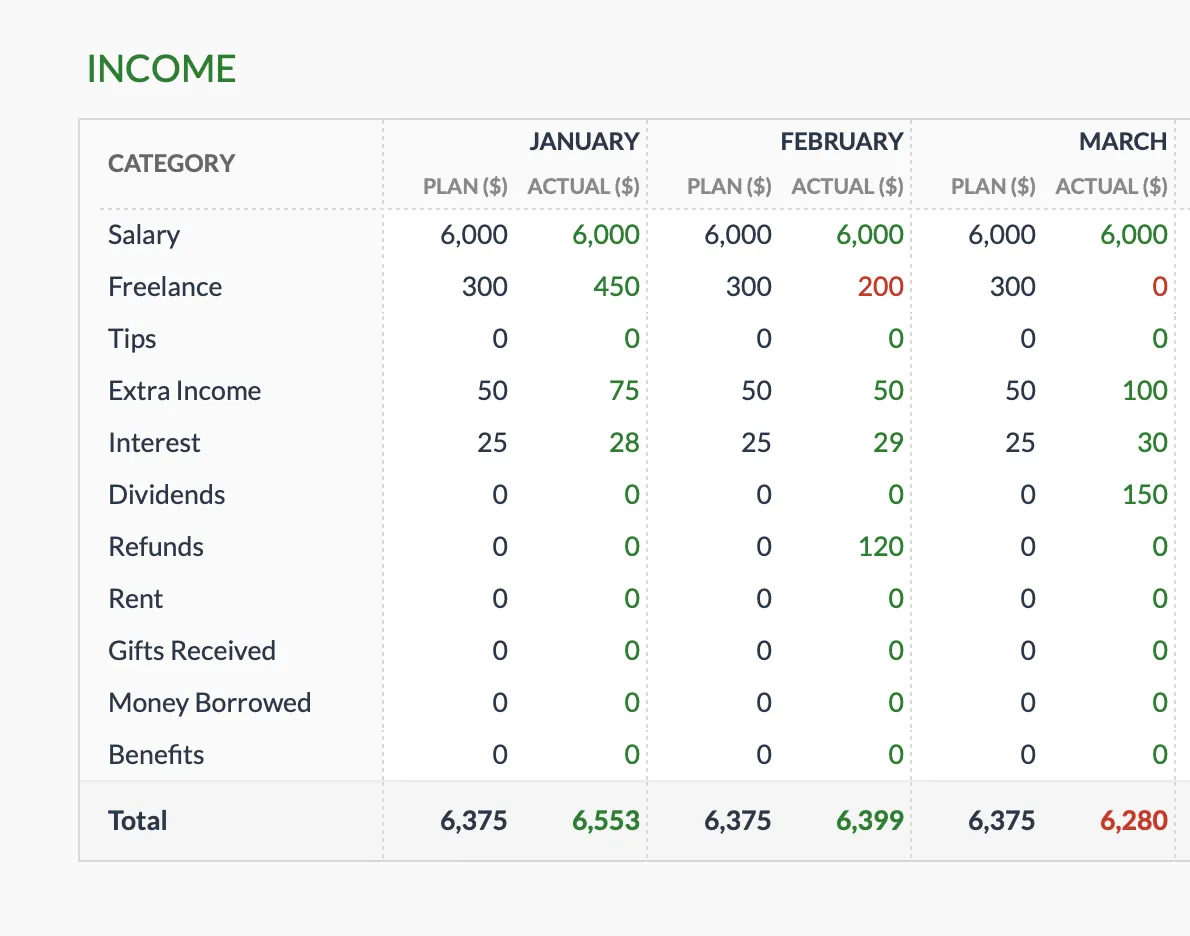
Annual Budget Template (Premium): each income row carries a planned and an actual column per month, so the March paycheck bump shows up against the plan rather than as a surprise.
Step 2: list fixed monthly expenses
The non-negotiables that hit every month at the same amount or close to it.
- Rent or mortgage
- Property tax (if escrowed in mortgage; otherwise see Step 3)
- HOA fees
- Health insurance premium
- Auto insurance (if monthly)
- Cell phone
- Internet
- Streaming subscriptions
- Gym membership
- Loan payments (student, car, personal)
- Childcare or tuition (if monthly)
These rows look like:
| Fixed expense | Jan | Feb | Mar | Apr | May | Jun | Jul | Aug | Sep | Oct | Nov | Dec |
|---|---|---|---|---|---|---|---|---|---|---|---|---|
| Mortgage | 2,400 | 2,400 | 2,400 | 2,400 | 2,400 | 2,400 | 2,400 | 2,400 | 2,400 | 2,400 | 2,400 | 2,400 |
| Health insurance | 850 | 850 | 850 | 850 | 850 | 850 | 850 | 850 | 850 | 850 | 850 | 850 |
| Internet | 75 | 75 | 75 | 75 | 75 | 75 | 75 | 75 | 75 | 75 | 75 | 75 |
Same number across all 12 months. Easy to fill, easy to verify.
Step 3: list variable monthly expenses
Things that happen every month but vary in amount: groceries, dining out, gasoline, household supplies, personal care.
Estimate from prior months if you have data. If you don’t, use a national average for your household size (USDA food cost data is one source for groceries) and adjust over time as actuals come in.
| Variable expense | Avg monthly |
|---|---|
| Groceries | 950 |
| Dining out | 280 |
| Gasoline | 240 |
| Household supplies | 110 |
| Personal care | 95 |
These can be flat across all 12 columns initially. As you log actuals each month, the variance will tell you whether your estimates were realistic.
Step 4: plan irregular and seasonal expenses
This is where the yearly budget earns its keep. Things that happen once or twice a year, not every month.
| Irregular expense | When | Amount |
|---|---|---|
| Auto insurance renewal | Mar | 1,400 |
| Auto registration | May | 220 |
| Property tax | Apr, Oct | 3,500 each |
| Holiday gifts | Nov, Dec | 800, 1,200 |
| Travel (summer trip) | Jun, Jul | 1,500, 2,000 |
| School supplies | Aug | 380 |
| Annual subscriptions (Adobe, Costco) | Various | 600 total |
| Charitable giving (year-end) | Dec | 2,500 |
| Vehicle maintenance reserve | Monthly $100 | 1,200 annual |
| Home maintenance reserve | Monthly $150 | 1,800 annual |
Place each in the month it actually hits. The annual budget shows the spike when it appears.
The two reserves at the bottom (vehicle and home maintenance) are sinking funds: small monthly amounts that build up to cover the irregular larger expenses. Even though no single month has a “vehicle maintenance” charge of $100, setting aside that amount each month means you have $1,200 ready when the brakes fail in October.
The seasonal spikes are the other half of this step. Insurance renewals, back-to-school costs, and holiday-driven months all land in predictable windows, so placing them in the correct column now means the year-end total already accounts for them.
Step 5: build savings and goals into the plan
Treat savings as a planned expense, not as “whatever’s left over.” If it’s not a line item, it gets squeezed out. Goal-based lines (a down payment, a trip fund) work the same way, and a dedicated savings goal tracker can sit alongside the budget for the ones with a target date.
| Savings line | Monthly amount |
|---|---|
| 401(k) contribution | 1,650 |
| Roth IRA contribution | 600 |
| Brokerage taxable | 500 |
| Emergency fund (until target reached) | 400 |
| Trip fund (next big trip) | 300 |
| Home down payment fund | 800 |
Total savings line: $4,250/month, or $51,000/year. As a percentage of $144,300 gross income, that’s a 35 percent savings rate. Worth knowing whether that’s the rate you want.
Two of these lines carry annual ceilings set by the IRS. For 2026 the 401(k) employee deferral limit is $24,500 and the IRA limit is $7,500. The $1,650/month 401(k) line ($19,800/year) and the $600/month Roth IRA line ($7,200/year) in this example both sit inside those caps, but a plan that budgets past them would over-contribute. Worth checking your own contribution rows against the current limits before the year starts.
If you’d rather start from a percentage split than from category-by-category estimates, this budget calculator turns a monthly income figure into needs, wants, and savings targets you can then spread across the 12-month grid:
Step 6: reconcile and verify the math
The annual budget needs to balance. Your year-end summary should show:
Total income - Total expenses - Total savings = Year-end residualIf positive: you have flexibility. Either save more, plan to absorb a higher-than-budgeted month, or treat as a buffer.
If negative: something has to change. Either income (raise, side work, bonus assumption), expenses (cut a category), or savings (reduce contributions to one bucket).
Run the year-end summary in a single dashboard cell. The Annual Budget Template ships with this. You can also build it yourself: =SUM(B2:M2) gives each row its annual total in column N, and the residual is one subtraction of the three section grand-totals, for example =Total_Income - Total_Expenses - Total_Savings, where each term points at the summed total cell for that section. Keeping the three totals as their own cells (rather than one long mixed SUM) is what makes the subtraction readable and easy to audit. For more on structuring these, see our guide to Google Sheets formulas for budgeting.
A worked example: family of four
Income: $144,300 gross (per the table above).
Expenses (annual totals):
- Fixed: $48,000 (mortgage $28,800, health $10,200, fixed subscriptions/utilities $9,000)
- Variable: $20,500 (groceries, dining, gas, household)
- Irregular and seasonal: $21,500 (insurance renewals, property tax, holidays, travel, school)
- Total expenses: $90,000
Savings: $51,000
Year-end check: $144,300 income - $90,000 expenses - $51,000 savings = $3,300 residual. Healthy buffer.
The interesting work happens before that final number. Adjusting one of the irregular categories ($1,500 less on travel, say) frees up $1,500 elsewhere. That’s the budget being a planning tool, not just a tracking one.
What to do each month
Once the annual plan is set, monthly maintenance is light.
First week of the month:
- Log actuals for the prior month into the same grid (a separate “actuals” row alongside the planned row).
- Calculate variance per category.
- Note any surprises that didn’t appear in the plan; add them as new rows if they’ll recur.
Mid-month:
- Quick check that current spending is on track vs the planned amount for the month.
- If trending over, decide whether to absorb (cut another category) or accept (use the buffer).
End of quarter:
- Update the rest-of-year forecast based on year-to-date actuals.
- Adjust savings allocations if income surprises.
Total time: maybe 30 minutes a month after the initial setup.
Where the spreadsheet helps
The 12-month grid is hard to see clearly without a spreadsheet. Paper budgets force you into either a single month or an unwieldy multi-page document. The spreadsheet shows the year on one screen.

Annual Budget Template (Premium): the dashboard rolls the whole year into status tiles, a planned-vs-actual chart, and per-section alerts. “Unallocated” is the year-end residual from Step 6.
Plan-vs-actual variance is the second value-add. A budget dashboard can highlight categories where actual is more than 10 percent over plan, so attention lands where the plan is drifting.
The third value-add: scenario modeling. Copy the workbook, change one assumption (next year’s salary, smaller travel budget, larger emergency contribution), see how the year-end residual changes. Hard to do on paper.
Which template fits
Pick by the view you want. If you want the full year on one screen, start with the Annual Budget Template. If you plan month to month first and only later roll up to a year, the Monthly Budget Template is the closer fit, and the two ship with the same default categories, so month-end totals copy across without renaming anything.
- Annual Budget Template - 12-month plan-vs-actual grid, with a separate amount per category per month and annual totals per category.
- Monthly Budget Template - Planned-vs-actual monthly budget with a dashboard and category targets.
- Budgeting Bundle - Annual, Monthly, and Travel budget templates bundled.
Related
- Monthly vs Annual Budgeting: Which View to Use
- How to Build a Rolling 12-Month Budget - A variation that always shows the next full year instead of Jan through Dec
- Annual Budget Review Checklist
- Sinking Funds Explained
- Free Monthly Budget Template for Google Sheets (2026 Edition)
Frequently asked questions
Should I plan a yearly budget in January, or can I start mid-year?
Mid-year is fine. The grid still spans 12 months; you just start filling actuals at the current month. Many people set up their first annual budget in May after a quarter of monthly tracking, because they have enough data to plan realistically.
How does the annual budget interact with a monthly one?
The monthly budget is a detailed view of one month; the annual is the summary across all twelve. Most people pick one or the other. If you do both, matching categories keep the two views comparable. The Annual Budget Template and the Monthly Budget Template ship with the same 31 default categories (17 expense, 11 income, 3 savings), so month-end totals line up. They are separate files, so the totals move across by copy and paste.
What if my income drops mid-year?
Update the income row for the affected months and run the year-end summary. The residual will tell you how much expense or savings adjustment is needed. The plan changes; the structure doesn't.
Should I budget for fun money?
Yes, as a category. If "discretionary spending" or "fun" gets squeezed out of the plan, the budget feels punitive and gets abandoned. A small line item (even $100/month) makes the plan livable.
How do I handle irregular freelance income?
Use a conservative monthly estimate and treat anything above that as a bonus to allocate at year-end. Or use a quarterly view: budget per quarter rather than per month, since freelance income tends to smooth out over 3-month windows.
How is a yearly budget different from the 50/30/20 rule?
The 50/30/20 rule is a percentage split of one month's income across needs, wants, and savings. A yearly budget is a calendar: it places actual dollar amounts in the specific months they happen. The two can coexist. Some people use a 50/30/20 split to set the monthly targets, then spread those targets across the 12-month grid so the seasonal spikes still show up.
Won't the grid be out of date the moment a number changes?
The planned column is a target, not a promise. When a number changes, you update that one cell and the row and year-end totals recalculate. The plan is meant to be revised: the point is that every change is visible against the original target rather than lost.
Sources
- 401(k) limit increases to $24,500 for 2026, IRA limit increases to $7,500 - Internal Revenue Service
About this article
Worked-example retirement contributions are checked against the 2026 IRS 401(k) and IRA contribution limits. Template sheets, inputs and outputs checked on 2026-09-10 against the shipped Annual Budgeting Google Sheet (Summary, Annual Plan, Annual Financial Goals, Categories, Setup, Instructions tabs) and the Monthly Budgeting category list. Last reviewed September 2026.