An invoice tracking spreadsheet keeps a client list, a fillable invoice, and one register where every invoice is logged once; status, balance, days overdue, an accounts-receivable aging report, and a dashboard all derive from those rows. This walkthrough builds the whole thing from a worked example of 14 invoices, $87,200 invoiced, $23,900 collected, and $30,800 past due across five invoices. Our Invoice Generator & Tracker Spreadsheet Template ($19) ships the same structure ready-made for Excel and Google Sheets.
Invoicing is where a lot of small businesses quietly lose money. Not to fraud or bad debt, but to invoices that were sent, half-remembered, and never chased. The work was done, the invoice went out, and then it slipped behind newer ones. The question a business owner can usually answer is “how much did I bill this month?” The harder question, the one that decides whether the bank account fills up, is “who owes me right now, and how long has each of them been sitting on it?” The gap between those two questions is structure, and a spreadsheet handles it well.
That structure comes down to a few pieces: a list of clients, a place to produce a clean invoice, one register where every invoice is logged, and the reports that fall out of it - status, balance, days overdue, an accounts-receivable aging view, and a dashboard. The examples below come from our Invoice Generator & Tracker Spreadsheet Template ($19), which ships the whole thing ready-made for Excel and Google Sheets. The layout is reproducible by hand if you would rather build your own invoice spreadsheet from scratch.
What an invoice tracking spreadsheet has to hold
Strip away the accounting software and there are only a few kinds of data behind invoicing:
- Business constants. Your name, address, and billing contact, plus the numbers that govern every invoice: the currency symbol, a default tax rate, default payment terms, and the invoice numbering scheme.
- Clients. Who you bill, their contact and email, and each one’s payment terms. This list is what lets the reports group receivables by customer.
- The invoices themselves. One row per invoice: number, client, issue date, due date, amount, and how much has been paid. This is the raw material for everything else.
- Derived reports. Status, balance, days overdue, the aging buckets, and the dashboard totals. These are calculations, not entries. In a well-built invoice tracker, nothing here is ever typed.
The template gives each of these its own sheet. There is a Settings sheet for the constants, a Clients directory, an Invoice sheet that produces one printable document, an Invoices register where every invoice is logged, an Aging report, and a Dashboard on top, with a How to Use sheet carrying the instructions. Seven sheets in all, and the walkthrough below follows them in the order a new user fills them in.
Set the constants first: the Settings sheet
A handful of values on the Settings sheet feed every other sheet, so they come first.
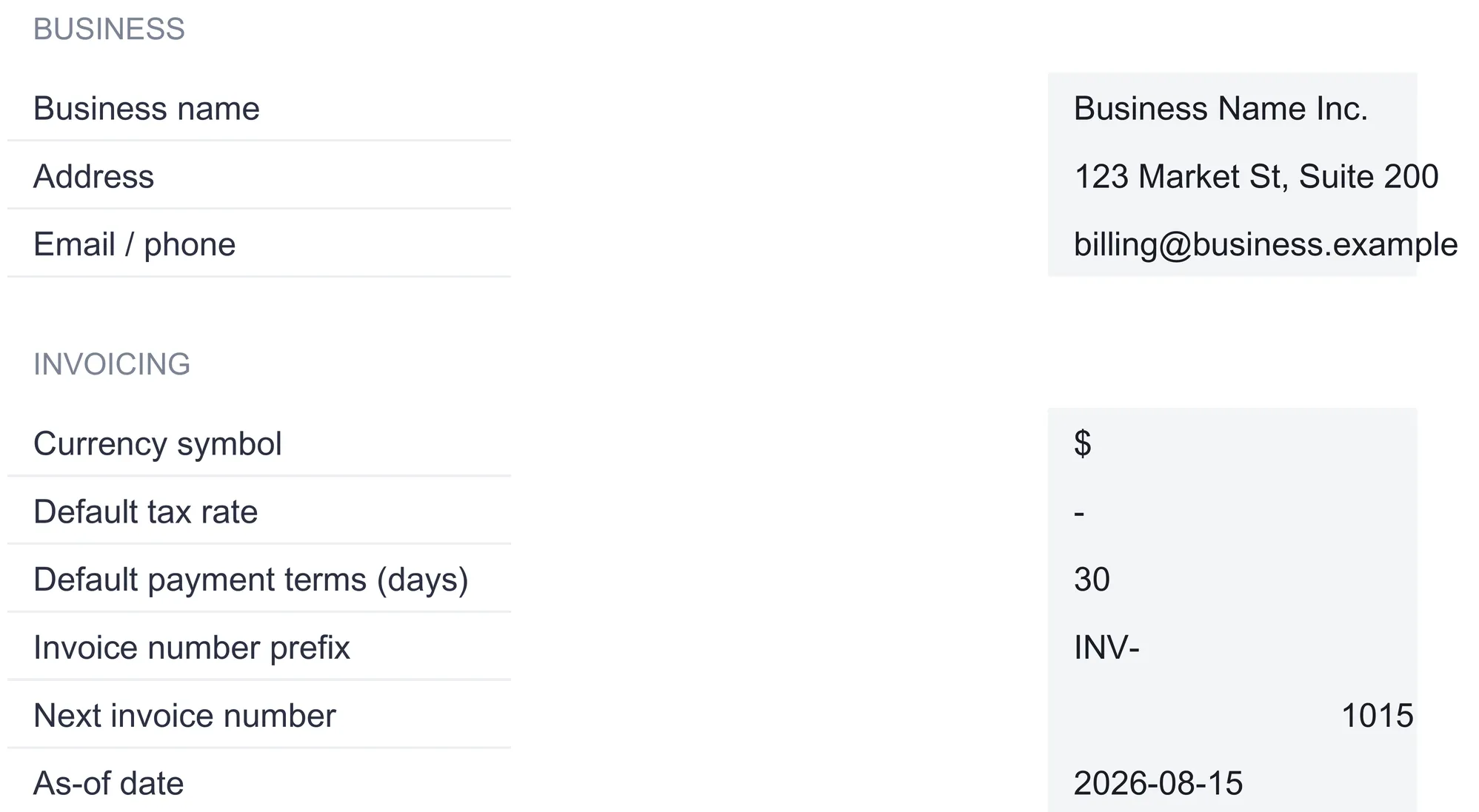
Business identity. Business name, address, and an email or phone line. These flow onto the printable invoice and into the header of every report, so the file carries your name once you have typed it once.
Currency symbol. A single dropdown, set to $ in the sample, offering 35 symbols from euro and pound to rupee, real, zloty, and yen. Changing it relabels every money column and every dashboard tile across the workbook. It relabels only, with no conversion of the underlying numbers, so it is a display choice rather than an exchange-rate tool.
Default tax rate. The sample uses 0, meaning no tax is added. This rate applies to the Invoice document only. The register records the total the client owes, tax already included, so tax is never added twice.
Default payment terms. Net days until an invoice is due, 30 in the sample. This sets the due date on the printable invoice for any client who does not carry their own terms.
Invoice numbering. A prefix and a next number, INV- and 1015 here, which the Invoice sheet joins into INV-1015.
As-of date. This is the quiet workhorse of the whole file. Overdue status and the aging buckets are all measured against this one date, set to 2026-08-15 in the sample. Changing it rolls the entire report forward or back in time, so you can ask “what was past due at month end?” by typing a month-end date, without touching a single invoice.
Build the client list: the Clients sheet
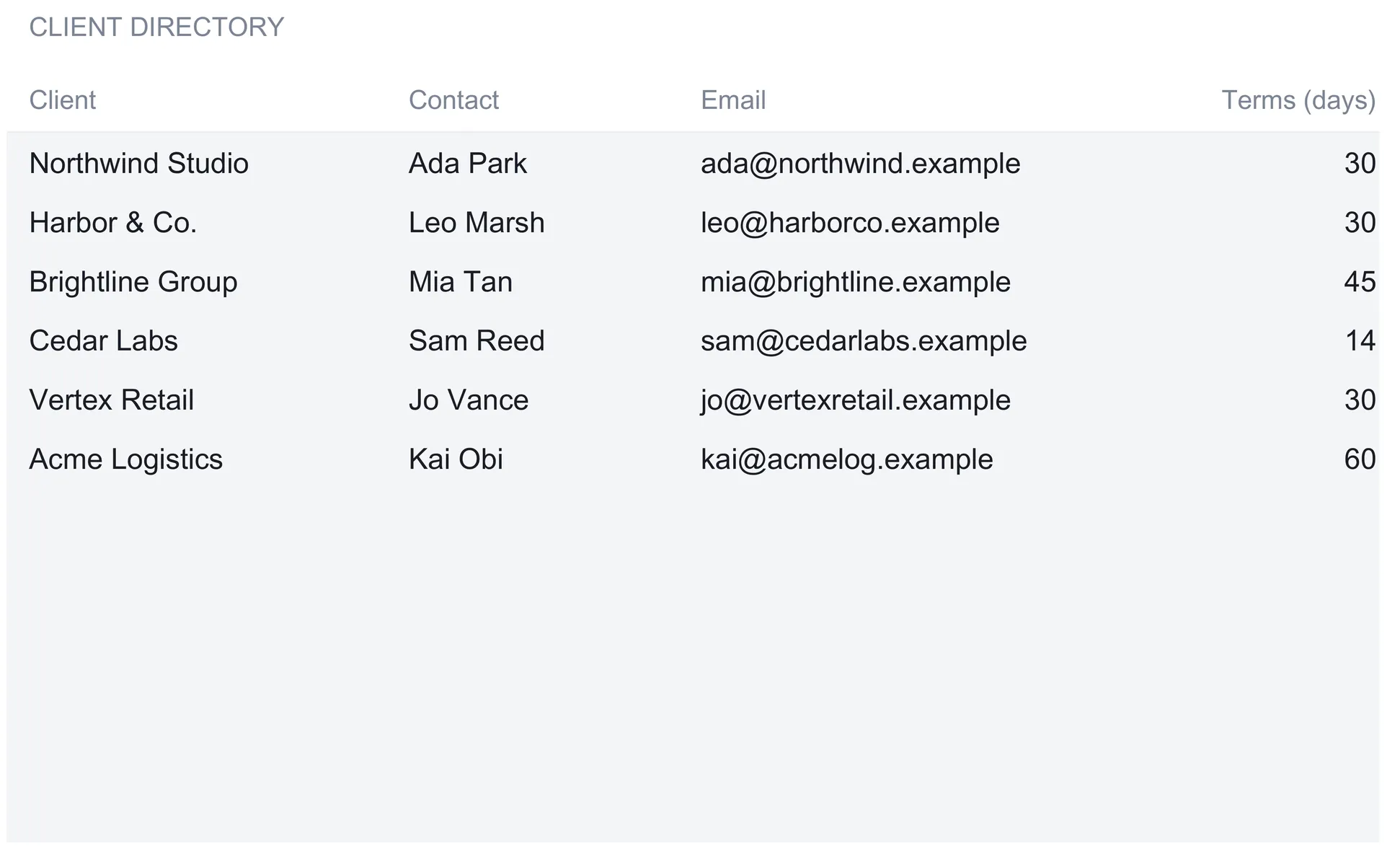
The Clients sheet is a plain directory, one row per customer: client name, a contact person, an email, and payment terms in net days. The sample carries six: Northwind Studio and Harbor & Co. at 30 days, Brightline Group at 45, Cedar Labs at a tight 14, Vertex Retail at 30, and Acme Logistics at a generous 60.
Two things make this list more than an address book. First, the payment terms here override the Settings default. When you raise an invoice for Cedar Labs, the printable document dates it 14 days out; for Acme Logistics, 60. A client not on the list simply falls back to the Settings default of 30. Second, the aging report has exactly one row per client on this sheet, so a name has to match for its receivables to group under it. Type “Acme Logistics” consistently on the register and every unpaid Acme balance lands on the Acme line; type “Acme Ltd” once and that invoice drifts into a catch-all row instead. The names on this sheet are the spine the reports hang from.
Create one invoice: the Invoice sheet
The Invoice sheet is the “generator” half of the template. It is a single fillable invoice document, laid out the way a client expects to receive one: your business name, address, and billing email at the top, a BILL TO block, an invoice number, issue and due dates, and a table of line items.
The number comes straight from Settings. The sample joins the INV- prefix and the next number 1015 into INV-1015, so each invoice you produce is pre-numbered. The issue date is typed, 2026-08-15 in the sample, and the due date is worked out for you: it adds the bill-to client’s payment terms, or the Settings default when the client is not listed. With the default 30-day terms, the sample invoice dated August 15 comes due September 14.
Each line item is a description, a quantity, and a unit price, and the line total multiplies the two. The sample bills three lines: a “Consulting - August retainer” at 1 by 3,500, “Design work (hours)” at 12 by 110 for 1,320, and “Hosting & maintenance” at 1 by 240. Those sum to a subtotal of 5,060. Tax applies the Settings rate, 0 in the sample, so the total due is also 5,060. A note under the table spells out the handoff to the register: log the total due, tax included, on the Invoices sheet. The Invoice sheet produces the document; it does not record the money. That is the register’s job, and keeping the two apart is what stops the same figure being entered twice with two different meanings.
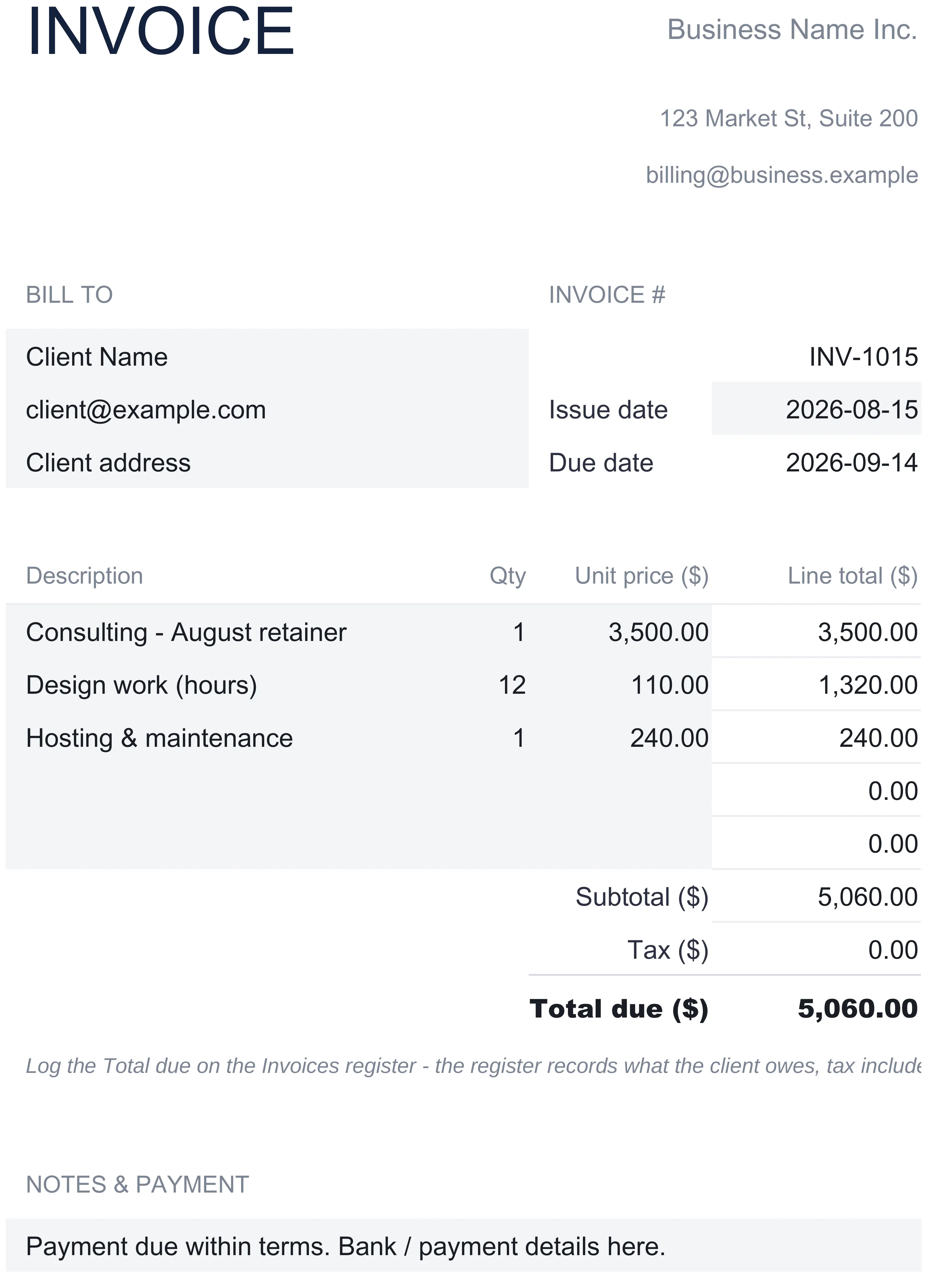
You can print this sheet or export it to PDF and send it as-is. It is a genuine invoice template, not a mockup, and it stays in sync with Settings so your numbering and terms never drift from what the tracker expects.
Log every invoice once: the Invoices register
The register is the heart of the file, and the only place an invoice is ever typed. Six columns are entries: invoice number, client, issue date, due date, amount, and amount paid. The client column offers the Clients directory as a dropdown, which keeps names matching so the aging report groups cleanly. Three more columns are pure formula:
- Balance = amount minus paid, what the client still owes on that invoice.
- Days overdue = the As-of date minus the due date, shown only while a balance remains and the due date has passed.
- Status = one of five words, decided in a fixed order.
That status logic is worth reading slowly, because it drives every headline number. Each row is tested top to bottom: no amount yet reads Draft; nothing left owing reads Paid; a remaining balance whose due date has passed the As-of date reads Overdue; a part-paid invoice not yet due reads Partial; and anything else still open reads Sent. The order matters. A part-paid invoice that is also past due comes out as Overdue rather than Partial, because past due is the more urgent fact and the one the dashboard should count.
One row makes the flow concrete. Invoice INV-1004 to Brightline Group was issued April 21 and came due June 5 for 9,200, of which 4,000 has been paid. The balance formula leaves 5,200 owing. Measured against the August 15 As-of date, the due date passed 71 days ago, so days overdue reads 71 and the status reads Overdue. Nothing on that row after the paid figure was typed.
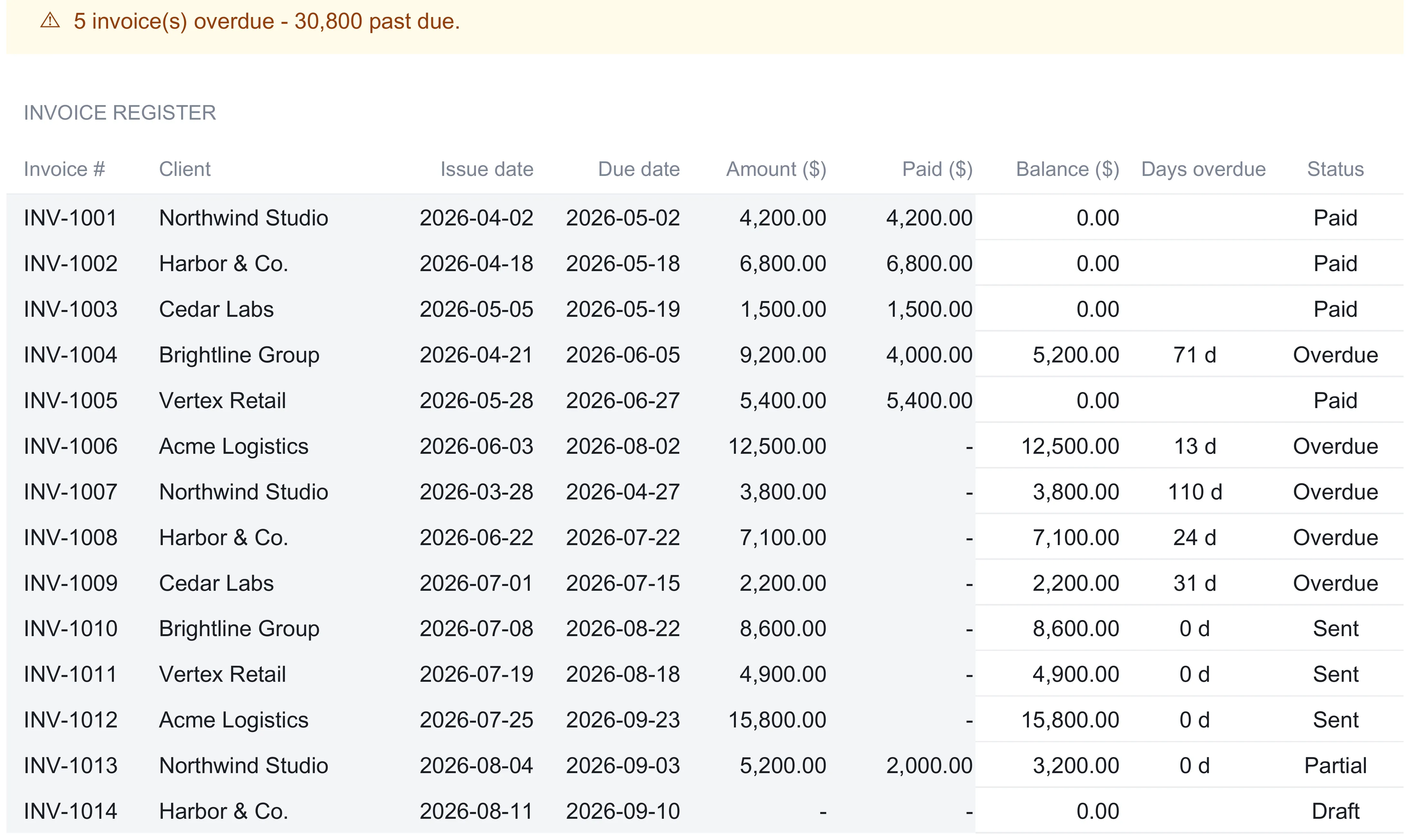
Recording a payment is a single edit, and it is where the status column earns its keep. When a client pays in full, you type the full amount into the paid column and the row settles itself: the balance drops to zero, the days-overdue cell clears, and the status flips to Paid. A partial payment behaves the same way. Type the amount received into the paid column and the balance drops to what is still owed while the status reads Partial, as long as the due date has not yet passed. The moment that due date slips behind the As-of date, the same row reads Overdue instead, without any further typing. This is why the paid column is the only thing you touch as money comes in. Everything a report needs, from the outstanding total to the aging buckets, recalculates from that one figure.
One rule keeps the register honest: it records the total the client owes, tax included. The tax rate on Settings belongs to the Invoice document, where it turns a subtotal into a total due. When you log that invoice, you enter the total due, not the pre-tax subtotal, so the register never has to add tax a second time. Following that convention is what lets the collected and outstanding figures reconcile to the invoices you sent.
The sample register runs fourteen invoices, INV-1001 through INV-1014, across the six clients. Four are fully Paid, five are Overdue, three are Sent and still inside their terms, one is Partial, and one is a Draft with no amount entered yet. A banner at the top of the sheet states the position in a sentence, reading “5 invoice(s) overdue - 30,800 past due” in the sample, and it flips to a reassuring line when nothing is late. Taken together the rows total 87,200 invoiced, 23,900 paid, and 63,300 still outstanding.
Two design details are worth copying into any hand-built invoice spreadsheet. First, the blank rows below the data already carry the balance, days-overdue, and status formulas and already sit inside every total, so the next invoice goes on the first free row and the whole workbook updates. There is no formula to drag and no range to extend. Second, every report downstream reads this one register, so the dashboard and the aging view cannot drift apart from it. Spreadsheets that go wrong tend to go wrong exactly here, when an invoice is typed into one summary but not another.
What the register does not do is fill itself. There is no bank feed or payment-processor connection, so each invoice is six typed cells and each payment is one more. For a few dozen invoices a month that is a few minutes of entry; a business sending hundreds is the case accounting software with automatic reconciliation exists to serve. The trade is automation against a file whose every formula you can read, change, and keep on your own machine.
See who owes what, and for how long: the Aging report
The Aging sheet answers the collection question directly. It takes the outstanding balance on every unpaid invoice and sorts it by how far past due it is, measured against the Settings As-of date, into five buckets: current (not yet due), 1-30 days late, 31-60, 61-90, and more than 90. Each client from the Clients sheet gets one row, and a final “Not on Clients” row catches any balance owed under a name that is not in the directory, so the grand total always reconciles to the register no matter how names were typed.
In the sample, the 63,300 outstanding breaks down like this:
| Bucket | Amount ($) | What it means |
|---|---|---|
| Current | 32,500 | Owed but not yet due |
| 1-30 days | 19,600 | Just slipped past the due date |
| 31-60 days | 2,200 | A month late |
| 61-90 days | 5,200 | Two months late |
| 90+ days | 3,800 | The oldest, hardest balances |
| Total | 63,300 | Matches the register’s outstanding |
Read across the client rows and the story sharpens. Acme Logistics owes the most at 28,300, but 15,800 of that is still current and only 12,500 has just tipped into the 1-30 bucket, so it is large rather than alarming. Northwind Studio owes 7,000, and 3,800 of it has been sitting in the 90-plus column, which is a smaller total but an older, stickier one. The aging report is what lets you tell those two situations apart instead of seeing one lump of “money owed.”
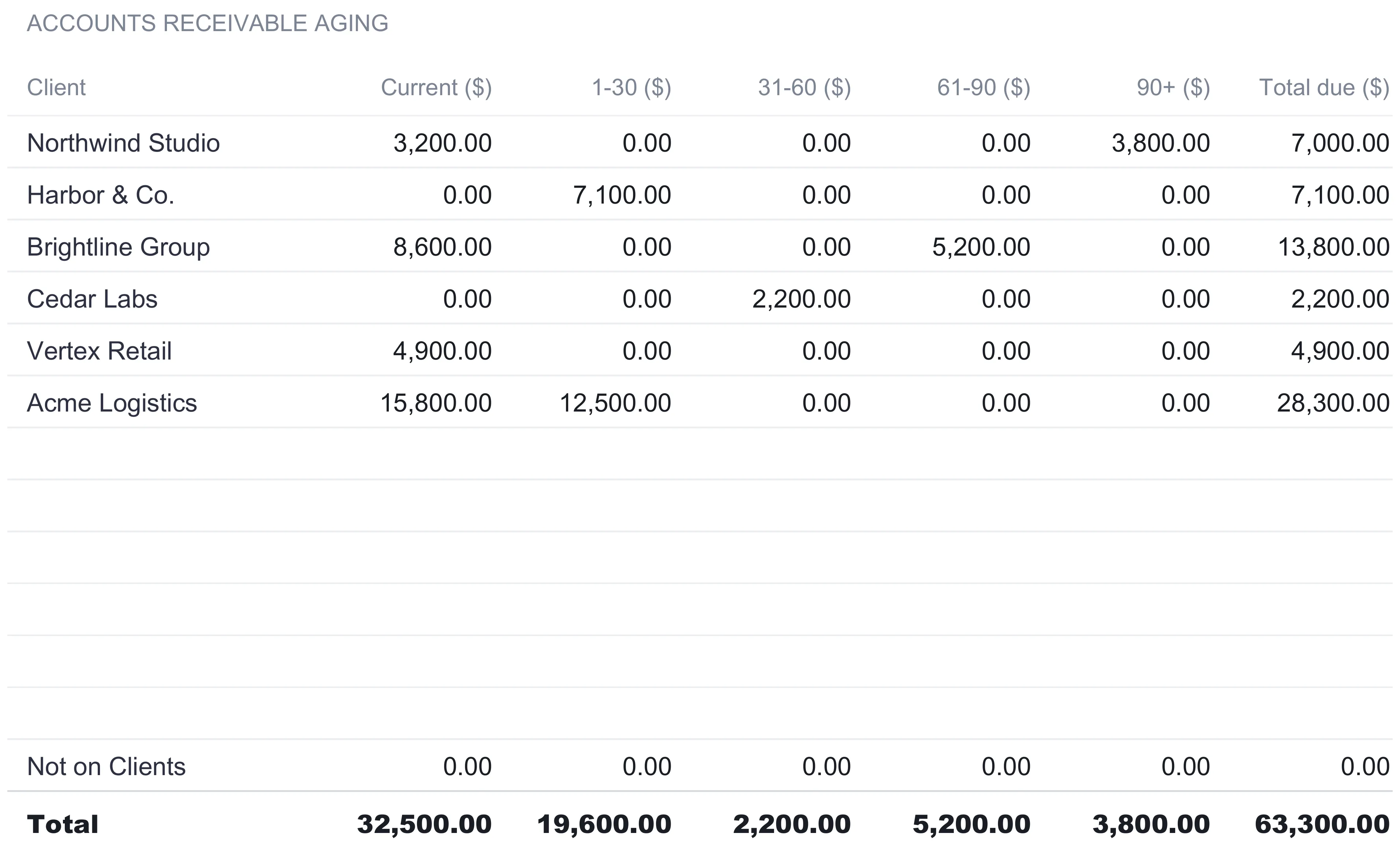
Because every bucket is measured against the As-of date, moving that one date on Settings re-ages the whole report. Set it to a month later and balances march from current into 1-30, from 1-30 into 31-60, and so on, exactly as they would in real life.
Read the whole book at a glance: the Dashboard
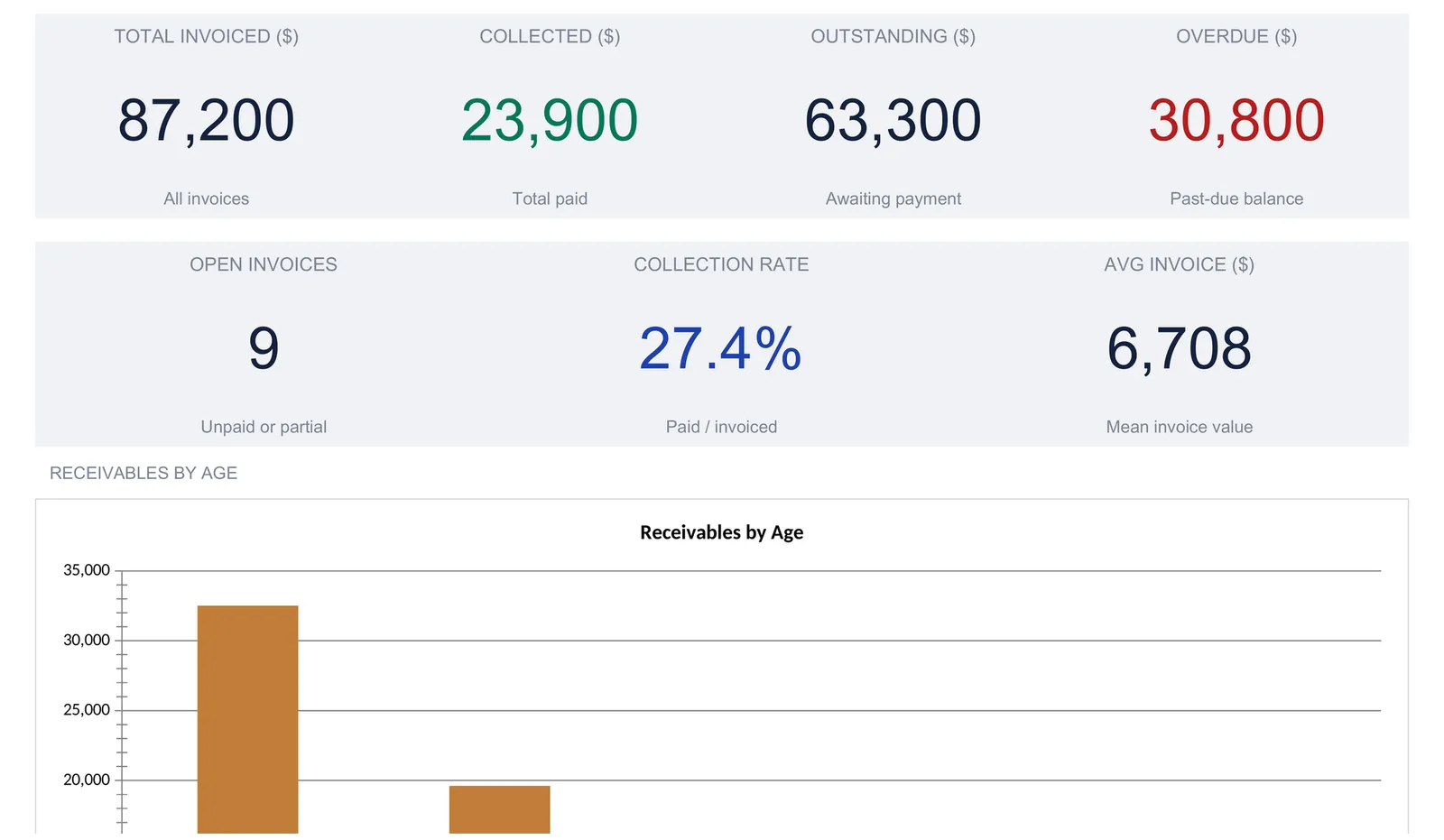
With Settings, Clients, and the register filled in, the Dashboard computes the position. A status banner runs across the top, echoing the register: it warns that 30,800 is past due across five invoices in the sample, and turns to a clean confirmation when receivables are current. Below it sit seven KPI tiles:
| Metric | Sample value | How it is derived |
|---|---|---|
| Total invoiced | 87,200 | Sum of every invoice amount |
| Collected | 23,900 | Sum of everything paid |
| Outstanding | 63,300 | Sum of every balance still owing |
| Overdue | 30,800 | Past-due balances only, as of the report date |
| Open invoices | 9 | Count of invoices not fully paid |
| Collection rate | 27.4% | Collected divided by invoiced |
| Avg invoice | 6,708 | Total invoiced divided by the count of invoices |
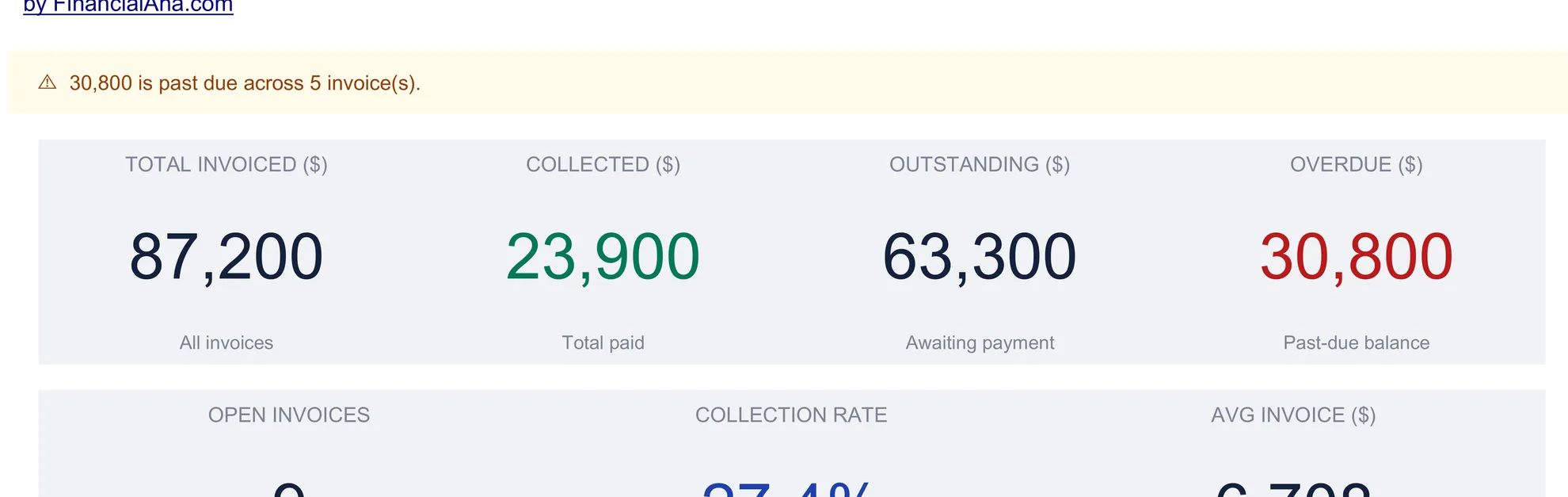
The average invoice figure divides 87,200 by the thirteen invoices that carry an amount, since the lone Draft row has none, giving about 6,708. Below the tiles, two charts do the visual work. A “Receivables by Age” bar chart plots the aging buckets, so the wall of current money and the tail of old balances are visible side by side. An “Invoiced Amount by Status” chart splits the full 87,200 by status flag, and it is a different cut from the outstanding view: it counts the whole invoice, paid or not, so the Overdue bar there reads 34,800 (the full face value of the five late invoices) rather than the 30,800 still owed on them. Sent invoices account for 29,300, Paid for 17,900, Partial for 5,200, and Draft for nothing.
The collection rate is the number no single invoice shows. In the sample, a business that has billed 87,200 has banked 23,900 of it, and seeing those two figures on the same screen, with 30,800 flagged as genuinely late, is most of the reason to track invoicing at all.
Collection rate, aging, and overdue in plain terms
Three of the dashboard figures carry a whiff of accounting jargon, and all three are simple once separated.
Overdue (30,800 across five invoices) is the money that has a balance and whose due date has already passed the As-of date. It excludes invoices that are unpaid but still inside their terms, which is the honest way to count it. An invoice sent yesterday on 30-day terms is not late, and lumping it in with genuinely old debt would overstate the problem.
Collection rate (23,900 divided by 87,200, or 27.4 percent) is the share of everything billed that has been paid. It is deliberately blunt and reads low whenever several large invoices are still young, as in the sample, where three sizeable Sent invoices are inside their terms. It is a trend line to watch over months, not a verdict on any one week.
Aging is the same outstanding total, 63,300, cut by how late each piece is. Overdue tells you how much is late; aging tells you how late, which is what decides whether a balance needs a gentle reminder or a phone call.
Kept together, these three turn a pile of invoices into a reading you can act on: how much is owed, how much of it is late, and how old the late part has become.
Where invoice records matter beyond cash flow
Chasing payment is the daily reason to track invoices, but the records serve a second purpose at tax time. In the US, the IRS treats invoices as supporting documents for your gross receipts, the income your business takes in. Its guidance on what kind of records to keep lists invoices alongside cash register tapes, receipt books, and deposit information as evidence of “the amounts and sources of your gross receipts,” and notes that electronic records kept in an orderly way meet the same standard as paper. A register that already holds every invoice, dated and totaled by client, is exactly that kind of orderly record. Arriving at year end with the year’s billing in one place turns filing prep into a copy job rather than a reconstruction, though a tax professional can confirm what a specific business needs to keep.
Excel or Google Sheets for invoicing
The tracker is an .xlsx file built on plain formulas, with no macros and no add-ons, so it runs identically in Microsoft Excel and in Google Sheets after upload. Google Sheets suits a business that wants the invoice register open on a phone and shared with a bookkeeper; Excel suits anyone who prefers a local file. The dropdowns, the automatic status, the aging buckets, and the dashboard all behave the same way in both, and the whole structure described here is buildable by hand in either program if you would rather assemble your own invoice template than start from the ready-made one.
Which template fits
- Invoice Generator & Tracker Spreadsheet Template ($19) is the workbook this walkthrough follows: the Settings constants, a client directory, a printable invoice, the register with automatic status, the accounts-receivable aging report, and the dashboard, ready to use for one business.
- AR / AP Tracker Spreadsheet Template ($29) widens the view to both sides of the ledger. Where the invoice tracker follows the money customers owe you, the AR / AP tracker adds the bills you owe suppliers, so accounts receivable and accounts payable sit together and you can read net position rather than incoming cash alone. It is the natural next step once payables start needing the same discipline as receivables.
Related
- Cash Flow Forecast Template for Business - where the money an invoice tracker collects feeds into a forward view of the bank balance
- How to Forecast Cash Flow for a Small Business - turning known receivables and bills into a month-by-month projection
- Freelancer Cash Flow Spreadsheet - the same tracking discipline sized for a single operator
Frequently asked questions
How does the spreadsheet decide an invoice is overdue?
Status is a formula, not something you type. Each row is checked in order: an invoice with no amount reads Draft, one with nothing left owing reads Paid, one that still has a balance and whose due date has passed the Settings As-of date reads Overdue, a part-paid invoice that is not yet due reads Partial, and anything else open reads Sent. Because it measures against the As-of date, a part-paid invoice that is past due still reads Overdue, and that is the figure the dashboard counts.
Can I change the invoice numbering?
Yes. Settings holds an invoice number prefix and a next invoice number, INV- and 1015 in the sample, and the Invoice sheet builds its number by joining the two into INV-1015. Changing either updates the printable invoice. The register itself takes whatever invoice number you type on each row, so you can follow the sequence or use your own.
What is an accounts receivable aging report?
It sorts what each client still owes by how long the invoice has been past due, into buckets: current, 1-30 days, 31-60, 61-90, and more than 90. In the sample, $63,300 outstanding splits into $32,500 current and $30,800 spread across the overdue buckets. Aging turns one outstanding total into a view of which balances are fresh and which have been sitting.
Does the spreadsheet create a printable invoice or only track them?
Both. The Invoice sheet is a single fillable document with your business details, a bill-to block, line items, subtotal, tax, and total due, ready to print or export to PDF. The Invoices sheet is the register where every invoice you send gets one row so the totals, aging, and dashboard stay current. The two are separate on purpose: one produces a document, the other tracks the money.
How is the collection rate calculated?
It divides total collected by total invoiced. In the worked example that is $23,900 paid against $87,200 invoiced, which is 27.4 percent. The figure is deliberately blunt: it does not care whether an invoice is merely young or genuinely late, only how much of everything billed has actually arrived, so it reads low in a month with several large invoices still inside their terms.
Sources
- What kind of records should I keep - Internal Revenue Service
About this article
Template sheets, inputs, formulas and figures re-checked on 2026-09-10 against the shipped Invoice Generator & Tracker Premium workbook (Dashboard, Invoices, Invoice, Clients, Aging, Settings, How to Use tabs) and the AR / AP Tracker workbook (Receivables, Payables, Aging, Contacts tabs). IRS recordkeeping guidance checked against the live page at writing time. Last reviewed September 2026.