Lifetime Deal Complete Personal Financial Planning Bundle →
✓ Financial Planning✓ Net Worth Tracker✓ Monthly Budgeting✓ Travel Budget Planner✓ Annual Budgeting Planner✓ Monthly Expense Tracker✓ Annual Tax Planner✓ Retirement Planning
View Bundle →

Instant digital delivery · Terms & Conditions apply

Ultimate Template - Excel & Google Sheets

Ultimate Weekly Timesheet Spreadsheet Template for Google Sheets & Excel

Fifteen people, each with the seven days of the week and a rate of their own, so the labour cost is not built on an average. The Ultimate Weekly Timesheet spreadsheet template splits regular from overtime for every person, allocates the hours across eight projects, costs each project at its own blended rate with its share of the total, and rolls four weeks into a month. Six working sheets. Google Sheets and Excel, one file. No macros, no VBA.

See Preview

Instant digital delivery · Terms & Conditions apply

Weekly Timesheet Spreadsheet Template - Ultimate version for Google Sheets and Excel

What's Included

  • Fifteen people, each with the seven days of the week
  • A rate per person, so the labour cost is not built on an average
  • Regular and overtime split for every person
  • Hours allocated across eight projects
  • Each project costed at its own blended rate, with its share of the total
  • Overtime hours, overtime cost, and overtime as a share of each person's week
  • Four weeks rolled into a month, with hours and pay
  • Total labour cost, headcount and average hours per person on the dashboard
  • A chart on the dashboard
  • Works in Microsoft Excel and Google Sheets with no macros required

The FinancialAha Ultimate Weekly Timesheet Spreadsheet Template for Google Sheets and Excel is a six-sheet workbook covering fifteen people, with a How to Use guide on a seventh tab. It ships as an Ultimate Weekly Timesheet Excel template and an Ultimate Weekly Timesheet Google Sheets template in one file. This Ultimate Weekly Timesheet spreadsheet template splits everyone's hours across eight projects, costs each project at its own blended rate, breaks overtime out per person, and rolls four weeks into a month. No macros, no VBA.

Inside the workbook

What's inside the FinancialAha Ultimate Weekly Timesheet spreadsheet template

The FinancialAha Ultimate Weekly Timesheet Spreadsheet Template runs on six working sheets - three you fill in, two more with a budget figure of their own to set, and one that only reports back - plus the guide. It works in both Microsoft Excel and Google Sheets and here is what the Ultimate Weekly Timesheet spreadsheet holds.

  1. 01 of 06

    Dashboard

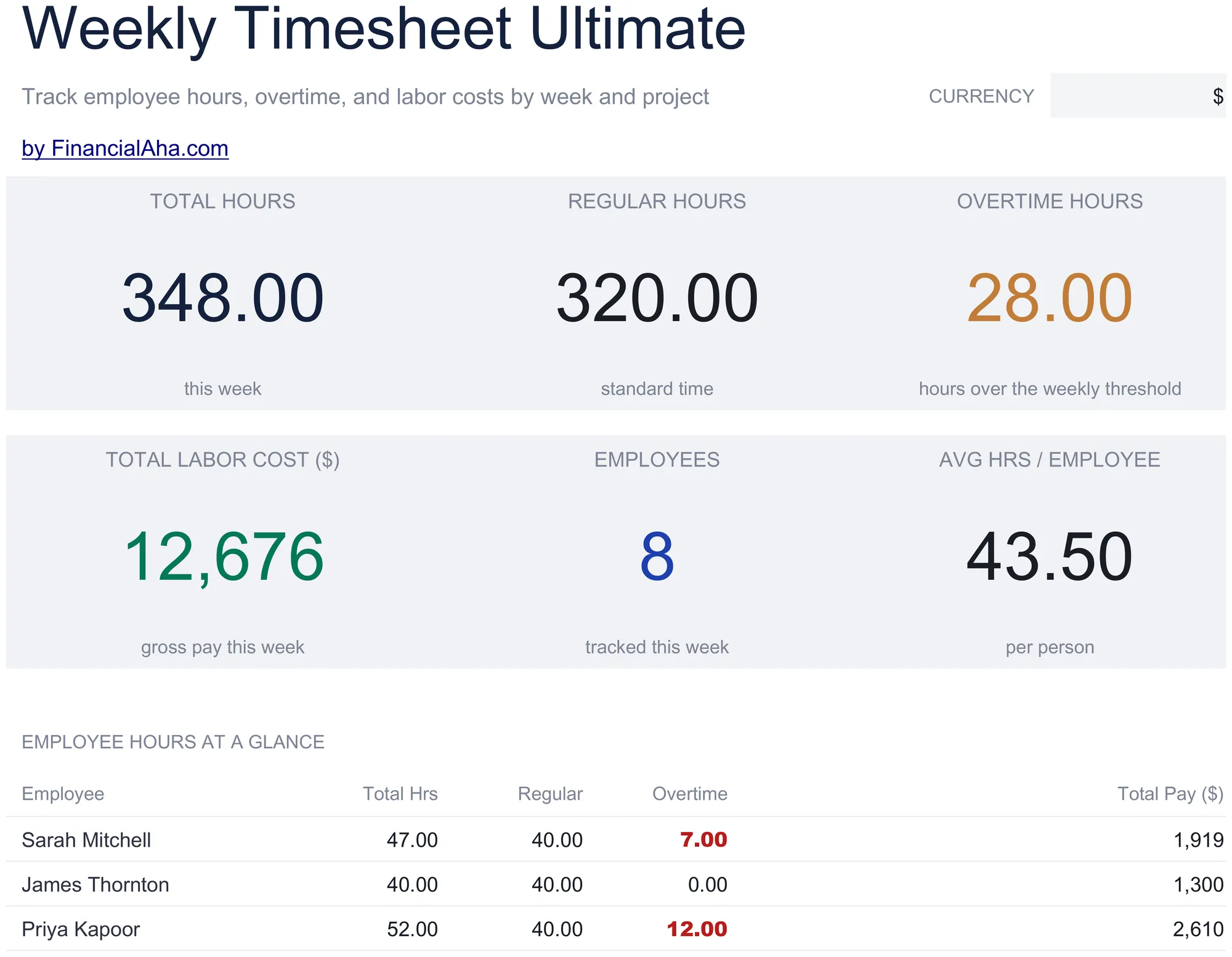
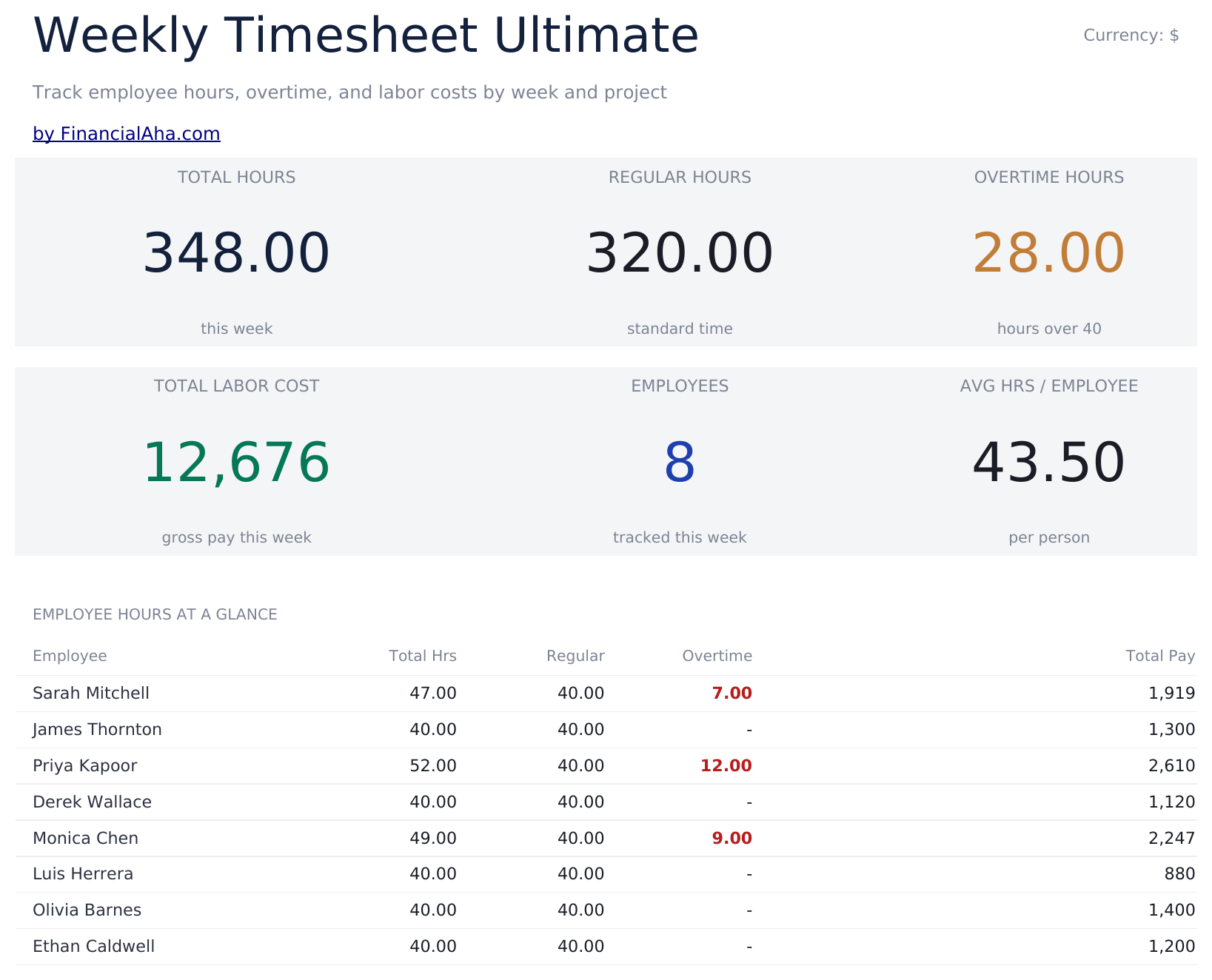
    The week across the whole team in six figures: total hours, how many were regular and how many overtime, what the labour came to, how many people it covers, and the average hours each. Every employee is also listed with their own hours, split and pay. A chart sits alongside.

  2. 02 of 06

    Weekly Timesheet

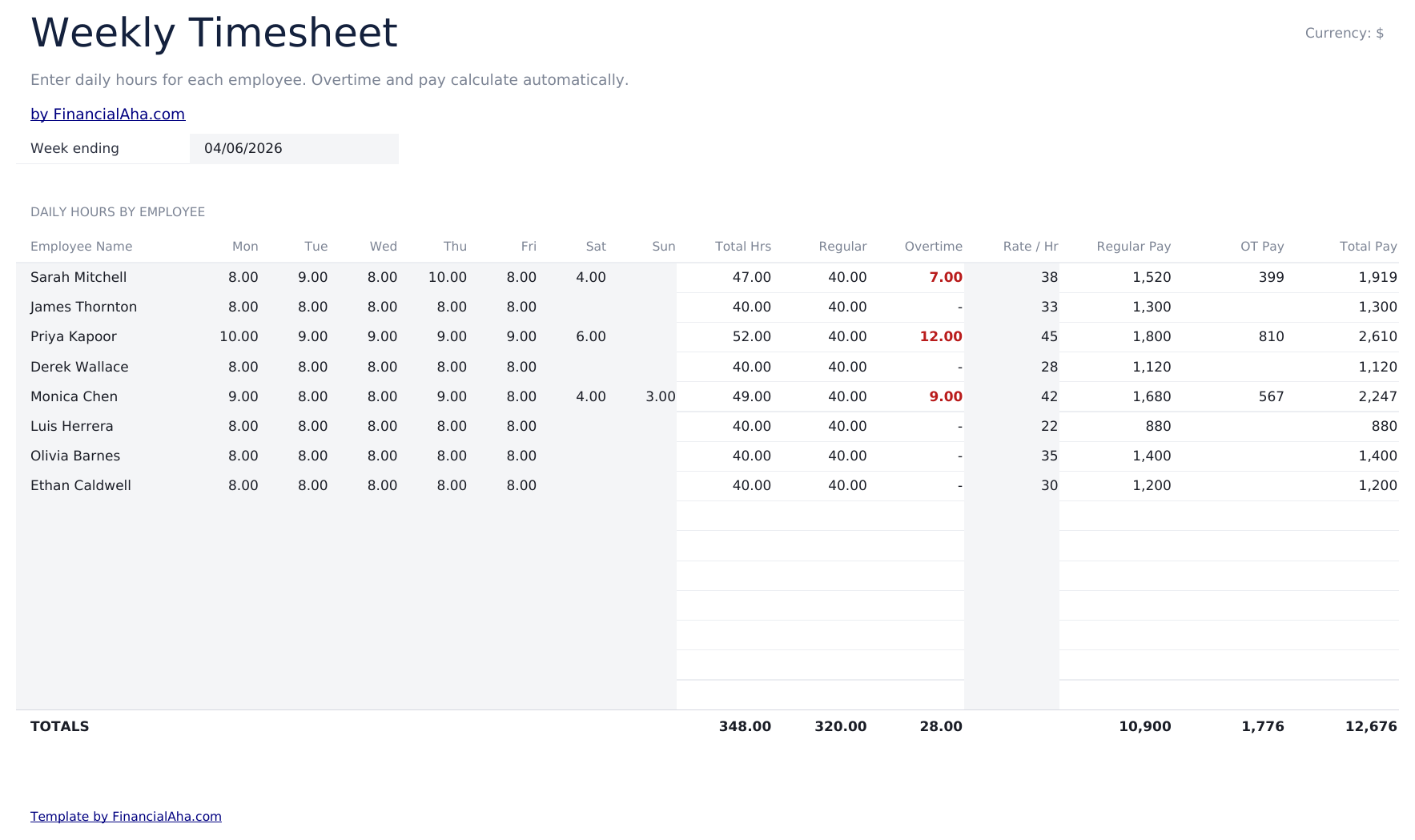
    Fifteen people, each with the seven days of the week, their total, the regular and overtime split, and their own hourly rate. The rate being per person rather than global is what makes the labour cost real - a team is rarely paid at one number, and any cost built on an average is a guess.

  3. 03 of 06

    Project Allocation

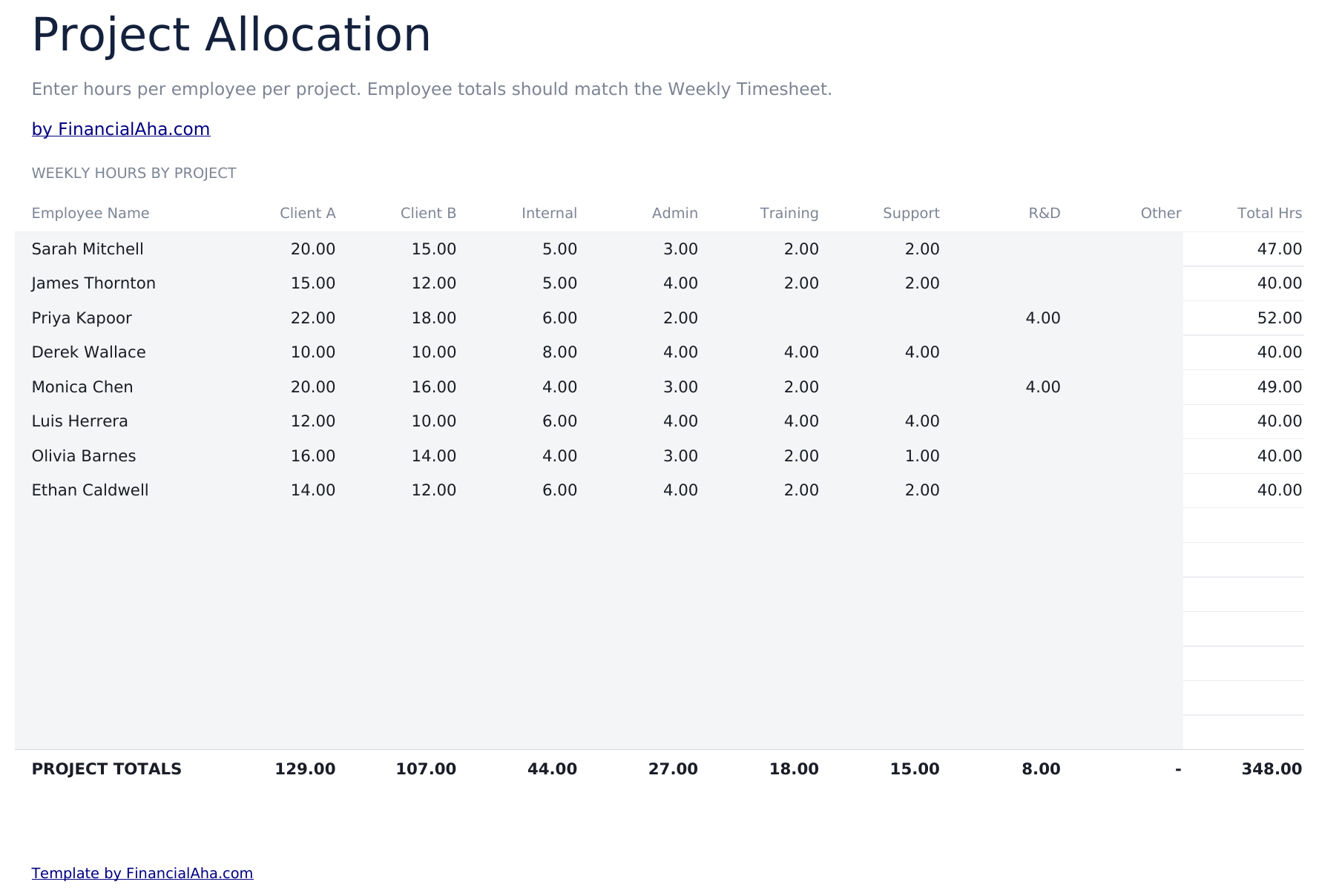
    The same fifteen people with their week spread across eight projects. This is the sheet that answers where the time went rather than how much of it there was, and the two questions have very different answers on any week where something overran.

  4. 04 of 06

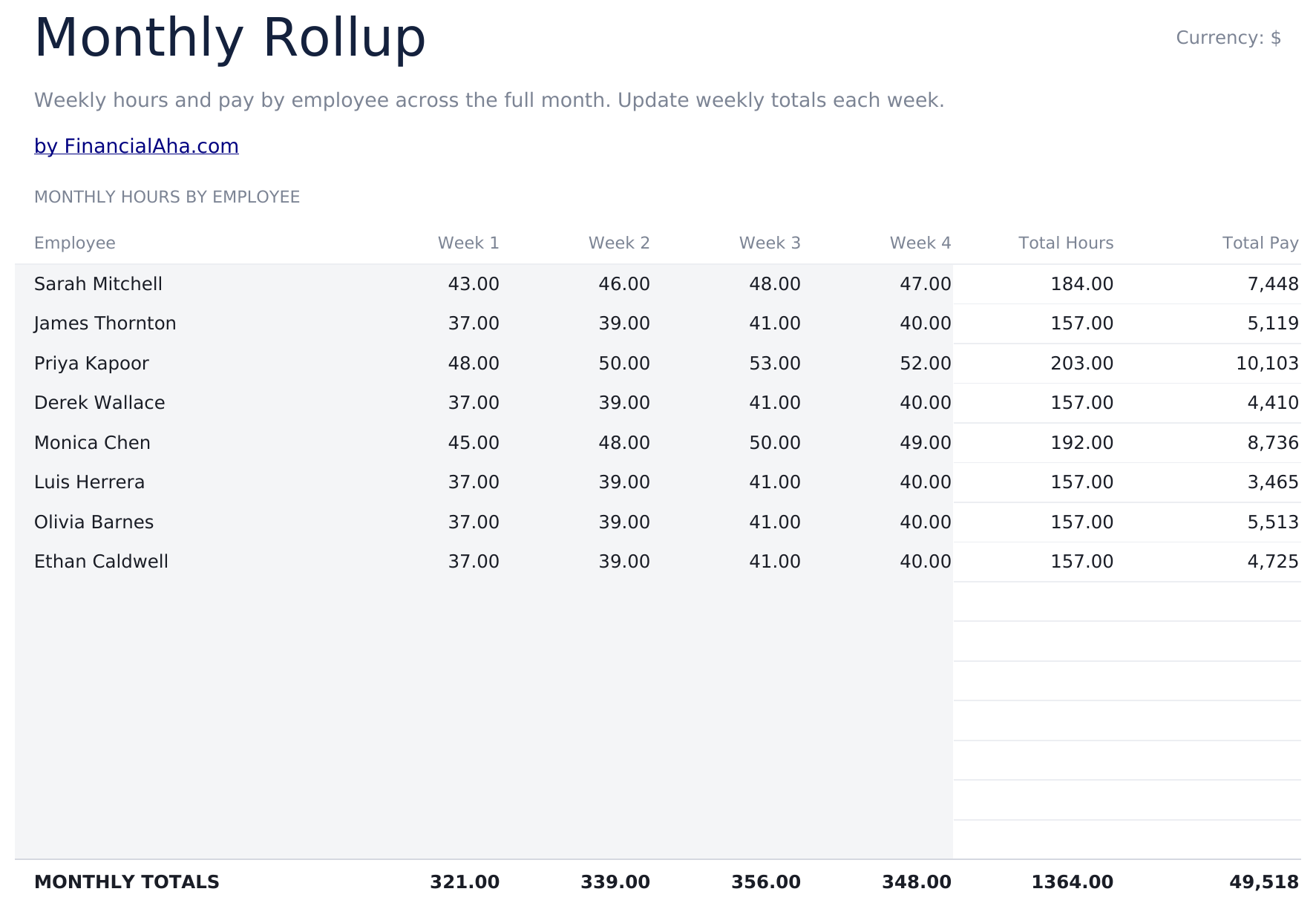
    Monthly Rollup

    Four weeks per person with the month's hours and pay at the end. A week is the unit the work is recorded in and a month is the unit it is paid in, and this is where one becomes the other without re-entering anything.

  5. 05 of 06

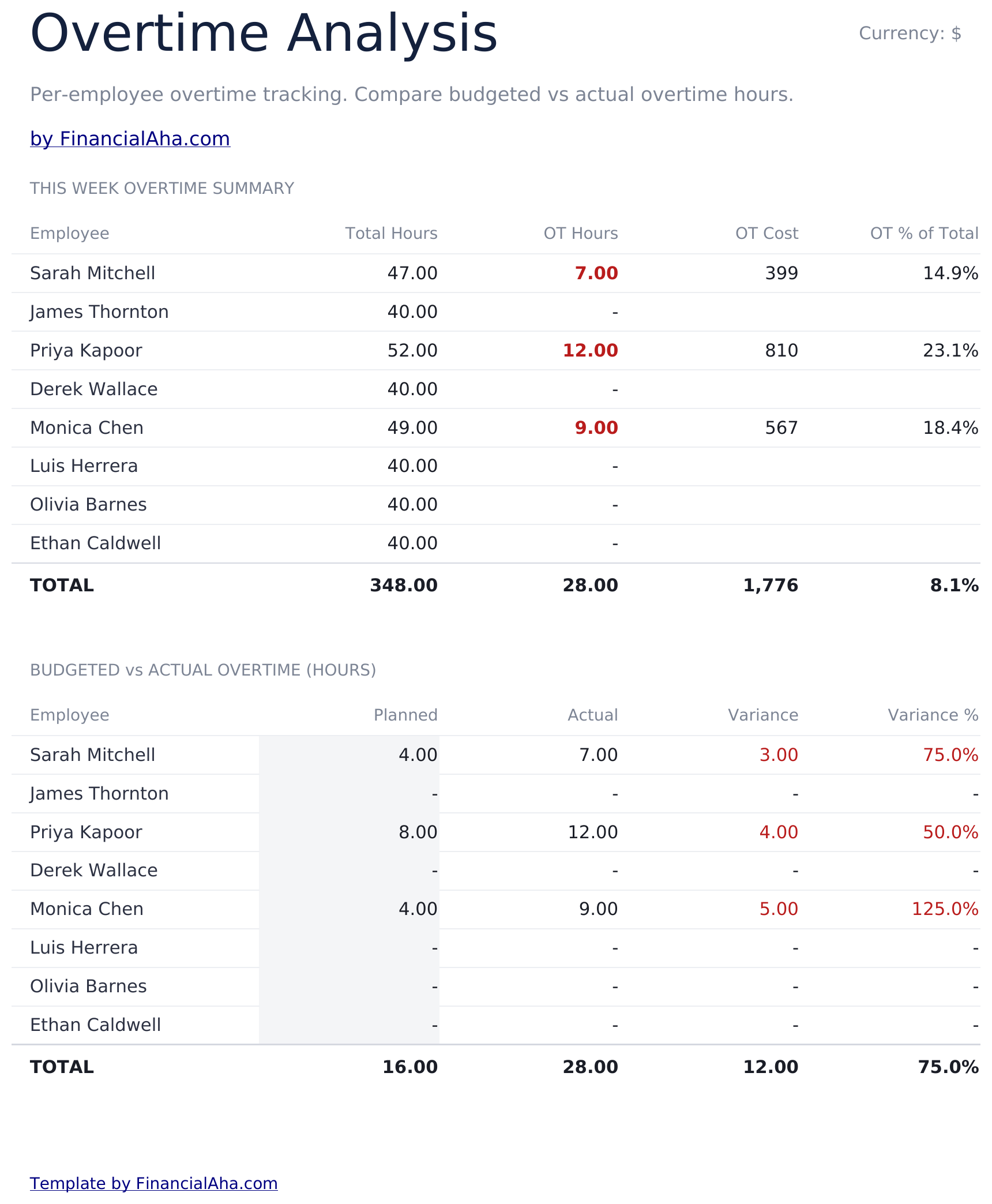
    Overtime Analysis

    Each person's total hours, their overtime hours, what that overtime costs, and what share of their time it represents. The percentage is the part worth having - overtime that is five per cent of someone's week and overtime that is a third of it are different situations that the same cost figure can describe.

  6. 06 of 06

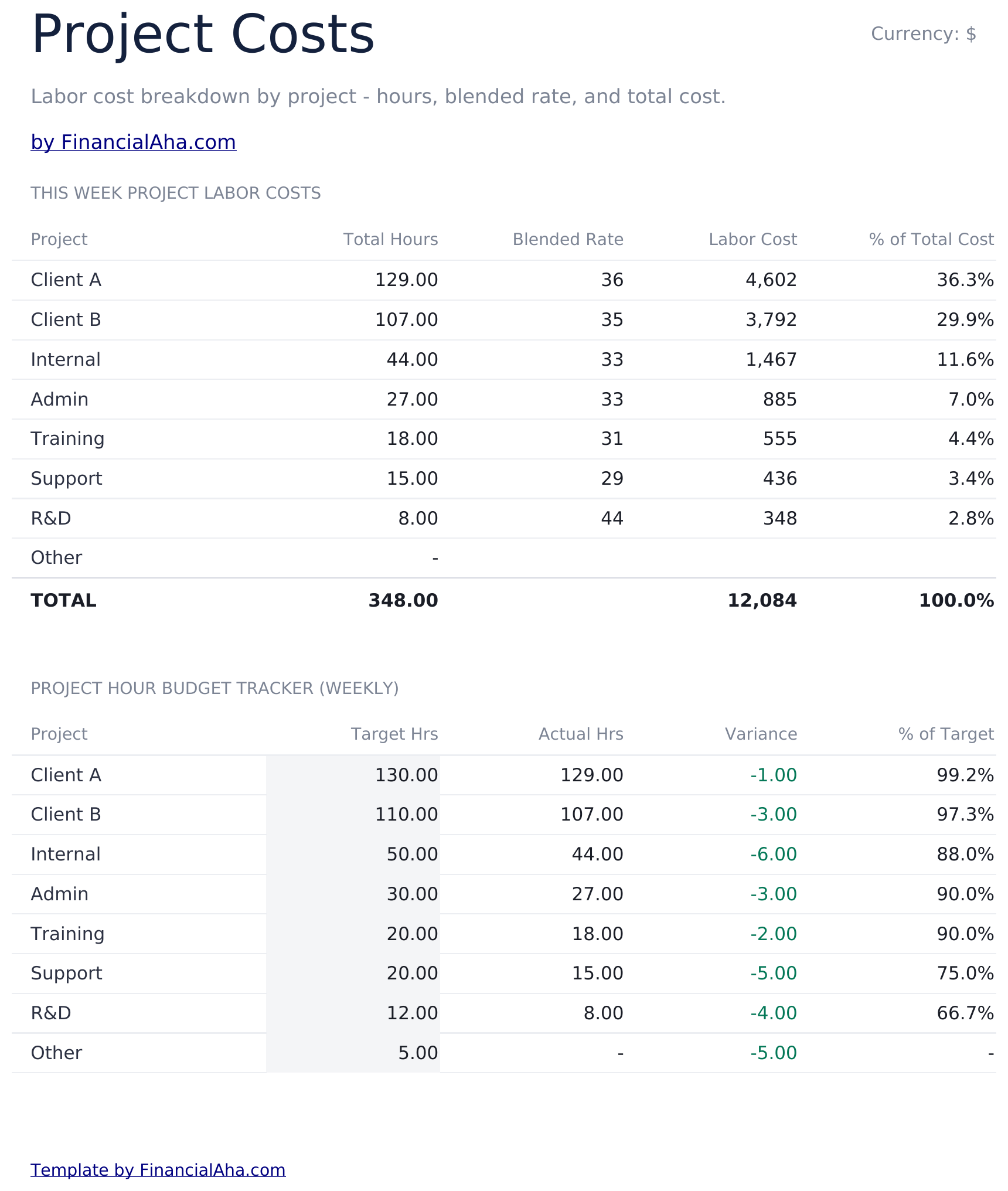
    Project Costs

    Each project with the hours it consumed, the blended rate of the people who worked on it, the labour cost and its share of the total. A blended rate is what makes projects comparable when different people at different rates worked on each.

  7. Included guide

    How to Use

    A step-by-step guide on its own tab, covering setup, how the regular and overtime split is worked out, and how the allocation, rollup and cost sheets read. Because it ships inside the file, the instructions travel with the template wherever it is opened.

Works in both Google Sheets and Excel

Ultimate Weekly Timesheet Spreadsheet template for Google Sheets

Upload the Ultimate Weekly Timesheet Spreadsheet Template to Drive, right-click it, and choose "Open with Google Sheets". This Ultimate Weekly Timesheet Google Sheets template needs no conversion step and the chart survives the trip intact. The cross-sheet references that build the rollup and the cost sheets rely on the existing tab names, so those are worth leaving alone.

Ultimate Weekly Timesheet Google Sheets template setup

A shared copy of the Ultimate Weekly Timesheet Google Sheets template is close to how a small team actually runs one, with each person filling their own row and whoever approves the week reading the dashboard. Sheets version history covers a figure typed over.

Sharing the Ultimate Weekly Timesheet Google Sheet

The Ultimate Weekly Timesheet Google Sheet is built around a weekly rhythm - hours in by Friday, allocation checked, dashboard read - with the monthly rollup and the project cost sheet for the longer sittings.

Ultimate Weekly Timesheet Spreadsheet template for Excel

The Ultimate Weekly Timesheet spreadsheet Excel download is a plain .xlsx. Excel opens this Ultimate Weekly Timesheet Excel template directly, with no import step and no compatibility prompt, and the chart is a native Excel chart that redraws as hours are entered. There are no macros and no VBA in the file, so it opens without a security warning.

Ultimate Weekly Timesheet Excel template setup

The same Ultimate Weekly Timesheet Excel template opens in Excel on Windows, Excel on Mac, and Excel for the web. It is also the identical file you would upload to Drive, so there is no separate Ultimate Weekly Timesheet spreadsheet download to choose between.

Ultimate Weekly Timesheet spreadsheet Excel notes

The Ultimate Weekly Timesheet spreadsheet Excel file carries no macros and no VBA, so Excel opens it without a trust prompt. The same Ultimate Weekly Timesheet spreadsheet Excel download also opens in Excel for the web, which matters when a team is spread across different machines.

Opening the Ultimate Weekly Timesheet spreadsheet Excel file

Nothing in the Ultimate Weekly Timesheet Excel template is version-specific, so this Ultimate Weekly Timesheet spreadsheet Excel workbook behaves identically in Excel on Windows, Excel on Mac, and older builds.

Spreadsheet template highlights

What the Ultimate Weekly Timesheet spreadsheet template tracks

Hours go in as daily totals per person. These are the columns the Ultimate Weekly Timesheet Spreadsheet Template works from:

Employee Name
one row per person, across every sheet
Mon through Sun
the hours worked each day
Total Hrs auto
derived, the week for that person
Regular auto
derived, the hours within the standard threshold
Overtime auto
derived, the hours beyond it
Rate / Hr
what that particular person is paid
Total Pay auto
derived, their week costed at their own rate
OT Cost auto
derived, what the overtime alone came to
OT % of Total auto
derived, the share of their time that was overtime
Blended Rate auto
derived, the average rate across whoever worked a project
Labor Cost auto
derived, what a project cost in wages
% of Total Cost auto
derived, that project's share of the week

Compare builds

FinancialAha Weekly Timesheet spreadsheet template: Free, Essentials, and Ultimate compared

Feature Free View Spreadsheet Template Essentials View Spreadsheet Template Ultimate This page
Working sheets 1 2 6
People covered One One 15
Entry rows 14 7 days 15 per sheet
Hours worked out from the clock Yes Yes, less the break –
Break deducted – Yes –
Overtime rules – Threshold and multiplier Threshold and multiplier
Rate Per row One rate Per person
Project split A label per row – 8 projects, with costs
Monthly rollup – – Four weeks
Charts – – 1

The FinancialAha Ultimate Weekly Timesheet Spreadsheet Template covers six working sheets and fifteen people. The Free Weekly Timesheet Spreadsheet Template covers one person with hours read off the clock, a label and a rate on every row, and no break deduction or overtime rules built in. The Essentials Weekly Timesheet Spreadsheet Template for Google Sheets and Excel adds the break deduction and an overtime threshold you set, for one person's week - but carries one rate and no projects. This build is the one for a team: a rate per person so labour cost is not built on an average, hours split across eight projects, each project costed at its own blended rate, overtime broken out per person with its share of their time, and four weeks rolled into a month.

Good to know

Notes on working in the Ultimate Weekly Timesheet spreadsheet template

  • The rate is per person, which is what makes the labour cost real rather than an average dressed up as one.
  • The allocation sheet answers where time went; the timesheet answers how much there was. Those are different questions.
  • Overtime as a share of someone's week says more than the cost of it alone.
  • A blended rate is what makes projects comparable when different people at different rates worked on each.
  • The currency dropdown sits on the Dashboard and relabels money columns across the whole Ultimate Weekly Timesheet spreadsheet. It changes the label only and does not convert the numbers.

How to Use This Template

1

List the team

One row per person on the weekly timesheet, each with their own hourly rate.

2

Enter daily hours

Monday through Sunday per person. The regular and overtime split follows.

3

Allocate to projects

Spread each person's week across the project columns.

4

Read the costs

Project costs carry the blended rate and labour cost; the rollup turns four weeks into a month.

Stress-tested with AI.

Every template starts with deep research into how people actually track the topic. We design the layout, build the formulas, and polish the design until it feels like something we would use ourselves. Along the way, we use AI to stress-test the calculations: unusual inputs, edge cases, and formula behavior, checked until the numbers hold.

One-time purchase. No subscription. Works in Excel & Google Sheets.

Frequently Asked Questions

Is the FinancialAha Ultimate Weekly Timesheet Spreadsheet Template a Google Sheets template?

Yes. Upload the file to Drive and choose "Open with Google Sheets". The Ultimate Weekly Timesheet Google Sheets template needs no conversion step and the chart survives the trip intact. The cross-sheet references rely on the existing tab names, so those are worth leaving alone.

Is the FinancialAha Ultimate Weekly Timesheet Spreadsheet Template an Excel template?

Yes. The download is a plain .xlsx, so the Ultimate Weekly Timesheet Excel template opens directly in Excel with no import step. The chart is a native Excel chart, and there are no macros or VBA.

Will the FinancialAha Ultimate Weekly Timesheet spreadsheet Excel file open in older versions of Excel?

Yes. The Ultimate Weekly Timesheet spreadsheet Excel workbook ships as a plain .xlsx, so it opens identically in current Excel and in builds that predate dynamic arrays.

How many people does the Ultimate Weekly Timesheet spreadsheet cover?

Fifteen, each with their own hourly rate. That rate being per person rather than global is what makes the labour cost real - a team is rarely paid at one number.

What is the blended rate in the Ultimate Weekly Timesheet spreadsheet?

The average rate across whoever actually worked on a project. It is what makes two projects comparable when a senior and a junior contributed different amounts to each.

Why does the Ultimate Weekly Timesheet spreadsheet report overtime as a percentage?

Because the cost alone does not distinguish overtime that is five per cent of someone's week from overtime that is a third of it, and those are different situations.

Does the Ultimate Weekly Timesheet spreadsheet record clock times?

No. Hours go in as a daily total per person rather than as time in and time out. The Free and Essentials builds read the clock instead; the Essentials build is the one that also deducts a break, for a single person.

How does the monthly rollup in the Ultimate Weekly Timesheet spreadsheet work?

Four weeks per person with the month's hours and pay at the end. A week is the unit the work is recorded in and a month is the unit it is paid in, and nothing has to be re-entered to get from one to the other.

What do I get after buying the Ultimate Weekly Timesheet spreadsheet template?

You receive the Ultimate Weekly Timesheet spreadsheet template as an Excel file (.xlsx) that works in Microsoft Excel and Google Sheets. Download it immediately after purchase - no signup or account required.

Is there a free Ultimate Weekly Timesheet spreadsheet template?

Yes. A free version of the Ultimate Weekly Timesheet spreadsheet template is available with basic features. The Ultimate version adds advanced analysis, more capacity, and additional sheets.

What if the Ultimate Weekly Timesheet spreadsheet template does not work for me?

Contact us and we will help troubleshoot. The Ultimate Weekly Timesheet spreadsheet template works in Microsoft Excel and Google Sheets with no macros required.

Ultimate

Highlights:

Instant download after purchase
No macros or VBA required
All formulas auto-calculate
No subscription required
Works in
Excel Google Sheets

Looking for more Ultimate templates?

We offer Ultimate versions of our most popular spreadsheet templates with advanced features, more capacity, and deeper analysis.

Private & secure

Your financial data stays on your device. We never see it.

Learn more →

Need help?

Check our guides or reach out with questions.

View FAQ →