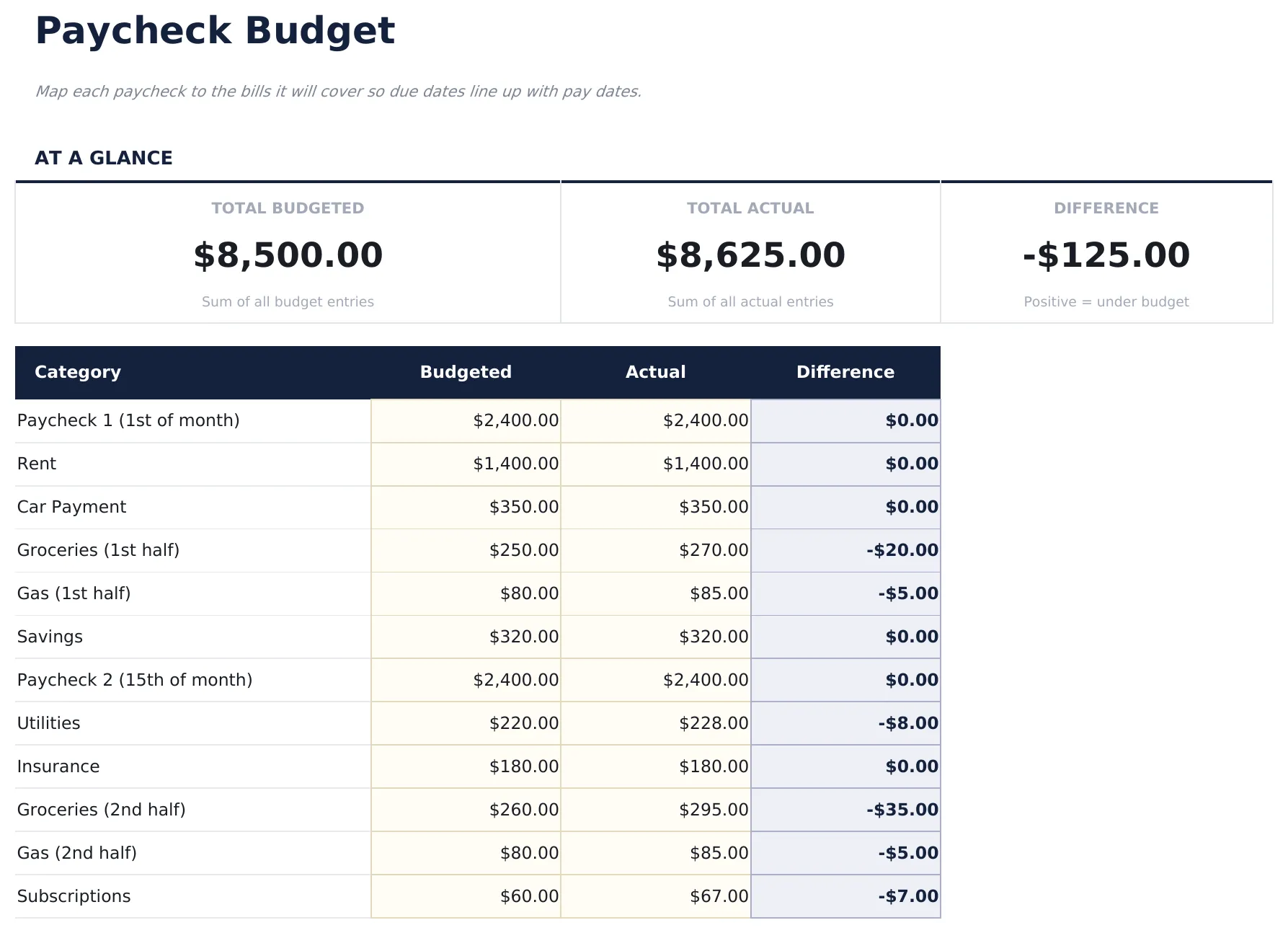
- Pre-filled budget worksheet titled "Paycheck Budget" with sample income and expense categories
- Automatic totals, running balance, and surplus/deficit calculation
- Color-coded input cells so you know exactly where to type your own numbers
- Step-by-step "How to Use" guide included in a second sheet
- Works in Microsoft Excel, Google Sheets, and LibreOffice Calc - no setup or sign-up
Free Paycheck Budget Spreadsheet Template
Map each paycheck to the bills it will cover so due dates line up with pay dates.
Essentials $12 Ultimate $19 Free See comparison
Free, Essentials, and Ultimate - what's the difference?
Essentials Paycheck Budget
- Everything in Free
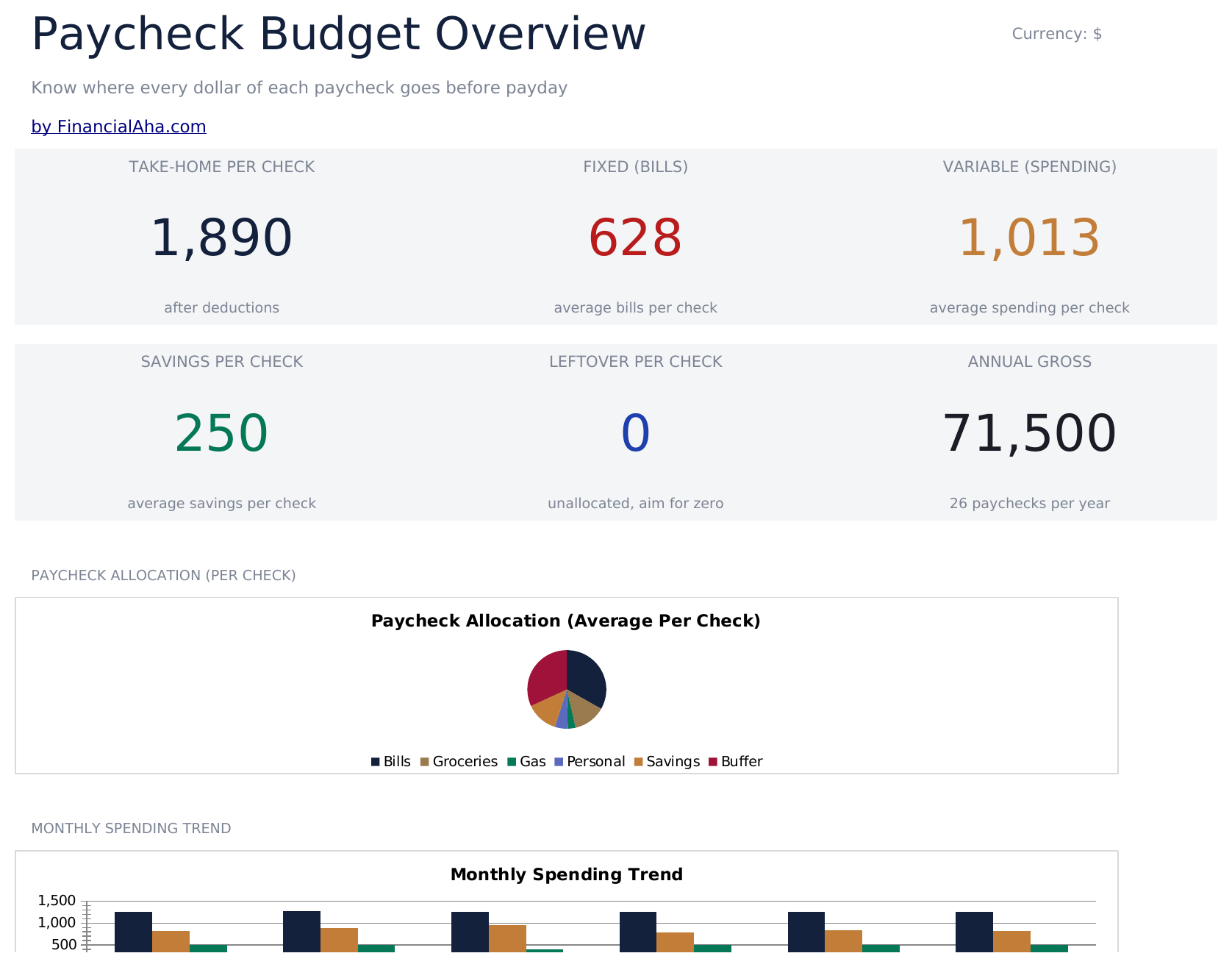
- Dashboard with paycheck allocation view showing how each paycheck is distributed across expenses
- Paycheck-to-expense mapping that assigns specific bills and costs to individual pay periods
- Bill due date alignment columns so you can match payment dates to the correct paycheck cycle
- Remaining balance per paycheck calculated automatically after all assigned expenses are deducted
Ultimate Paycheck Budget
- Everything in Essentials
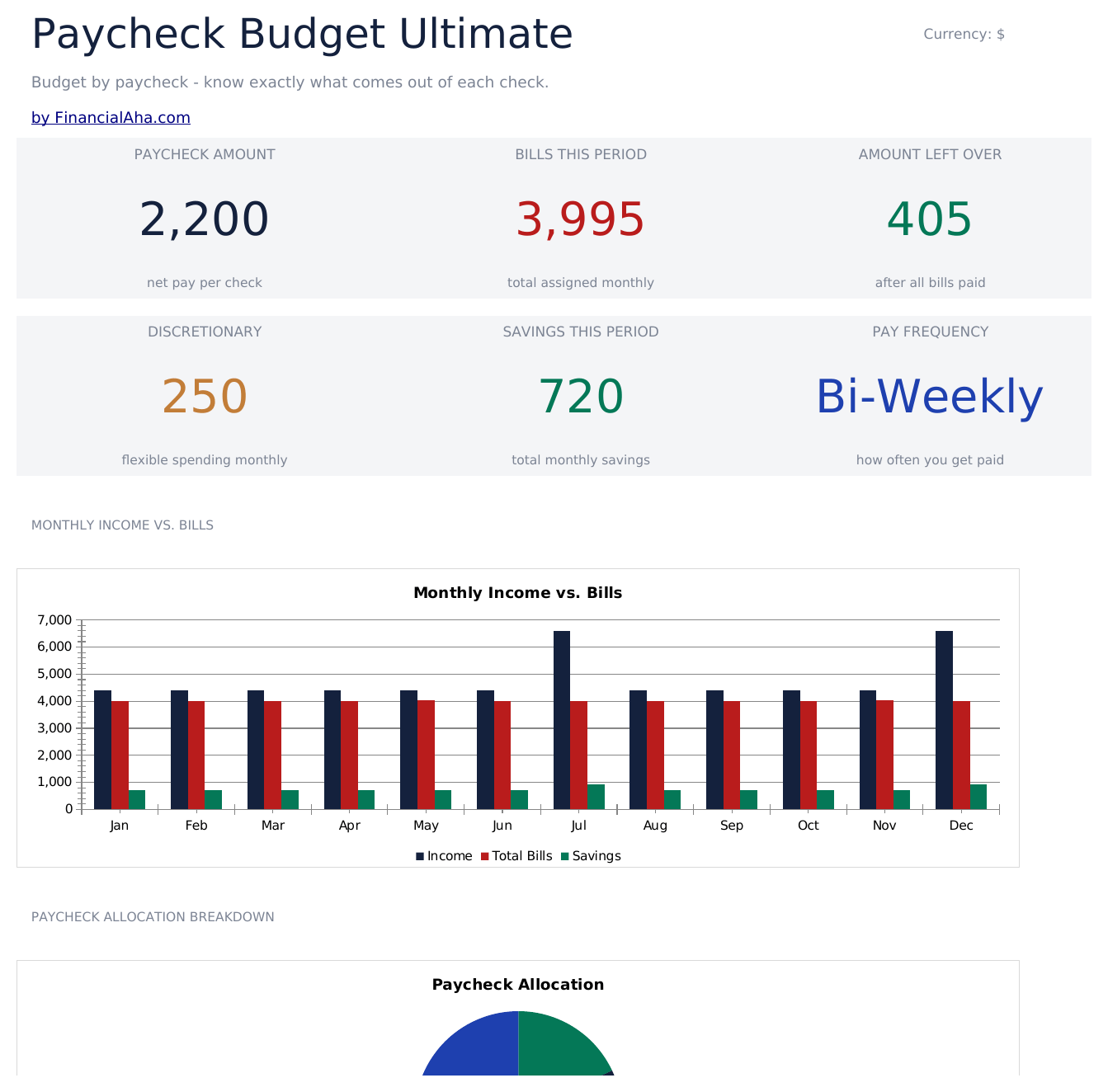
- Pay Setup sheet entering pay frequency, pay dates, and take-home amount per paycheck - supports weekly, bi-weekly, and semi-monthly pay schedules
- Paycheck 1 Budget sheet assigning expenses and savings to the first paycheck of the month with a remaining balance tracker
- Paycheck 2 Budget sheet assigning remaining expenses and savings to the second paycheck with final month balance
- Monthly Overview consolidating both paychecks into a single monthly view - total income, total expenses, and net savings for the month
How the Paycheck Budget template works
Map each paycheck to the bills it will cover so due dates line up with pay dates. Open the spreadsheet, enter your own numbers, and let the formulas do the math.
When this template helps
You just started tracking spending and want a clear monthly snapshot.
You want to see where your money actually goes compared to what you planned.
Your expenses changed (new job, moved, new baby) and you need to re-baseline.
You prefer a spreadsheet you control over a budgeting app.
Tips to get the most out of it
- Keep the column labels simple - the formulas work best when categories are consistent month to month.
- Align bills to paychecks regularly - once a week is a good rhythm for most people.
Common mistakes to avoid
- Forgetting to include savings as a category - treat savings like any other bill so it gets funded first.
- Using gross income instead of take-home. Budget with what actually lands in your account.
- Over-optimistic "variable" categories. Groceries and dining out almost always come in higher than memory suggests.
How to Use This Paycheck Budget Template
Frequently Asked Questions
What is the difference between Free, Essentials, and Ultimate?
Free is a single-sheet starter template (sample data + How to Use guide). Essentials ($12) adds a dashboard, charts, expanded categories, and pre-filled subcategories. Ultimate (when available) adds multi-entity tracking, scenario analysis, and power-user reporting across 6-7 interconnected sheets.
Should I upgrade to Essentials?
Upgrade to Essentials if you want a dashboard with charts, more categories, larger capacity, and a more polished spreadsheet for ongoing use. The Free version is a good fit for one-off planning or trying out the layout.
Is Essentials worth $12?
Essentials is a one-time $12 purchase with no subscription. It typically adds a full dashboard, 30-50% more categories or rows than the Free version, and richer formulas. Most buyers upgrade after using the Free version for a few weeks and hitting its limits.
What is included in the free version?
The free Paycheck Budget is a single-sheet template with sample data and a "How to Use" guide. It covers the essentials. The Essentials version ($12) adds a dashboard, larger capacity, and extended categories; Ultimate (when available) adds multi-entity tracking and ultimate-grade reporting.
Can I add or rename categories?
Yes. Insert new rows above the totals row and rename any existing category. The SUM formulas adjust to include new rows automatically.
How do I start fresh without the sample data?
Select the amount cells and clear them. Keep the category labels and formulas intact - you can overwrite category names too if you want different labels.
Is the file safe to download?
Yes. No macros, no sign-up, no tracking. The file is a plain .xlsx that opens directly in Excel, Google Sheets, or LibreOffice Calc.
How do I open this in Google Sheets?
Upload the .xlsx file to Google Drive, then open it with Google Sheets. All formulas and formatting will be preserved.
What license is this template under?
All free templates are released under CC BY 4.0 (Creative Commons Attribution). You can use, modify, and share them freely - including for commercial purposes - as long as you credit FinancialAha.com. They are provided as-is and do not constitute financial advice.