
The simplest free expense tracker in Google Sheets is a single sheet with five columns: Date, Category, Description, Amount, and Notes, which you can build in about five minutes. This guide compares four free routes (a blank sheet, Google's built-in template, our free starter, and community files), walks through the setup, and covers the three signs you've outgrown a plain log. The paid Monthly Expense Tracker ($19 once) adds a Summary dashboard, subscription tracking, and combined income-and-savings views.
This post covers the four free options, what each does, the absolute minimum setup if you’re starting from a blank sheet, and the three signs you’ve outgrown free. The paid Monthly Expense Tracker ($19 once) sits at the end for when a plain log stops being enough.
The honest thing about expense trackers is that they work best in the first month, when the novelty and the mild discomfort of seeing your real spending patterns combine to drive behavior change, and they work second-best after roughly three months, when the habit is automatic and the data starts surfacing patterns you didn’t see month by month but that jump out when compared across the quarter.
What an expense tracker is (and isn’t)
An expense tracker logs what you spent. That’s it. It doesn’t plan ahead, it doesn’t compare against a budget, it doesn’t tell you what to cut. It records.
This is different from a budget. A budget plans expected income and expenses. An expense tracker is the simpler, more honest first step: see what’s actually happening before you try to control it.
For people new to managing money in a spreadsheet, the tracker is a natural starting point. The monthly budget usually comes later, after a month or two of tracking has shown you what your real spending looks like.
The 5-column minimum
If you build from scratch, this is all you need:
| Column | Example |
|---|---|
| Date | 2026-04-21 |
| Category | Groceries |
| Description | Trader Joe’s |
| Amount | 64.30 |
| Notes | Weekly grocery run |
A new row per transaction. Done.
The Categories column should be a dropdown with 8 to 15 options that match how you spend. Common starter list: Housing, Utilities, Groceries, Dining, Transportation, Health, Entertainment, Shopping, Subscriptions, Personal, Travel, Gifts, Other.
Use Data > Data validation > Add rule > Dropdown to set up the category list, following Google’s own steps for an in-cell dropdown. Five-minute setup; thereafter just type-ahead from the dropdown.
The four free options
1. FinancialAha free expense tracker
We publish a free starter template as a spreadsheet file you download: one Expense Log sheet with five columns, a running total, an entry count, and a currency dropdown, plus a How to Use sheet. Upload it to Drive and open it with Google Sheets, or open it in Excel or LibreOffice Calc.
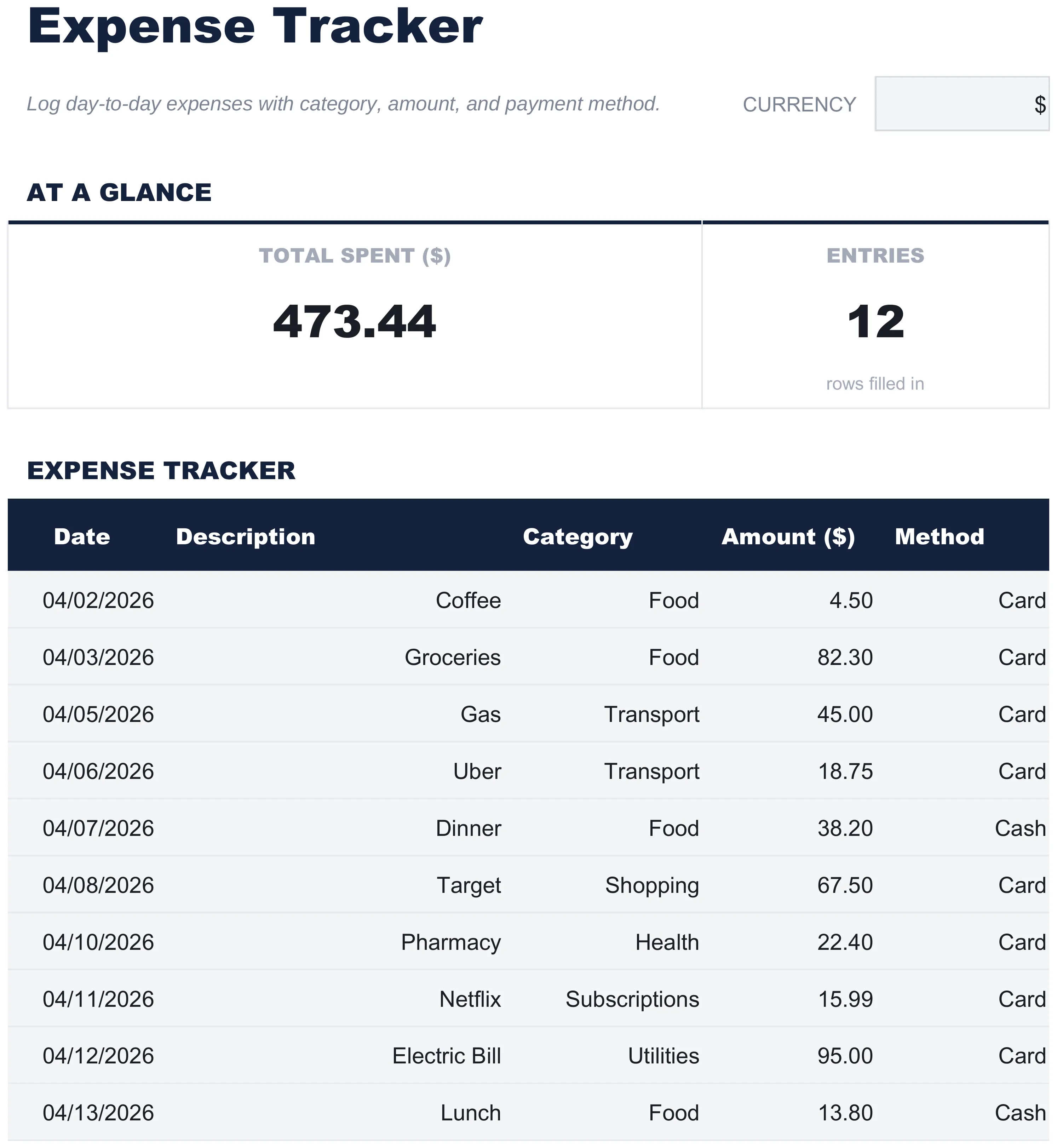 The free Expense Tracker (Free tier): one Expense Log sheet, five columns, and a live Total Spent.
Strengths
- One clean Expense Log sheet, plus a How to Use guide. Works in Google Sheets, Excel, and LibreOffice Calc.
- Five columns: Date, Description, Category, Amount, and payment Method.
- Running Total Spent and a live entry count at the top.
- A currency dropdown on the sheet, and no charge for the file.
Limitations
- One running list, no separate monthly tabs.
- No dashboard or charts.
- No per-category totals beyond the single running total.
Use it if you want a clean file you can upload to Drive and start using in a couple of minutes.
2. Google Sheets built-in expense tracker
Google’s template gallery includes a basic Monthly Budget that doubles as an expense tracker.
Access: Open Google Sheets > Template Gallery > Monthly Budget.
Strengths
- Zero download. Already in Sheets.
- Includes a basic dashboard with category breakdowns.
- Cloud sync, automatic save.
Limitations
- Designed as a budget more than a pure tracker; the dashboard mixes planned and actual.
- 8 expense categories. Adding more requires manual restructuring.
- Single month only.
Use it if you want zero downloads and don’t mind the budget framing.
3. Vertex42 expense tracker (Excel, works in Sheets)
Vertex42’s expense tracker is Excel-first but uploads to Google Sheets with light formula breakage.
Strengths
- More category granularity.
- Long history; well-tested structure.
- Free download.
Limitations
- Excel-first; conditional formatting often breaks in Sheets.
- Page is ad-heavy.
- Layout is dated.
Use it if you specifically want Vertex42’s category structure or you’re already an Excel user moving to Sheets. If you’re weighing the two apps in general, our Google Sheets vs Excel for budgeting breakdown goes deeper.
4. r/personalfinance shared trackers
Reddit’s r/personalfinance subreddit has a long-running collection of community-built trackers. Quality varies; the most-cited is a simple multi-month workbook.
Strengths
- Built by people who care about personal finance.
- Often handle edge cases (multiple accounts, irregular income).
- Free with active community discussion.
Limitations
- Quality varies wildly.
- No formal support.
- Often heavily personalized.
Use it if you want a community-vetted starting point and you’re comfortable customizing.
Comparison table
| Tracker | Setup time | Multi-month | Dashboard | Categories | Cost |
|---|---|---|---|---|---|
| FinancialAha free | 2 min (download) | No | No | Free-form | Free |
| Google built-in | 1 min | No | Basic | 8 | Free |
| Vertex42 | 10 min (download) | No | Limited | 15+ | Free |
| Reddit community | 30 min | Sometimes | Sometimes | Varies | Free |
| Monthly Expense Tracker (paid) | 5 min | One month at a time | Full | 17 expense | $19 once |
Building from scratch in 5 minutes
If you’d rather skip the templates entirely, here’s the minimum setup.
- Open a blank Google Sheet.
- In row 1, type column headers: Date, Category, Description, Amount, Notes.
- Select column B (Category). Click Data > Data validation. Choose Dropdown. Add your category list (one per row in the dialog).
- In cell G1, type
Total this month. In G2, write=SUM(D:D). - In cell H1, type
Top category. In H2, write=INDEX(B:B, MATCH(MAX(D:D), D:D, 0)). - Start logging.
Five minutes, working tracker. The Total cell updates as you log. The Top category shows which row had the largest single transaction (rough proxy for what’s eating your budget). To turn that into a per-category breakdown with SUMIF, our Google Sheets formulas for budgeting guide has the patterns.
When free runs out of room
Three signs.
You’re tired of single-month files. Free templates are mostly single-month. After two or three months you have a folder full of files and no way to see trends across them.
You want a dashboard. Looking at a flat list of expenses tells you little. Charts and category percentages tell you a lot, and building a fuller tracker in Google Sheets by hand is real work. If you think best in pictures, budget templates built for visual thinkers lean on those charts and progress bars from the start.
You want automatic category breakdowns. A plain log gives you a total. It doesn’t tell you that Food was 31% of the month or that subscriptions crept up. Per-category totals and shares that update on their own are where a fuller version earns its keep.
If you’re hitting all three, paying $19 once for a fuller version is reasonable. That’s about the cost of a single restaurant meal, except the spreadsheet doesn’t expire.
What our paid version adds
The Monthly Expense Tracker is $19 and runs one month at a time. It includes:
- A Summary dashboard: balance, income, expenses, savings, subscriptions, and total entries at a glance, plus top categories by share, average daily spend, largest entry, and a distribution chart.
- One Transactions sheet that logs expenses, income, and savings transfers together, not expenses alone.
- 17 expense categories, plus separate income and savings category lists, all as dropdowns.
- A subscription flag column, so recurring charges roll up into their own total.
- An Instructions sheet with three ways to start the next month: copy the file, duplicate the Transactions sheet as an archive, or clear the log and keep your categories.
- Free updates when we ship a new version.
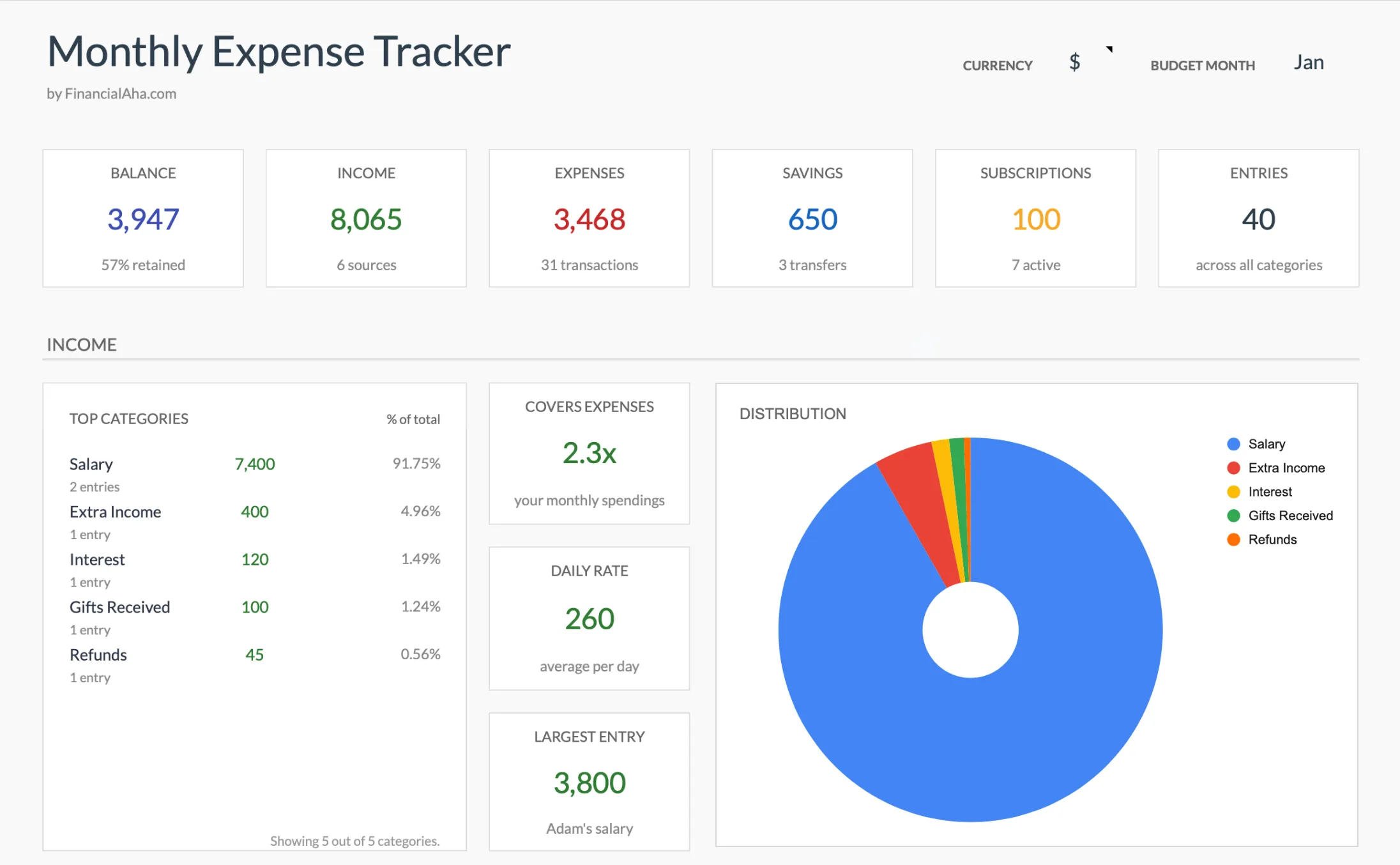 The Monthly Expense Tracker (Premium, $19): the Summary dashboard that updates as you log.
If you don’t need any of those, free is plenty. For a full-year view in one file, the Expense Tracker Ultimate ($29) adds a Budget vs Actual sheet and a 12-Month Overview, where one column reads the log and the other eleven months are totals you type in.
Three additions that make a bare tracker more useful
Three small additions turn a basic tracker into something more useful.
A “method of payment” column. Track whether the expense was credit, debit, cash, or other. This catches double-entry mistakes and makes month-end reconciliation against statements much easier. Our free template already includes this one.
A “tax-relevant” flag. A simple Yes/No column for expenses that might be deductible, such as charitable gifts, work-related costs, or medical expenses above 7.5% of your adjusted gross income. At year end you filter on Yes and have a starting list to hand to whoever prepares your return.
A weekly sum row. Below the data, a row that sums each week. Some people see weekly patterns more clearly than monthly aggregates.
Two extra columns, one summary row, and a formula or two: maybe five more minutes of setup for a meaningful change in usefulness.
A practical sequence
If you’ve never tracked expenses, one sequence that tends to work:
- Use the simplest free option (Google’s built-in or our free starter) for 30 days.
- After 30 days, ask: did you actually log most days? If yes, the habit is forming and you can add features. If no, worth finding out why before adding more sheet complexity.
- Once the habit is in place, notice whether the limitations of free are bothering you. Many people are fine with free for 6 to 12 months.
- When free is genuinely limiting, some people upgrade to the paid version and others build out their free version with the three additions above.
The order matters. Tools enable habits; they don’t create them.
Which version to reach for
Free is the honest first step. When you outgrow it, three paths sit above it:
- Monthly Expense Tracker ($19) - one month at a time, with a Summary dashboard, subscription tracking, and combined income and savings.
- Monthly Budgeting Template ($29) - a Budget Plan sheet that sets a budget per category and compares it to actual spending, with a Need or Want tag on each expense line and a Summary dashboard, for when you want to plan ahead, not just record.
- Expense Tracker Ultimate ($29) - budget-vs-actual variance, a 12-Month Overview, and a Spending Trends sheet that ranks categories and payment methods.
Related
- Free Monthly Budget Template for Google Sheets
- How to Plan a Yearly Budget in Google Sheets
- How to Create an Advanced Personal Finance Tracker in Google Sheets
- Google Sheets Formulas for Budgeting
- Student Budget Template for College 2026 - A free-friendly starting point for tight, changing student cash flow
- Best Budget Spreadsheet Templates for Google Sheets
Frequently asked questions
Is the FinancialAha free expense tracker really free?
The file costs nothing. The first download shows the paid Essentials and Ultimate versions with a link straight past them, then asks for an email address; after that it downloads directly. We publish it because it gets people started, and some percentage upgrade later. Most don't, and that's fine.
Can I edit on my phone?
Google Sheets has a mobile app for iOS and Android. The 5-column layout renders cleanly on phones. Most users log expenses on mobile and review on desktop.
What if I have multiple accounts?
Add a column for Account. Or use a separate sheet per account and consolidate in a dashboard. Both work; one column is simpler if your accounts share the same category structure.
How long does logging actually take?
About 30 seconds per transaction. For most people that's 5 to 10 minutes a week if you batch on Sunday, or a minute or two a day if you log as you spend.
Should I sync with my bank?
Google Sheets doesn't natively sync with banks. Manual entry takes longer but creates more awareness; auto-sync (via paid services like Tiller) is faster but easier to ignore. Both have trade-offs. For an expense tracker specifically, manual works fine.
What's the difference between the $19 Monthly Expense Tracker and the $29 Ultimate version?
The $19 Monthly Expense Tracker runs one month at a time with a Summary dashboard, and its Instructions sheet covers three ways to start the next month. The $29 Expense Tracker Ultimate adds a Budget vs Actual sheet, a Spending Trends sheet that ranks categories and payment methods, and a 12-Month Overview where one column reads the log and the other eleven months are totals you type in. If you mostly review month by month, the $19 version covers it; the Ultimate is for people who want the full-year picture in one file.
Does an expense tracker handle income too, or only spending?
A plain tracker only logs what you spent. The paid Monthly Expense Tracker logs income and savings transfers in the same sheet, so the Summary shows your balance and how much of the month your income covered. If you only want to watch spending, the free five-column log is enough.
Sources
- Create an in-cell dropdown list - Google Docs Editors Help
- Topic no. 502, Medical and dental expenses - Internal Revenue Service
- Expense Tracker Template - Vertex42
About this article
Template prices, tiers and feature lists checked on 2026-09-10 against the shipped workbooks: the Monthly Expense Tracker Google Sheet (Summary, Transactions, Categories, Instructions, Helpers), the free Expense Tracker download (Expense Log, How to Use), and Expense Tracker Ultimate (Dashboard, Expense Log, Monthly Summary, Budget vs Actual, 12-Month Overview, Spending Trends) Google Sheets and tax figures checked against Google's official Sheets documentation and IRS Topic 502 Last reviewed September 2026.