
GOOGLEFINANCE pulls live stock and ETF prices so your investment total updates itself every time the sheet opens, and date functions plus conditional formatting flag stale data automatically. Bank balances, property, and most debts still need manual entry unless you pay for an aggregator like Tiller ($99/year). The practical setup is to automate the fast-changing, reliable data and hand-enter the rest.
There’s a particular kind of person who opens a net worth spreadsheet and thinks: “I could automate this.” If that’s you, this article is about what’s actually worth automating in Google Sheets - and what’s more trouble than it’s worth.
Track your wealth: The Net Worth Tracker totals assets and liabilities from the values you type in each month, so the calculation side is already built. For live prices inside the sheet itself, the Financial Planning template pulls each listed position with GOOGLEFINANCE on its Assets tab.
The Automation Landscape
Not everything in a net worth tracker can or should be automated. The good news is that the parts causing the most friction are often the easiest to automate.
Stock and ETF prices are the clear winner here. GOOGLEFINANCE pulls live prices directly into your sheet, which means your entire investment portfolio can update itself every time you open the file. Currency conversions work the same way. Date calculations, progress percentages, and charts all recalculate automatically once the formulas are in place.
The partially automatable category is where things get interesting. Account aggregation through services like Tiller can pull bank balances automatically, but that requires a paid subscription and connecting your financial accounts to a third party. Property values can technically be scraped from Zillow or Redfin using Apps Script, but those scripts break whenever the site changes its layout - which happens often. Cryptocurrency prices are available through API endpoints, but the formats change frequently enough that maintaining the connection becomes a recurring chore.
Then there’s the stuff that simply requires manual entry: bank account balances (unless you use an aggregation service), private investments, personal property values, and most debt balances. Accepting this reality upfront saves a lot of frustration. The goal isn’t to eliminate all manual entry - it’s to eliminate the tedious parts so the manual entry that remains takes two minutes instead of twenty.
GOOGLEFINANCE: The One Automation Everyone Should Set Up
The single most impactful automation for most net worth trackers is GOOGLEFINANCE, Google Sheets’ built-in market data function. At its simplest:
=GOOGLEFINANCE("AAPL")That returns Apple’s current stock price. But the real power comes from building a portfolio table:
| Symbol | Shares | Price | Value |
|---|---|---|---|
| VTI | 100 | =GOOGLEFINANCE(“VTI”) | =B2*C2 |
| VXUS | 50 | =GOOGLEFINANCE(“VXUS”) | =B3*C3 |
| BND | 75 | =GOOGLEFINANCE(“BND”) | =B4*C4 |
Enter your share counts once, and the portfolio value updates every time you open the sheet. For mutual funds, the syntax changes slightly to =GOOGLEFINANCE("MUTF:VTSAX"), though mutual fund data can be delayed or unavailable for some funds.
You can also pull historical prices for a specific date with =GOOGLEFINANCE("VTI","close",DATE(2026,3,1)), which is useful for recording month-end snapshots in a value log. For a deeper look at structuring the holdings themselves, see tracking investments in a net worth spreadsheet.
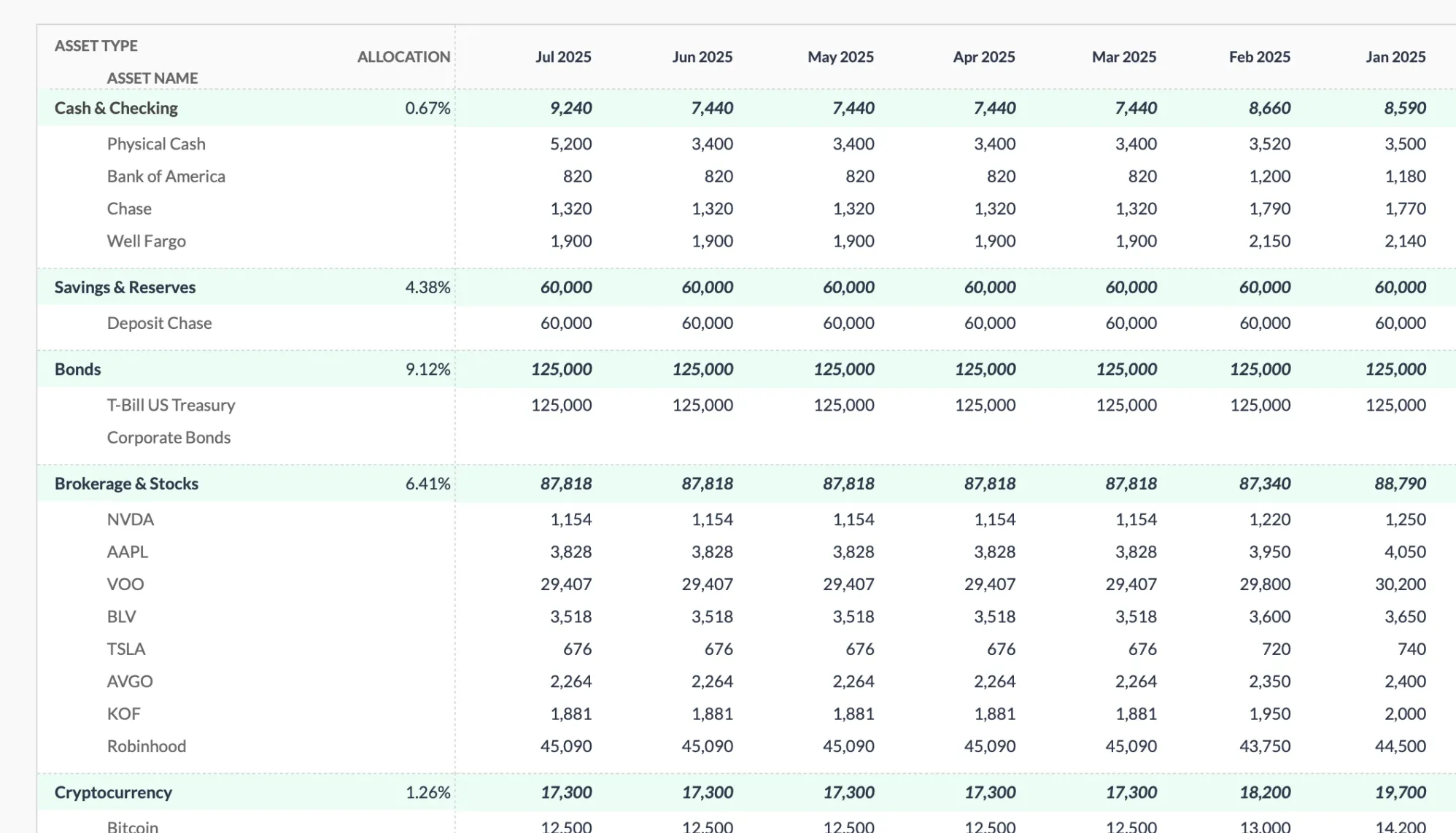
The Net Worth Tracker (Premium tier) keeps each holding on its own row under Brokerage & Stocks, with one column per month. The values are typed in, and the section subtotal plus the Total Assets row add up each column.
Date Functions and Conditional Formatting
These are small automations that add up. =TODAY() gives you the current date and recalculates every time the sheet opens. =TODAY()-LastUpdateDate tells you how many days since your last update - pair that with conditional formatting that turns cells red after 30 days, and you’ve built a visual nudge system that highlights stale data without any effort on your part.
Setting up conditional formatting takes about two minutes: select the date column, go to Format > Conditional formatting, enter the custom formula =TODAY()-A2>30, and set a red background. After that, the sheet quietly monitors itself.
The Calculations That Run Themselves
Net worth formulas are straightforward (=TotalAssets-TotalLiabilities), but the real value is in the derived calculations that update automatically alongside them.
Month-over-month change (=CurrentNetWorth-PreviousMonthNetWorth), percentage change (=(CurrentMonth-PreviousMonth)/ABS(PreviousMonth)), and year-over-year comparisons all recalculate every time the sheet opens. Once these formulas are in place, updating your net worth means typing in a few bank balances. Everything else happens on its own.
Building a Reminder System (Because the Hard Part Is Showing Up)
The biggest challenge with any tracking system isn’t the math - it’s actually doing it. Automation handles the calculations, but someone still needs to enter the bank balances.
A basic Apps Script can check your last update date and send you an email reminder:
function checkUpdate() {
  var sheet = SpreadsheetApp.getActiveSpreadsheet();
  var lastUpdate = sheet.getRange("A1").getValue();
  var today = new Date();
  var diff = (today - lastUpdate) / (1000 * 60 * 60 * 24);

  if (diff > 30) {
    MailApp.sendEmail("[email protected]", "Net Worth Update Reminder",
      "It's been " + Math.floor(diff) + " days since your last update.");
  }
}
Set this to run on a time-driven trigger (Edit > Current project’s triggers > Add trigger) and pick a monthly schedule. It takes five minutes to set up, and it solves the most common reason people stop tracking: they simply forget. If you are still deciding how often that reminder should fire, how often to calculate net worth walks through the trade-offs.
Third-Party Integrations: The Cost of Full Automation
If you want bank balances to update automatically, you’re looking at third-party tools. Tiller Money connects to bank and credit card accounts and imports transactions directly into Google Sheets, updating balances daily. Plaid-based solutions offer similar functionality through different interfaces.
These tools work. But they add cost (Tiller runs $99/year after a 30-day free trial), require connecting your financial accounts to another service, and introduce a dependency that can break. Some people find the trade-off worthwhile. Others prefer the two minutes of manual entry each month, knowing they don’t depend on anything that might change its pricing, API, or privacy policy.
A middle ground: download account statements as CSV files and import them into Google Sheets. It’s semi-automated, since you still need to do the download, but it avoids ongoing subscriptions and account connections.
Property and Crypto: Where Automation Gets Questionable
Property values change slowly. A house that was worth $350,000 last quarter is probably worth something close to that this quarter. Checking Zillow or Redfin once every three to six months and typing in a number takes less time than building and maintaining a web scraping script that will break the next time the site updates its HTML structure. Manual entry wins here.
Cryptocurrency is a similar story. GOOGLEFINANCE doesn’t reliably track crypto. You can use =IMPORTDATA() with various API endpoints, but availability and formats change frequently. For most people holding crypto as part of a larger portfolio, a monthly manual update is simpler than maintaining automation that needs periodic fixing.
The pattern is clear: automate things that change frequently and have reliable data sources (stock prices). Accept manual entry for things that change slowly (property) or have unreliable data sources (crypto).
Designing the Dashboard
A well-designed net worth dashboard separates what updates automatically from what needs your input. Put the investment portfolio, with its GOOGLEFINANCE formulas, in one section. Put bank balances, property values, and debt balances in another section, clearly marked as manual entry. Add a “Last Updated” cell with =NOW() so you can see when the sheet last recalculated. The same tile-by-tile approach scales to a full personal financial dashboard in Google Sheets that sets net worth alongside cash flow, savings rate, debt, and goals on one screen.
The automated section stays current without effort. The manual section is clearly marked and takes a few minutes to update. The combination creates something sustainable - which matters more than creating something that’s fully automated but fragile.
When to Stop Automating
There’s a temptation to automate everything. Resist it. Every automation adds complexity, and complexity means more things that can break. A GOOGLEFINANCE formula that stops working is a minor inconvenience. An Apps Script that scrapes property values from a website that changed its layout three months ago, silently returning stale data, is a subtle problem you might not catch.
Automate what’s easy and reliable: stock prices, calculations, date functions, conditional formatting. Accept manual entry for everything else. The goal is a tracking system you’ll actually maintain for years, not one that’s impressively automated for three months before something breaks and you abandon the whole thing.
If you would rather start from a sheet that already has the assets, liabilities, and derived calculations wired up, the Net Worth Tracker groups accounts under eleven asset types with a column per month, and its Summary tab covers net worth, the change since last month, liquidity tiers, the debt-to-asset ratio and a net worth over time chart. Values go in by hand, so it handles the calculation half of the split above rather than the data-pulling half. New to the habit altogether? Net worth tracking for beginners covers the fundamentals before you layer any automation on top.
Related
- Net Worth Tracking for Beginners
- Financial Planning Template - Automated projections for long-term goals
- Net Worth Tracker - Assets, liabilities and milestones, month by month
- Tracking Investments in Net Worth Spreadsheet
- Google Sheets Formulas for Budgeting
- How Often to Calculate Net Worth
Frequently asked questions
How accurate is GOOGLEFINANCE?
Generally accurate for US stocks and major ETFs. Google states the data can be delayed up to 20 minutes, and coverage is thinner for mutual funds and some international securities.
Can I automate bank balance updates?
Not natively in Google Sheets. It requires a third-party aggregation service such as Tiller, which connects your accounts and imports balances daily for $99/year.
What if GOOGLEFINANCE stops working?
It happens occasionally, usually a temporary outage or a symbol Google no longer tracks. A backup method or short spell of manual entry covers the gap until it recovers.
Do my GOOGLEFINANCE prices update while the sheet is closed?
No. GOOGLEFINANCE recalculates when the sheet is open and refreshes periodically while it stays open. Closing the file freezes the last values until you reopen it.
Will my portfolio total still work if a ticker is delisted or renamed?
The cell for that symbol returns an error, which can break the sum. Wrapping the lookup in IFERROR keeps the total calculating while you replace the old ticker.
Sources
- GOOGLEFINANCE function - Google Docs Editors Help
- IMPORTDATA function - Google Docs Editors Help
- Tiller Pricing - Tiller
About this article
Tiller's subscription price checked against Tiller's official pricing page. GOOGLEFINANCE and IMPORTDATA behavior verified against Google's Docs Editors Help documentation. Template sheets, inputs and outputs checked on 2026-09-10 against the shipped Net Worth Tracker Google Sheet (Summary, Assets, Liabilities, Milestones, Setup, Data Types tabs) and the Financial Planning Google Sheet (Assets, Projection tabs). Last reviewed September 2026.