Free Savings Withdrawal Calculator Spreadsheet Template
Estimate how long savings last given a monthly withdrawal and ongoing return.
Upgrade your template
Here is how you unlock a better version.
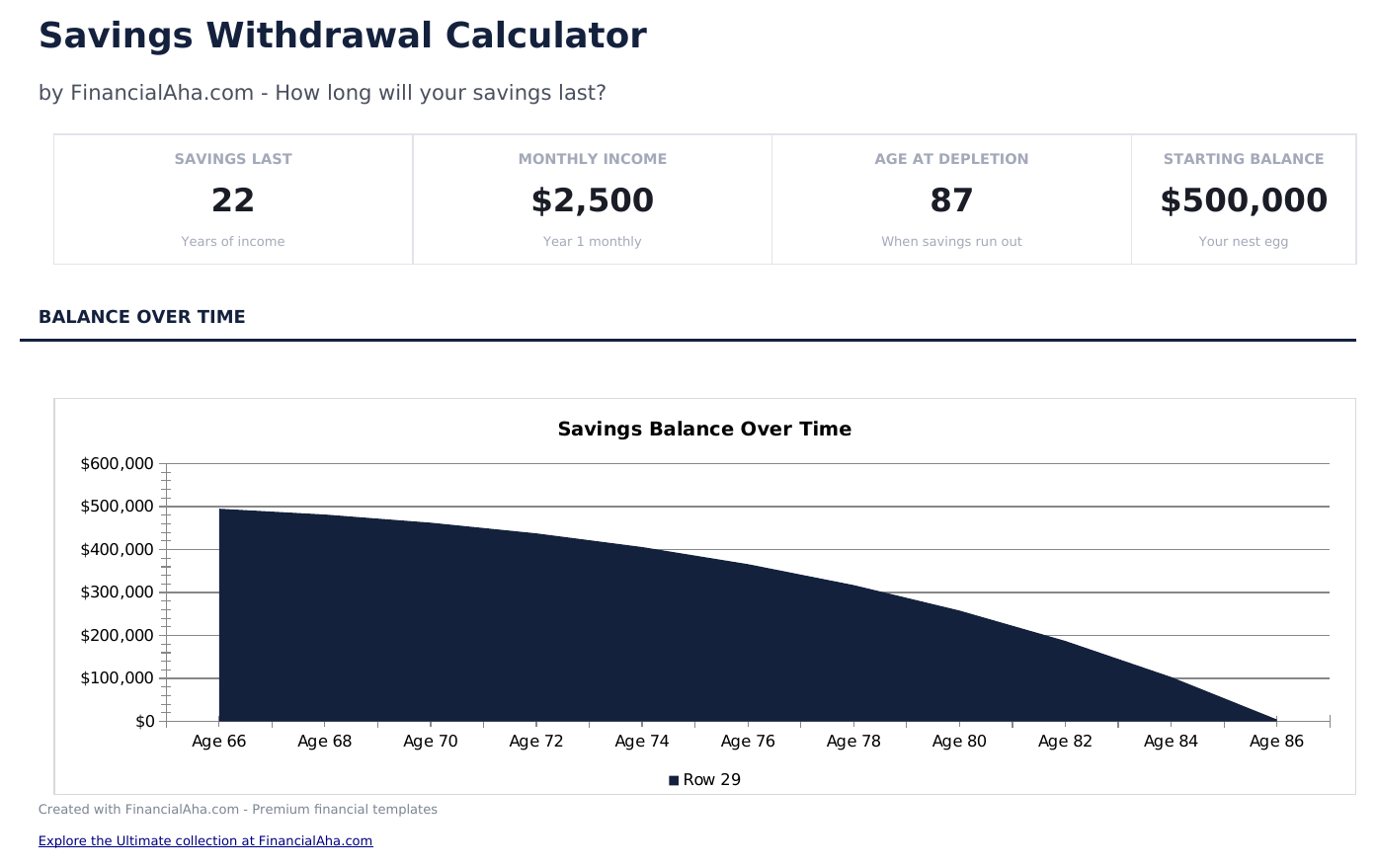
- Dashboard with drawdown projection showing starting balance, monthly withdrawal, and estimated depletion date
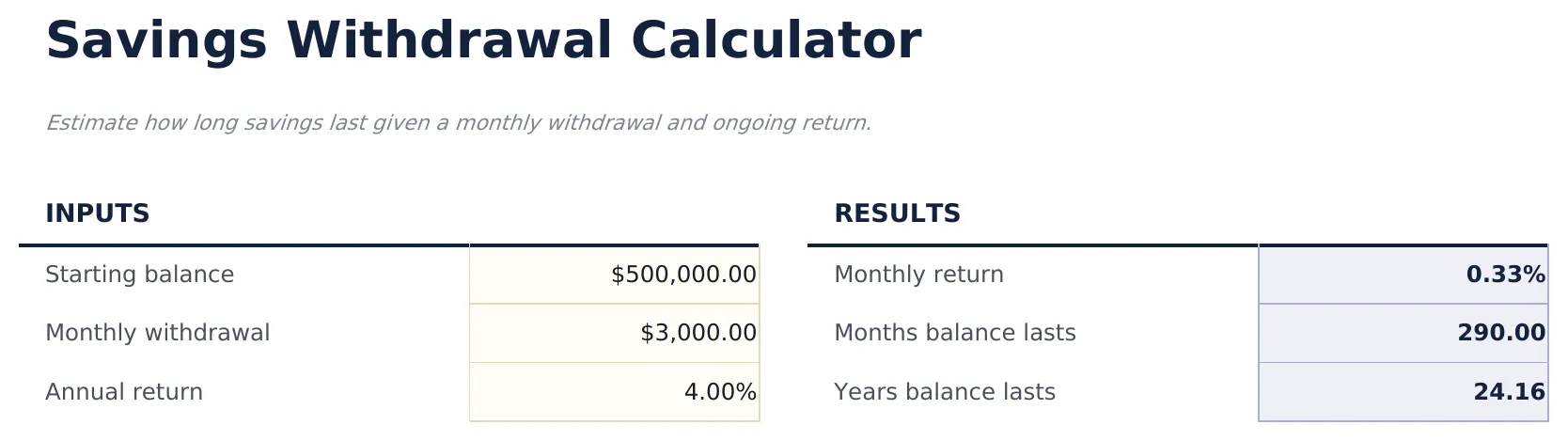
- Calculator with inputs for initial savings balance, monthly withdrawal amount, and expected rate of return
- Month-by-month balance projection showing withdrawals taken, interest earned, and remaining balance over time
What's Included
- "Withdrawal" sheet with clearly labeled input cells at the top
- Live formulas - every result recalculates as you tweak inputs
- Compact output table so you can scan results without scrolling
- Step-by-step "How to Use" guide included in a second sheet
- Works in Microsoft Excel, Google Sheets, and LibreOffice Calc - no setup or sign-up
Free and Essentials - what's the difference?
- "Withdrawal" sheet with clearly labeled input cells at the top
- Live formulas - every result recalculates as you tweak inputs
- Compact output table so you can scan results without scrolling
- Step-by-step "How to Use" guide included in a second sheet
- Works in Microsoft Excel, Google Sheets, and LibreOffice Calc - no setup or sign-up
- Everything in Free
- Dashboard with drawdown projection showing starting balance, monthly withdrawal, and estimated depletion date
- Calculator with inputs for initial savings balance, monthly withdrawal amount, and expected rate of return
- Month-by-month balance projection showing withdrawals taken, interest earned, and remaining balance over time
- Depletion date estimate that calculates exactly how many months and years the savings pool will last
How the Savings Withdrawal Calculator template works
Estimate how long savings last given a monthly withdrawal and ongoing return. Open the spreadsheet, enter your own numbers, and let the formulas do the math.
When this template helps
- You are deciding between two financial options and need a quick number.
- You want to see how changing one input (rate, years, amount) shifts the result.
- You want a calculation you can save and revisit, not a one-shot web form.
- You want to tweak the math - this is a spreadsheet, not a black box.
Tips to get the most out of it
- Keep the column labels simple - the formulas work best when categories are consistent month to month.
- Stress-test drawdown regularly - once a week is a good rhythm for most people.
Common mistakes to avoid
- Treating the result as a decision rather than an input. Calculators answer "what if" - the final call is yours.
- Mixing up annual and monthly rates. If a formula uses a monthly rate, divide the annual by 12 before entering.
- Ignoring taxes, fees, or assumptions. A result is only as good as the inputs you feed it.
How to Use This Savings Withdrawal Calculator Template
Review the sample data so
Review the sample data so you understand the layout.
Replace the sample values
Replace the sample values in the highlighted input cells with your own balance and withdrawal rate.
Totals and KPI strip
The totals and KPI strip at the top update automatically from your data.
When you hit
When you hit the row limit, upgrade to Essentials (or Ultimate) for more capacity.
Built by Claude AI. Perfected by us.
We use Claude AI to draft each template, after a deep research. Then our team steps in. We refine the layout, stress-test every formula, fix edge cases, and polish the design until it feels like something we would actually use ourselves. The AI gets us 80% there. The last 20% is all human judgment.
Upgrade your template
Here is how you unlock a better version.
- Dashboard with drawdown projection showing starting balance, monthly withdrawal, and estimated depletion date
- Calculator with inputs for initial savings balance, monthly withdrawal amount, and expected rate of return
- Month-by-month balance projection showing withdrawals taken, interest earned, and remaining balance over time
Frequently Asked Questions
What is the difference between Free, Essentials, and Ultimate?
Free is a single-sheet starter template (sample data + How to Use guide). Essentials ($12) adds a dashboard, charts, expanded categories, and pre-filled subcategories. Ultimate (when available) adds multi-entity tracking, scenario analysis, and power-user reporting across 6-7 interconnected sheets.
Should I upgrade to Essentials?
Upgrade to Essentials if you want a dashboard with charts, more categories, larger capacity, and a more polished spreadsheet for ongoing use. The Free version is a good fit for one-off planning or trying out the layout.
Is Essentials worth $12?
Essentials is a one-time $12 purchase with no subscription. It typically adds a full dashboard, 30-50% more categories or rows than the Free version, and richer formulas. Most buyers upgrade after using the Free version for a few weeks and hitting its limits.
What is included in the free version?
The free Savings Withdrawal Calculator is a single-sheet template with sample data and a "How to Use" guide. It covers the essentials. The Essentials version ($12) adds a dashboard, larger capacity, and extended categories; Ultimate (when available) adds multi-entity tracking and ultimate-grade reporting.
Which inputs should I edit?
Only the cells marked as inputs at the top. The rest are formula-driven outputs that update automatically when inputs change.
Can I save scenarios?
Save multiple copies of the file for different scenarios, or upgrade to Essentials/Ultimate for side-by-side scenario comparison in one workbook.
Is the file safe to download?
Yes. No macros, no sign-up, no tracking. The file is a plain .xlsx that opens directly in Excel, Google Sheets, or LibreOffice Calc.
How do I open this in Google Sheets?
Upload the .xlsx file to Google Drive, then open it with Google Sheets. All formulas and formatting will be preserved.
What license is this template under?
All free templates are released under CC BY 4.0 (Creative Commons Attribution). You can use, modify, and share them freely - including for commercial purposes - as long as you credit FinancialAha.com. They are provided as-is and do not constitute financial advice.
More Free Savings & Retirement Templates
Looking for premium spreadsheet templates?
Our paid templates include advanced multi-sheet dashboards, native Excel charts, and ongoing updates.