Zero-Based Budget Pro
Assign every dollar of income to a category with a spending log, monthly history, and budget vs actual tracking - so income minus all allocations equals zero.
Free vs Pro
- Assign income across categories until the balance reaches zero
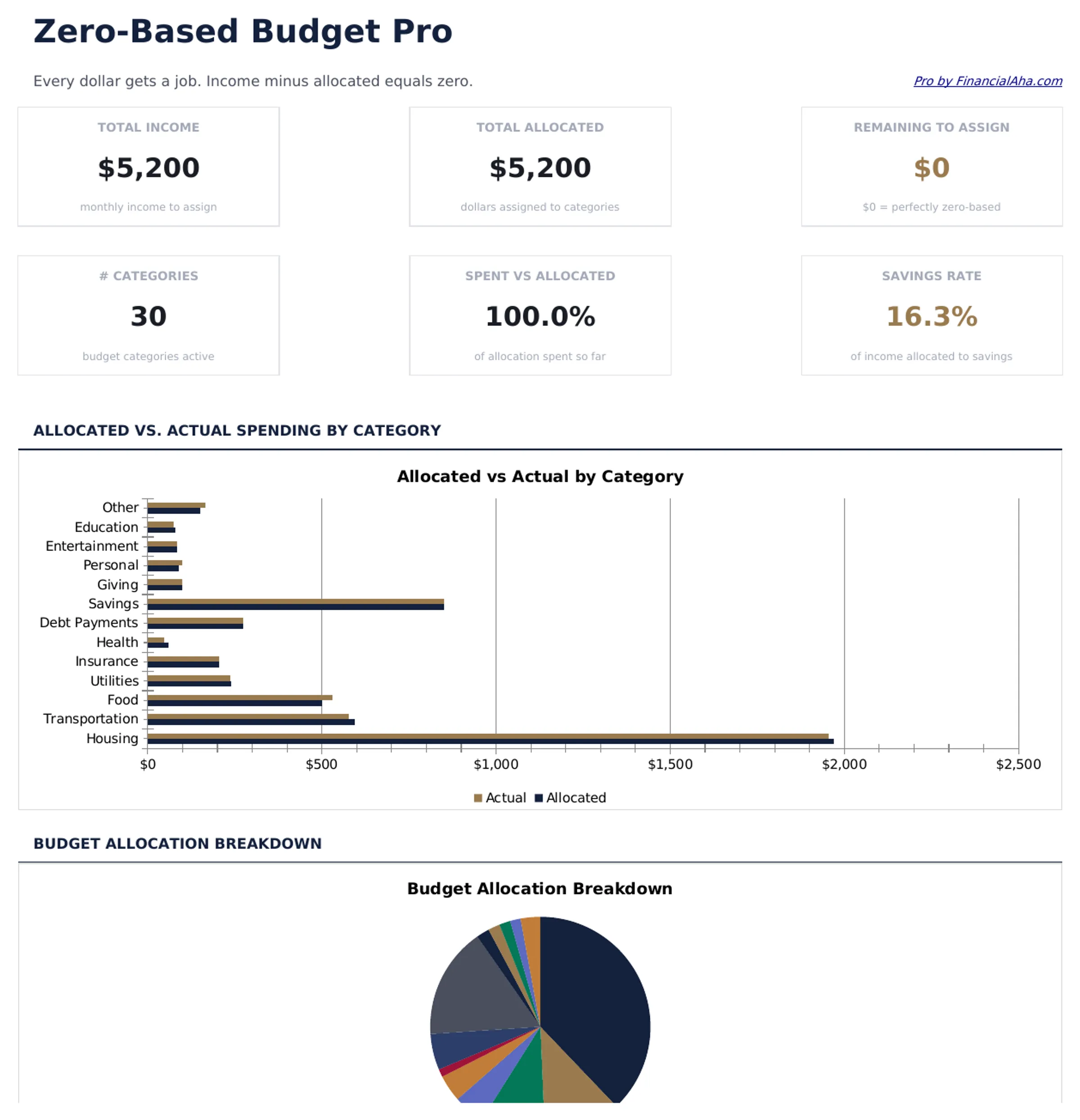
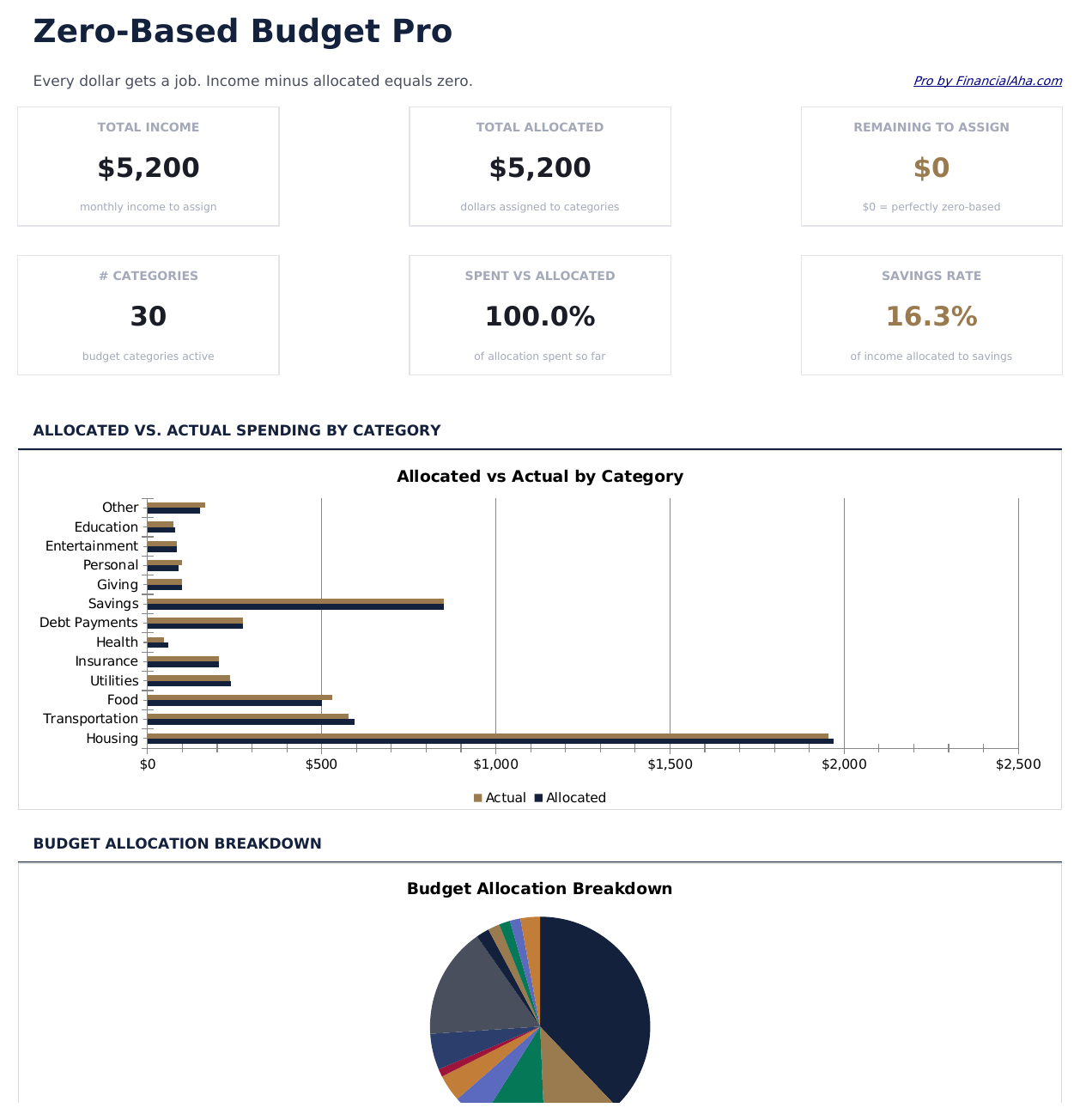
- Dashboard with total income, allocated, and unassigned balance
- Basic spending log for actual transactions
- Works in Excel and Google Sheets
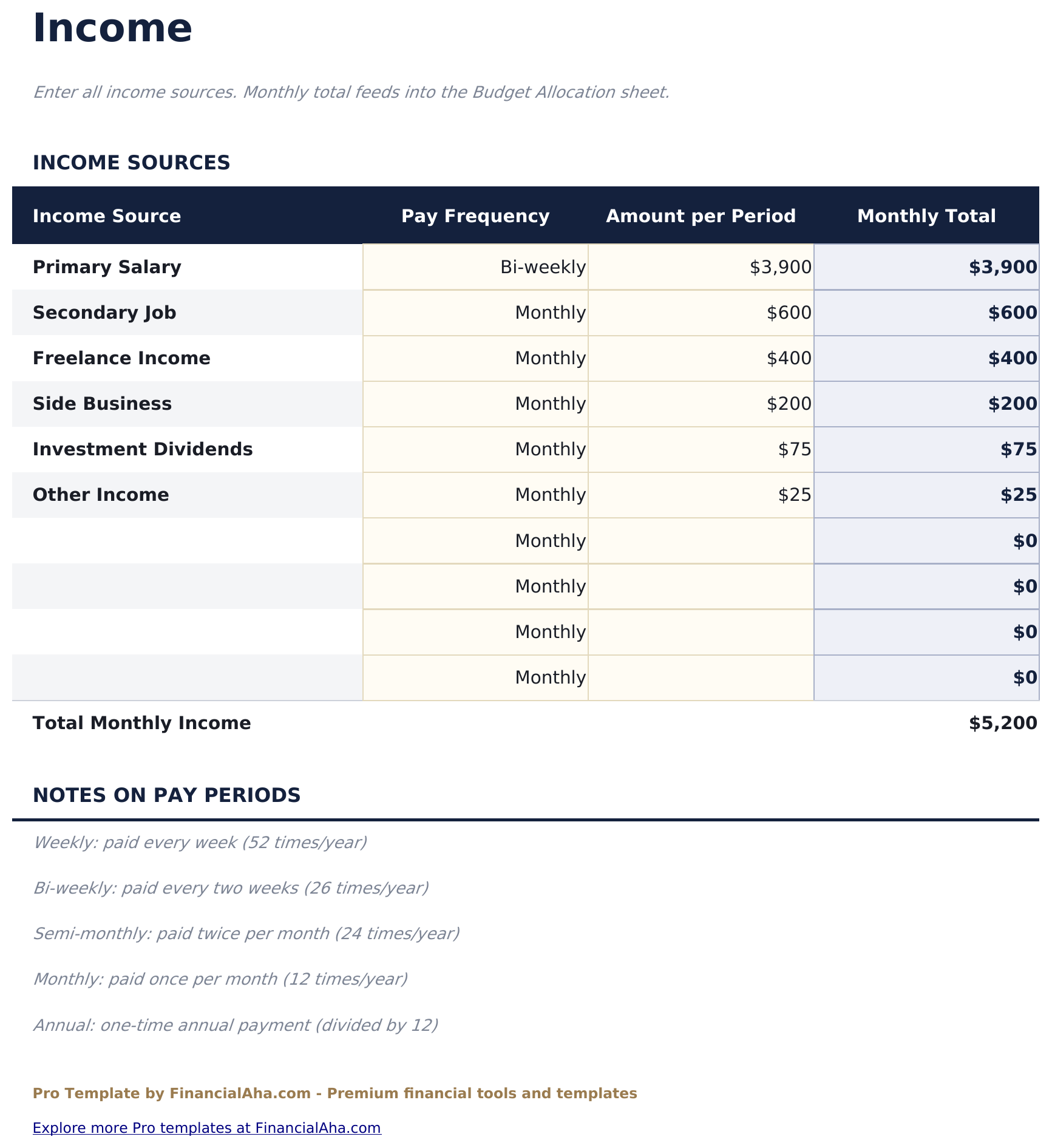
- Income sheet for entering all income sources with monthly totals feeding into the zero-based allocation
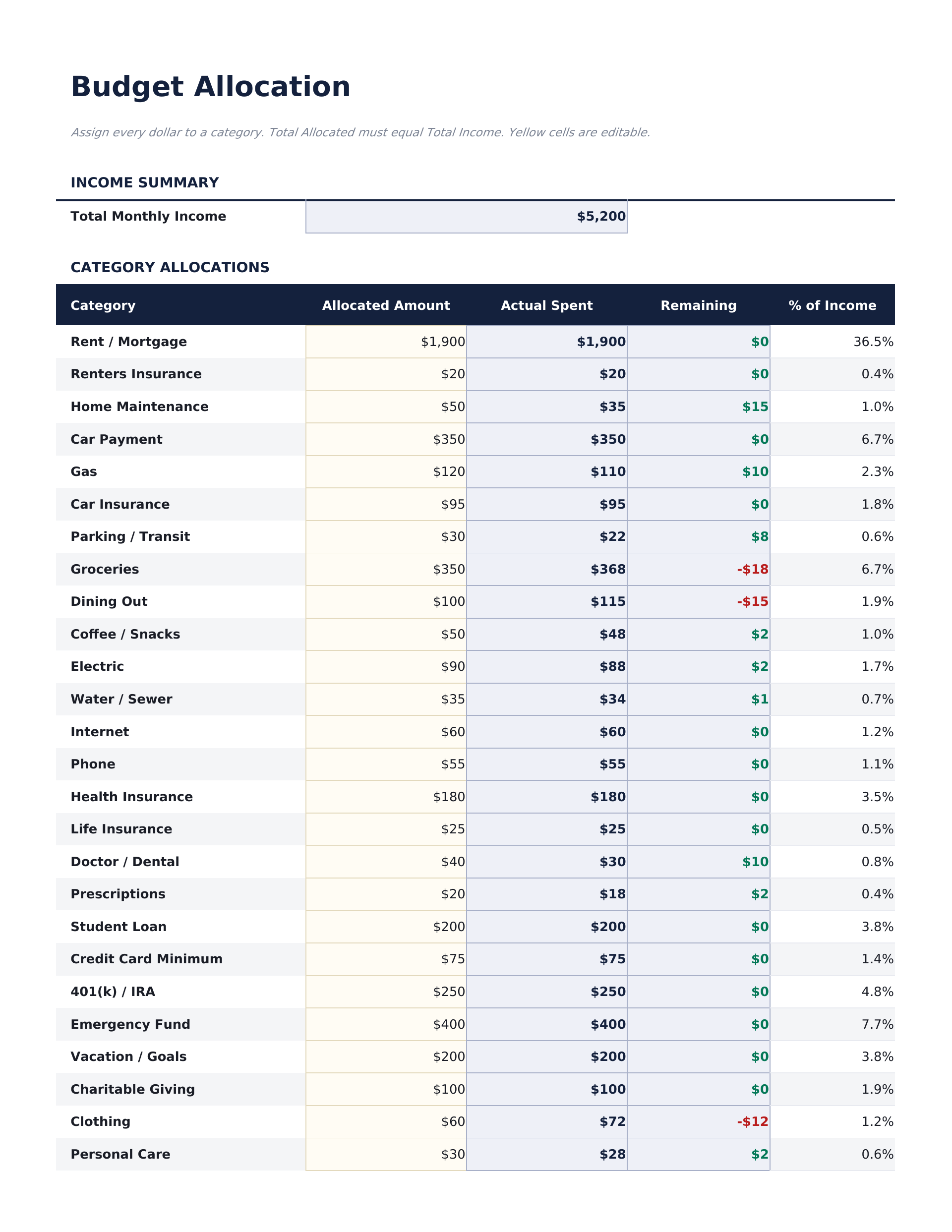
- Budget Allocation sheet assigning every dollar across 16 categories - the running remainder updates with each allocation so you can see the unassigned balance approach zero
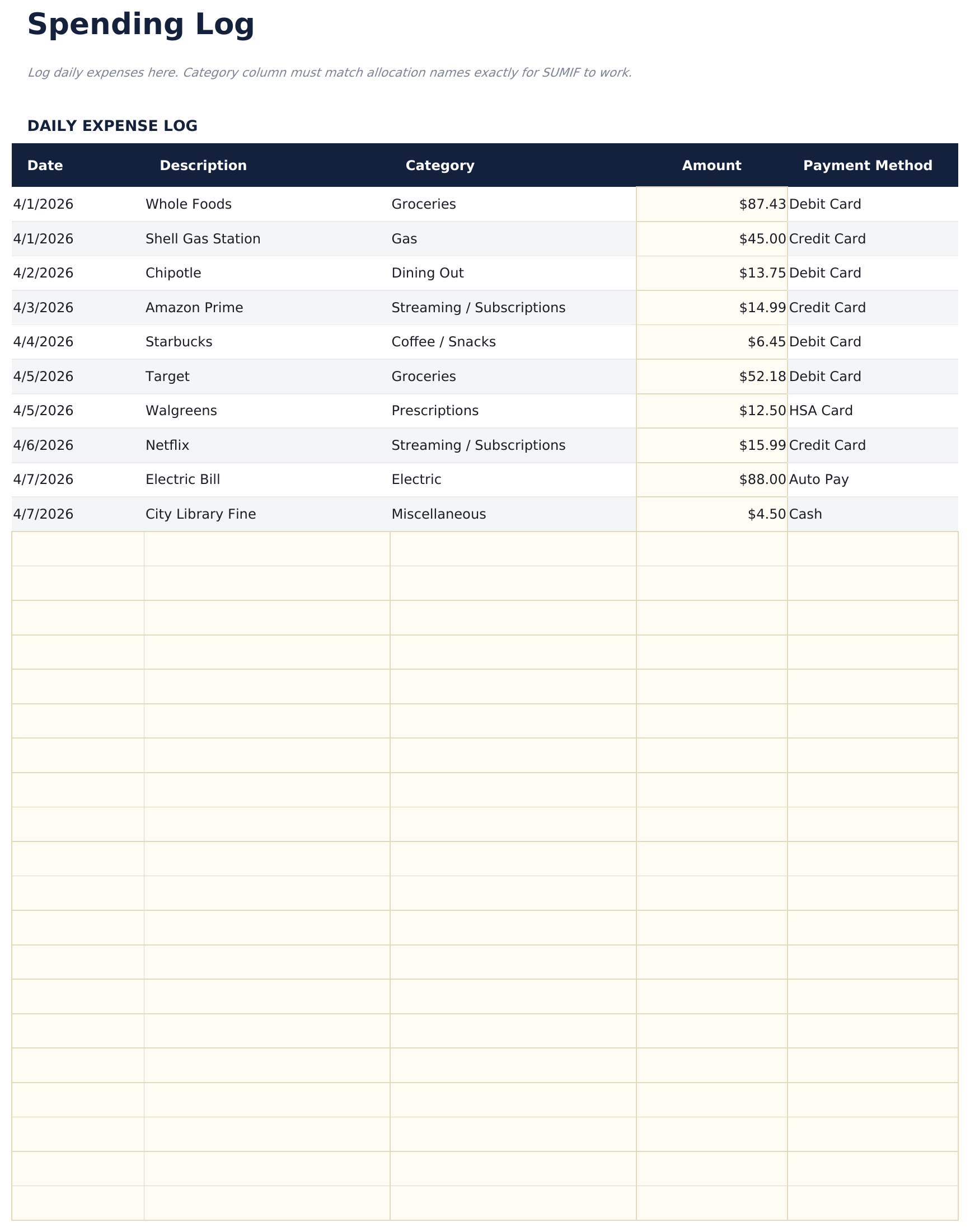
- Spending Log for recording actual transactions with date, category, description, and amount - supports up to 150 entries per month
- Dashboard with 6 KPI cards: total income, total allocated, remaining to assign, total spent, variance from budget, and transaction count
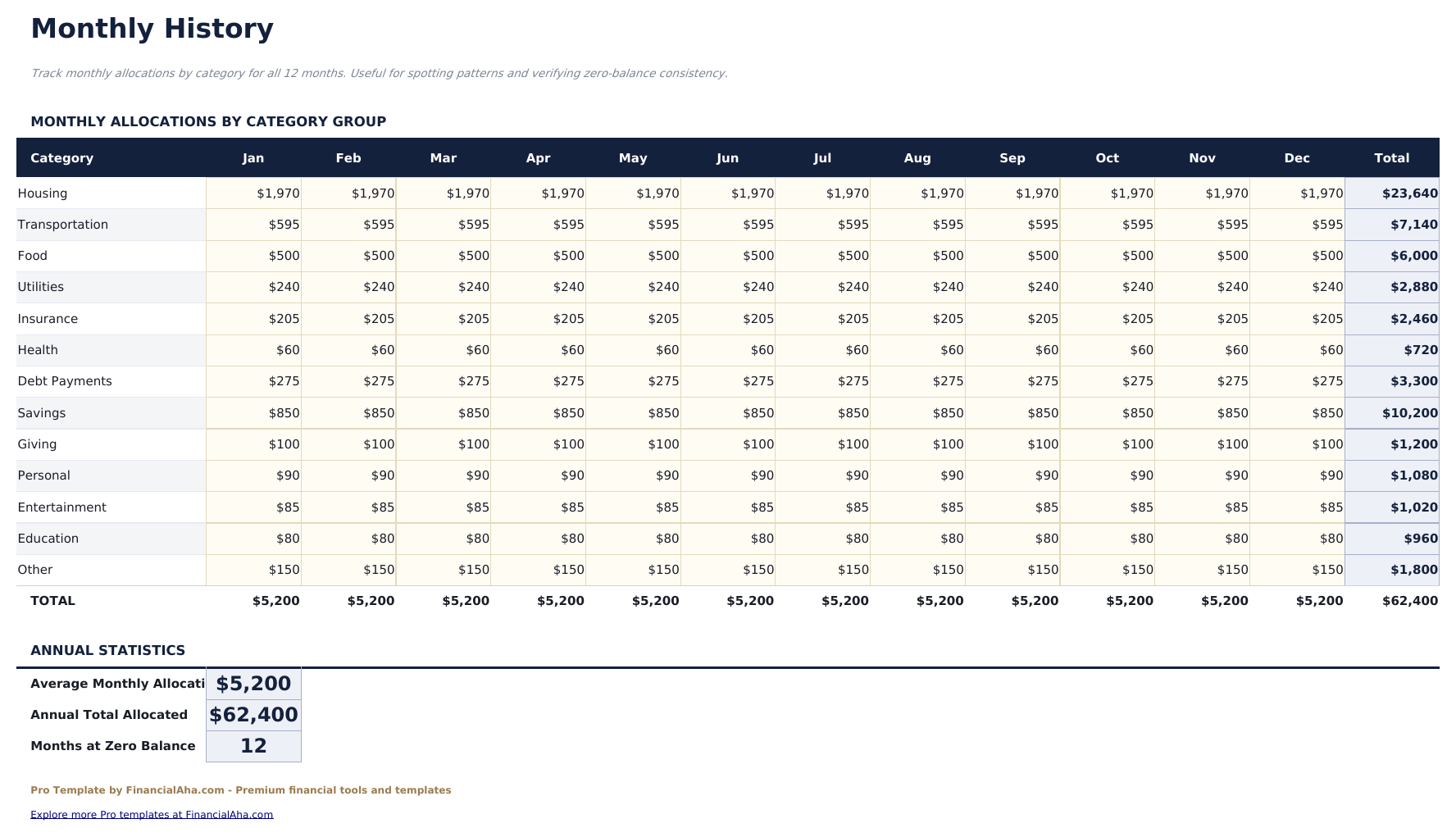
- Monthly History sheet logging planned allocations vs actual spending totals for each of 12 months
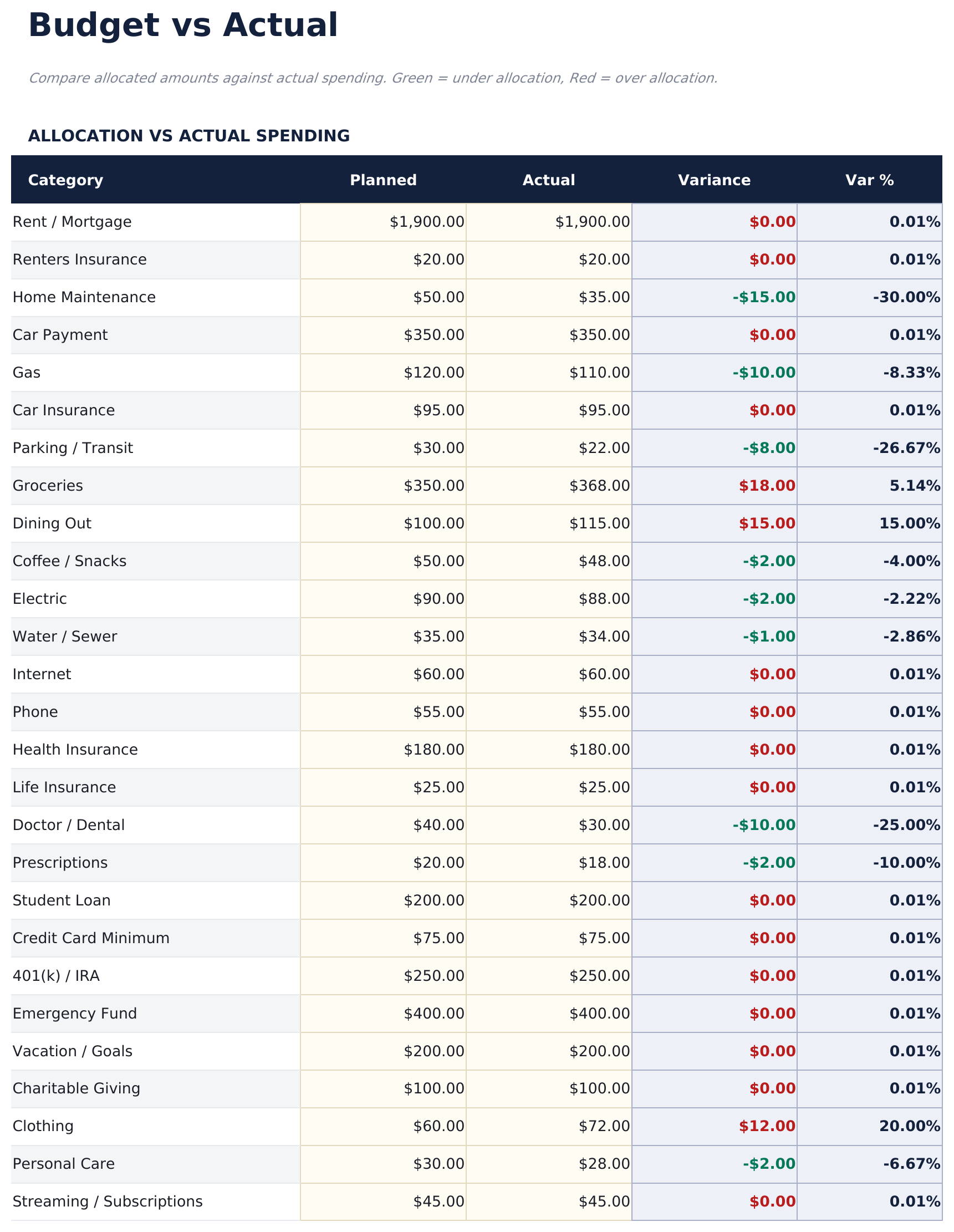
- Budget vs Actual sheet comparing planned allocation to actual spending per category with over/under variance and color coding
- Unassigned balance indicator prominently displayed during budget setup - shows how far from zero the current plan is
- Works in Microsoft Excel, Google Sheets, and LibreOffice Calc with no macros required
Preview
See what's inside this template
How to Use This Template
Enter all income sources
Go to the Income sheet and list every source of income for the month - salary, side income, freelance, and any other deposits - to get your total available dollars.
Allocate every dollar
In Budget Allocation, assign amounts to each of the 16 categories. The unassigned balance updates with each entry. Keep going until the balance reaches zero.
Log actual spending
Throughout the month, record transactions in the Spending Log with date, category, and amount. Category totals update automatically.
Review the full picture
The Budget vs Actual sheet compares your plan to actual spending per category. Record month-end totals in Monthly History to build the year-long record.
Built by Claude AI. Perfected by us.
We use Claude AI to draft each Pro template after deep research. Then our team steps in - refining the layout, stress-testing every formula, fixing edge cases, and polishing the design. The AI gets us 80% there. The last 20% is all human judgment.
One-time purchase. No subscription. Works in Excel & Google Sheets.
Frequently Asked Questions
What does zero-based mean?
Every dollar of income gets assigned to a category - including savings, debt payments, and giving - until income minus all allocations equals zero. The goal is a deliberate plan for every dollar before the month begins.
How many transactions can I log?
The Spending Log supports up to 150 transactions per month. Each entry includes date, category (dropdown), description, and amount. Category totals feed into the Budget vs Actual comparison.
How does the monthly history work?
At month end, log both your planned allocation totals and actual spending totals in the Monthly History sheet. This builds a 12-month record of how well allocations matched reality.
What if I have irregular income?
Enter your best estimate in the Income sheet at the start of the month. If income comes in higher or lower, update the Income sheet and reallocate the difference across categories in Budget Allocation.
What categories are included?
Housing, Utilities, Groceries, Transportation, Health, Insurance, Personal, Clothing, Entertainment, Dining, Subscriptions, Savings, Emergency Fund, Retirement, Debt Payments, and Giving - 16 categories covering most household budgets.
What do I get after purchase?
You receive an Excel file (.xlsx) that works in Microsoft Excel, Google Sheets, and LibreOffice Calc. Download it immediately after purchase - no signup or account required.
Is there a free version?
Yes. The free version of this template is available with basic features. The Pro version adds advanced analysis, more capacity, and additional sheets.
What if it does not work for me?
Contact us and we will help troubleshoot. The template works in Microsoft Excel, Google Sheets, and LibreOffice Calc with no macros required.
Looking for more Pro templates?
We offer Pro versions of our most popular spreadsheet templates with advanced features, more capacity, and deeper analysis.