Bill Tracker Pro
Track up to 40 bills with a 12-month payment calendar, full payment history, annual summary, and late fee tracker to stay on top of every due date.
Free vs Pro
- Track up to 15 bills with due date, amount, and paid status
- Dashboard with total monthly bills and upcoming due dates
- Monthly payment checklist with category totals
- Works in Excel and Google Sheets
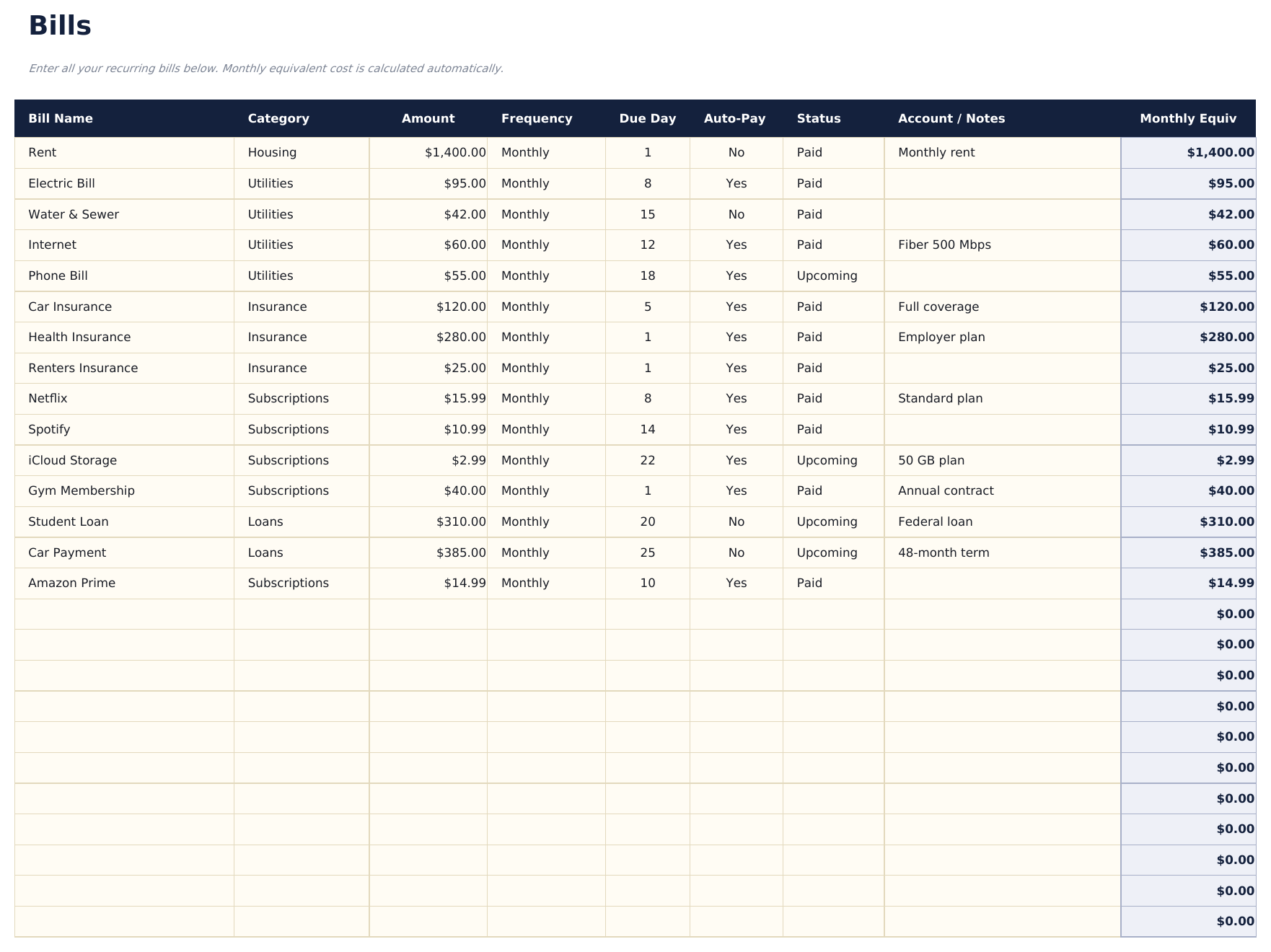
- Track up to 40 bills with name, category, due date, amount, payment method, autopay status, and notes
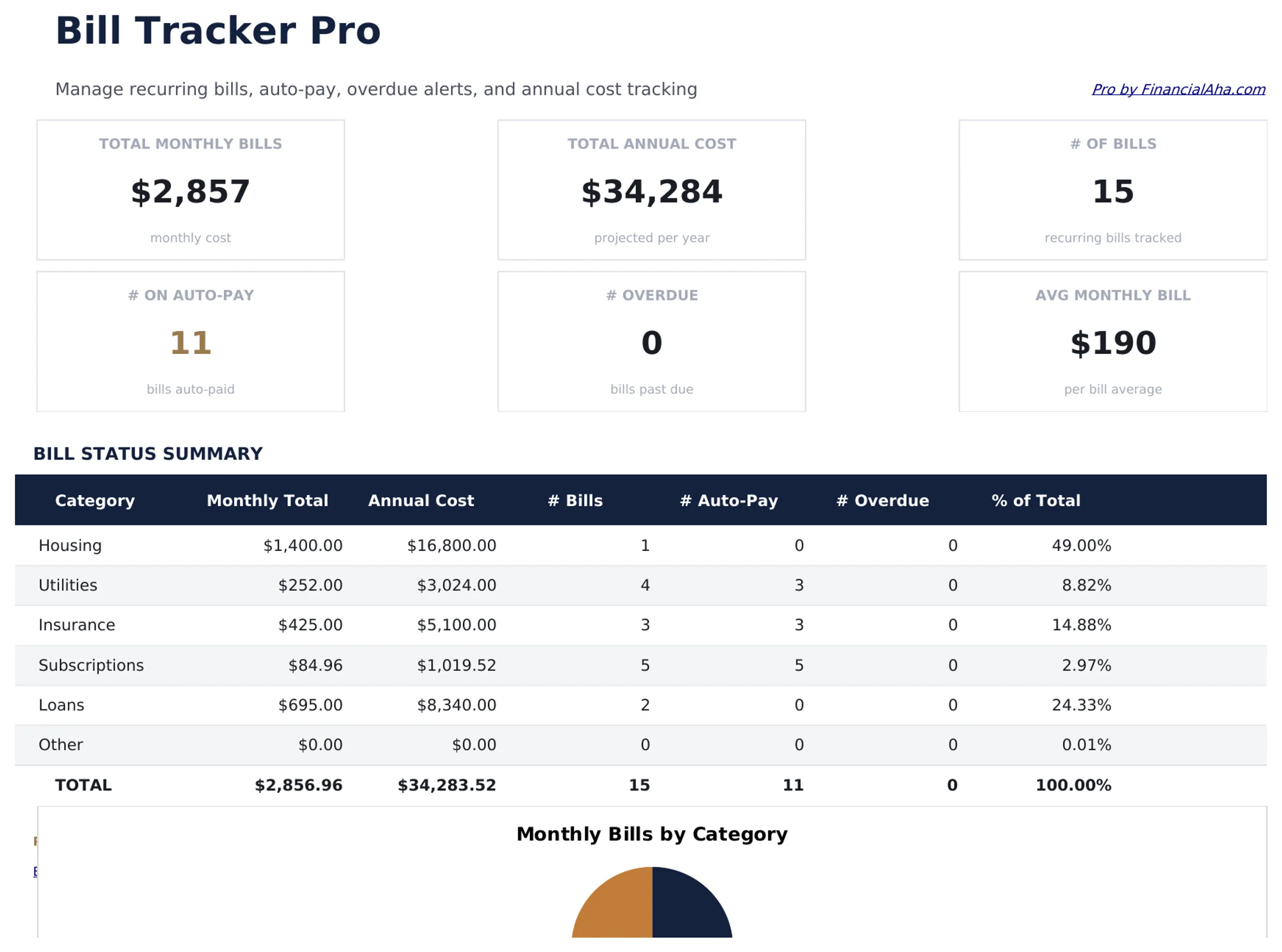
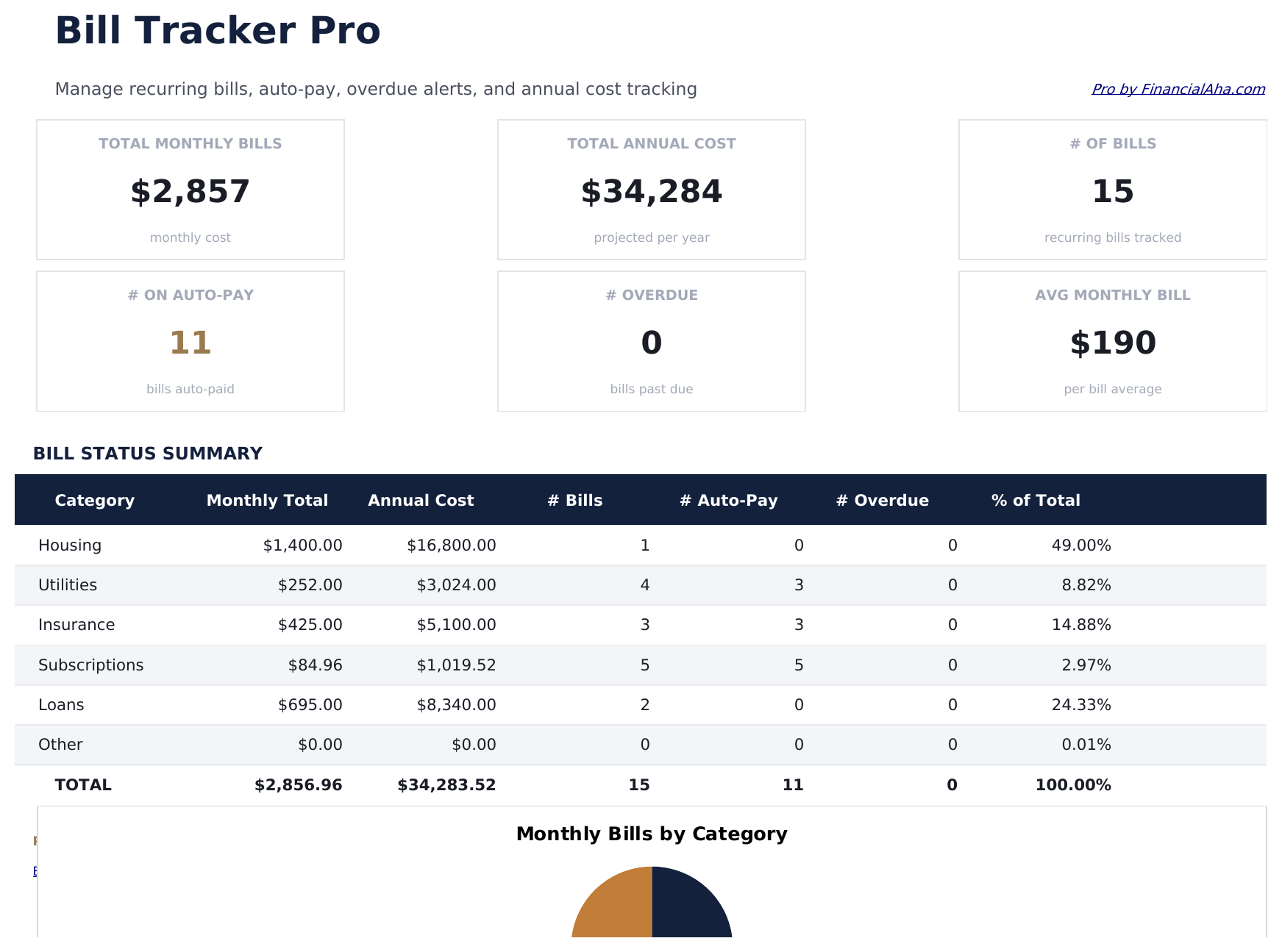
- Dashboard with 6 KPI cards: total monthly bills, bills due this week, unpaid bills, total paid this month, autopay count, and average bill amount
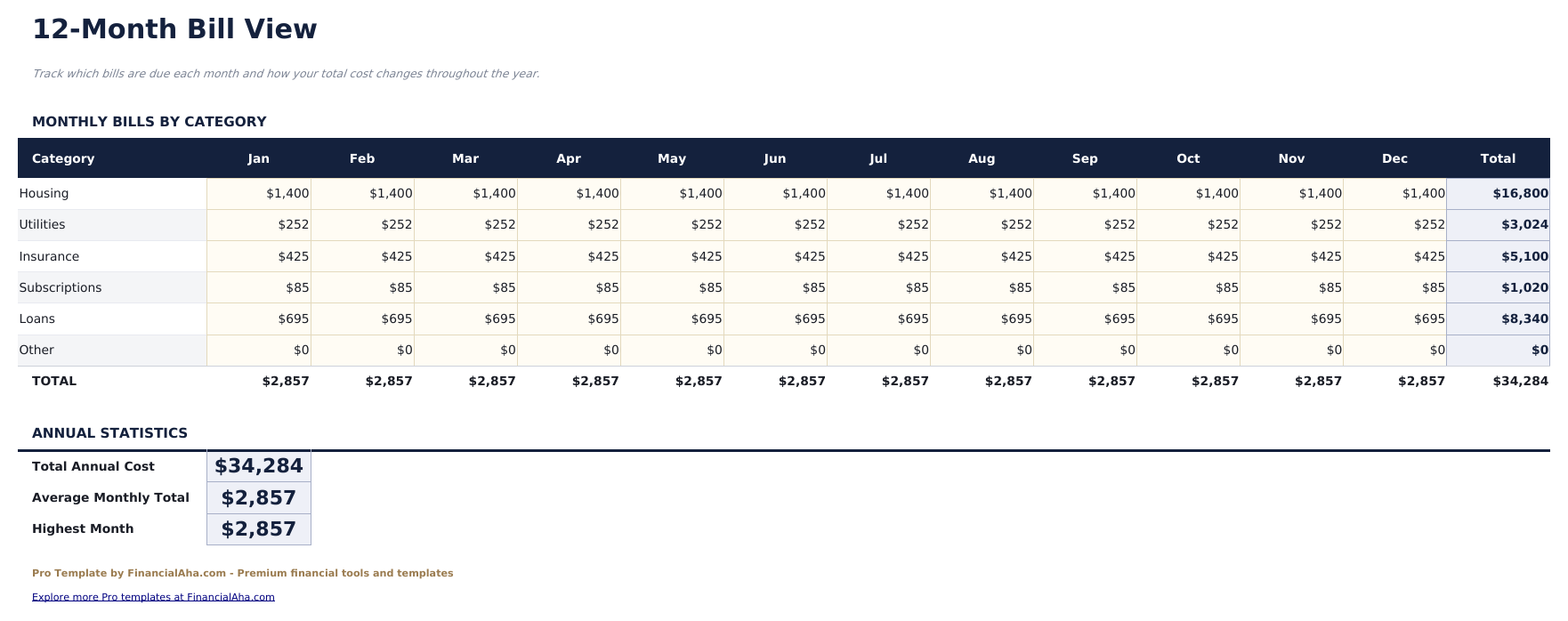
- 12-Month View showing each bill's payment status (Paid, Unpaid, Skipped) for every month of the year in a single grid
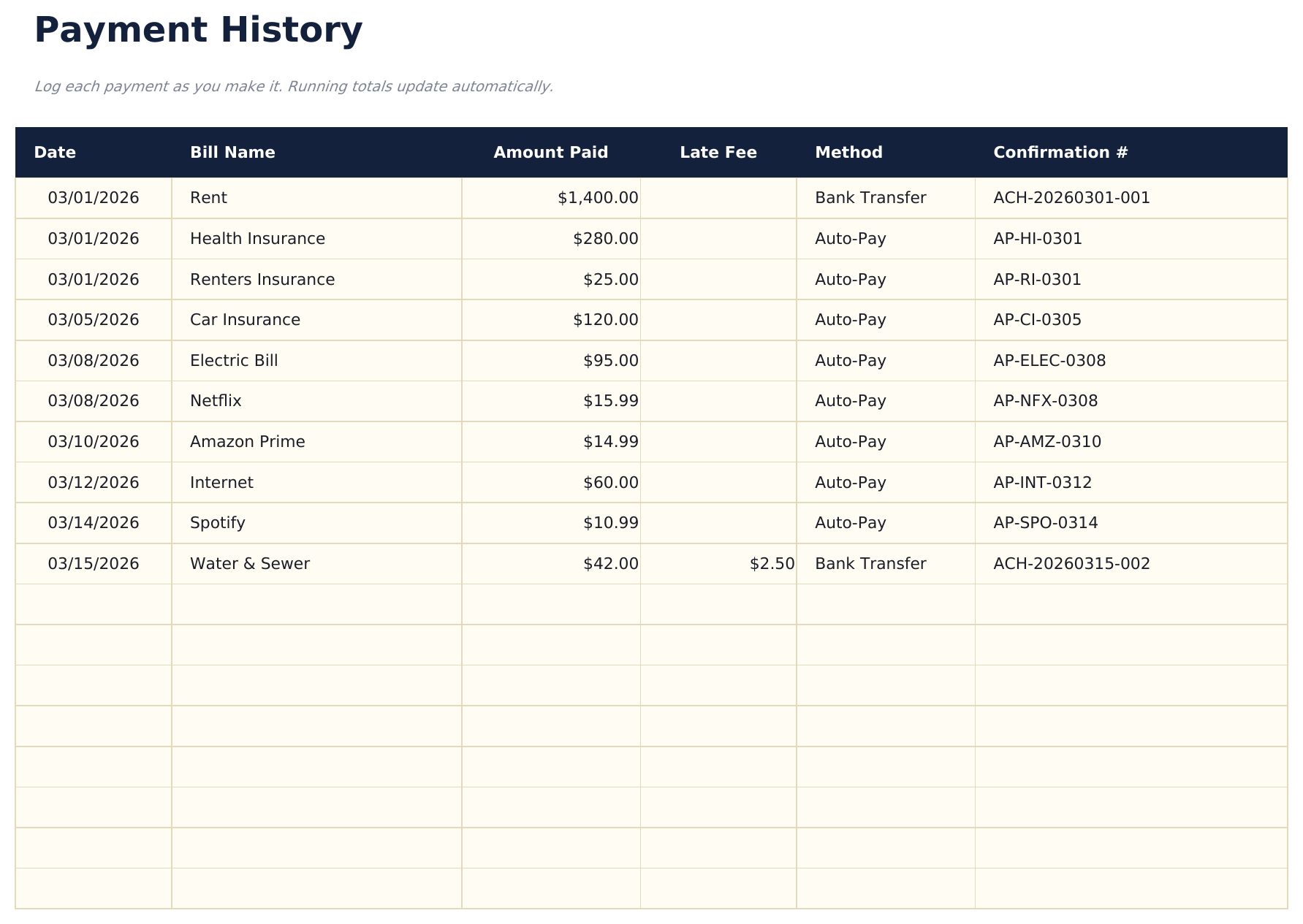
- Payment History sheet logging every payment with date paid, amount paid, on-time status, and payment method for a full audit trail
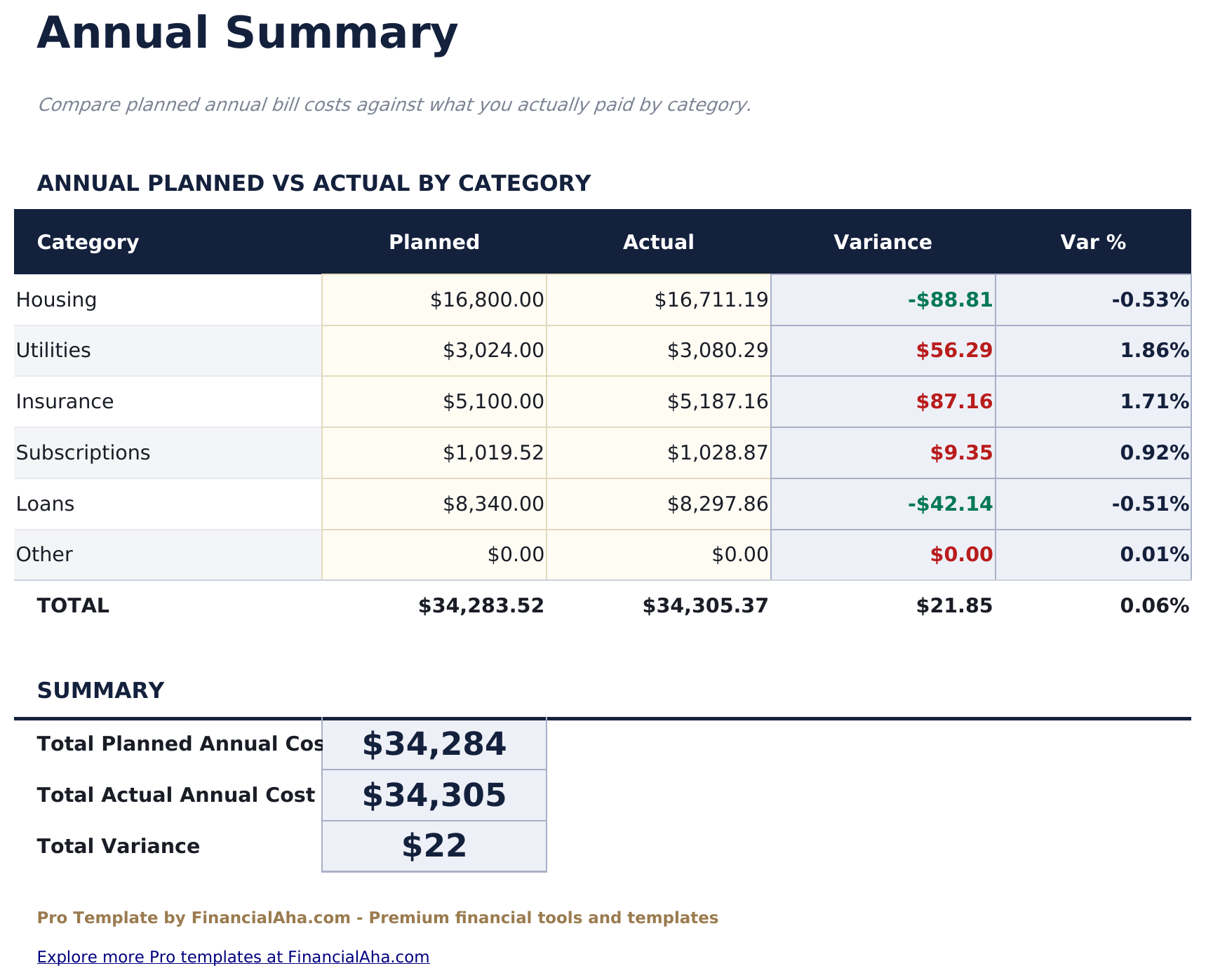
- Annual Summary sheet calculating total paid, total due, payment rate, and largest bill per category across the full year
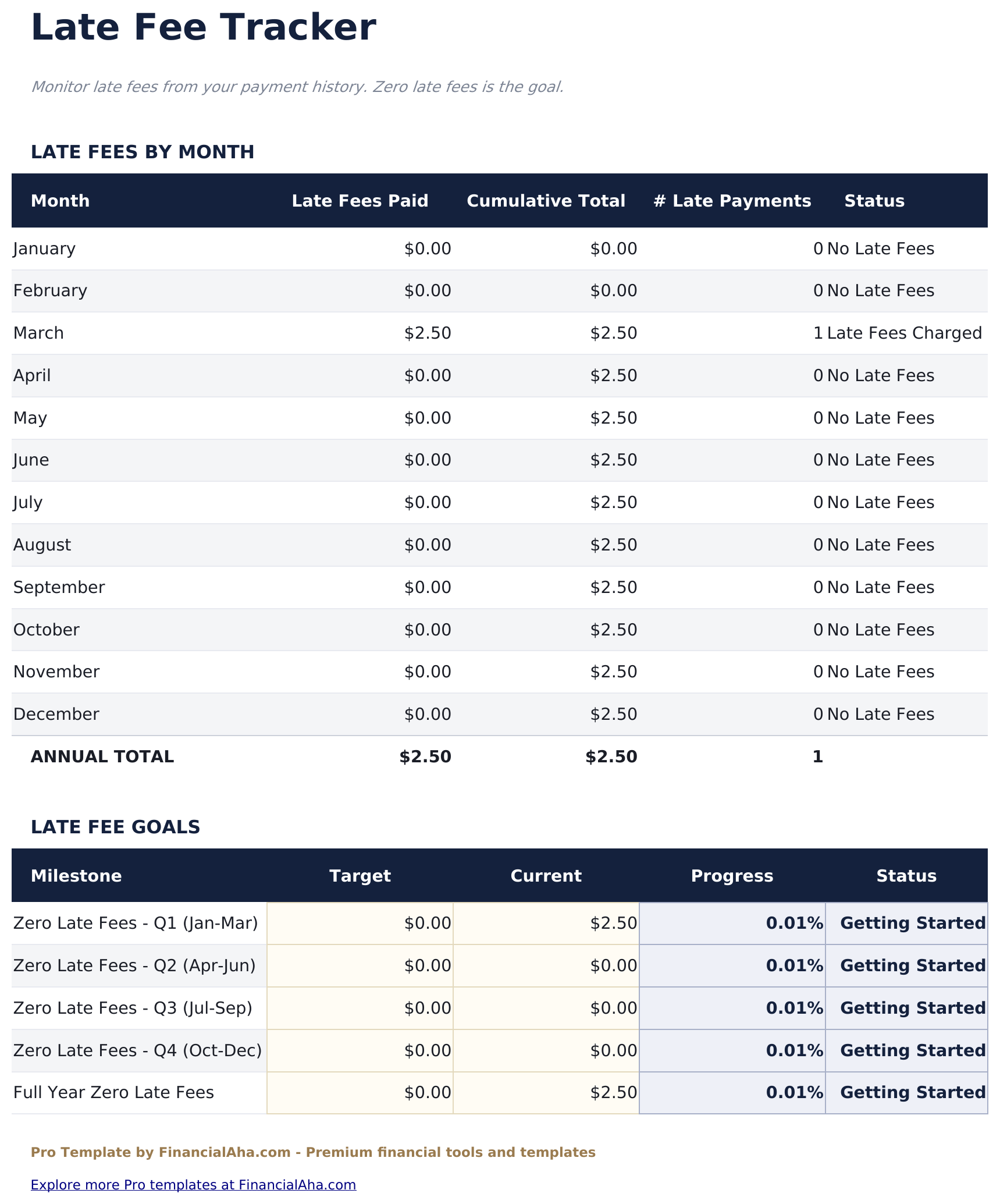
- Late Fee Tracker logging any late fees charged per bill - shows fee amount, date charged, reason, and running total of fees paid
- Autopay flag per bill with dashboard count of autopay vs manual payments to identify bills needing attention
- Works in Microsoft Excel, Google Sheets, and LibreOffice Calc with no macros required
Preview
See what's inside this template
How to Use This Template
Enter all your bills
Go to the Bills sheet and list every recurring payment with name, category, due date, typical amount, payment method, and whether it's on autopay.
Mark payments in the 12-Month View
As you pay each bill, mark the corresponding cell in the 12-Month View as Paid. Mark skipped or missed payments accordingly.
Log payment details in Payment History
For a full record, enter each payment in the Payment History sheet with the exact amount paid and date. The on-time status column tracks your payment reliability.
Review the annual picture
The Annual Summary shows total payments by category for the year. Check the Late Fee Tracker to see the running cost of any missed due dates.
Built by Claude AI. Perfected by us.
We use Claude AI to draft each Pro template after deep research. Then our team steps in - refining the layout, stress-testing every formula, fixing edge cases, and polishing the design. The AI gets us 80% there. The last 20% is all human judgment.
One-time purchase. No subscription. Works in Excel & Google Sheets.
Frequently Asked Questions
How many bills can I track?
The Pro version supports up to 40 bills - nearly triple the free version. Each bill has its own row with category, due date, amount, payment method, and autopay status.
What does the 12-Month View show?
A grid with each bill on a row and each month in a column. Mark each cell as Paid, Unpaid, or Skipped. Useful for spotting patterns - for example, bills you regularly pay late or skip in certain months.
How does the late fee tracker work?
When a late fee is charged, log it in the Late Fee Tracker with the bill name, fee amount, date, and reason. The running total column shows the cumulative cost of late payments over the year.
Can I track variable bills like utilities?
Yes. Variable bills can be entered with an estimated amount and updated when the actual bill arrives. The Payment History sheet records what was actually paid each time.
What does the Annual Summary show?
It totals payments by category for the full year - total due, total paid, payment rate, and the largest individual bill in each category. Useful for comparing categories like utilities vs insurance vs subscriptions.
What do I get after purchase?
You receive an Excel file (.xlsx) that works in Microsoft Excel, Google Sheets, and LibreOffice Calc. Download it immediately after purchase - no signup or account required.
Is there a free version?
Yes. The free version of this template is available with basic features. The Pro version adds advanced analysis, more capacity, and additional sheets.
What if it does not work for me?
Contact us and we will help troubleshoot. The template works in Microsoft Excel, Google Sheets, and LibreOffice Calc with no macros required.
Looking for more Pro templates?
We offer Pro versions of our most popular spreadsheet templates with advanced features, more capacity, and deeper analysis.