80/20 Budget Pro
Full-year 80/20 budget tracker using a two-bucket system - 20% to savings first, 80% for everything else - with monthly history and savings growth tracking.
Free vs Pro
- Set monthly income and view 80% spending and 20% savings targets
- Log spending and savings with category totals
- Dashboard with balance and savings rate for the current month
- Works in Excel and Google Sheets
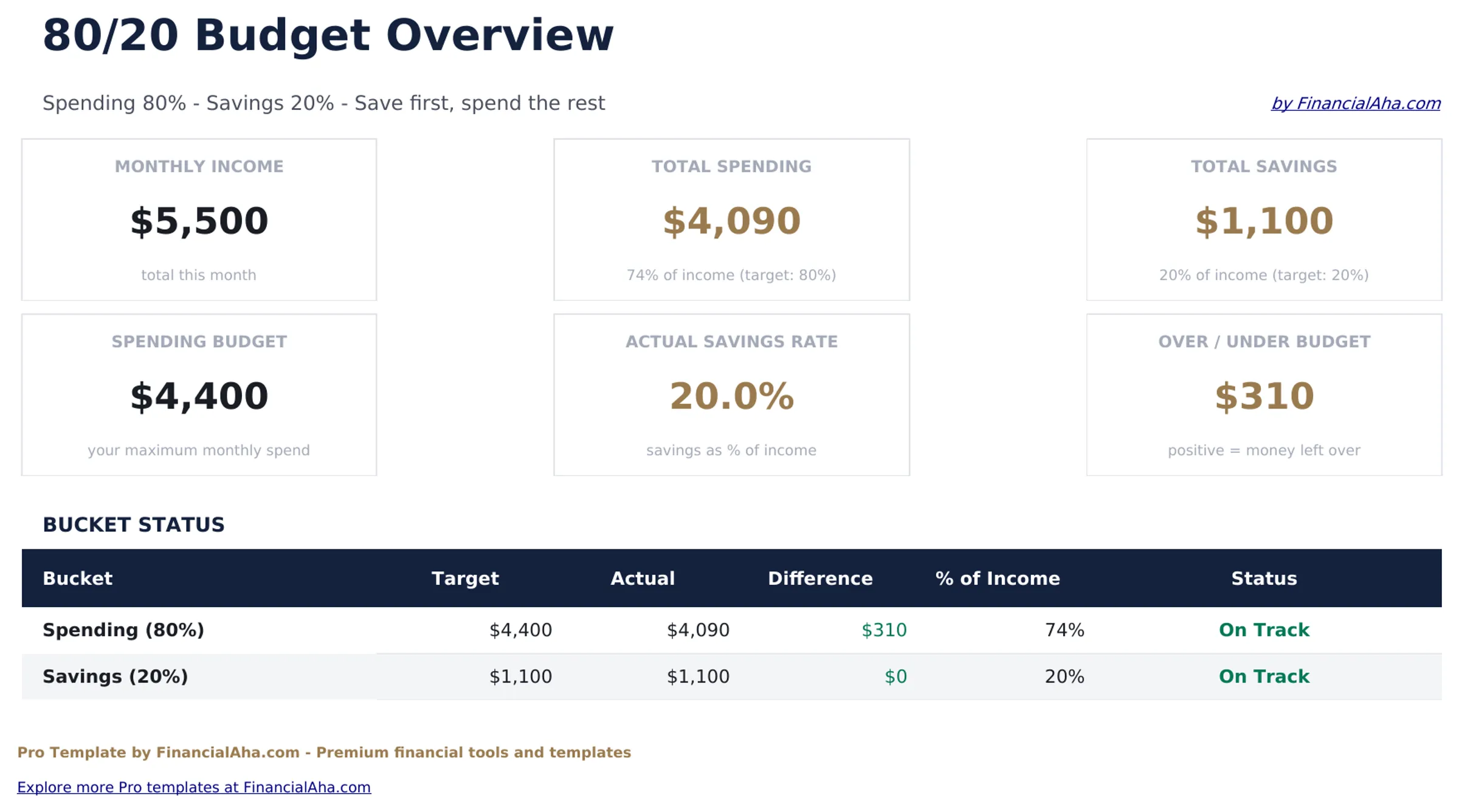
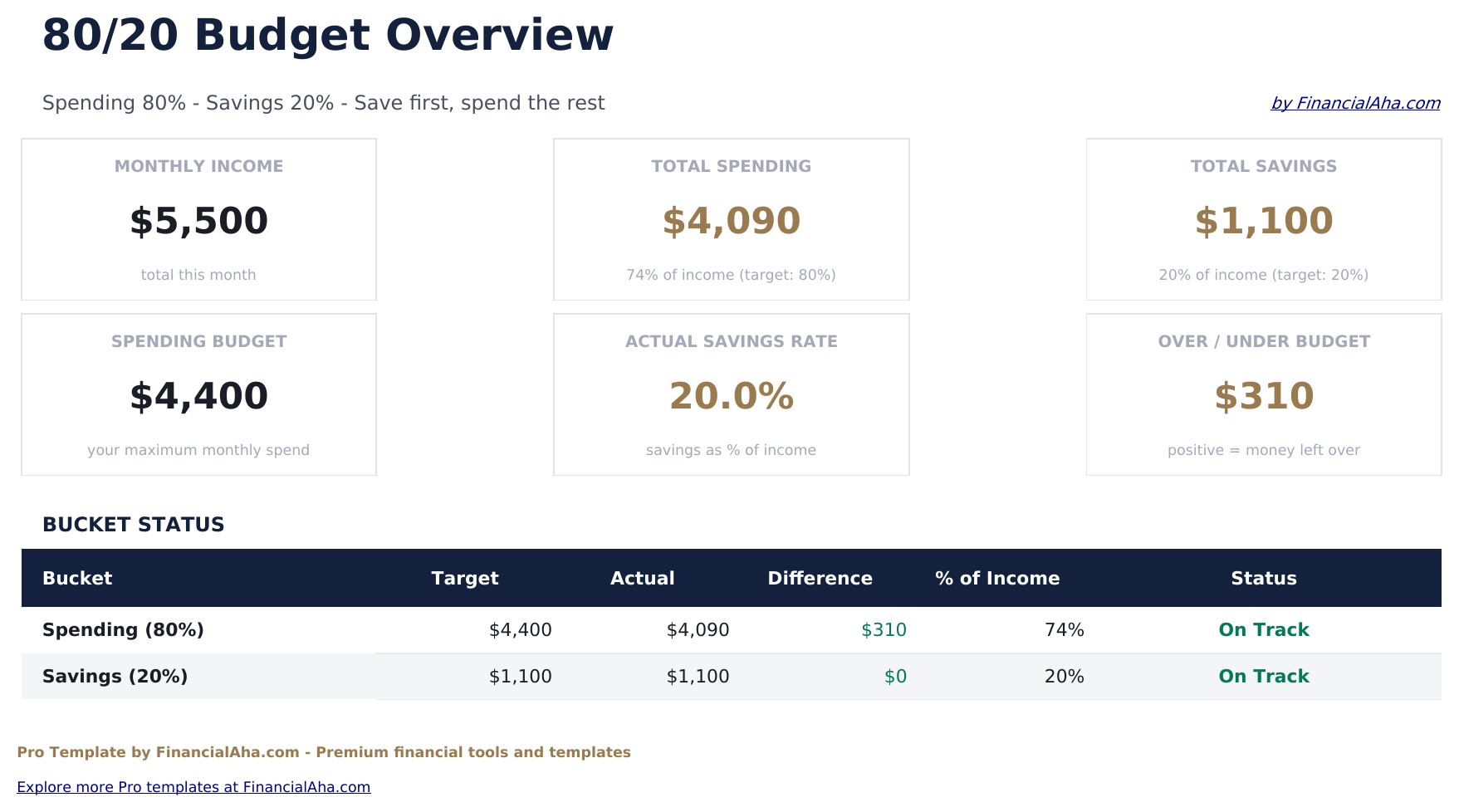
- Dashboard with 6 KPI cards: monthly income, savings total, spending total, overall balance, savings rate, and cumulative annual savings
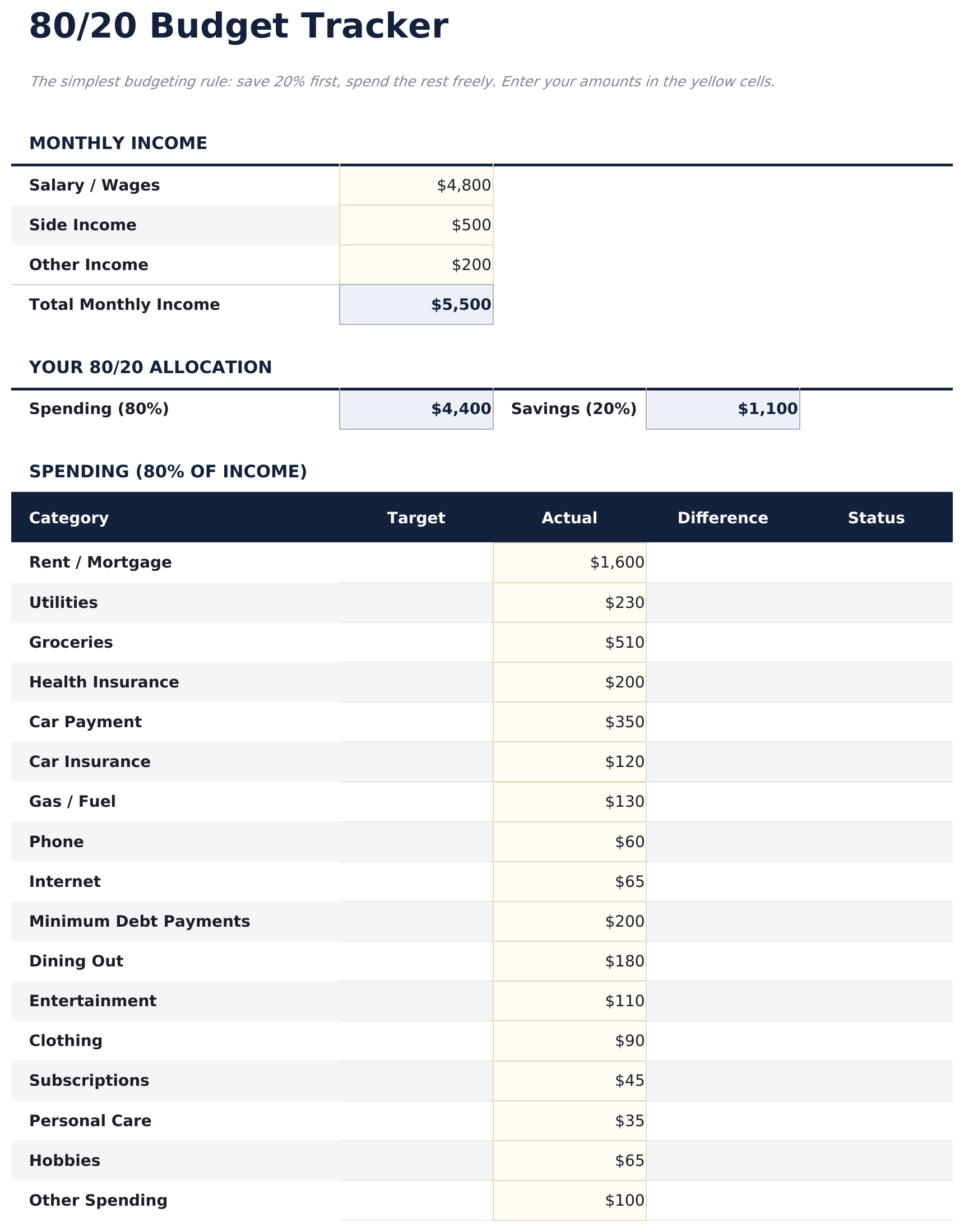
- Budget Tracker sheet calculating the 20% savings target and 80% spending limit from monthly income with actual vs target comparison
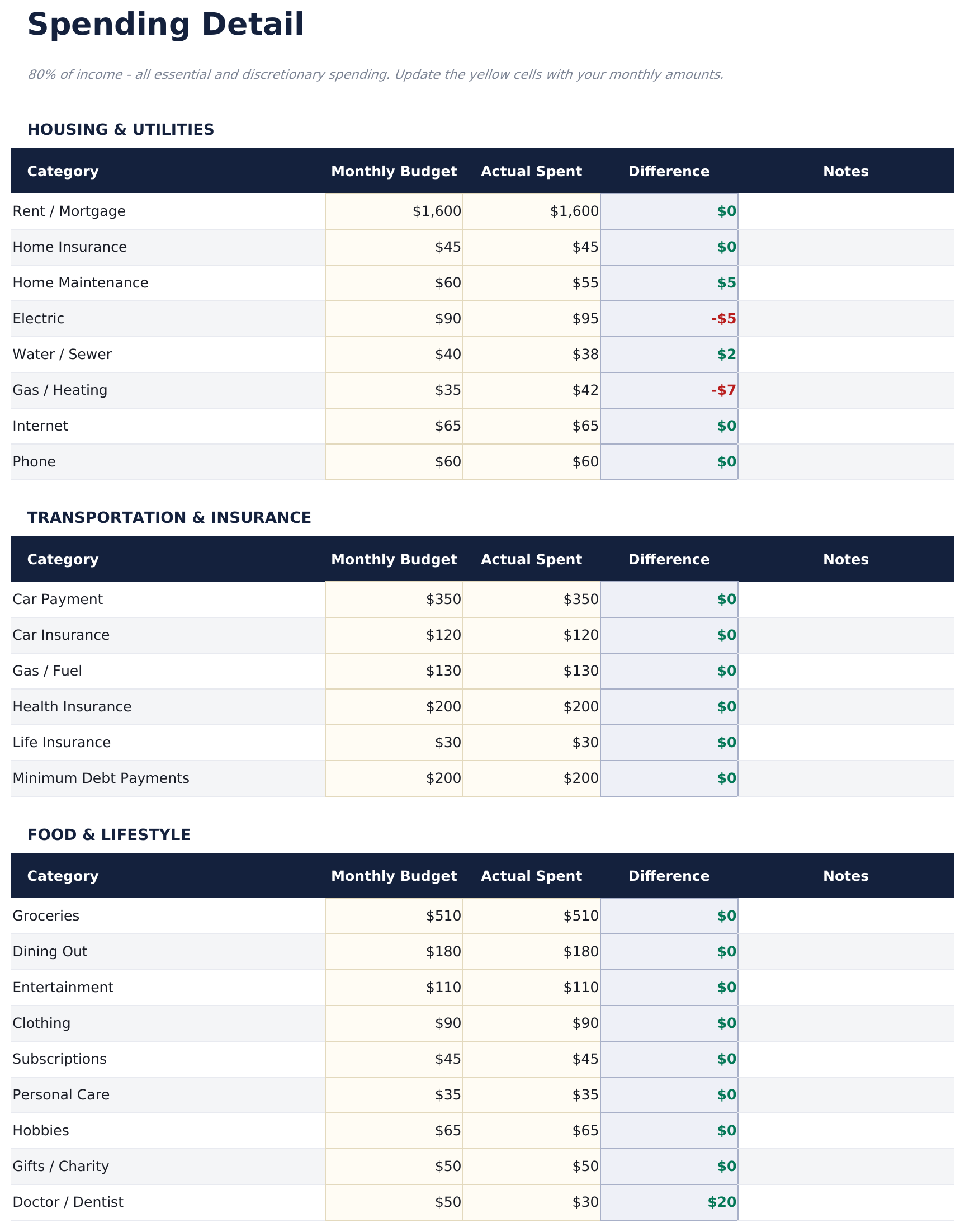
- Spending sheet for all living and lifestyle expenses across 12 categories - the 80% bucket with no further required splits
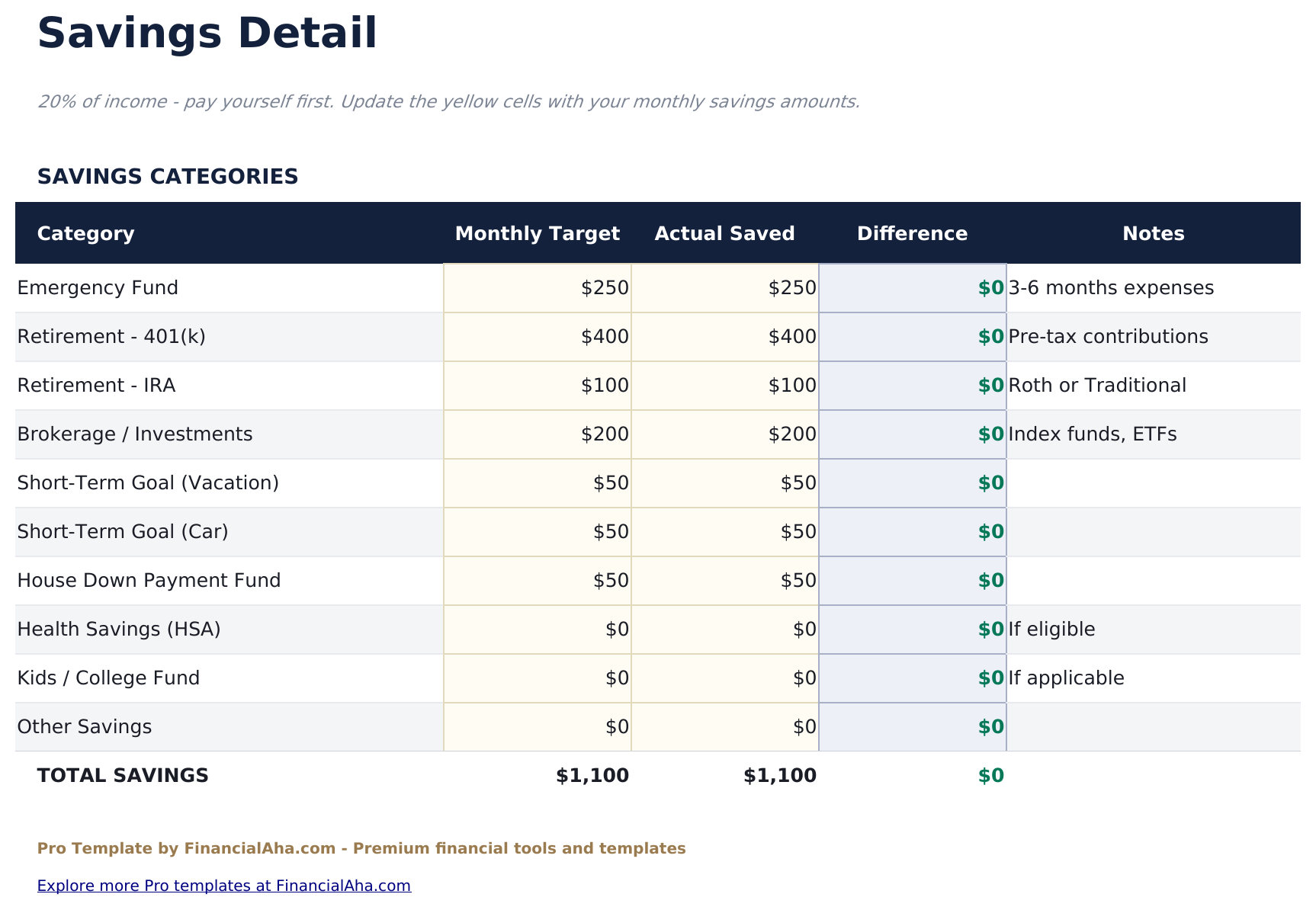
- Savings sheet tracking contributions to specific savings goals, investments, and emergency fund within the 20% bucket
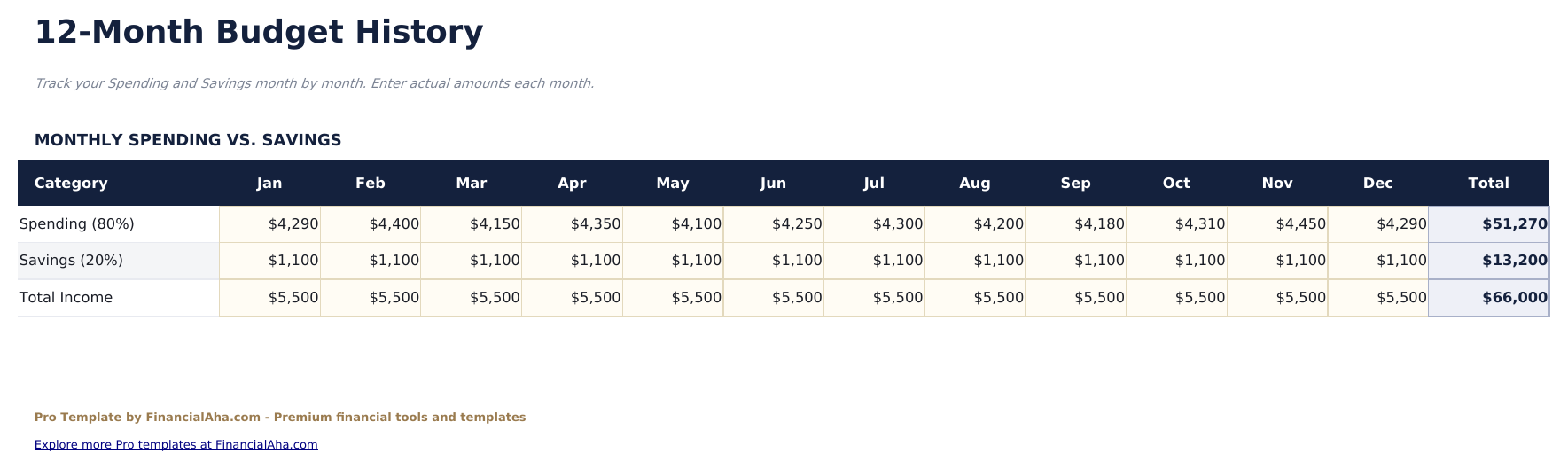
- Monthly History sheet logging spending and savings totals for all 12 months with over/under variance per bucket
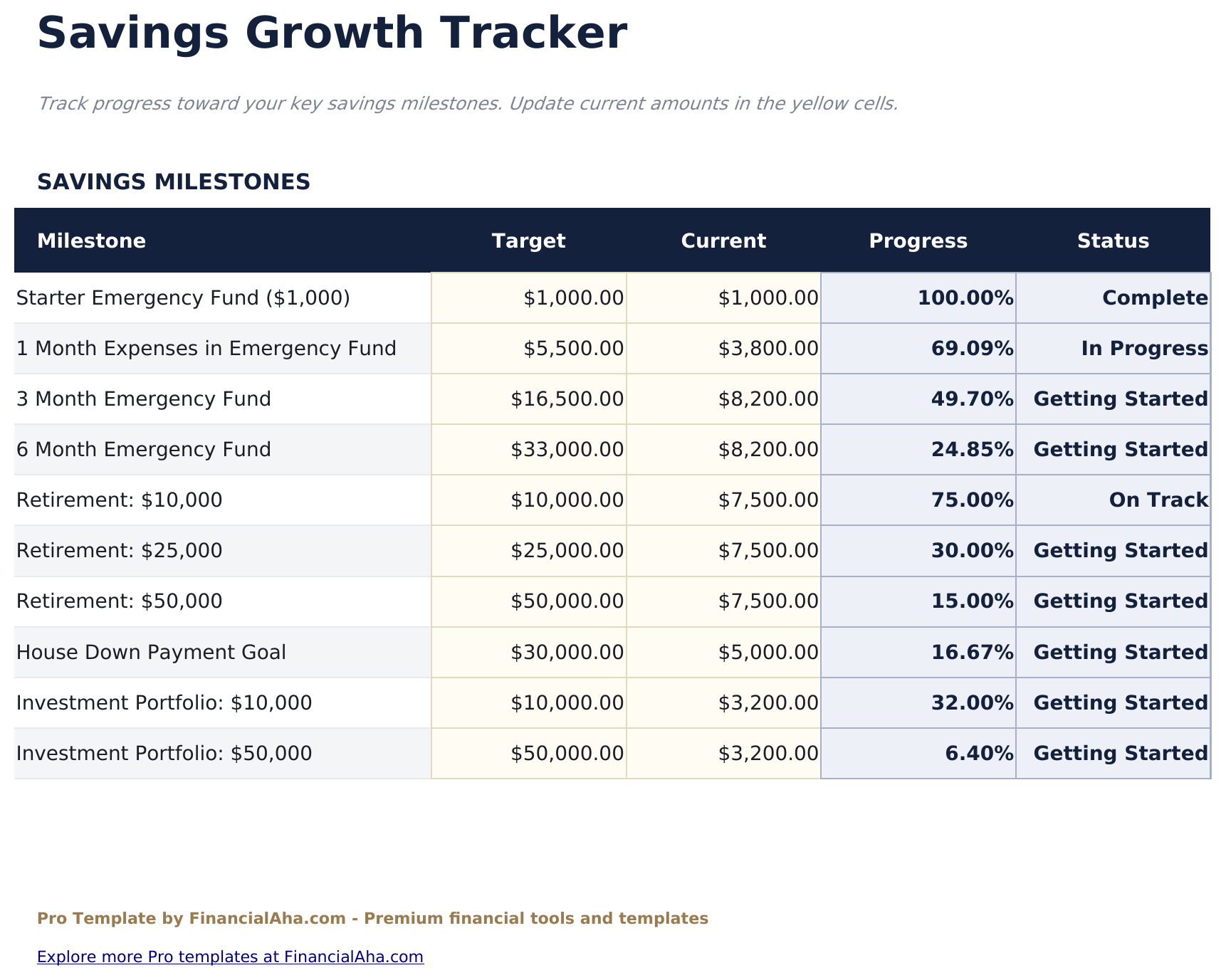
- Savings Growth sheet tracking cumulative savings month by month with a running total and projected year-end savings based on current rate
- Dashboard savings rate gauge showing current month savings rate relative to the 20% target
- Works in Microsoft Excel, Google Sheets, and LibreOffice Calc with no macros required
Preview
See what's inside this template
How to Use This Template
Set your income
Go to Budget Tracker and enter your monthly take-home pay. The 20% savings target and 80% spending limit calculate automatically.
Log savings first
In the Savings sheet, enter contributions to savings goals and investments at the start of the month before logging spending.
Track spending in the 80% bucket
Use the Spending sheet to log expenses across categories. The sheet compares total spending to the 80% limit.
Review monthly history and growth
At month end, enter totals in Monthly History. The Savings Growth sheet tracks cumulative savings and projects where you'll finish the year.
Built by Claude AI. Perfected by us.
We use Claude AI to draft each Pro template after deep research. Then our team steps in - refining the layout, stress-testing every formula, fixing edge cases, and polishing the design. The AI gets us 80% there. The last 20% is all human judgment.
One-time purchase. No subscription. Works in Excel & Google Sheets.
Frequently Asked Questions
How does the 80/20 method work?
The idea is to move 20% of income to savings at the start of the month, then spend the remaining 80% however you like without detailed category tracking. The template supports this by keeping savings and spending as the two main buckets.
Do I need to track every expense?
No. The 80% Spending sheet has category rows for detail if you want it, but you can also just log a single monthly total for the full 80% bucket. The method is designed to be low-maintenance.
What does the Savings Growth sheet show?
It tracks cumulative savings month by month - the running total of everything saved across the year. It also projects year-end savings based on your current monthly savings rate.
Can I track multiple savings goals within the 20%?
Yes. The Savings sheet has rows for emergency fund, retirement, investments, and named savings goals. Contributions to each roll up into the 20% bucket total.
What if my savings rate is below 20% some months?
The variance column in Monthly History shows the gap clearly. Some people find the 80/20 method useful precisely because it makes the savings shortfall visible without requiring detailed expense tracking.
What do I get after purchase?
You receive an Excel file (.xlsx) that works in Microsoft Excel, Google Sheets, and LibreOffice Calc. Download it immediately after purchase - no signup or account required.
Is there a free version?
Yes. The free version of this template is available with basic features. The Pro version adds advanced analysis, more capacity, and additional sheets.
What if it does not work for me?
Contact us and we will help troubleshoot. The template works in Microsoft Excel, Google Sheets, and LibreOffice Calc with no macros required.
Looking for more Pro templates?
We offer Pro versions of our most popular spreadsheet templates with advanced features, more capacity, and deeper analysis.