Weekly Timesheet Pro
Multi-employee time tracking for up to 15 employees with project allocation, overtime analysis, monthly rollup, and project cost calculations.
Free vs Pro
- Track weekly hours for up to 5 employees with daily entries
- Dashboard with total hours and overtime flag
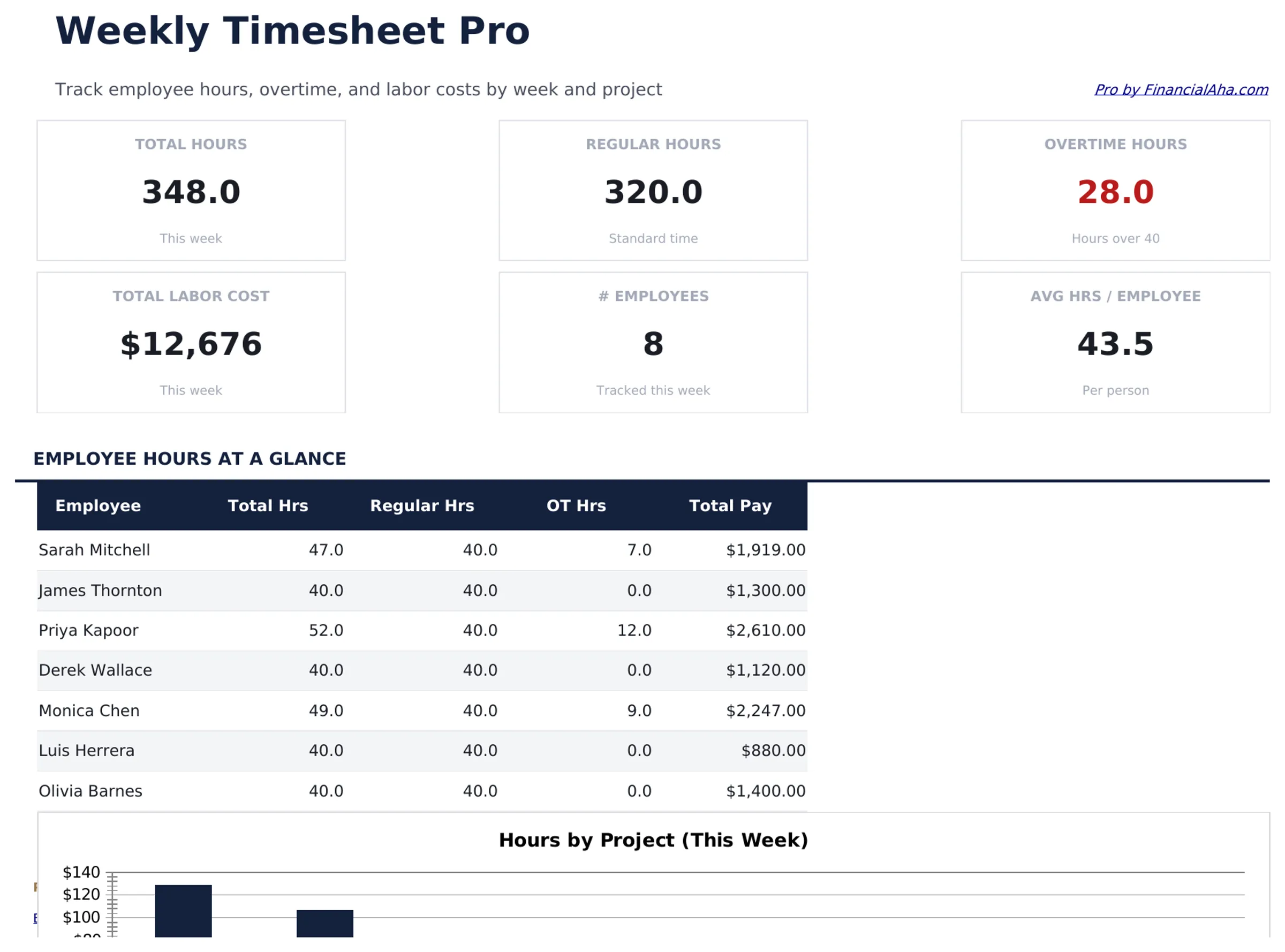
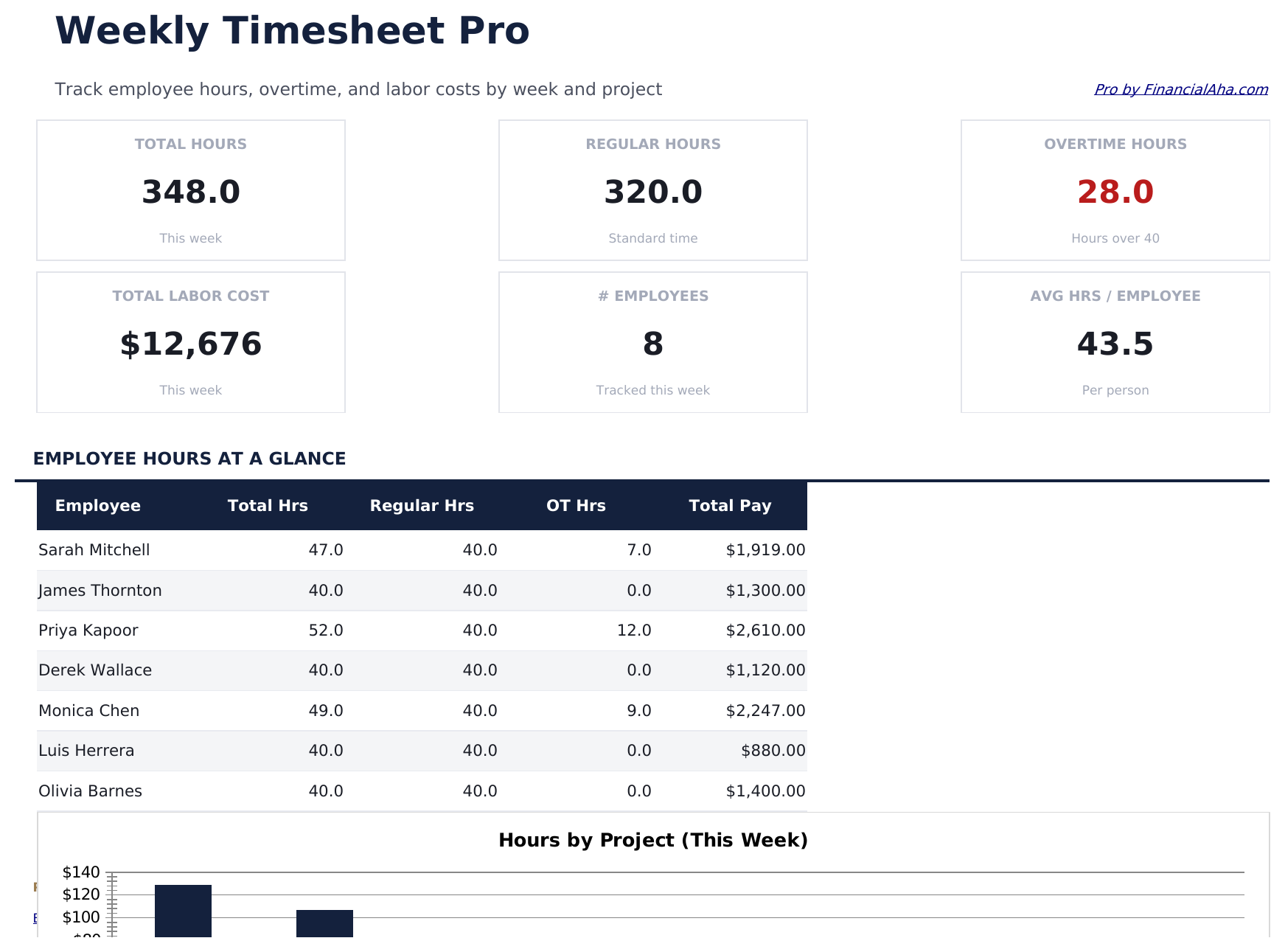
- Weekly totals per employee with regular and overtime split
- Works in Excel and Google Sheets
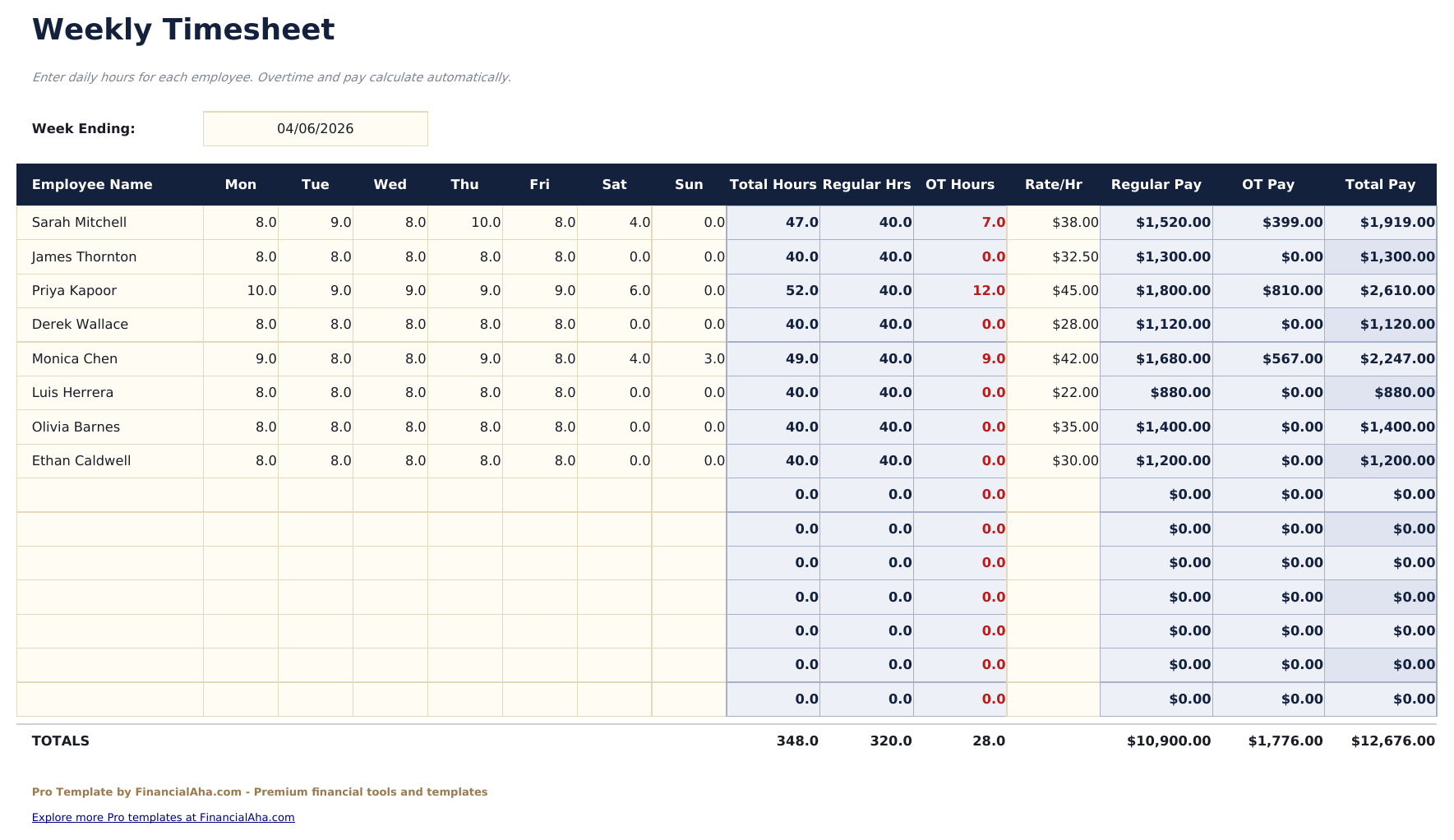
- Track weekly hours for up to 15 employees with daily hour entries, project codes, and notes per day
- Dashboard with 6 KPI cards: total hours this week, total employees, overtime hours, billable hours, total payroll cost, and average hours per employee
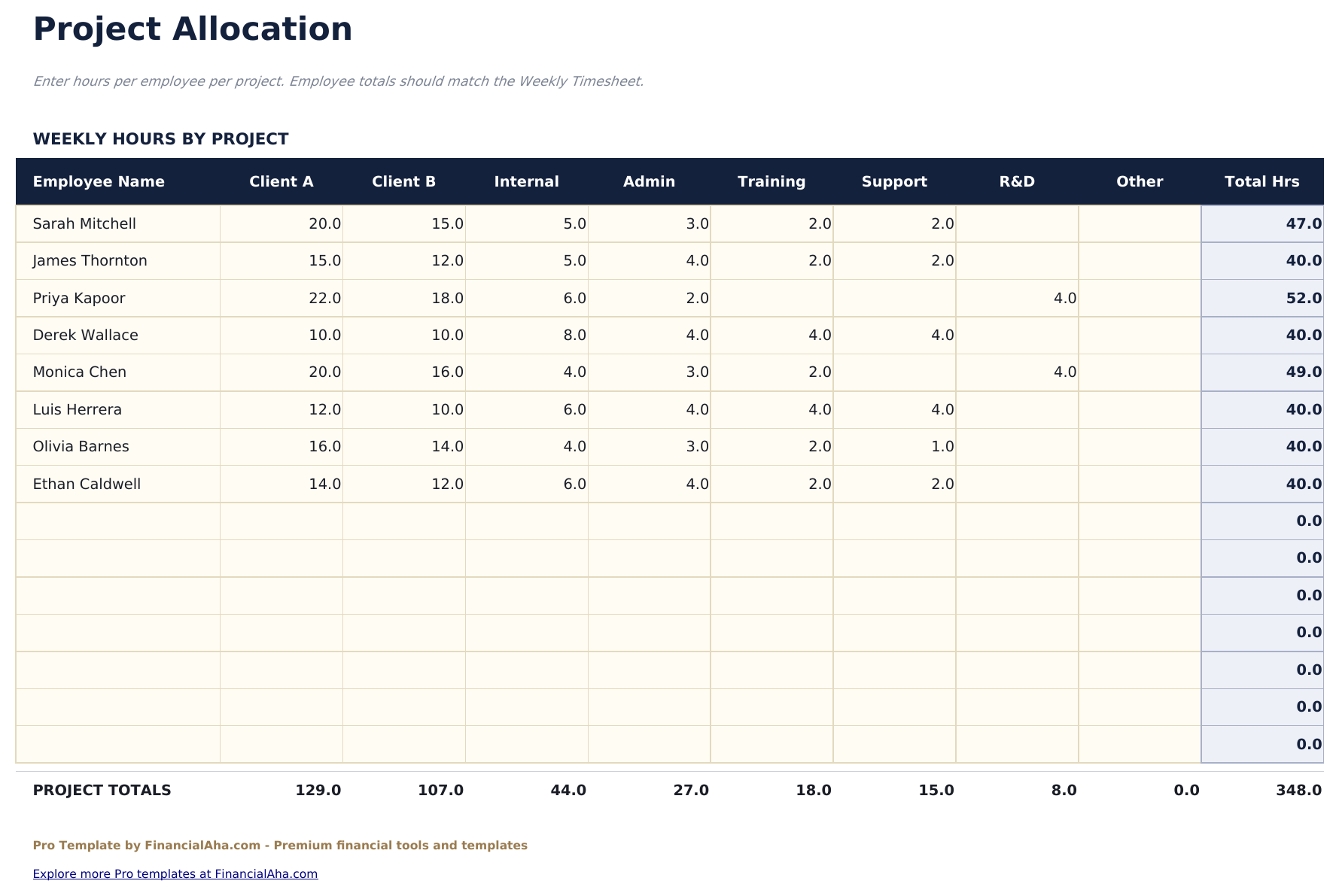
- Project Allocation sheet showing hours logged per employee per project with cost calculations based on hourly rate
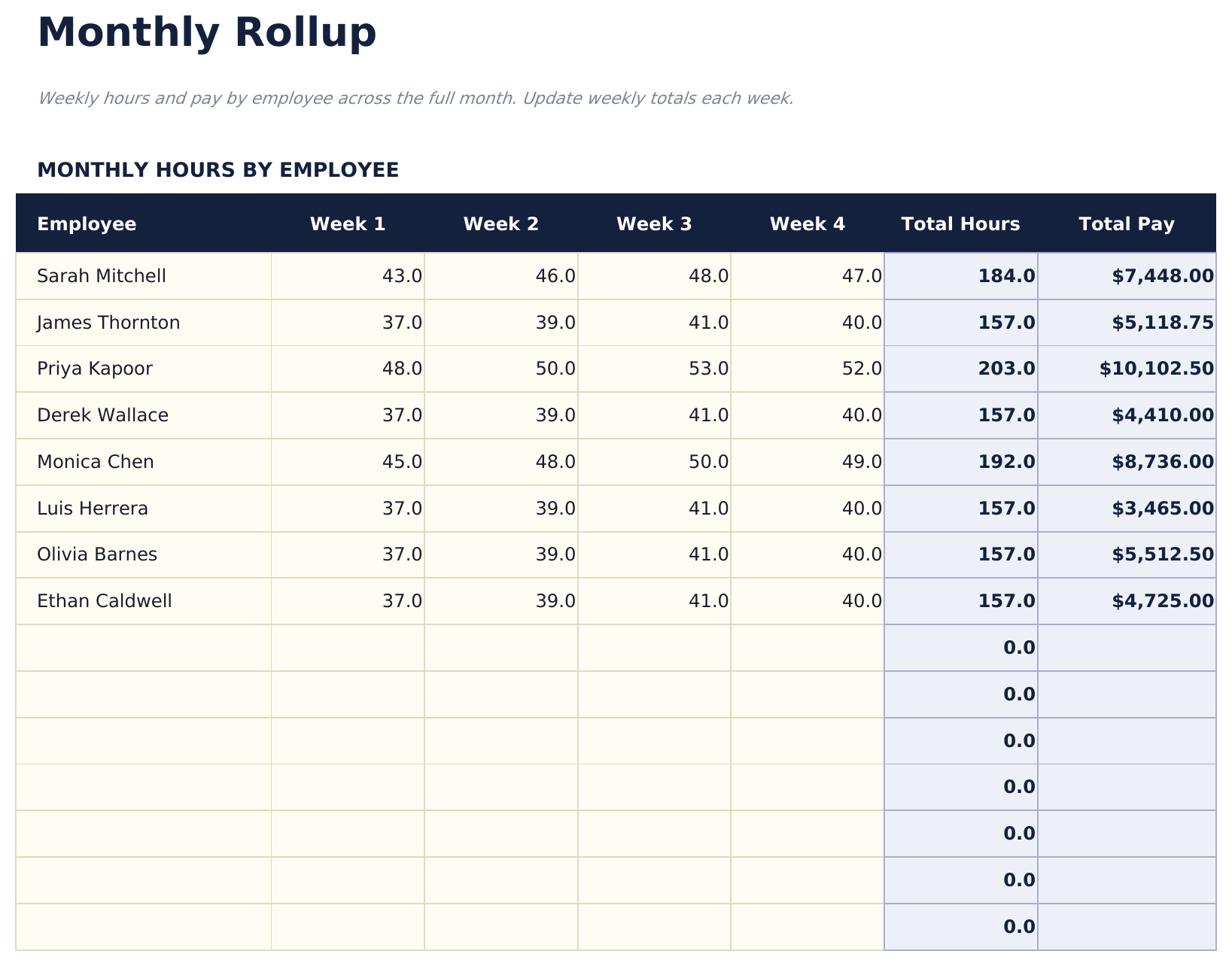
- Monthly Rollup aggregating weekly timesheet data into monthly totals per employee: regular hours, overtime hours, total hours, and gross pay
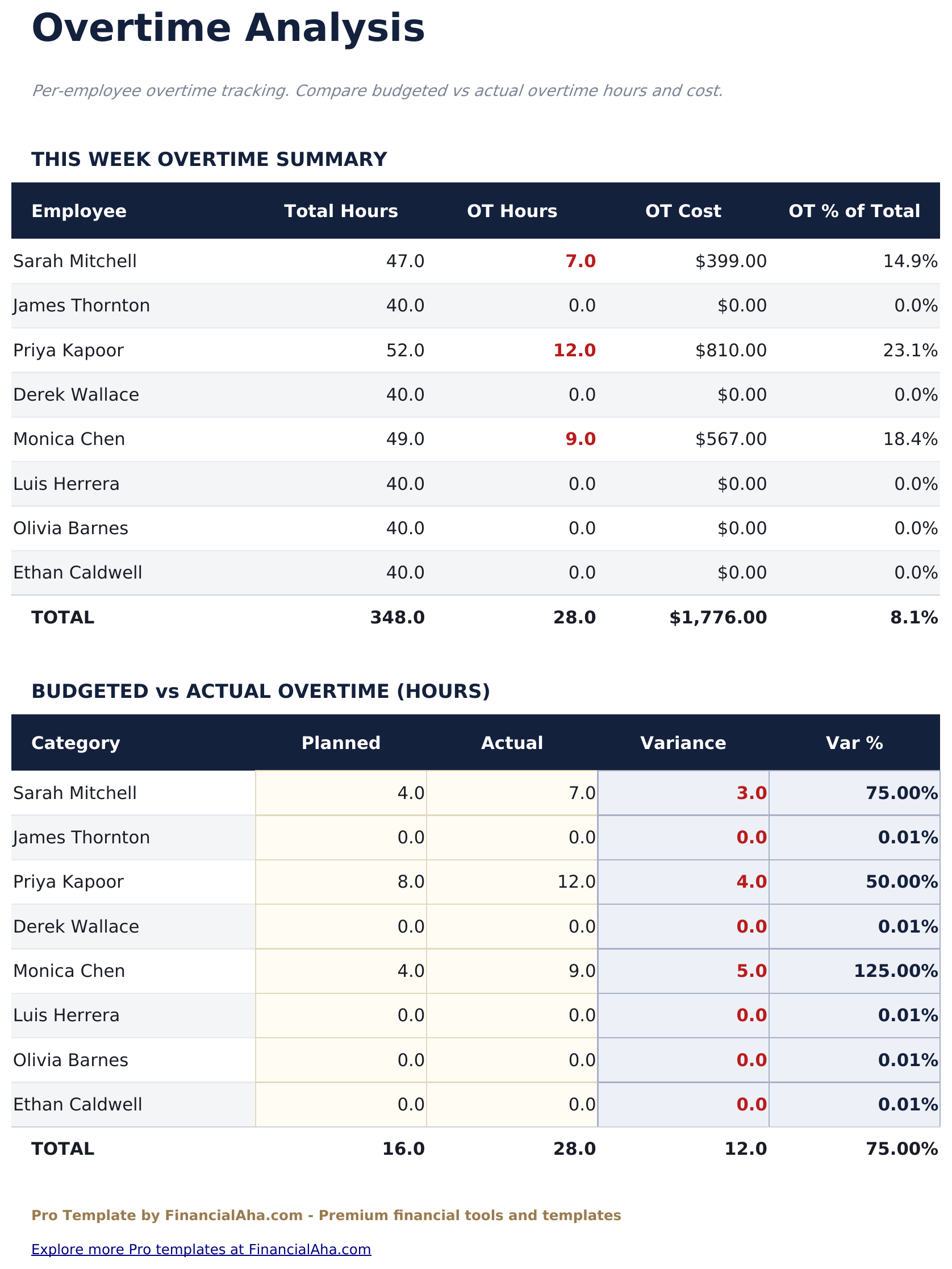
- Overtime Analysis flagging employees with hours over 40 per week, showing overtime hours and additional cost at 1.5x rate
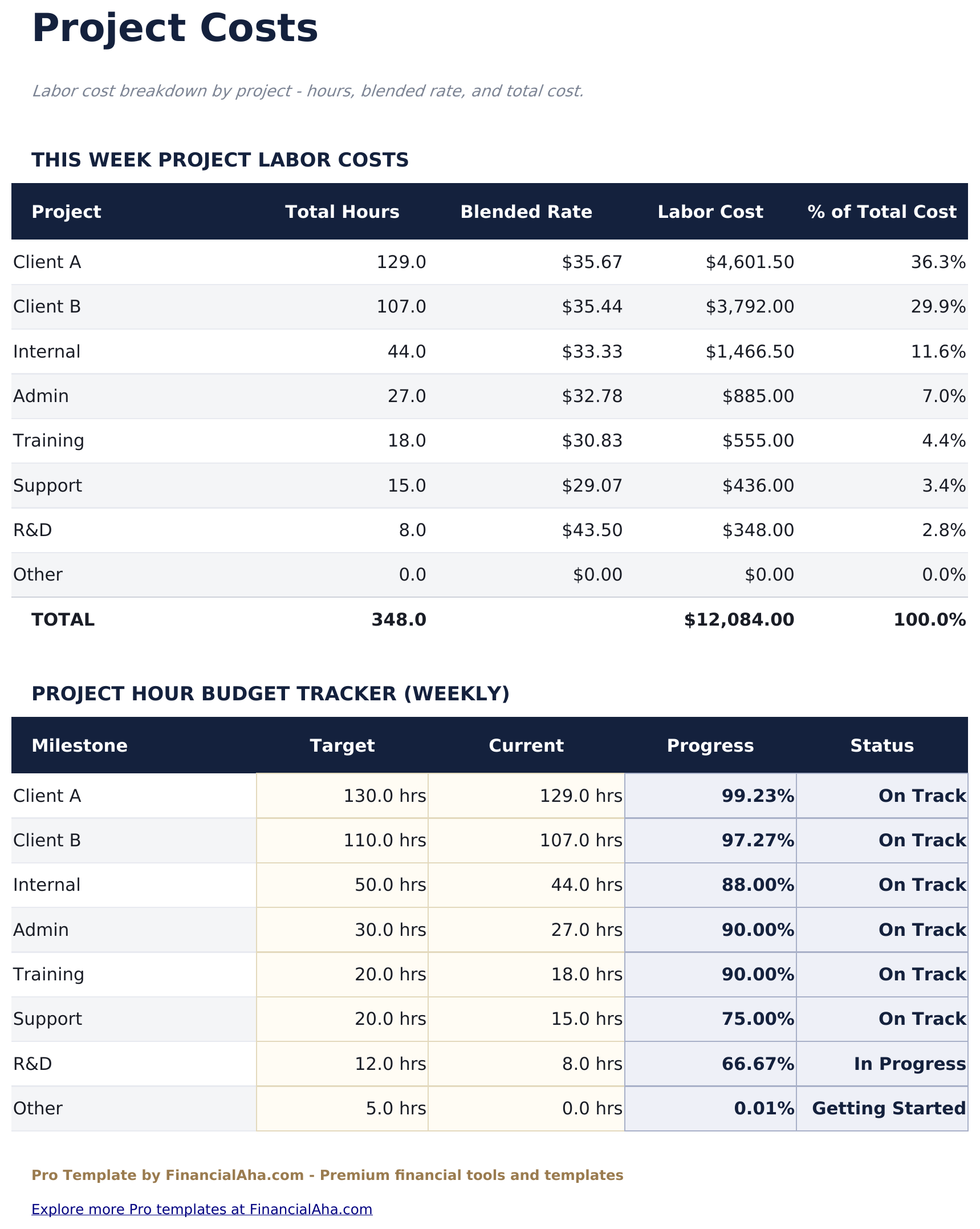
- Project Costs sheet calculating total labor cost per project across all employees for the month
- Employee pay rates and project codes set up once and referenced throughout all sheets automatically
- Works in Microsoft Excel, Google Sheets, and LibreOffice Calc with no macros required
Preview
See what's inside this template
How to Use This Template
Set up employees and rates
Enter each employee's name, department, and hourly rate in the employee setup area. These feed into all cost calculations automatically.
Log weekly hours
Each week, go to the Weekly Timesheet and enter daily hours for each employee alongside the project code for that day's work.
Review overtime
The Overtime Analysis sheet automatically flags any employee whose weekly hours exceed 40, showing overtime hours and the additional cost at 1.5x rate.
Review project costs
At month end, use the Project Costs sheet to see total labor hours and cost per project across all employees - useful for billing and project profitability analysis.
Built by Claude AI. Perfected by us.
We use Claude AI to draft each Pro template after deep research. Then our team steps in - refining the layout, stress-testing every formula, fixing edge cases, and polishing the design. The AI gets us 80% there. The last 20% is all human judgment.
One-time purchase. No subscription. Works in Excel & Google Sheets.
Frequently Asked Questions
How many employees can I track?
Up to 15 employees per week - three times the free version. Each employee is configured with their name, department, and hourly rate in the setup area, which feeds into all cost calculations.
How does project allocation work?
Employees enter a project code alongside their hours each day. The Project Allocation sheet groups hours and calculates costs by project code and employee, showing total project labor cost for the period.
How is overtime calculated?
Any hours over 40 in a week are flagged as overtime. The Overtime Analysis sheet shows regular hours, overtime hours, and additional cost at 1.5x the employee's base rate.
What does the monthly rollup show?
It aggregates all weekly timesheet data for the month: regular hours, overtime hours, total hours, and gross pay per employee. Useful for payroll processing and workforce planning.
Can I track billable vs non-billable hours?
Yes. Assign project codes for billable client work and a separate code for internal or non-billable time. The Project Allocation sheet breaks out hours and cost by code.
What do I get after purchase?
You receive an Excel file (.xlsx) that works in Microsoft Excel, Google Sheets, and LibreOffice Calc. Download it immediately after purchase - no signup or account required.
Is there a free version?
Yes. The free version of this template is available with basic features. The Pro version adds advanced analysis, more capacity, and additional sheets.
What if it does not work for me?
Contact us and we will help troubleshoot. The template works in Microsoft Excel, Google Sheets, and LibreOffice Calc with no macros required.
Looking for more Pro templates?
We offer Pro versions of our most popular spreadsheet templates with advanced features, more capacity, and deeper analysis.